
Donor Profile Page
Updated 7 days ago
Donor Profile Page
Use the donor profile page when you need to understand a donor relationship, review giving history, update donor details, manage commitments, or take the next stewardship action from one record.
Open a donor profile from the Donors Table. Select a donor row or use the row action that opens the full donor profile.
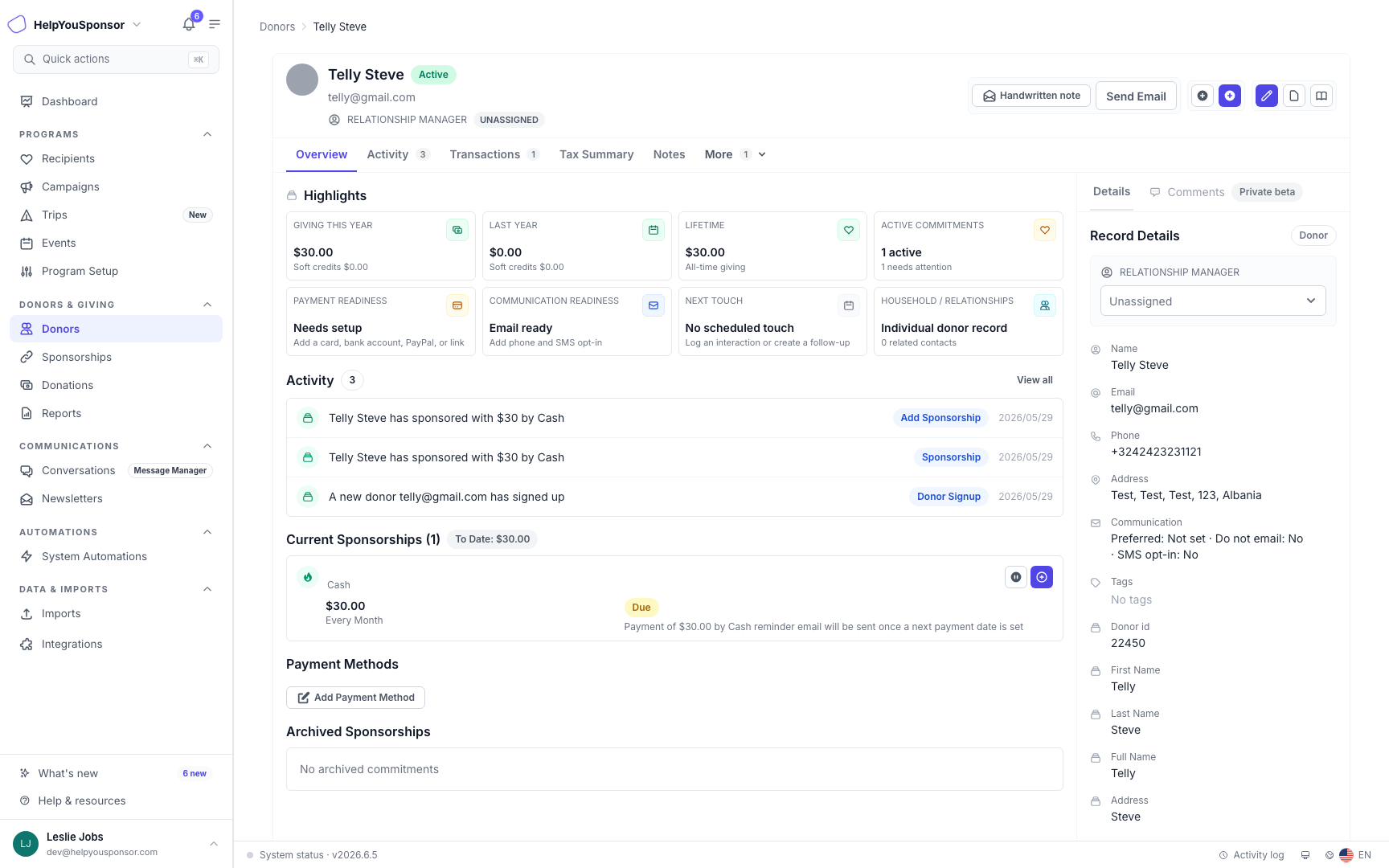
The donor profile page brings giving highlights, activity, commitments, payment readiness, and record details into one workspace.
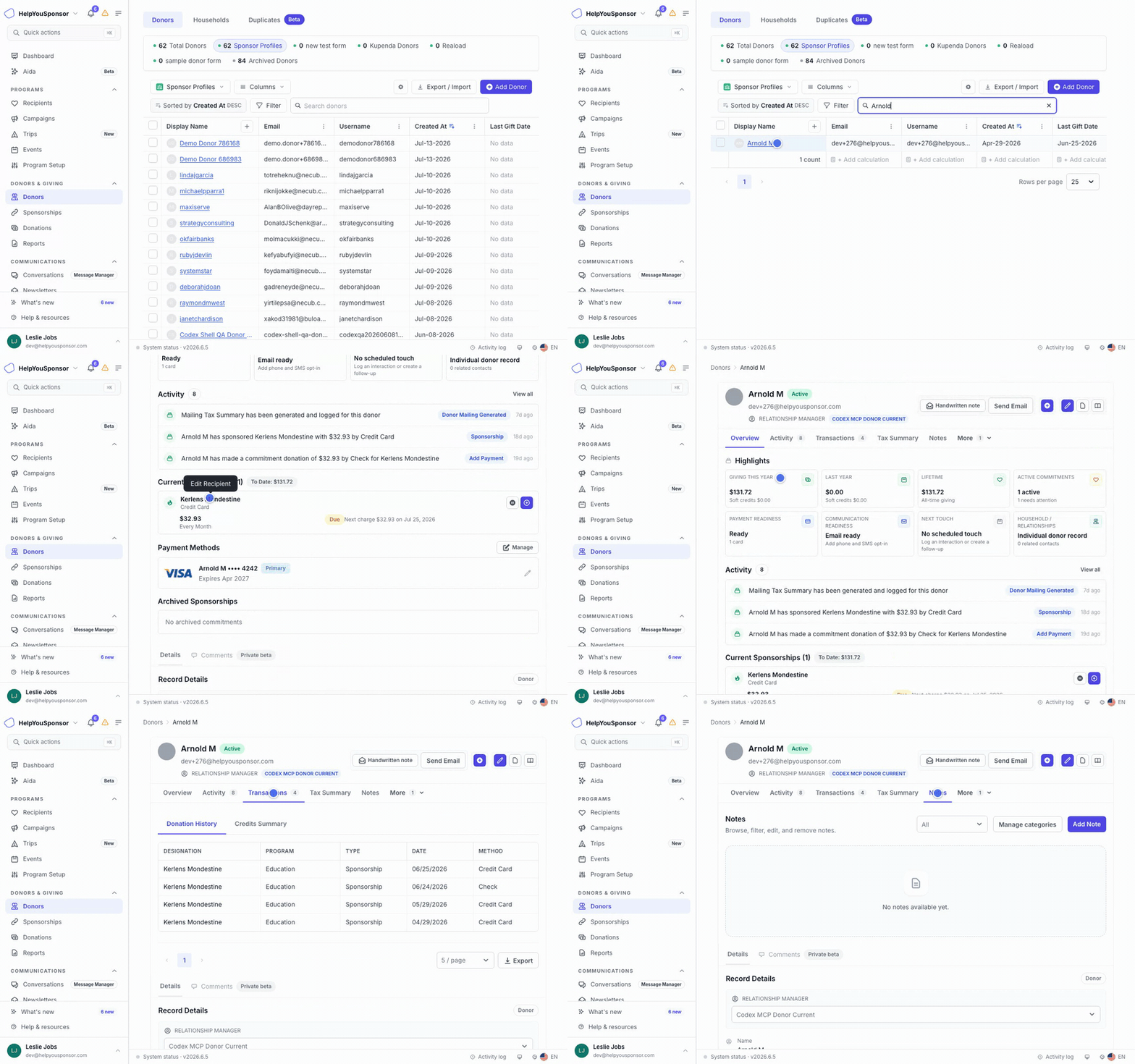
Walkthrough: opening a donor and reviewing their profile and activity.
Decide What Needs Attention
Start with the Overview tab when you want to know what needs follow-up before you edit anything.
The highlights section can show:
giving this year, last year, and lifetime giving
active commitments and commitments that need attention
payment readiness, including card, bank account, PayPal, or payment link status
communication readiness, including email and SMS readiness
next touch or recent relationship activity
household and related-contact context
Below the highlights, the overview shows recent activity, current sponsorships or commitments, payment methods, and archived sponsorships when they exist. Giving highlights show direct giving as the main value with soft credits alongside: Giving this year and Last year each display their soft-credit amount, and Lifetime can show a household total when household data is available.
Use Header Actions
Use the action buttons at the top of the profile when you are ready to act on the donor record.
Depending on your account settings and permissions, the header can include:
Compose email or Send Email for donor outreach
Send SMS when SMS messaging is enabled and the donor can receive SMS
Handwritten note when Handwrytten mailings are enabled
Add donation for an additional gift, including a gift split across multiple recipients or designations with Split Donation, and for a received DAF grant or IRA/QCD gift, which can be applied to sponsorship coverage during entry. To pay an existing sponsorship directly, use that sponsorship's Add payment action instead
Add sponsorship for a new recurring commitment
Edit donor for the full donor form
Files for donor uploads and profile images
Notes for adding a donor note
New task when tasks are enabled
Some actions are hidden or disabled when the donor is archived, the donor is missing required contact information, a payment gateway is not configured, or your role does not include the needed permission.
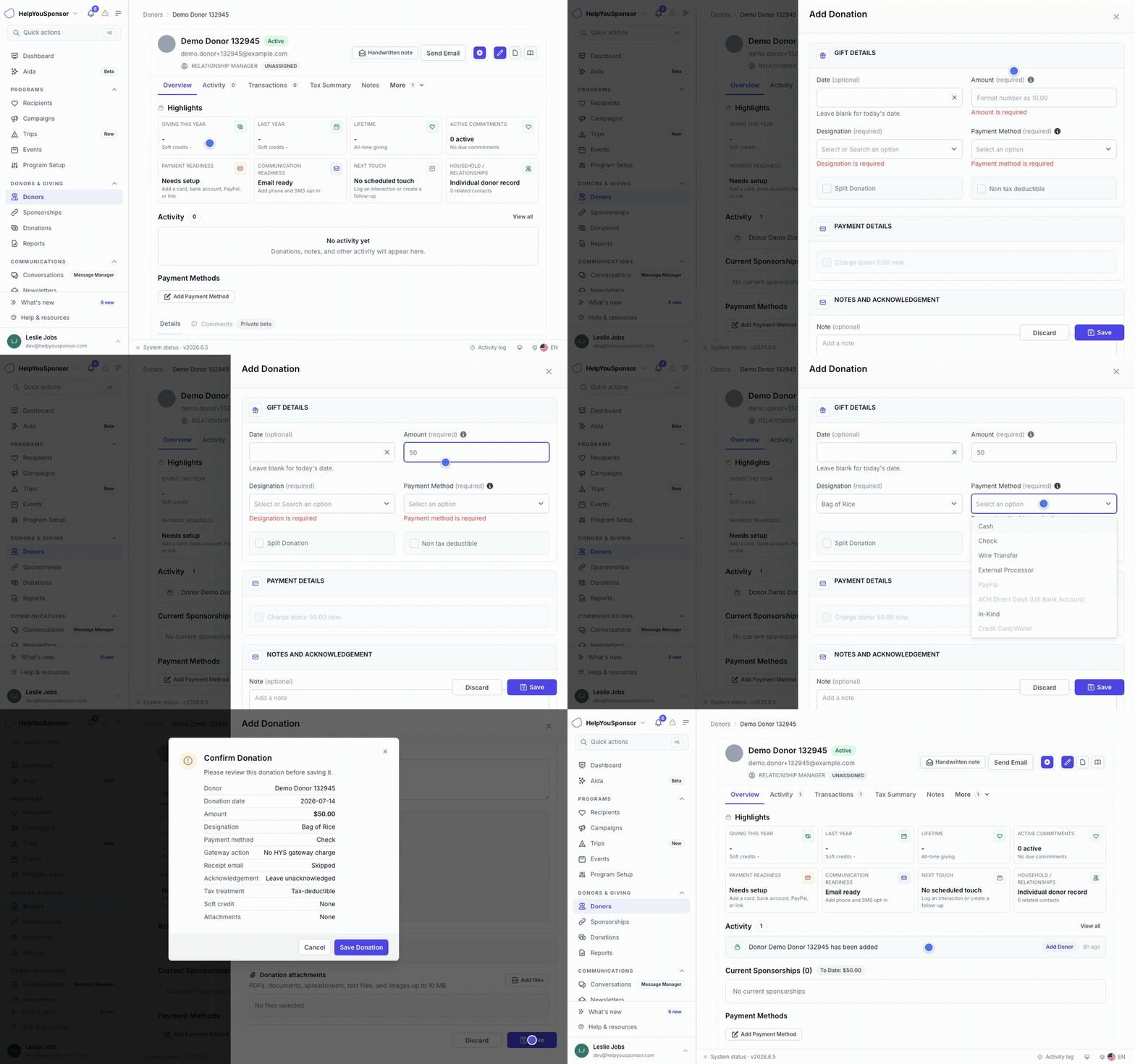
Walkthrough: recording a donation from the profile header — amount, designation, and an offline payment method (Check).
Update Record Details
Use the right-side Details rail when you need to check or update key donor values without leaving the profile.
The details rail can include:
relationship manager assignment
name, email, phone, address, and communication preferences
tags
custom donor fields
household members
related contacts
If your role can manage donors, simple fields can be edited directly from the rail. Longer or more complex donor fields remain available from the full Edit donor drawer. Use Show all values when the rail only shows the first set of custom fields.
Use Household and Relationships from the rail when you want to manage people connected to the donor without leaving the donor record.
The Comments rail is marked private beta when donor comments are not enabled for your account.
Work With Commitments And Payment Methods
Use the overview commitments section when you need to review active sponsorships, check whether a payment is due, add a commitment payment, edit a commitment, or archive it to stop future payments and reminders in Gratona.
The current commitments area shows the amount, frequency, payment state, and available commitment actions. Archived commitments appear separately. Restoring one resumes its recurring schedule, so review the billing impact and next action date before confirming.
To record a payment on a current sponsorship, open its three-dot actions menu and choose Add payment. To apply a received gift to eligible sponsorship periods, use Add donation and explicitly choose Apply to sponsorship for each allocation; see Apply a received gift to sponsorship coverage. To record one check that covers several sponsorships, see How do I record one check for multiple sponsorships?
Use Payment Methods when you need to add or update the donor payment method. Available payment options depend on the payment gateways configured for your organization. To change a commitment's frequency, amount, payment method, or schedule, choose Edit Commitment from the commitment's actions menu: see Edit an existing sponsorship.
Review Activity And Emails
Use Activity when you need the donor timeline. Activity can include donations, notes, sponsorship changes, manual interactions, synced email, and calendar touchpoints depending on your account settings.
Use Emails when email and calendar sync is enabled and you want to review donor email interactions separately from the full activity timeline.
If manual interactions are enabled, admins with access can log an interaction from the profile. If imports are enabled, interaction imports can also be started from the activity workflow.
Review Transactions And Credits
Use Transactions when you need to confirm gifts, export donation history, edit a donation, refresh a pending payment status, refund an eligible card transaction, or review soft and hard credit totals.
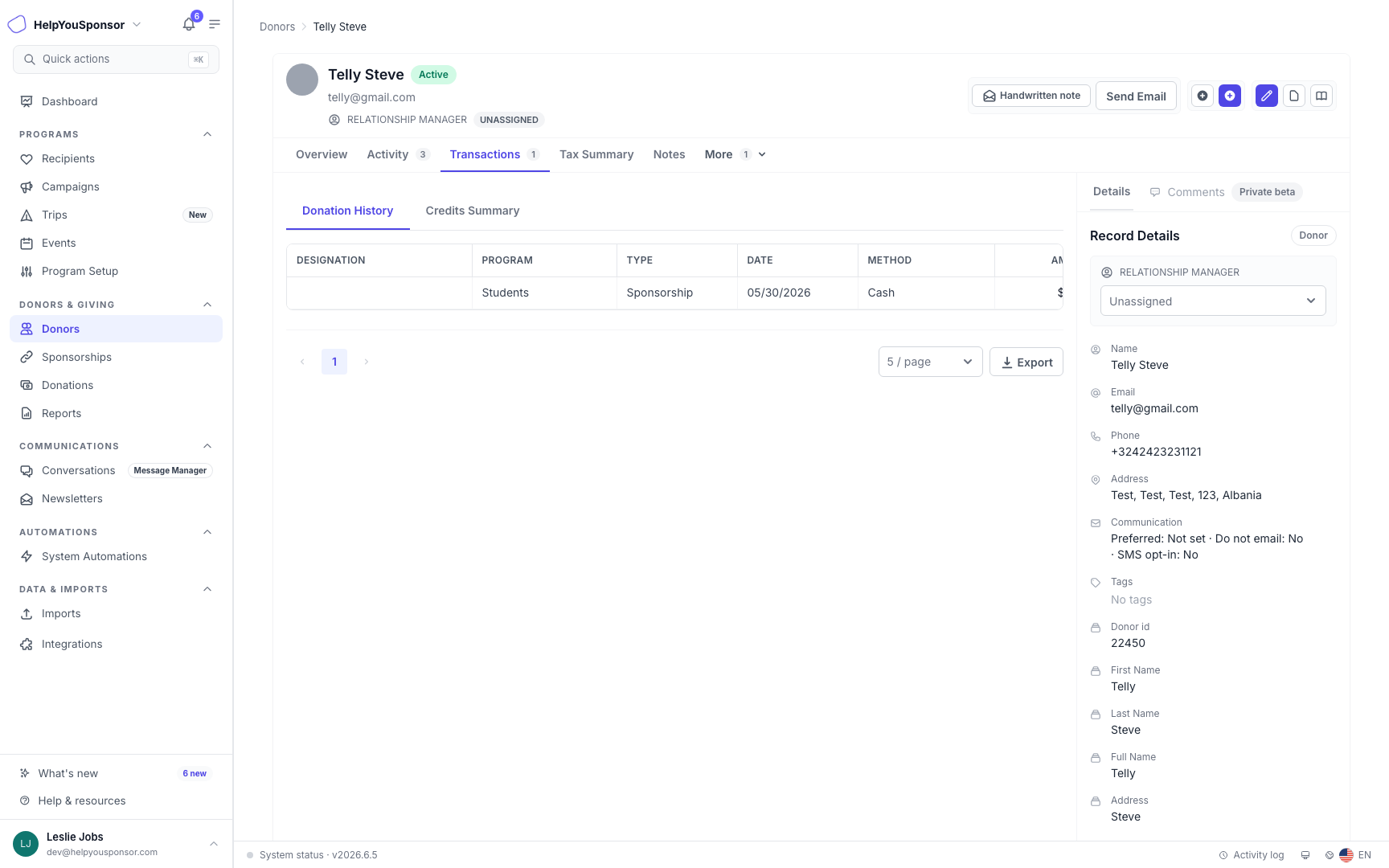
The Transactions tab shows the donor donation history, credit summary, export controls, and the same record details rail.
The Donation History tab shows donation details such as designation, program, type, date, payment method, result, amount, and acknowledgement status when available.
The Credits Summary tab summarizes three totals: Hard Credit Total for direct donations, Soft Credit Total for recognition received, and Influenced Total for both combined. Credits Summary can differ from net giving totals when payment statuses or refunds are involved. Review the original donation and its payment and refund status when reconciling. Use the tab when you need to understand how a donor is credited for gifts that may involve another donor, household member, matching gift, donor-advised fund, tribute, or solicitor relationship.
Prepare Tax Summaries
Use Tax Summary when you need a donor giving summary for a year. Open Tax Summary and choose the year.
The statement separates deductible contributions from excluded recorded gifts and items requiring review. IRA/QCD gifts appear outside the deductible total with an IRA qualified charitable distributions subtotal; see Record a received IRA/QCD gift.
Turn on Include soft credits (recognition only) if you want a separate section showing recognition for gifts made by someone else. This option is off by default and never adds the credit to deductible totals or revenue.
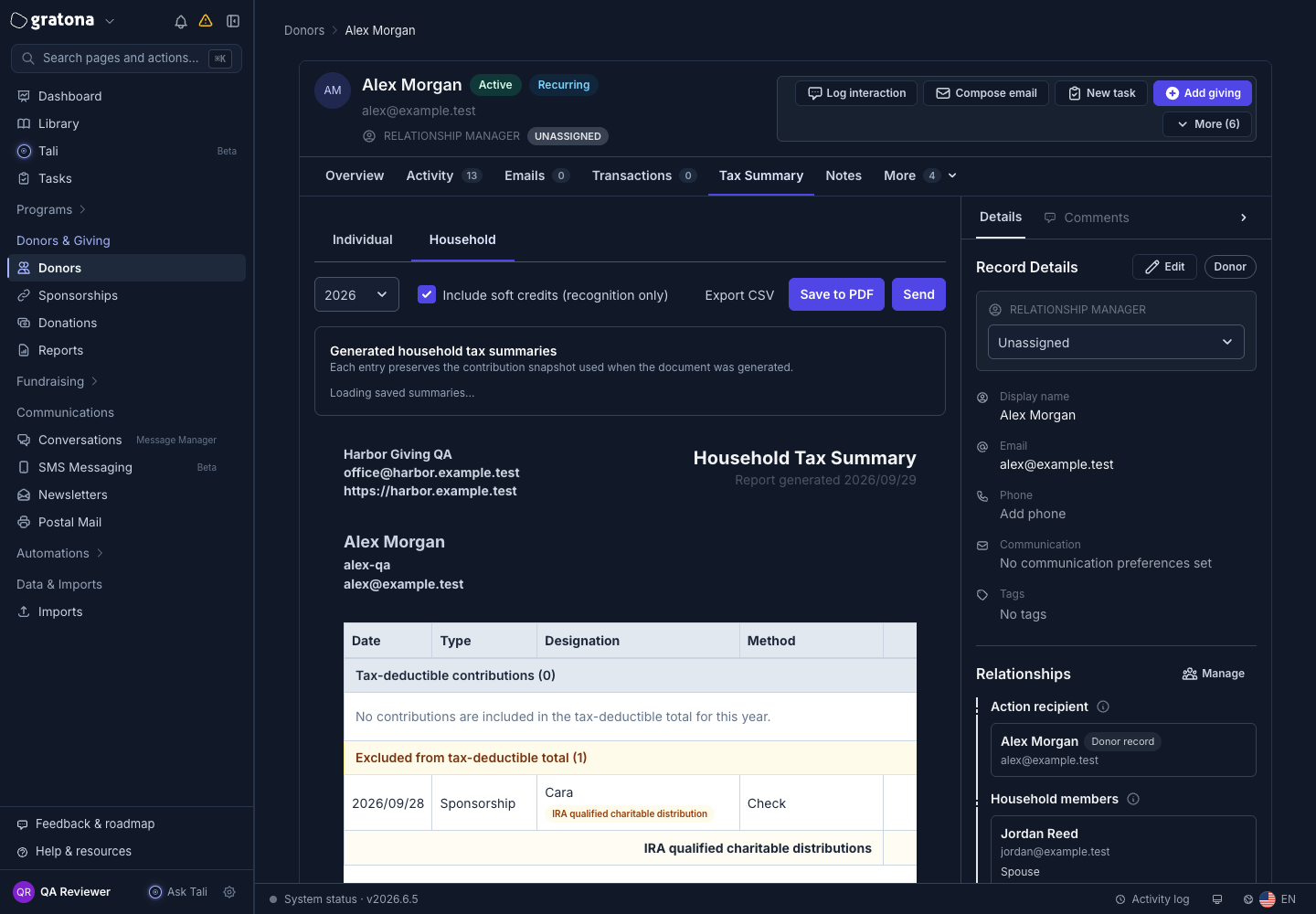
Where household access is available, select Individual or Household. Gifts already owned within the household statement are not repeated as soft-credit recognition. Recognition reflects the retained amount after returns.
Review the preview before printing, saving a PDF, exporting CSV, or sending; the supported Mailings workflow also offers recognition inclusion. A donor with only soft credits can still have a statement year when recognition is included.
Manage Notes And Files
Use Notes when you need to add, review, filter, or export notes connected to the donor. Notes can be permission-gated, so you may only see this tab if your role can view or manage notes.
Use Files when you need to review donor uploads or manage donor files. Uploaded image files can also be used as the donor profile picture when your role allows file management.
Permissions
Your role controls what you can see and do on a donor profile. Donor editing, notes, files, activity logs, household management, email, SMS, tasks, payment methods, refunds, exports, tax summaries, and donor intelligence features can all be permission or feature-gated.
Related Guides
Soft credits appear on the profile's Transactions and Credits Summary views. For the full workflow, see Soft Credit.
To review a supporter's DAF giving across equivalent periods and check an apparent lapse, see Review a supporter's DAF giving and check an apparent decline.
To record a received DAF grant, see Record a received DAF grant. To record a received IRA/QCD gift, see Record a received IRA/QCD gift.