
Donor Duplicate Detection
Updated today
Use the Duplicates tab in Donors to find and merge donor records that may represent the same person or organization. Review scan-generated groups with match evidence and ranking scores, then merge with the record you keep. For records a scan cannot match, such as donors with only a name on file, use manual review: select the records yourself, verify identity, and merge from the Donors table. Every merge runs as a tracked batch you can review, undo, or restore from Merge History when it is still eligible.
A shared name or email is not proof of the same donor. Personal giving and a church or organization record must remain separate when they represent different donors.
Open the duplicates workspace
Duplicate scans, merge review, and merge history are scoped to the donor form you select.
Open Donors from the sidebar.
Select the Duplicates tab.
Use Form to choose the donor form you want to work in.
If no donor form is available, duplicate detection cannot run from this page. Your role also needs duplicate-detection management or donor-management access, and access to the specific donor form, to see and use this tab.
Run a duplicate scan
Select Scan for duplicates to refresh the suggested duplicate groups for the selected donor form. The scan uses the saved detection rules for the form, including field weights, comparators, similarity threshold, fuzzy matching, normalization, excluded fields, and incremental processing settings.
After you start a scan, Gratona shows scan progress with processed donors and duplicate groups found. When the scan finishes, results refresh on the page and the user who started the scan receives an email notification.
Review the results before merging, because a suggestion still needs human confirmation.
Review scan results as cards
Each Scanned Duplicates card is a group of records that may belong to the same donor. A card shows the donor names in the group, a record-count badge such as 2 records, the best pair score such as Best match 94%, and a Review control that expands the group. Select Hide review to collapse it again.
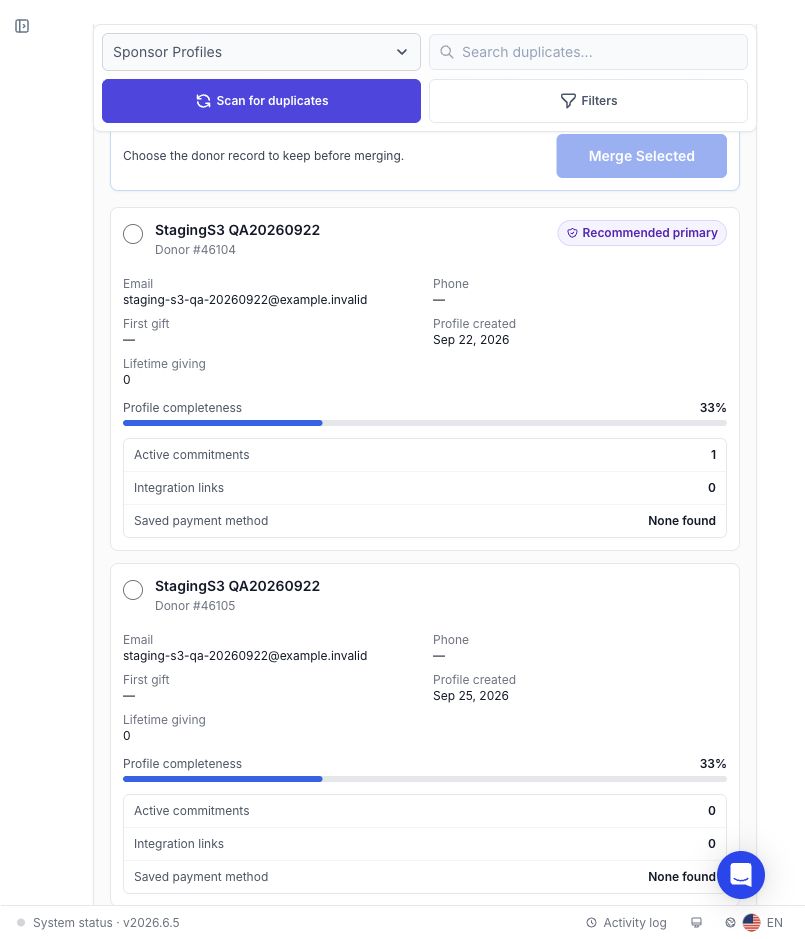
Large groups initially show up to six donor cards and six pair comparisons, with controls to show all records and all comparisons.
Read the match evidence
The expanded Matches and differences section compares every stored evidence signal for each pair of records. Each row shows the signal label, the stored value from each donor, the comparator and similarity where available, and an outcome badge:
Match
Close match
Different
Missing
The pair summary reports the overall score with counts of matching, different, and missing signals. This is a ranking score, not a probability: it orders candidates for your review and does not measure how likely the match is to be correct.
If a group has no usable evidence, it shows a notice to run a new scan to review match details before merging.
Choose the record to keep and merge
Merge only after you have confirmed the records represent the same donor and selected which record stays active.
Open the duplicate group with Review.
Review the recommended primary record, shown with Recommended primary and Consider keeping. The recommendation is advisory only and never selects for you; use Choose recommended if it matches your judgment.
Use the radio button on each donor card to select the record that should remain active. The card shows each donor's email, phone, first gift, profile creation date, lifetime giving, and profile completeness, plus active commitments, integration links, saved payment method, and payment-verification status.
Confirm the selection: the kept record must have direct match evidence with every other record in the group. The workspace states which donor will be kept.
Select Merge Selected and review the merge details in the preview dialog.
When a merge runs, supported donations, sponsorships, communications, and history move to the record you keep, and the other records are archived. Saved payment methods stay with the record you keep, so verify the primary record before continuing. The merge runs as a tracked batch, and a progress bar shows how many merge operations have processed, succeeded, or failed. Use Merge History to undo an eligible completed merge. Gratona checks for later changes before allowing undo or restore.
Dismiss a pair you know is different
Use Not the same donor when a suggested pair is not actually the same donor. This dismisses only the displayed pair, not an entire donor or the whole group.
Open the pair comparison in the expanded group review.
Select Not the same donor.
Confirm in the Keep these donors separate? dialog. Only this pair is dismissed; other suggestions remain available for review.
After dismissal, the workspace reloads and that pair stops appearing in the current results. Groups are recomputed from the remaining pairs, so dismissing one pair can split a prior group. Dismissing does not hide either donor from other candidate pairs.
Merge legacy results after a new scan
Groups from older scans that lack current match details are view-only and cannot be merged or dismissed. Run a new scan and review the refreshed match details before merging those groups.
Merge records a scan cannot match
Manual review lets you merge donor records you have verified yourself, even when a scan produces no usable group. Records with only a name and no email or phone may be omitted by scanning, because a name alone is not sufficient match evidence. Do not add or copy contact details to these records just to force a match. Instead, select the records in the Donors table and review the merge yourself.
You need duplicate-detection management or donor-management access, plus access to the selected donor form. Manual review may not be available in every workspace yet; if Review merge does not appear, ask the person who manages your workspace roles and settings.
Select the records
Open Donors and select the donor form that contains the records.
In the Donors table, select the checkbox for the 2 to 25 active donor records you have verified belong to the same person or organization. Select the specific records you want; selecting all matching donors is not supported.
Select Review merge. The action shows your selection count, such as Review merge (2).
Review and confirm the merge
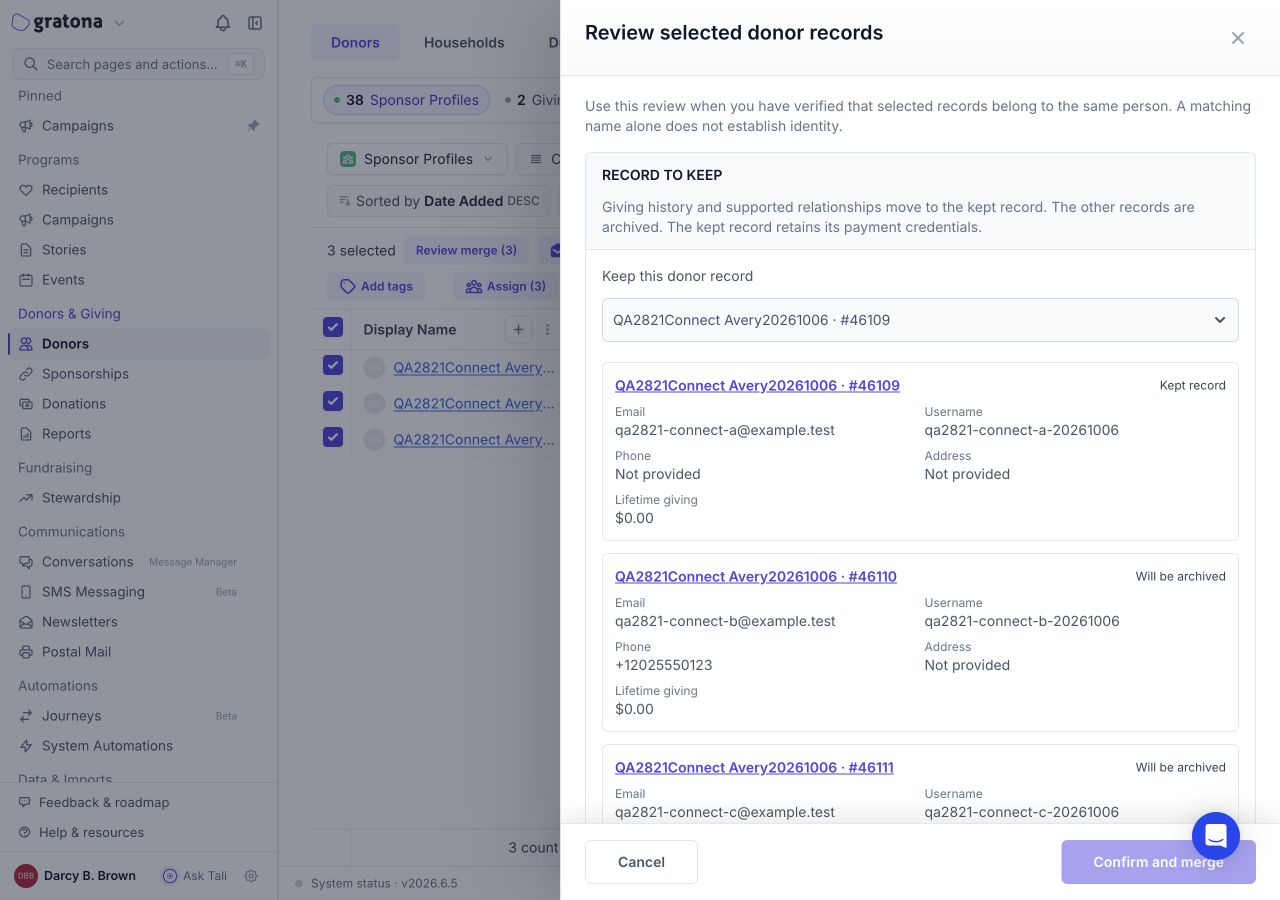
In Record to keep, choose Keep this donor record. Giving history and supported relationships move to the kept record, the other records are archived, and the kept record retains its payment credentials. Saved payment credentials and processor customer identifiers stay with the record you keep; they are not combined across records.
In Profile values, choose which value to keep for each conflicting field: Keep current value: or Use first available merged-record value:. Keeping the current value on an empty field, shown as Not provided, keeps it empty. Missing fields with a single available value are filled by default. If there are no conflicts, the review says so.
Resolve anything shown under Resolve dependencies before merging. A hard blocker, such as a bank-account verification that is not complete or separate identities for the donors in the same connected account, must actually be resolved before the merge can proceed; reviewing it does not remove it. For donors with separate Bloomerang identities, reconcile the identities in Bloomerang first, verify the mappings in Gratona, then select Reload review.
An active recurring card or bank commitment on a record being archived can also block the merge. Cancel or transfer that commitment first. A commitment on the record you keep does not block the merge by itself.
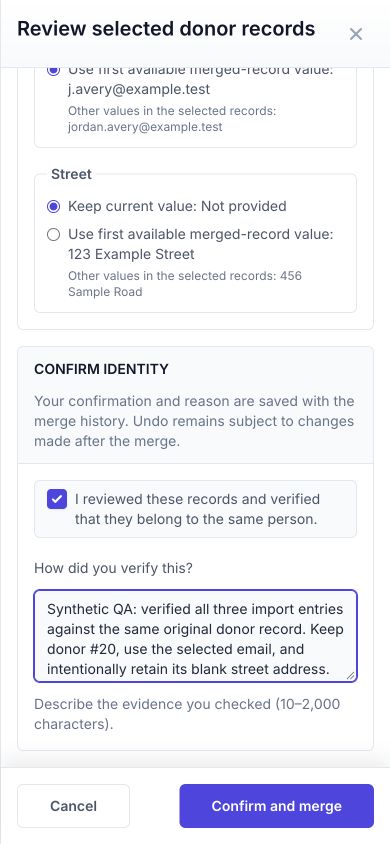
In Confirm identity, select I reviewed these records and verified that they belong to the same person.
Under How did you verify this?, describe the evidence you checked, between 10 and 2,000 characters. For example: Confirmed with the donor that these records are theirs and compared the giving history. Your confirmation and reason are saved with the merge history.
Select Confirm and merge. The merge runs in the background, the drawer shows progress, and you can follow the batch with Open duplicate workspace and merge history.
If the merge affects open stewardship plans, a separate Stewardship plan impact step appears after you select Confirm and merge. This is different from a hard blocker: resolve any required plan repairs in the Stewardship plan impact dialog and select Confirm and continue to finish the merge. The saved record and plan changes are saved together or not at all.
If the review expires or the records change
A review expires 15 minutes after it starts, and it also becomes stale if the selected donors or related records change. The review shows This review has expired. Reload it before confirming. or These records changed or the review expired. Reload the review and confirm again. Select Reload review, recheck the records, and confirm again.
Review and undo merge history
Use Merge History to review merge batches, check their status, or undo an eligible completed merge. Each batch appears as a card with a status badge (Completed, Undone, Failed, Processing, or Pending), completed operations shown as completed out of total, the Completed at date, the Performed by operator, a Reference, and the lead donor with a merge summary.
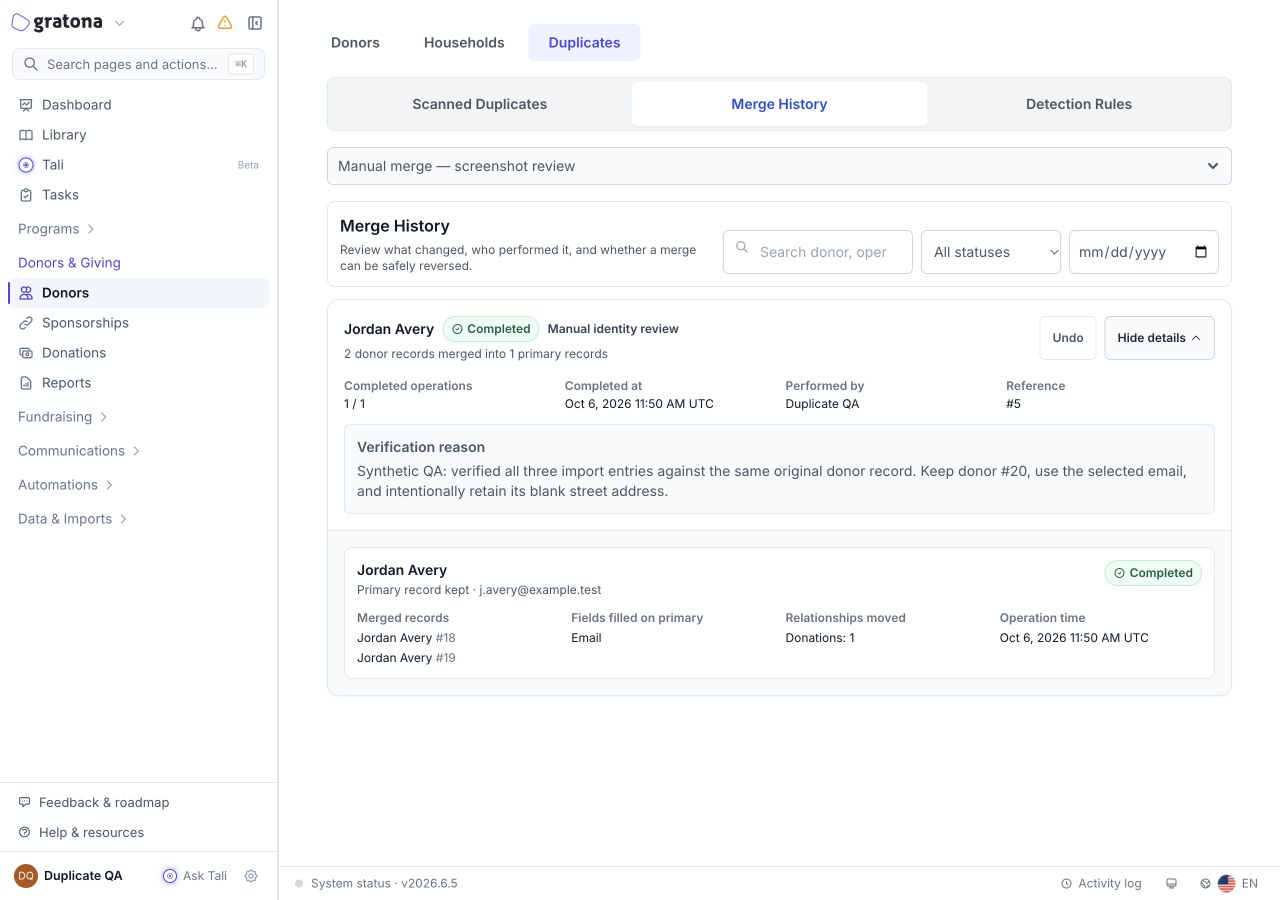
Use View details to see the merged records and the saved Verification reason. Undo or Restore appears when that action is available. Batches created through manual review are labeled Manual identity review, and their details show the saved Verification reason. Failed manual operations show safe guidance instead of internal error details. If a merge did not complete at all, history tells you that your selected records are still available and shows the reason so you can decide whether to try again. If a completed merge needs a related donor-data refresh, history offers Retry donor data refresh.
Select Undo on an eligible completed batch. Gratona checks for later changes before allowing undo or restore. Undo restores the archived donor records and moves donations, commitments, sponsorship links, and activity logs back to their original donors when the original assignment data is available.
If a batch has already been undone, Restore re-applies that merge and moves the records back to the primary donor.
Adjust detection rules
Use Detection Rules when the scan is finding too many weak matches or missing likely duplicates for a specific donor form.
Detection Rules controls how the scan compares donor fields for the selected form.
You can adjust:
Enabled: turns the saved rule set on or off for the selected form.
Similarity Threshold: sets how strong the overall match needs to be. Higher values require a stronger match.
Field Configuration: controls each field's weight and comparator.
Comparators: include exact, normalized, fuzzy, and phonetic matching.
Fuzzy Matching Settings: controls minimum fuzzy similarity and fuzzy matching options.
Normalization Settings: controls case sensitivity, whitespace trimming, punctuation removal, and phone normalization.
Incremental Processing: scans donors created or updated since a recent successful scan, plus donors already in duplicate groups.
Excluded Fields: removes fields from enhanced duplicate matching.
Select Save Rules after changing the rule set. Run the scan again to apply the updated rules to duplicate suggestions.
Permissions
Your role controls whether you can open the Duplicates tab, run scans, review and merge duplicate groups, dismiss pairs, change detection rules, run a manual merge review, or undo merge batches. If the tab or an action is missing, your role may not include duplicate-detection management or donor-management access, or access to the selected donor form. Manual review also depends on availability in your workspace.