Import individuals, organizations, DAF sponsors, and IRA custodians from CSV
Updated last week
Use the Donor import in the import wizard to bring individual donors and organization rows into Gratona in one CSV file. With the optional Organization subtype mapping, organization rows import as DAF sponsors or IRA custodians without donor login details.
New institution rows never merge or name-match an existing record automatically; if a row matches, the import rejects it so you can resolve it first. Existing records can still be updated through the same import: map identifiers and enable Update existing donor data.
Before you start
Your account needs import-management access.
In the sidebar, open Data & Imports and select Imports. Choose the program whose donor form should be used, and select Donor as the Import Type.
Use a UTF-8 CSV with a header row, no larger than 10 MB.
Download the template
In the wizard, select Download Donors Template or Download Donors Sample.
Add your rows to the template, keeping the header row.
Upload the file and select Next.
The template includes an Organization subtype column for classifying organization rows. If one of your own column names would collide with it, the template renames the column to Organization subtype (Regular/DAF/IRA).
Map the fields
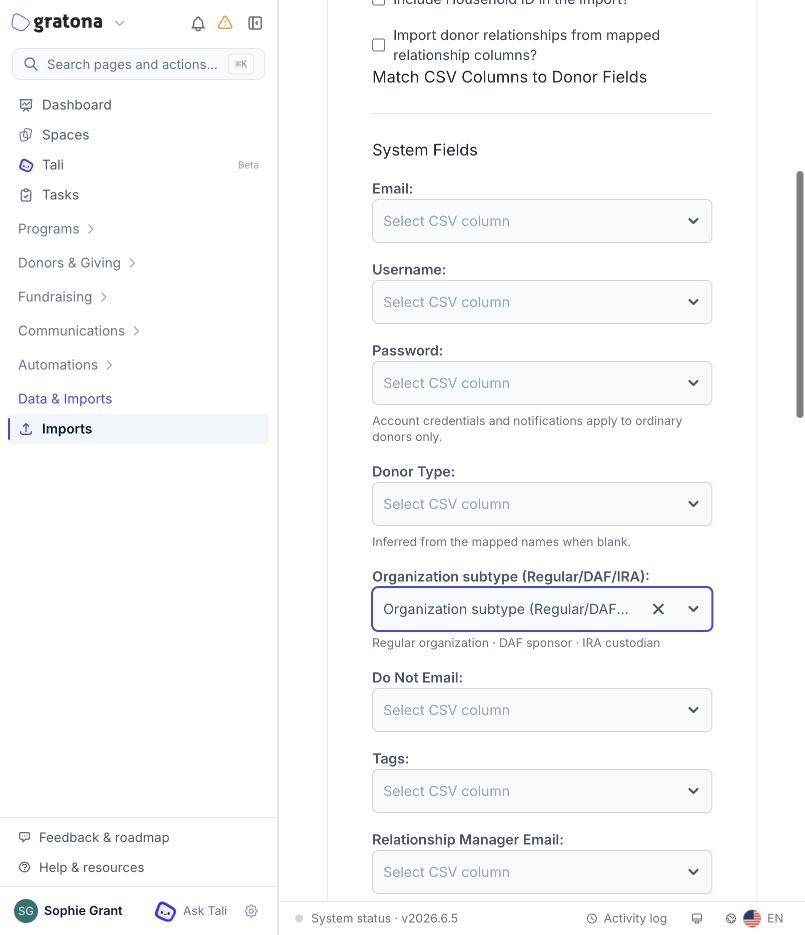
Map Donor Type for every row, and map Organization name for your organization rows. For institution rows, also map the system field Organization subtype to your CSV column. It accepts exactly three values:
Regular organization: an ordinary organization, such as a church or company giving its own funds.
DAF sponsor: a donor-advised fund sponsor.
IRA custodian: a firm that holds a donor's IRA.
Matching is not case sensitive, and spacing or punctuation variants such as DAF_sponsor are accepted. Any other value fails validation: Organization subtype must be Regular organization, DAF sponsor, or IRA custodian. The Organization subtype system mapping is separate from any custom organization fields on your donor form.
Example file
Donor Type,Organization name,Organization subtype,First name,Last name,Username,Email
Organization,Community Foundation of the Valley,DAF sponsor,,,,
Organization,First National Trust Company,IRA custodian,,,,
Organization,Riverside Community Church,Regular organization,,,riverside.community,[email protected]
Individual,,,Jordan,Avery,jordan.avery,[email protected]
These rows are synthetic examples, not real organizations; example.org and example.com are reserved illustrative addresses. Add the columns your donor form requires, including any required custom fields.
What institution rows require
An Organization donor type and an organization name.
No email address, username, or password. Gratona creates no login for an institution and sends no account-setup email. A supplied contact email is optional; if you include one, it must be a valid email address.
Any custom fields the donor form requires.
Individual rows leave Organization name blank: it is populated for organization rows only.
In a mixed file, ordinary donor rows keep the ordinary requirements: a username or email address, email required unless the donor form allows donors without one, and a generated password when one is not supplied. The Notify ordinary donors option applies to ordinary rows only.
Duplicate institutions stop the row
New institution rows never merge or name-match an existing profile automatically. A new institution row whose name matches an existing organization, including former or alias names, is rejected: An organization with this name may already exist. Review it in DAF and IRA or the profile editor; CSV imports never merge or reuse an institution automatically.
A file that contains the same new institution more than once, including different names that resolve to the same known sponsor or custodian, is rejected: This file contains the same institution more than once. Keep one institution row and review any separate legal entities in the profile editor. Resolve or reuse the match before importing the row.
Changing an existing classification
A blank or unmapped subtype leaves an existing record's classification unchanged. A row that supplies a different subtype for an existing institution is rejected: This row changes an existing organization subtype. Review and change it in the profile editor, then import the profile updates again. Change classification in the reviewed profile editor, not in the CSV, and import profile updates separately.
With Update existing donor data enabled, matched rows update existing profiles: choose the CSV identifier column and the corresponding existing donor field. Use numeric Donor ID only for Gratona IDs, or choose the actual custom identifier field for external IDs. The blank-subtype rule above applies, and a name match alone does not classify or merge anything.
Addresses do not become locations
Contact addresses in the CSV are saved on the profile. They do not create named institution locations. Add locations after the import; see Manage DAF sponsors, IRA custodians, and institution locations.
Validate and import
Select Continue to validate the file.
Review the Data Health summary, row errors, and warnings, and fix blocking errors.
Select Import Donors.
Check the result in Past Imports
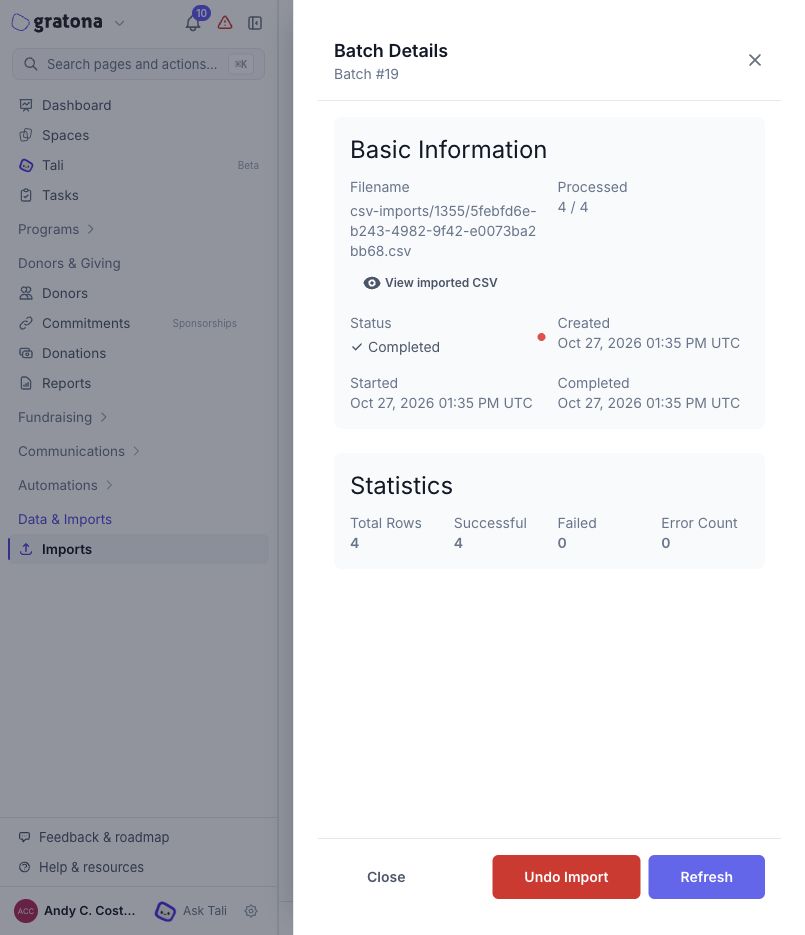
Open Past Imports in the import wizard and open the batch. Verify the final Completed status together with the successful and failed row counts: a batch can complete with failed rows, so a row count alone does not confirm the result.
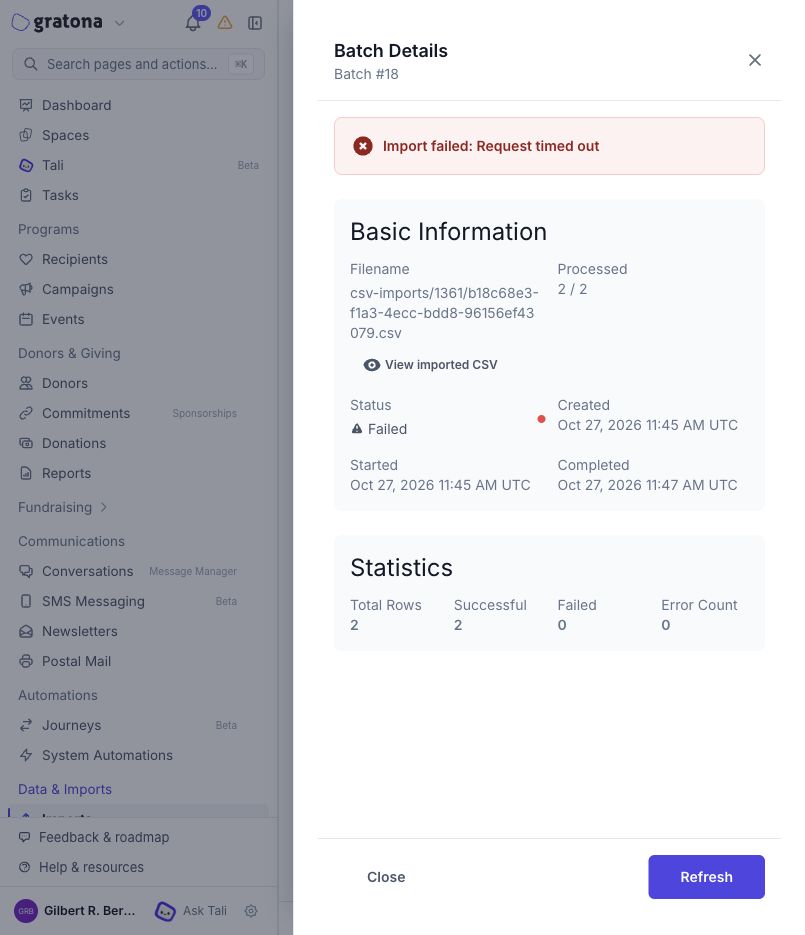
If a batch fails, open Batch Details. A failed batch can show a batch-level error message near the top of the drawer even when some rows succeeded, and this message is separate from row-level validation errors. A partially committed batch may already contain imported records, so check the imported records and the batch reason before deciding what to do next rather than reuploading the same file. Do not assume a retry, repair, or automatic recovery happened; verify the batch details and the imported records first.
Undo or restore an import
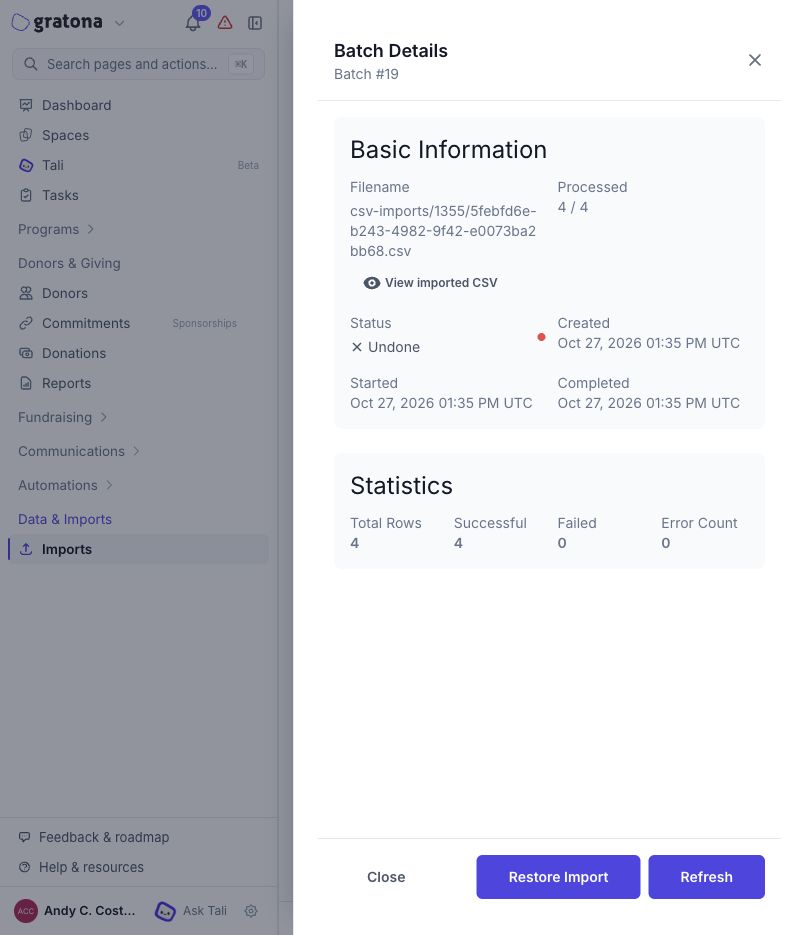
When a batch is eligible, Batch Details shows Undo Import. Undo temporarily removes the records the batch created and keeps them available for restore. Restore Import appears for an undone batch whose records remain available and restores the original records and IDs without re-running the CSV. Either action can be blocked by newer data or by financial dependencies, such as gifts, IRA distributions, commitment imports, or payment imports that credit the imported donors; when a block applies, Gratona shows the reason instead of the action.