
Stewardship Hub
Updated 3 weeks ago
Stewardship Hub
The Stewardship Hub helps your team decide which donor relationships need attention, act on those moments, and keep acknowledgement history current. Use it when you want to follow up after a gift, review giving anniversaries, plan reactivation work, or check whether recent gifts still need a thank-you.
The in-app navigation labels this area Stewardship under Fundraising. The page itself opens as the Stewardship Hub and includes tabs for Overview, Work, Transactions, Interactions, Donor Cohorts, and Portfolio.
Your account may not show every section in this guide. Giving Anniversaries, Handwrytten cards, and some actions depend on your organization's enabled features and your admin permissions.
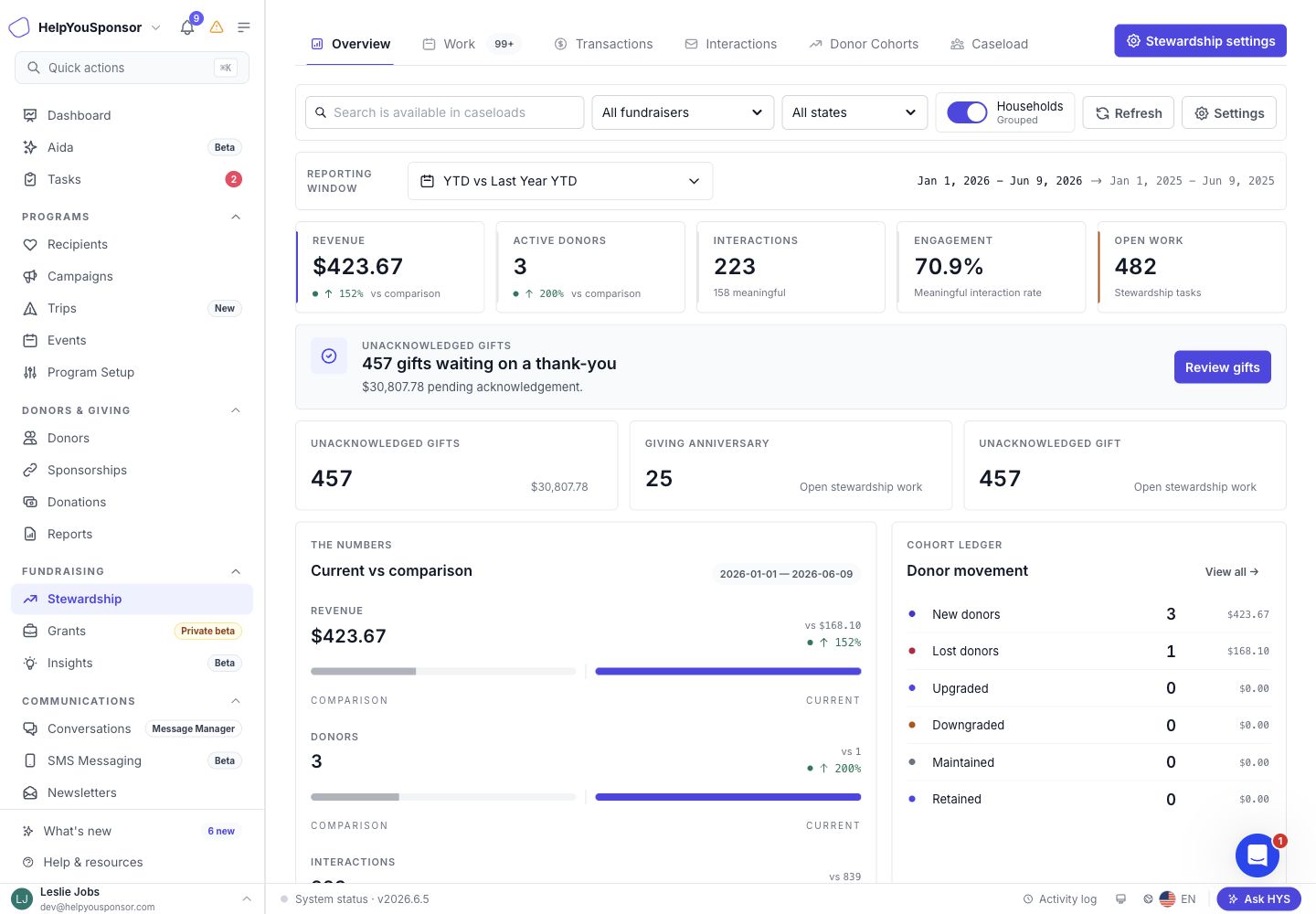
Stewardship Hub Overview tab with fundraising metrics, acknowledgement alerts, and donor movement.
Use the shared filters
Most Stewardship Hub tabs include shared filters so you can review the same fundraising data by fundraiser, state, household grouping, and comparison period.
Depending on the tab, you can use:
Search: Find donors, gifts, or interactions.
Fundraiser: Focus on all fundraisers, unassigned records, or one fundraiser.
State: Limit results to a donor state.
Grouped / Per donor: Group household records together or review each donor separately.
Comparison period: Compare current performance against another period, such as YTD vs Last Year YTD or a custom period.
Refresh: Reload the current tab.
Export: Download the current tab's results when export is available.
Review the Overview tab
Use Overview when you want a quick fundraising and stewardship health check before deciding where to work next.
The Overview tab shows:
Revenue: Current revenue and percent change compared with the selected comparison period.
Active donors: Donors with qualified giving activity in the current period.
Interactions: Total interactions and how many count as meaningful.
Engagement: Meaningful interaction rate.
Open work: Stewardship tasks still waiting for action.
Unacknowledged gifts: Gifts waiting on a thank-you, with a button to review the gift ledger.
Alerts: Clickable alerts for unacknowledged gifts or open stewardship work.
Current vs comparison: Side-by-side bars for revenue, donors, and interactions.
Donor movement: Cohort counts for new, lost, upgraded, downgraded, maintained, and retained donors.
Use Review gifts to jump directly to unacknowledged transactions. Use View all in the donor movement panel to open the Donor Cohorts tab.
Review stewardship work
Use the Work tab when you want to see the follow-up tasks Gratona has identified for donors.
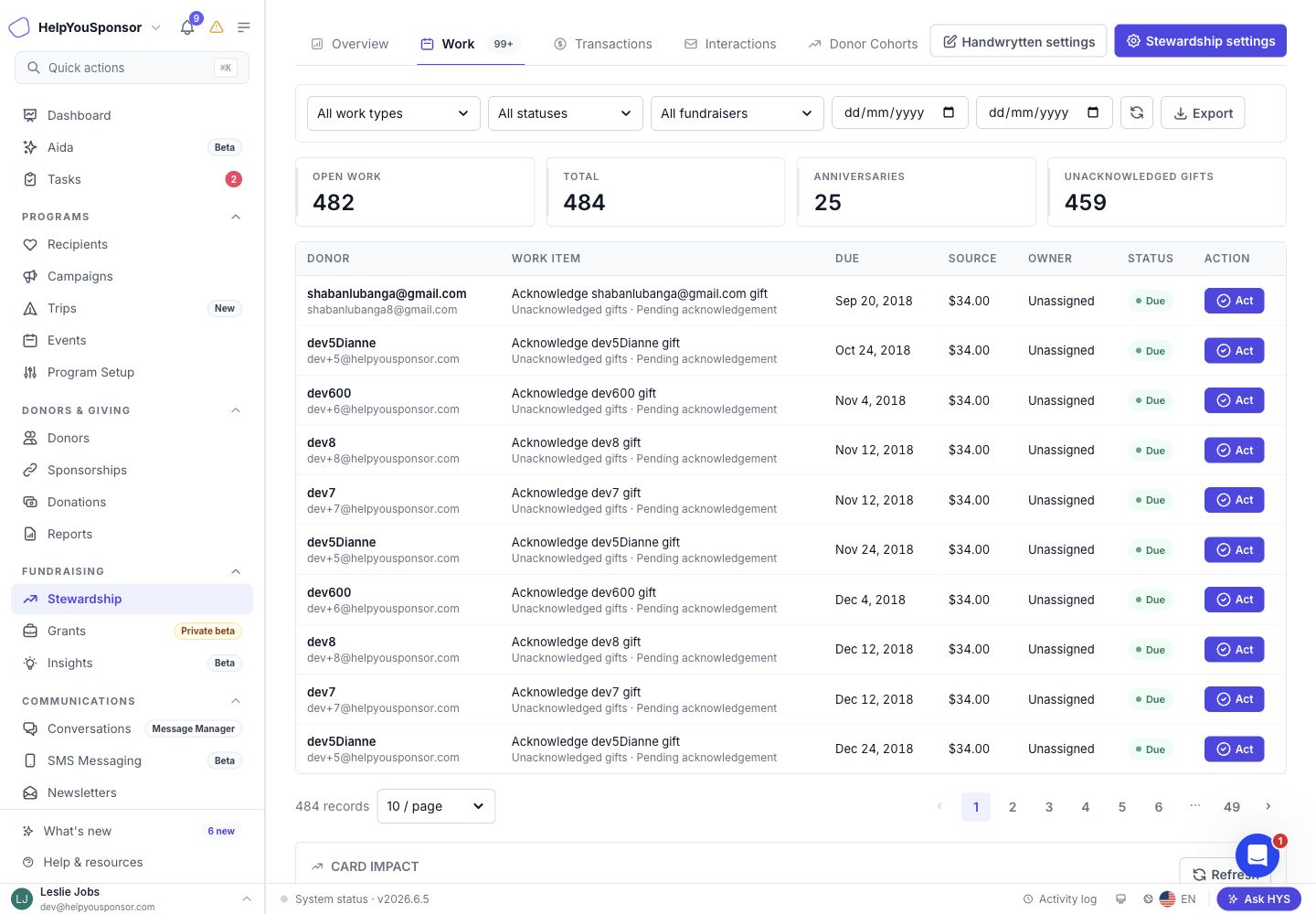
Stewardship Hub Work queue with filters, summary tiles, and work item actions.
You can filter the queue by:
Work type: All work types, Giving anniversaries, Unacknowledged gifts, or Reactivation.
Status: Due, Missed, Upcoming, Snoozed, Acted, or Dismissed.
Owner: All fundraisers, unassigned work, or a specific owner.
Due dates: A start date, end date, or both.
The summary tiles show the number of open work items, total items, giving anniversaries, and unacknowledged gifts in the current view. Use Refresh to reload the queue and Export to download the current results as a CSV file.
Each work item shows the donor, the work item title, due date, source gift or source type, owner, status, and available action.
Complete stewardship work
When a work item is ready to be handled, use Act to record the follow-up.
Choose the channel you used, such as Call, Text, Email, Log, or Card.
Add a completion note for the donor interaction log.
Use Complete to close the work item.
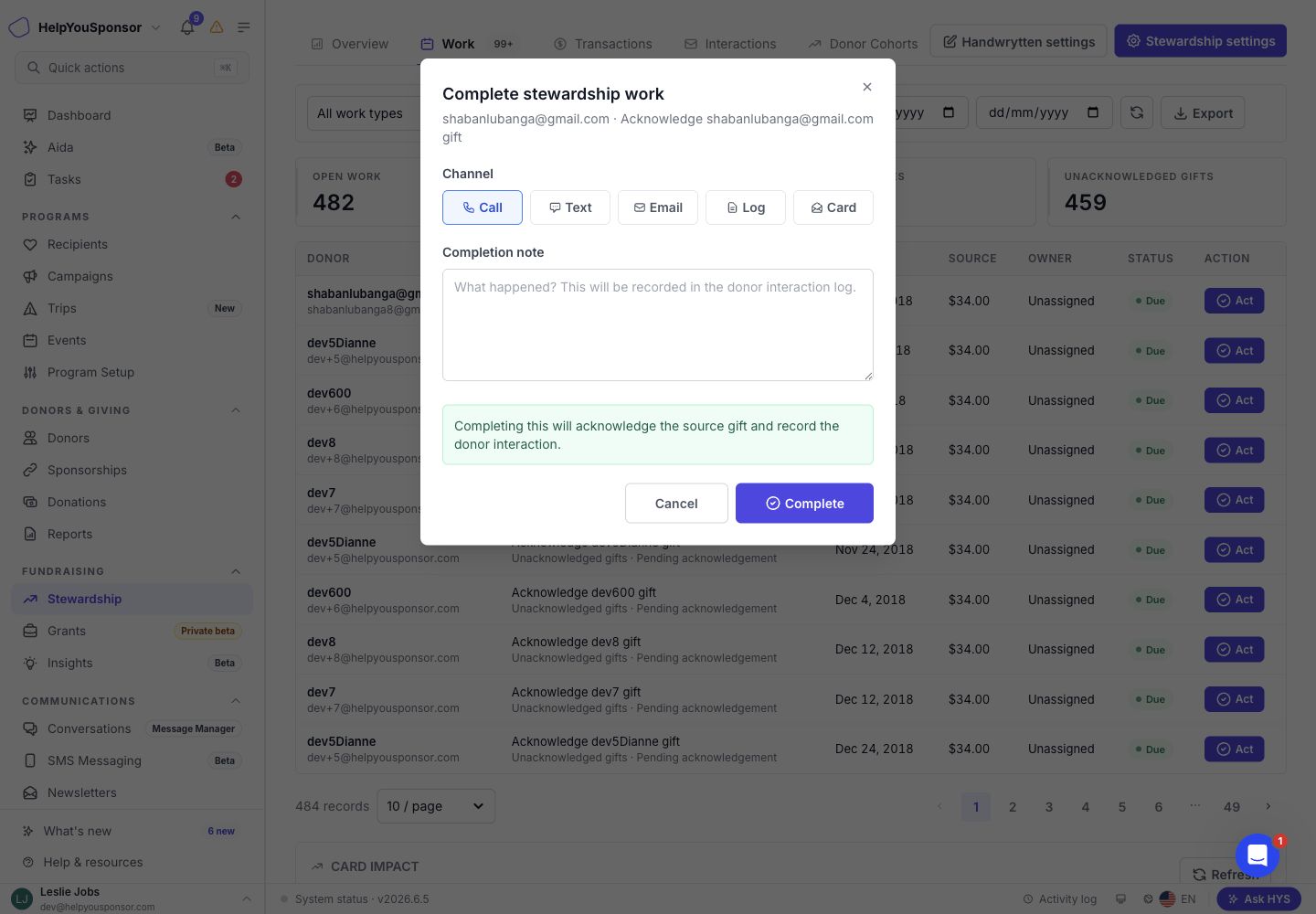
Complete stewardship work dialog with channel choices, completion note, and acknowledgement impact.
Completing a work item records the donor interaction and closes the stewardship work. If the work item is connected to a donation made directly by the donor, Gratona also acknowledges the source gift. Work items created from attributed gifts, such as attributed-gift follow-up on an eligible soft credit, record the interaction but do not acknowledge the legal gift. If your organization uses Handwrytten cards and you choose Card, Gratona creates a Handwrytten card draft, links it to the work item, records the interaction, and applies the same acknowledgement rules described above.
Work through giving anniversaries
Use Giving anniversaries when you want to recognize donors around first-gift, first one-time gift, first recurring gift, or first sponsorship milestones.
Change Work type to Giving anniversaries to open the anniversary queue. From there you can:
Review summary counts for Due, Missed, Upcoming, Snoozed, Acted, and Dismissed anniversaries.
Use the status tabs to focus on active, due, upcoming, missed, snoozed, acted, or dismissed items.
Search for a donor.
Filter by milestone type.
Change the lookahead window to the next 7, 30, 60, or 90 days.
Export the current anniversary list.
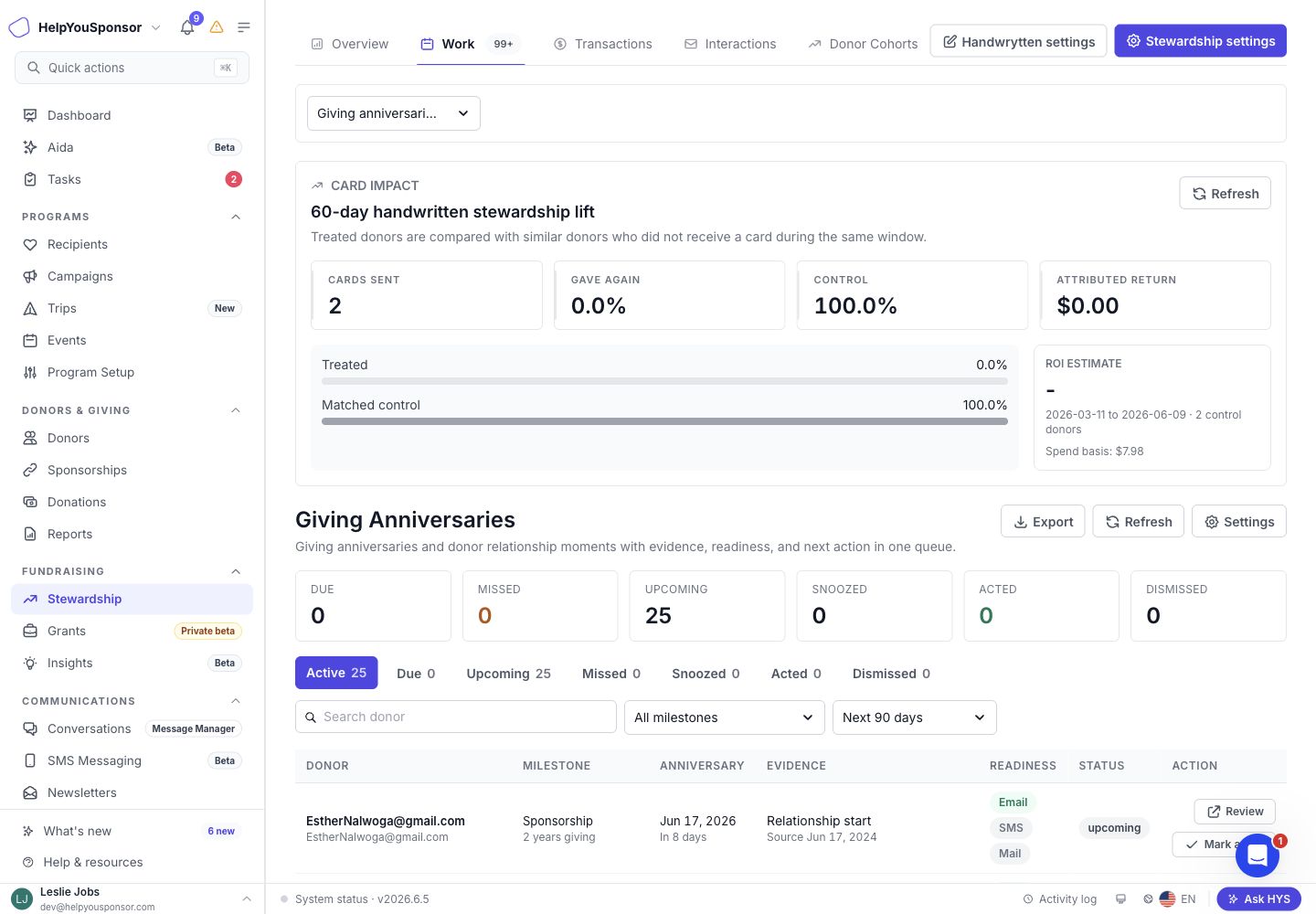
Giving Anniversaries queue with summary metrics, status tabs, milestone filters, and lookahead controls.
Each anniversary row includes the donor, milestone, anniversary date, evidence from the original gift or sponsorship, readiness for email, SMS, and mailing, current status, and available actions.
Review and act on an anniversary
Use Review when you want more context before taking action on a giving anniversary.
The anniversary action drawer shows the donor, milestone, source evidence, readiness notes, and available next steps.
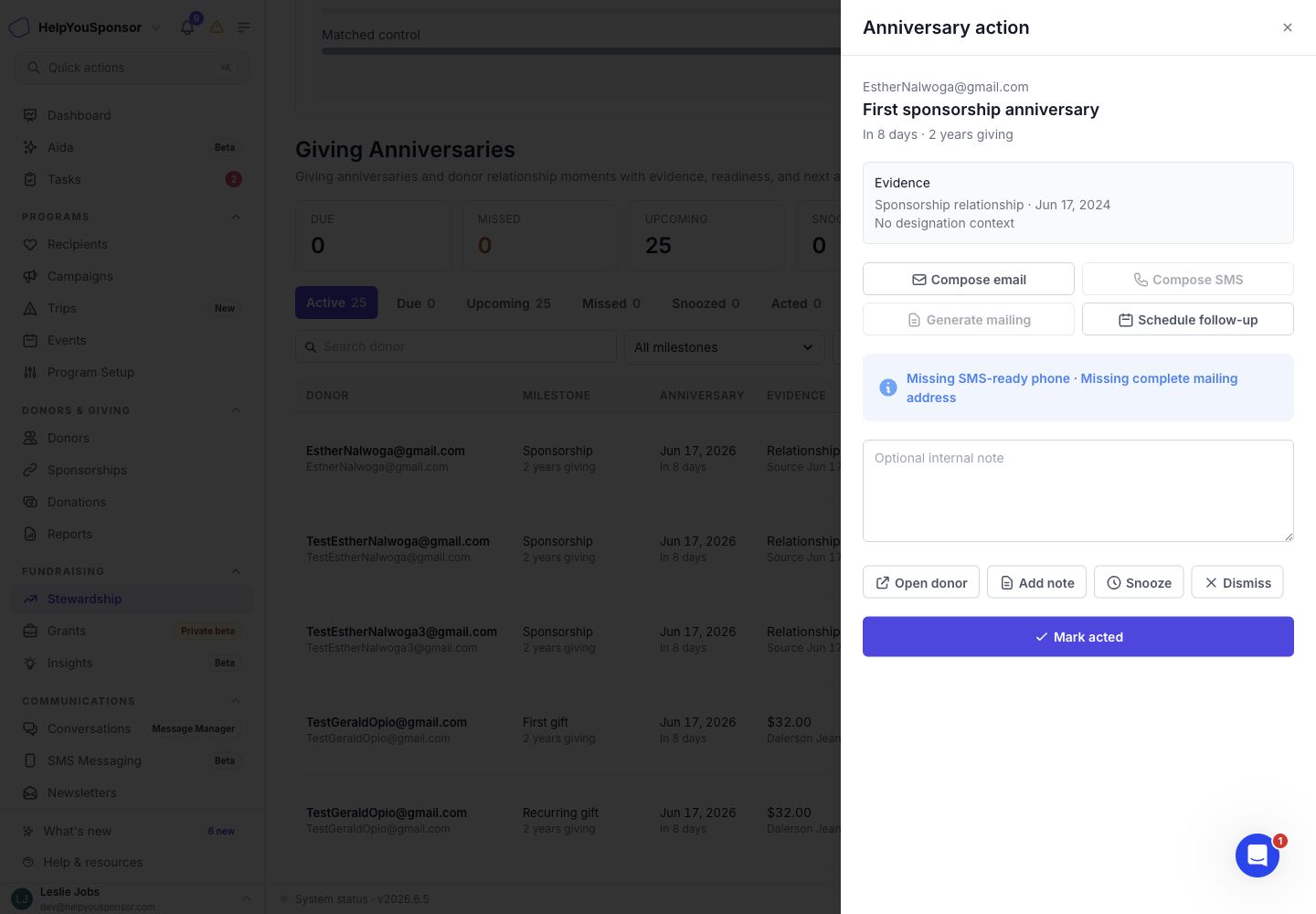
Anniversary action drawer with source evidence, communication actions, note field, and status controls.
From the drawer, you can:
Compose an email when the donor is email-ready.
Compose an SMS when the donor is SMS-ready.
Generate a mailing when the donor is mailing-ready.
Schedule a follow-up.
Open the donor profile.
Add an internal note.
Snooze the anniversary until a later date.
Dismiss the anniversary for the current cycle.
Mark the anniversary as acted.
Reopen a snoozed, acted, or dismissed anniversary.
Review the Transactions tab
Use Transactions when you want to review giving records, inspect acknowledgement status, or work through gifts waiting on follow-up.
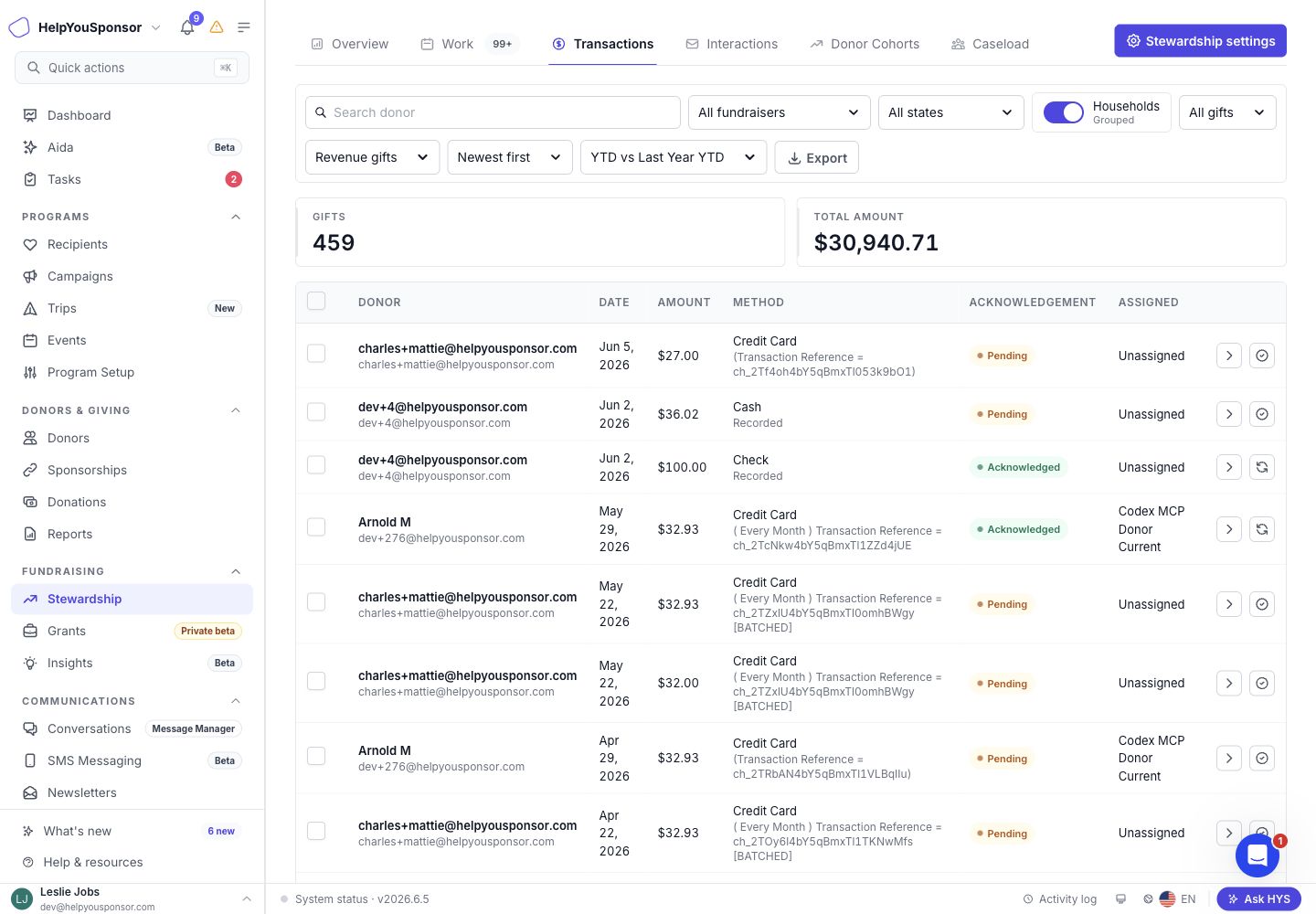
Transactions tab with gift filters, acknowledgement status, selected gifts, and gift ledger rows.
You can filter transactions by:
Search: Find gifts by donor context.
Fundraiser: Focus on one fundraiser, all fundraisers, or unassigned gifts.
State: Limit gifts by donor state.
Acknowledgement: Show all gifts, only unacknowledged gifts, or only acknowledged gifts.
Transaction scope: Review revenue gifts, failed/refunded/pending records, or all transaction records.
Sort order: Sort by newest, oldest, largest, or smallest gifts.
Comparison period: Choose the period used for evidence and comparison context.
The summary tiles show gift count and total amount for the current filter set. Use Export to download the current transaction list.
Each row includes the donor, date, amount, method, acknowledgement status, assigned fundraiser, and row actions. Use the checkbox column when you want to select multiple pending gifts and acknowledge them together.
Acknowledge gifts
Use stewardship work or the Transactions tab when you want to keep gift acknowledgement status current.
In the Work queue, Unacknowledged gifts shows gifts that still need a thank-you based on your acknowledgement settings. Completing a donation-based work item acknowledges the source gift and records the interaction. Work created from attributed gifts does not acknowledge the legal gift.
In the Transactions tab, filter by Unacknowledged to review gifts waiting on acknowledgement. You can acknowledge one gift, acknowledge selected gifts in bulk, or reopen an acknowledged gift as unacknowledged when follow-up needs to happen again. Reopening an acknowledgement requires a reason.
Use the evidence button on a gift row when you want to compare the donor's current-period and comparison-period transaction history before deciding what kind of stewardship touch is appropriate.
Review the Interactions tab
Use Interactions when you want to understand the relationship touches your team has recorded.
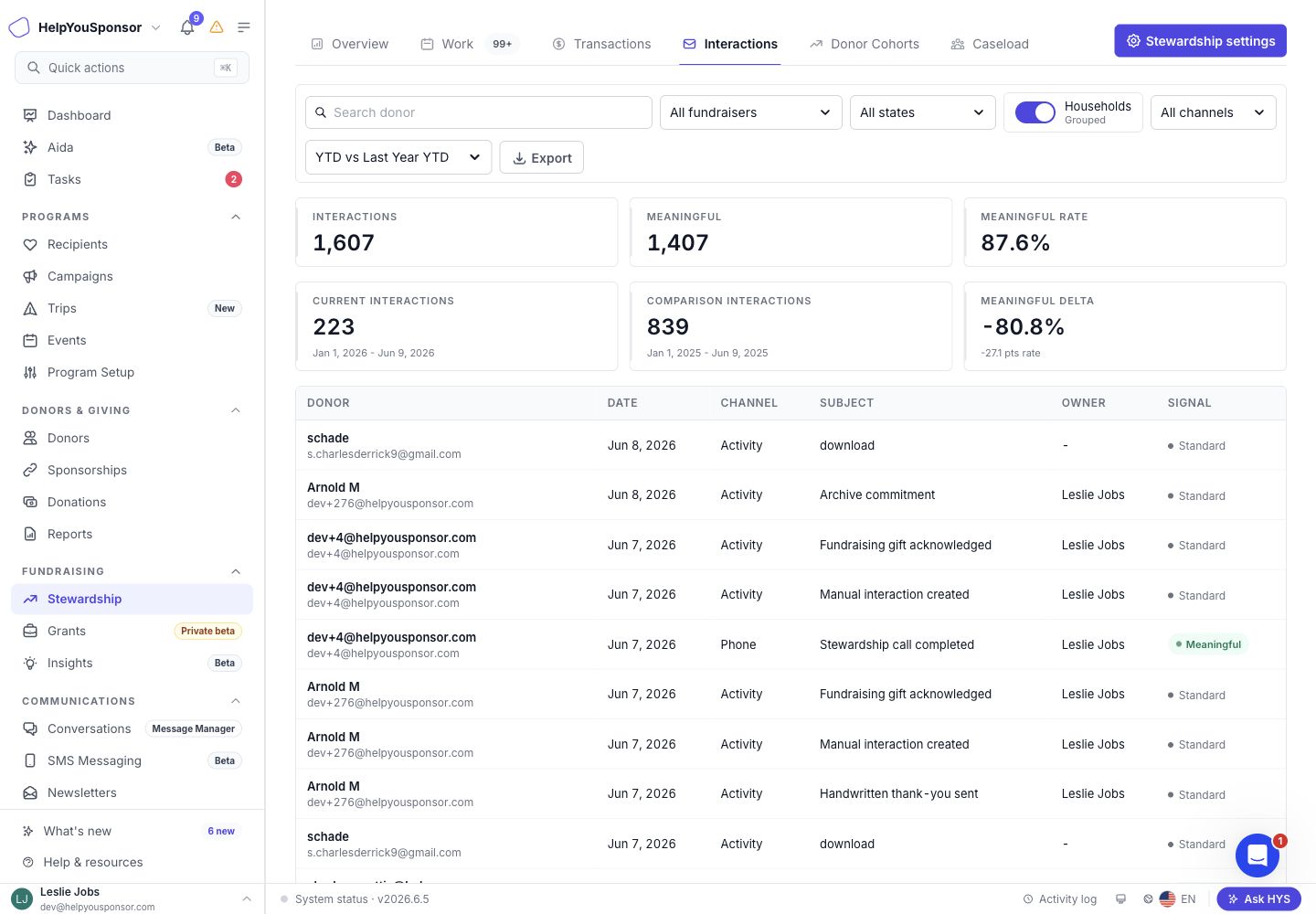
Interactions tab with meaningful contact metrics, channel filters, and interaction rows.
You can filter interactions by:
Search: Find donor interactions by donor context.
Fundraiser: Focus on one fundraiser, all fundraisers, or unassigned records.
State: Limit interactions by donor state.
Channel: Review all channels or focus on Email, Phone, SMS, In person, or Activity.
Comparison period: Compare current activity against another period.
The Interactions tab shows:
Total interactions.
Meaningful interactions.
Meaningful interaction rate.
Current interactions for the selected period.
Comparison interactions for the comparison period.
Meaningful delta.
Each row includes the donor, date, channel, subject, owner, and whether the interaction is Meaningful or Standard. Use Export to download the current interaction list.
Review the Donor Cohorts tab
Use Donor Cohorts when you want to understand how donors moved between the current period and the comparison period.
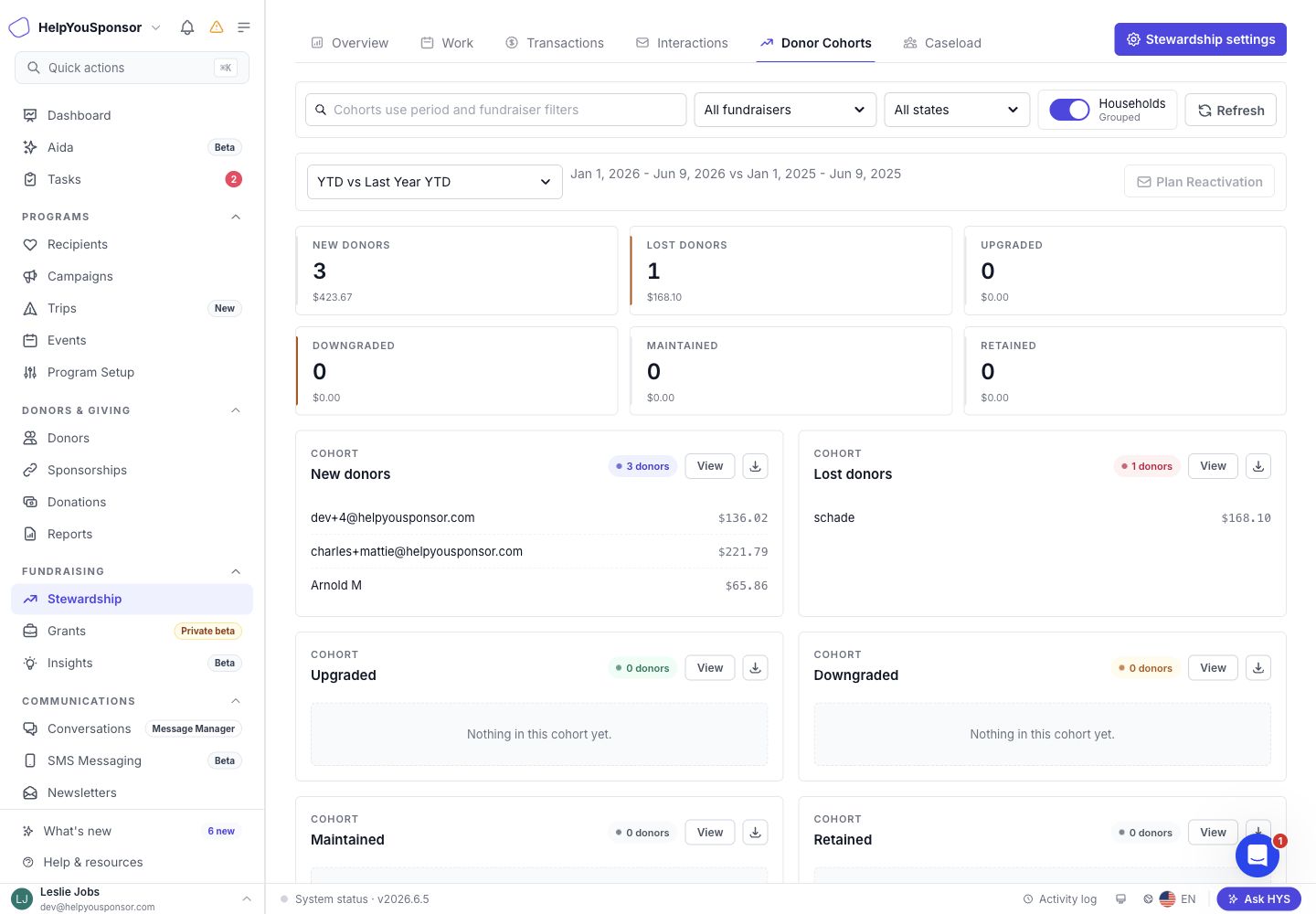
Donor Cohorts tab with comparison period controls, cohort summaries, and cohort cards.
The Donor Cohorts tab groups donors into:
New donors: Donors who gave in the current period but not the comparison period.
Lost donors: Donors who gave in the comparison period but not the current period.
Upgraded: Donors whose giving increased enough to meet the upgrade threshold.
Downgraded: Donors whose giving decreased enough to meet the downgrade threshold.
Maintained: Donors whose giving stayed within the maintained-giving tolerance.
Retained: Donors who gave in both periods.
Each cohort shows a donor count, amount, sample donor rows, a View button, and an export button. Use View to open the cohort detail drawer. The drawer lets you sort by donor, state, amount, current giving, comparison giving, change, or fundraiser. Use the row expander to review transaction evidence for a donor.
Plan Reactivation is not currently available.
Review the Portfolio tab
Use Portfolio when you want to manage fundraiser ownership and identify donors who need attention.
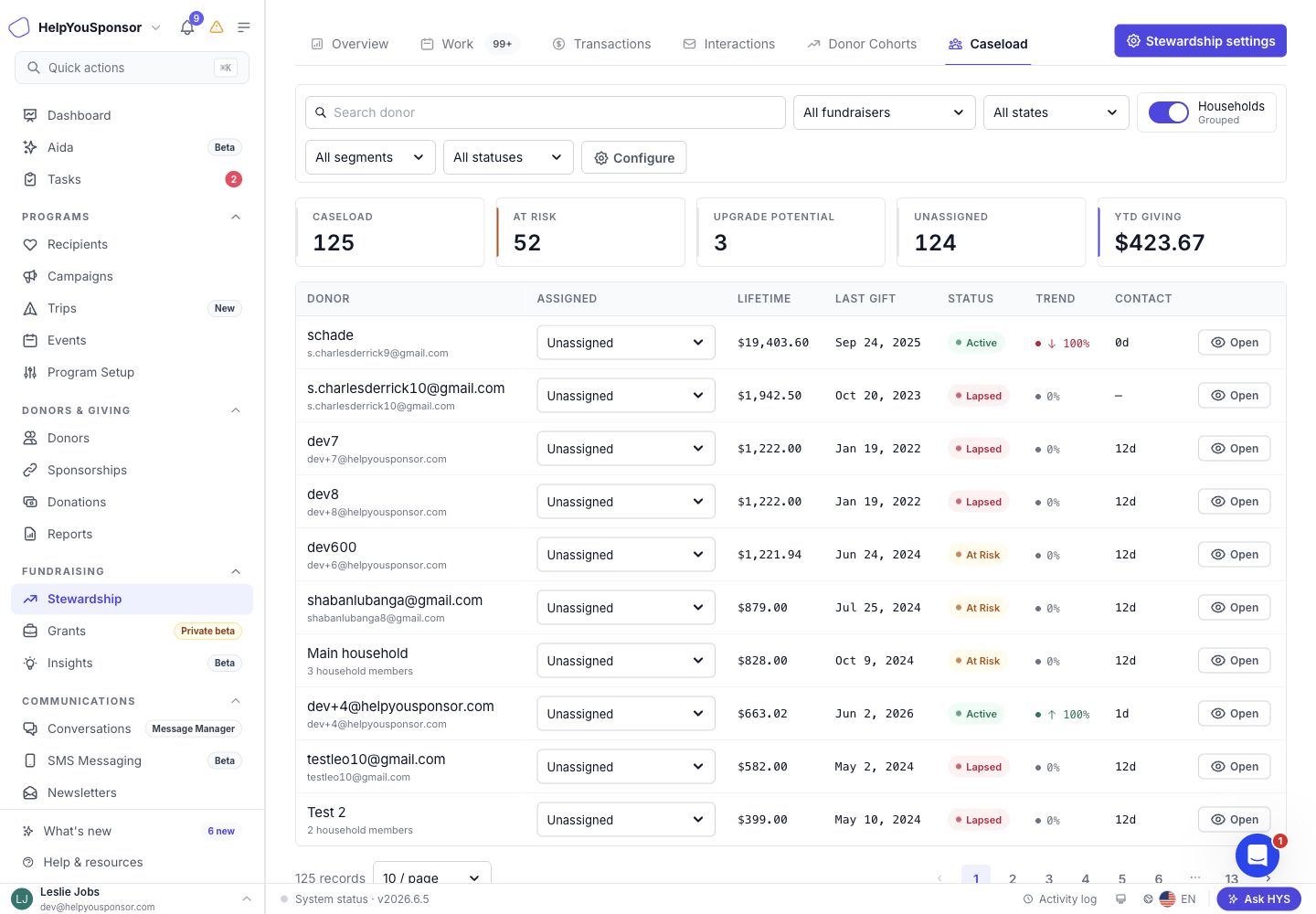
Portfolio tab with donor assignment controls, retention status, trend, and contact timing.
You can filter the caseload by:
Search: Find donors by name or contact context.
Fundraiser: Focus on one fundraiser, all fundraisers, or unassigned donors.
State: Limit donors by state.
Segment: Review all segments, Major, Mid-Level, Annual, or Prospect.
Status: Review all statuses, Active, New, At Risk, Lapsed, or No giving yet.
Grouped / Per donor: Assign and review donors by household or individual donor.
The summary tiles show total caseload, at-risk donors, upgrade potential, unassigned donors, and YTD giving.
Each row includes the donor, assigned fundraiser, lifetime giving, last gift, retention status, giving trend, and days since contact. Use the assignment selector to assign a fundraiser. When household grouping is on, the assignment is applied at the household level. When household grouping is off, the assignment is applied to the donor.
Use Open to review the fundraising profile drawer. The drawer shows Attributed lifetime, Attributed YTD, Previous YTD for the same elapsed period last year, Attributed gifts with a direct and soft-credit breakdown, Last attributed gift, and Trend calculation.
Review donor-advised fund and relationship giving
The Stewardship Hub can attribute eligible soft credits, such as donor-advised fund (DAF) grants, to the person or household behind them. Attribution drives stewardship signals only; it never changes legal revenue, receipts, tax reporting, or gift acknowledgement.
Choose which soft credits count
Open the settings drawer and use Relationship Giving Attribution. Each soft-credit type has a switch for the Giving, Reconnect, Anniversary, and Follow-up signals. Donor-advised fund and Household member are on by default for all four, Matching gift is on except Anniversary, and Tribute and Solicitor are off by default. The Attributed-gift follow-up setting creates donor-facing work from eligible soft credits; it cannot acknowledge the legal gift.
Read attributed giving on the Portfolio
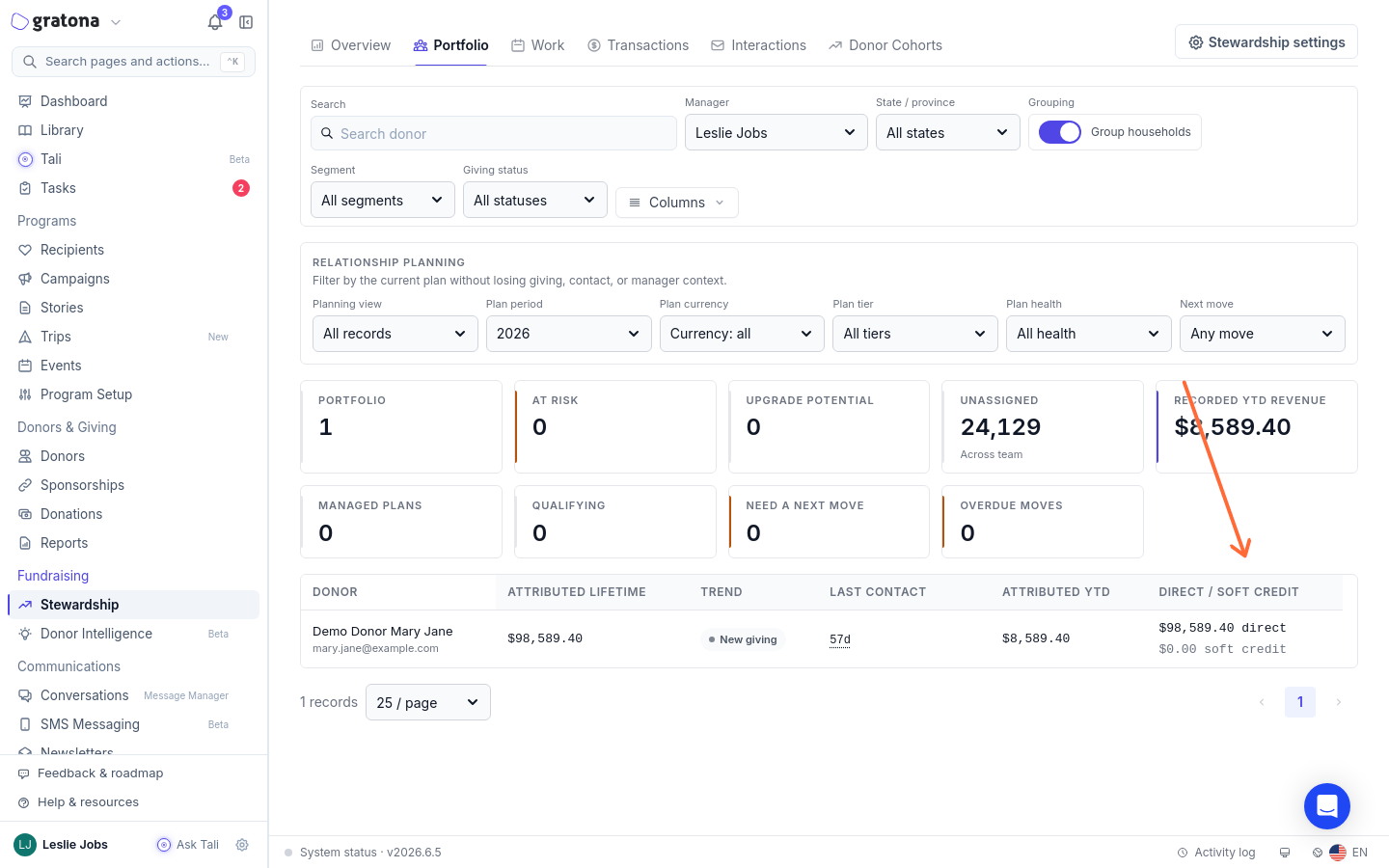
Open a row to open the supporter's profile drawer: the Attributed lifetime, Attributed YTD, and Attributed gifts tiles show totals with their direct and soft-credit breakdowns, alongside Previous YTD, the same elapsed period last year, and Last attributed gift. In the table, the Attributed lifetime and Direct / soft credit columns give the split per row, and Trend calculation shows how the YTD comparison is computed.
Last contact counts qualifying relationship contacts. Imported acknowledgements, receipts, audit events, and activities marked not to count as a touch remain visible in Activity without resetting stewardship contact dates, so an automatic receipt is not proof that someone spoke with the donor.
Verify before a lapsed appeal
Work from the person or household, not from the sponsoring charity. A sponsor such as Fidelity Charitable is a grant channel, not your supporter; keep DAF-source reconciliation separate from cultivation lists, and never read a sponsor's own grant history as that supporter's giving.
Distinguish last activity, last outreach, and meaningful interaction before you judge engagement. An automatic receipt is not a conversation.
Log calls against the correct person, set the right fundraiser as owner, and add a next action so the contact record stays truthful.
Review missing advisor or fund details and anonymous grants against the grant letter, and record only what it shows.
Never auto-credit every gift from a broad sponsor to one household. A credit needs specific fund or account evidence, such as the fund name or a grant reference.
Do not turn financial intermediaries into donor records wholesale. Record the donation for the giver the remittance actually names.
Donor Cohorts compare direct donations between periods, so a DAF-only year or a sponsor switch can register as lost giving even while attributed support held steady. Portfolio attributed trends compare Attributed YTD with Previous YTD instead; confirm there before starting reactivation work. For the full review workflow, see Review a supporter's DAF giving and check an apparent decline. To decide who receives credit when a DAF grant arrives, see Soft Credit.
Adjust stewardship settings
Use Stewardship settings when you want to change how the hub identifies and presents stewardship work.
The settings drawer includes:
Comparison: Set the organization default and your personal default comparison period.
Suggestions: Choose a playbook, set the default channel for each stewardship moment, choose where suggestions appear, and adjust touch caps or cooldowns.
Caseload: Set thresholds for major gifts, mid-level donors, at-risk donors, lapsed donors, contact timing, and upgrade potential.
Donor Cohorts: Set upgrade, downgrade, and maintained-giving thresholds.
Acknowledgements: Choose when a gift becomes pending and whether automatic email can acknowledge by default.
Meaningful Contact Classification: Define which channels, activity purposes, and log keywords count as meaningful contact.
Reports Hub: Install or refresh the Upcoming Giving Anniversaries saved report, then open Reports to schedule or review it.
Giving Anniversaries also has its own Settings button inside the anniversary queue. Use it to enable or disable the anniversary queue and adjust lookahead days, due window days, and missed grace days.
Review handwritten card impact
If Handwrytten stewardship is enabled for your organization, the Stewardship Hub can show a Card impact panel. This panel compares donors who received a card with similar donors who did not receive a card during the same 60-day window.
Use it to review:
Cards sent.
Repeat giving rate for donors who received cards.
Repeat giving rate for the comparison group.
Attributed return and ROI estimate.