
Soft Credit
Updated 7 days ago
Soft Credit
A soft credit recognizes a donor or organization for a donation that someone else actually paid. The person who gave the money keeps the hard credit, the actual donation record, and anyone else who should be recognized receives a soft credit. Record the gift once, on the original donation, and attach the recognition to it. Recognition can be attached while the donation is entered, while a payment is logged to an existing commitment, or after the gift is already recorded. Creating a second donation for the recognized person double-counts the gift.
For example, a $500 grant arrives from the Smith Family Fund at Fidelity Charitable and names the recommending donor. Record it once with Giving source set to DAF grant, Fidelity Charitable as the DAF sponsor, and Name the recommending donor selected. Choose the advisor in Recommended by; Gratona creates the advisor's $500 soft credit automatically. Do not add a duplicate manual credit.
How soft credit works
The giver's profile keeps the donation. It appears in their Donation History under the Transactions tab, and the Soft Credit column shows the recognition attached to it.
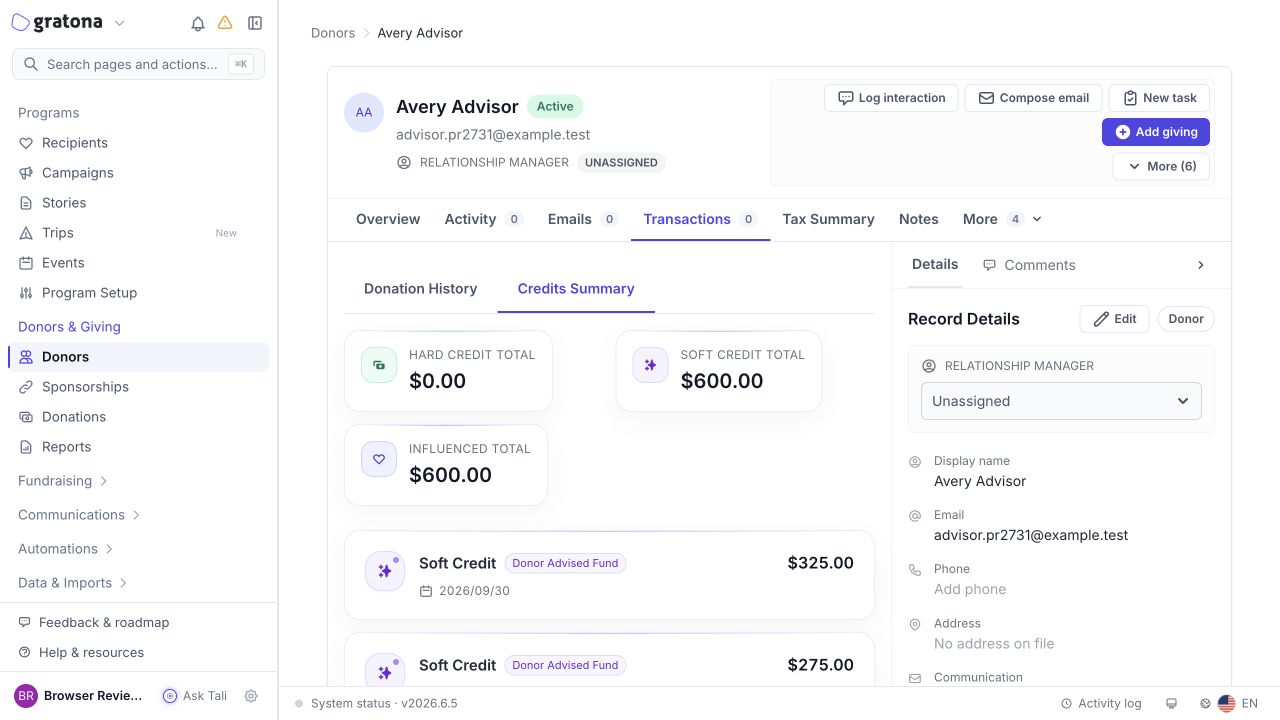
The recognized person's profile shows the credit in their Credits Summary under the Transactions tab, alongside three totals: Hard Credit Total for direct donations received, Soft Credit Total for recognition received, and Influenced Total for both combined. In the $500 example, the giver's profile shows a $500 recorded gift, the recognized individual's profile shows a $500 soft credit linked to that same gift, and the organization's revenue is still $500. When totals mix several gifts, trace the linked donation IDs and amounts instead of assuming the totals describe one gift.
Before you record the gift
Identify the actual giver and the payment context before you select the donor. A check issued by a brokerage or an organization shows which account moved the money. By itself it does not establish that the gift is a donor-advised fund grant. Check the enclosed letter or the fund's grant record to confirm who gave and who should be recognized.
What you enter in Gratona controls whose records show the gift. It does not change anyone's tax treatment or create a new deduction for the recognized person.
Decide who receives credit
Match the record to the money's real source before you choose the giver. This table is recommended practice for the common cases:
What arrives | Record the donation for | Soft credit to |
|---|---|---|
A personal gift from the person: check, card, or bank transfer | The person | Anyone else to recognize, such as a household member |
A grant from a donor-advised fund, such as Fidelity Charitable or the National Christian Foundation | The sponsoring charity, exactly as it issued the grant | The advising person, with type Donor Advised Fund |
A grant from an independent private foundation | The foundation | Whoever your recognition policy names; foundation recognition is not automatic personal-giving credit for every board member |
A check drawn by a bank or brokerage that is only moving the person's own assets | The actual donor, determined from the remittance | Whoever should be recognized |
The logo on a check names the account that moved the money. It does not by itself tell you who gave. Read the remittance or the grant record before you record.
Keep the sponsor, the named fund, and the advisor distinct
A name like the Smith Family Fund at Fidelity Charitable is normally an account inside the sponsoring charity, not an independent private foundation. Credit Fidelity Charitable as the giver and the Smiths as the advisors.
Sponsor: the charity that holds the fund and issues the grant, such as Fidelity Charitable.
Named account: the fund name inside the sponsor, such as Smith Family Fund. Record the fund name and the grant reference so you can reconcile later grants from the same account. When you record the grant with Giving source set to DAF grant, Gratona provides dedicated DAF fund name and Grant reference fields and, when Grant disclosure is Name the recommending donor with an advisor chosen, adds the advisor's donor-advised-fund soft credit automatically. See Record a received DAF grant.
Advisor: the person who recommends grants, such as the Smiths. Soft-credit only the people the grant letter names; a fund name alone does not identify a person.
Do not confuse the donor's giving-account name with your designation. The fund name belongs to the donor's account. The designation, such as Spring Appeal, is how your organization directs the gift, and it is recorded on the donation itself.
Read the grant letter before you record. It confirms the sponsor, the fund, the advisor, and any instructions, including anonymity. If the letter is anonymous or omits the advisor, record only what it shows and never invent an advisor to complete the record. If the sponsor handles all correspondence, skip the email: on a donation recorded with Giving source set to DAF grant, check Don't send the advisor thank-you email; on other soft credits, check Don't send soft credit email receipt to soft credit donor on the credit.
Thanking the advisor is a courtesy, not a second tax deduction. The donor's deduction comes from the contribution to their giving account, not from the grant to you, and nothing you enter in Gratona changes anyone's tax treatment. Sponsor correspondence follows the grant's instructions.
Recommended practice on deductible status: judge each gift on its own remittance. A check issued by a bank or brokerage that only moves a person's own assets is still the person's personal gift, so do not mark it non-deductible because of the logo, and do not treat a named fund as an independent foundation.
If a family pledges future DAF support, keep commitments and cash distinct: a pledge is a commitment, and a DAF grant is cash from the sponsoring charity, not the donor's own payment. Whether a grant fulfills a personal pledge depends on the pledge's terms, the sponsor's rules, and any restrictions in the grant letter, so record grants as they arrive and apply restrictions to the donation's designation. Do not assume a grant automatically satisfies a pledge.
Primary references
How the credit is assigned
For DAF grants and IRA/QCD gifts, Gratona assigns the hard credit and any soft credit automatically as you record the gift. Match the row to what arrived:
What arrives | Hard credit | Soft credit |
|---|---|---|
A DAF grant with an identified advisor | The sponsoring institution (the DAF sponsor) | The individual selected under Recommended by automatically receives a matching DAF soft credit |
A DAF grant that is anonymous or names the fund only, with no identified advisor | The sponsoring institution (the DAF sponsor) | None is created automatically |
An IRA/QCD gift | The individual IRA owner | No soft credit is automatically created for the custodian; the custodian is recorded as the intermediary, not the financial donor |
Recognition follows the advisor you select under Recommended by, not whichever donor profile the donation form was opened from. Soft credit is recognition, not a second financial gift: record the gift once and never add a duplicate manual DAF soft credit for the advisor. See Record a received DAF grant and Record a received IRA/QCD gift for the entry steps.
Add a soft credit while entering a donation
For a newly received DAF grant, use Giving source set to DAF grant and its Grant disclosure and Recommended by fields instead. With Name the recommending donor selected and an advisor chosen, Gratona creates the advisor credit automatically; do not add a second manual credit. The generic steps below apply to other soft-credit entry workflows. See Record a received DAF grant.
Use this when the gift is not yet in Gratona. You record the donation for the giver and attach the recognition on the same form. For more on the donation form, see Donor Profile Page.
From the giver's donor profile, open the Add donation form.
Enter the gift details: amount (500), payment method, donation type, and date.
Check Add Soft Credit. The soft credit fields appear.
In the donor field, search for and select the person or organization to recognize.
In Soft Credit Type, choose the relationship: Matching Gift, Donor Advised Fund, Tribute, Solicitor, or Household Member.
In Amount, enter the amount to credit, up to the donation amount. For a $500 direct gift recognizing a household member, enter 500.
In Notes, describe the recognition, for example "Recognition for the Spring Appeal gift."
If the recognized person should not receive an email receipt for this credit, check Don't send soft credit email receipt to soft credit donor.
Save the donation. The gift is recorded once: the giver's profile shows the donation, and the recognized person's profile shows the credit.
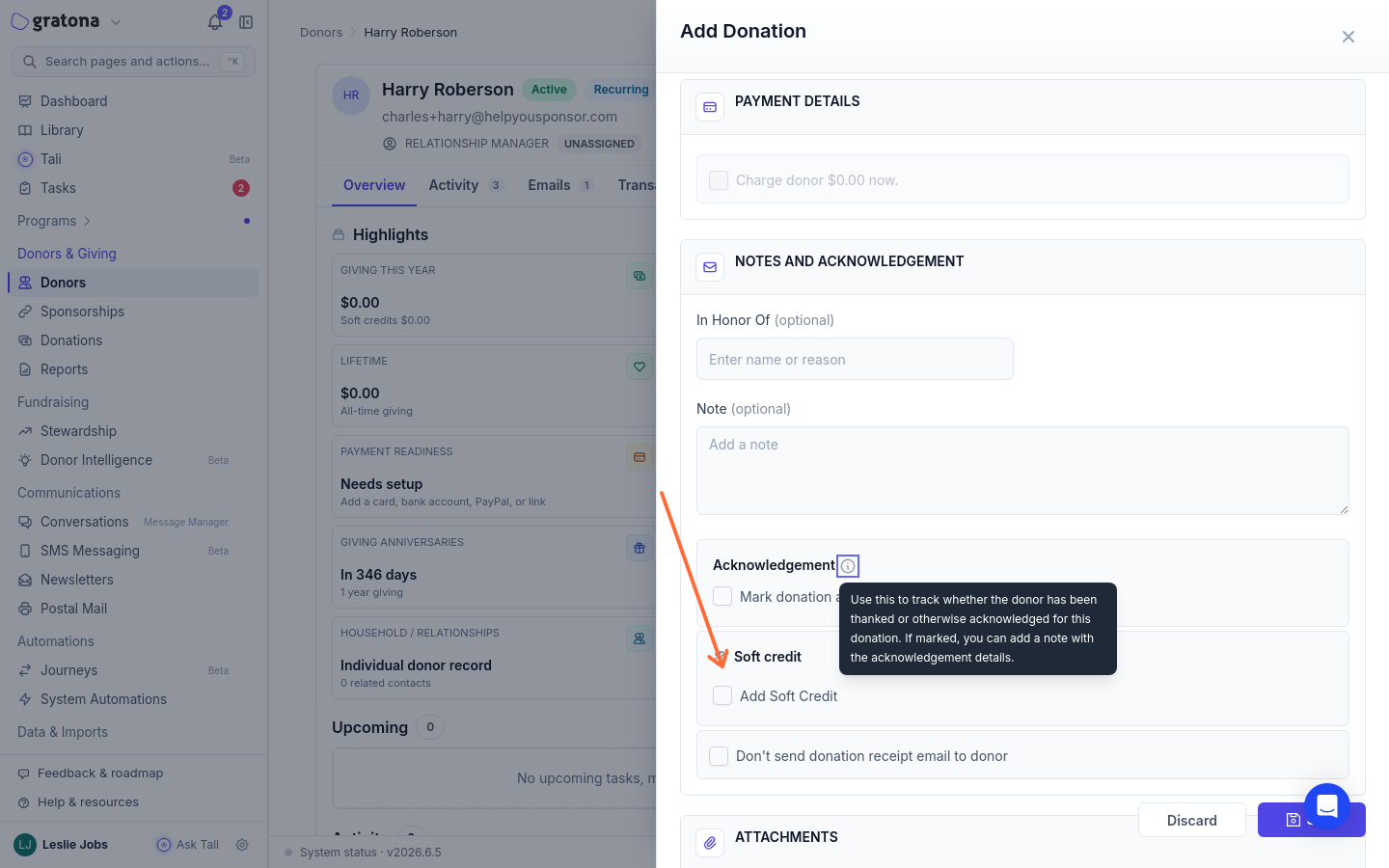
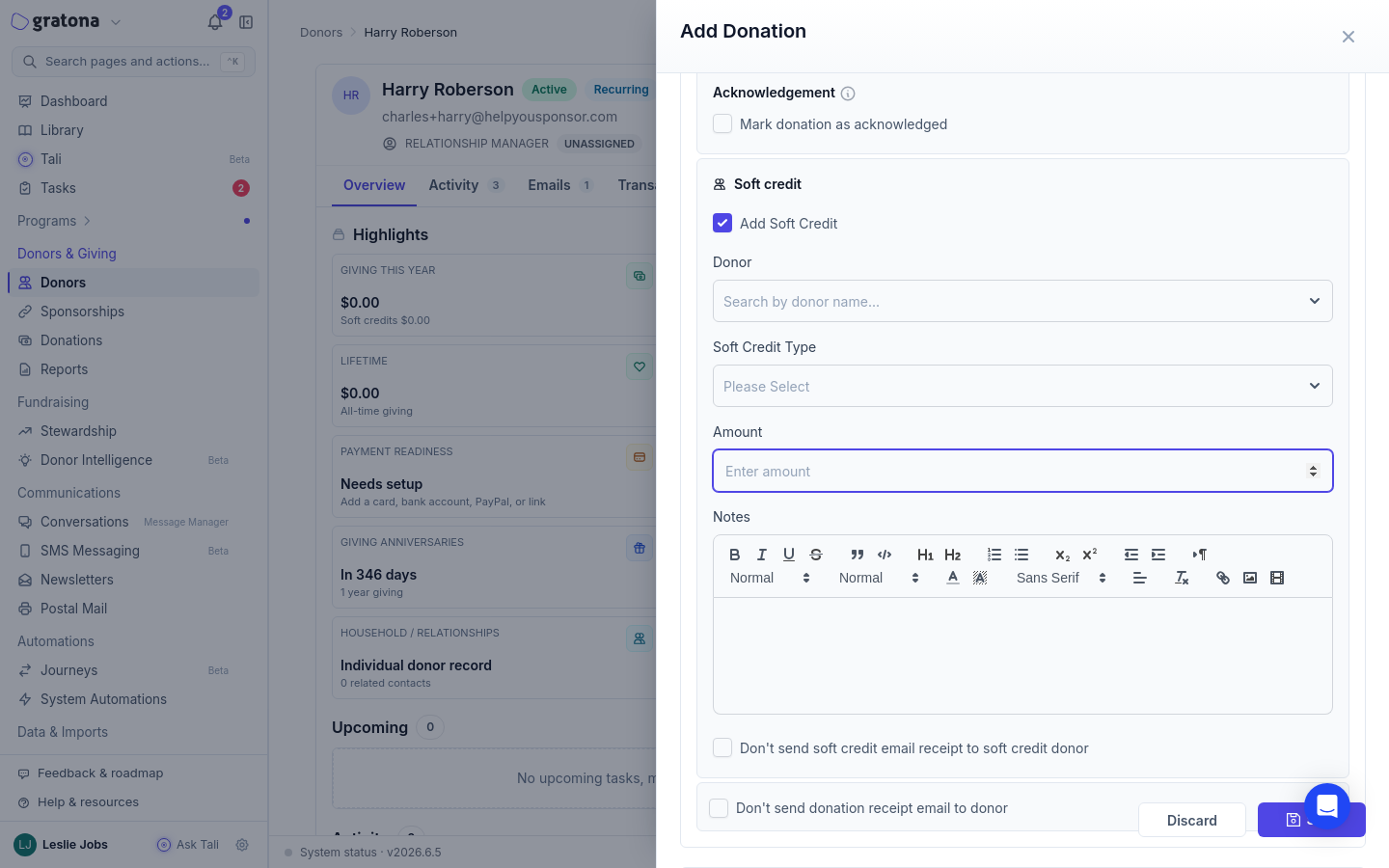
You can also add a soft credit while logging a payment to an existing sponsorship or pledge. The payment form offers the same Add Soft Credit option.
Add a soft credit to an existing donation
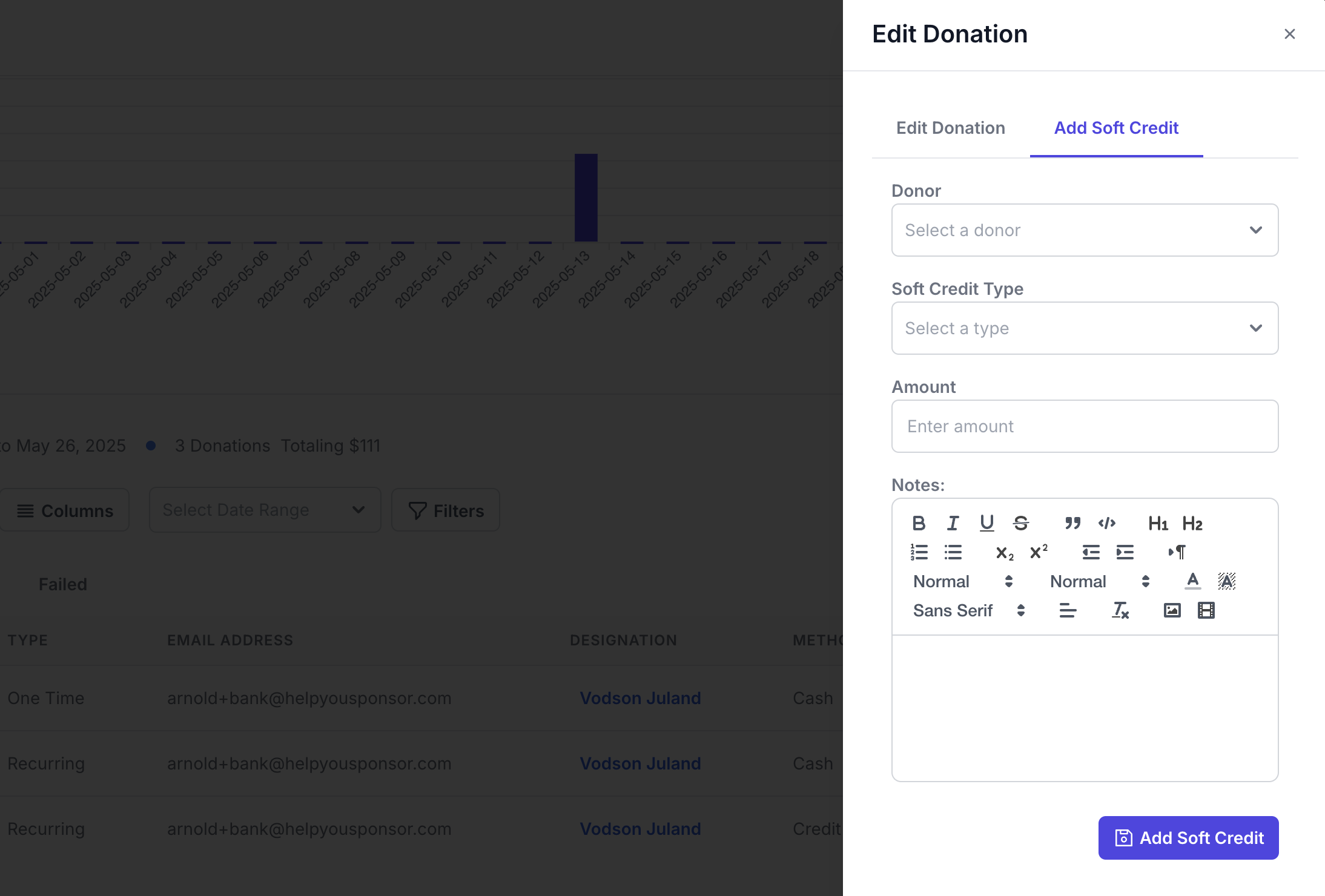
When the gift is already recorded, open the donation from the Donations Table and choose to edit it. The edit form has an Add Soft Credit tab with the same fields: recipient, credit type, amount, and notes. See Donations Table.
Do not create a second donation to recognize the other person. Recognition attaches to the original gift.
Read the totals on each profile
Both profiles describe the same gift from their own side. To tell a linked recognition from a second donation, compare the Donation ID, amount, and date on the giver's Donation History rows. A soft credit points at one original donation, while two actual gifts appear as two separate donation records with different IDs.
The Credits Summary sub-tab lists each credit as a card with its kind (Hard Credit or Soft Credit), the credit type such as Donor Advised Fund or Direct Donation, the amount, the date, and any notes.
Tax summaries and deductible status
Whether a donation counts in a tax summary is controlled by the donation's Tax Deductible setting, not by text in the notes. Notes that say "DAF" or "non-tax" do not change tax summary output.
Expected behavior: donations marked non tax deductible are left out of the deductible contributions in the Tax Summary, and only completed donations are included. A partially refunded donation is held out of the total and marked for review.
To show recognition in a statement, turn on Include soft credits (recognition only) on the donor's Tax Summary. It is off by default and adds a separate recognition section; it never adds the credit to deductible totals or revenue. See Donor Profile Page.
To check a donation's saved setting, open it from the Donations Table and look at the state of the Non tax deductible checkbox. Then open the donor's Tax Summary tab and select the year. If the output does not match the saved setting, contact support with the Donation ID, amount, date, the saved checkbox state, and the tax summary year.
Acknowledge the recognized person by email
The receipt email that goes out for a donation can have its own Soft Credit wording. Open System Automations under APPS in the sidebar, select the Auto Email tab, and open the set your programs use. For an overview, see Auto Emails.
Open the Donor Payment Receipt template.
Select the Soft Credit tab. Gratona creates a copy of the standard receipt for you to edit.
Customize the subject and message, then save.
For ordinary soft-credit workflows other than gifts recorded as DAF grant, when a donation with a soft credit triggers the receipt, Gratona uses the Soft Credit variant if it is configured and enabled; otherwise the standard donation receipt is used as the fallback. Leaving the variant unconfigured or disabling it does not suppress the email. Delivery is subject to the usual eligibility controls: the parent Donor Payment Receipt template must exist and be enabled in the applicable email set, and the recipient's email address, email preferences, any suppression, and per-gift opt-outs also affect delivery. Check the confirmation acknowledgment plan to see what will be sent. To skip the acknowledgment for one credit, check the Don't send soft credit email receipt to soft credit donor option on the credit.
A donation recorded with Giving source set to DAF grant works differently: its advisor thank-you requires the parent Donor Payment Receipt template and the Soft Credit variant to both exist and be enabled. Enabling only the variant is insufficient when the parent receipt is disabled. If a required variant is missing or disabled, that acknowledgment is not sent, and the standard receipt is never used as a fallback; other independently eligible acknowledgments are not necessarily prevented. Review and enable these before you rely on email for DAF grants; see Record a received DAF grant.
A short recognition acknowledgment without deduction language:
Dear Mrs. Smith, thank you for recommending a $500 grant from the Smith Family Fund at Fidelity Charitable to our Spring Appeal. Your support helps students in our Education Sponsorship Program start the school year with the supplies they need.
To check your wording, open the template and select Test Email. The dialog requires a Choose Sponsorship selection, which provides the data used to fill the template, and the test is sent to your own email address, the administrator you are signed in as. Send appears only after a sponsorship is selected, and a donor without a sponsorship cannot be used as test data. Test Email is unavailable while the template is disabled or while the editor has unsaved changes, so save first.
Verify the record in your connected CRM
Checking the giver's Donation History confirms how Gratona attributed the gift. It does not confirm that the data reached your connected CRM. To confirm delivery, open the Zap run in Zapier and inspect its output, then check the donation record and the recognized-person linkage in the destination system.
The New Donations and Updated Donation triggers each include a soft credits list on returned donations, with the recipient's name and donor ID, the credit amount, type, and notes. This is distinct from separate giving-source metadata. The New Donations mapping does not pass through separate giving-source fields such as the giving source, DAF disclosure, fund name, advisor metadata, source reference, or IRA custodian, even though the Gratona API returns them. Do not assume those separate fields are available in Zapier: inspect a test record and the actual Zap run for your connected version before mapping them. See New Donations.
The Updated Donation trigger also includes the soft credits list: each returned donation declares the recipient's name and donor ID, the credit amount, type, and notes. Adding a soft credit alone is not an Updated Donation event; the donation must be edited again for the trigger to resend it with the new credit. There is no automatic backfill of historical donations when a Zap is turned on.
The native Bloomerang connection is different: in the Bloomerang donation setup you can turn on Include soft credit details, and soft credits sync when the related donor is already linked. See Connect Bloomerang.
To compare a supporter's giving across equivalent periods and check an apparent lapse before a reactivation appeal, see Review a supporter's DAF giving and check an apparent decline. For day-to-day follow-up on attributed giving, see Stewardship Hub.