
Permissions and Access Control
Updated 4 weeks ago
.
Permissions and Access Control
Permissions and access control in Gratona provides granular control over what users can see and do within the platform. This sophisticated system ensures that users have access to exactly what they need while maintaining data security and organizational boundaries.
To navigate to Permissions and Access Control, open the quick actions menu (Cmd+K) and search for Admin & Permissions, or go directly to /admin-options in your browser. Select the Permission Sets tab.
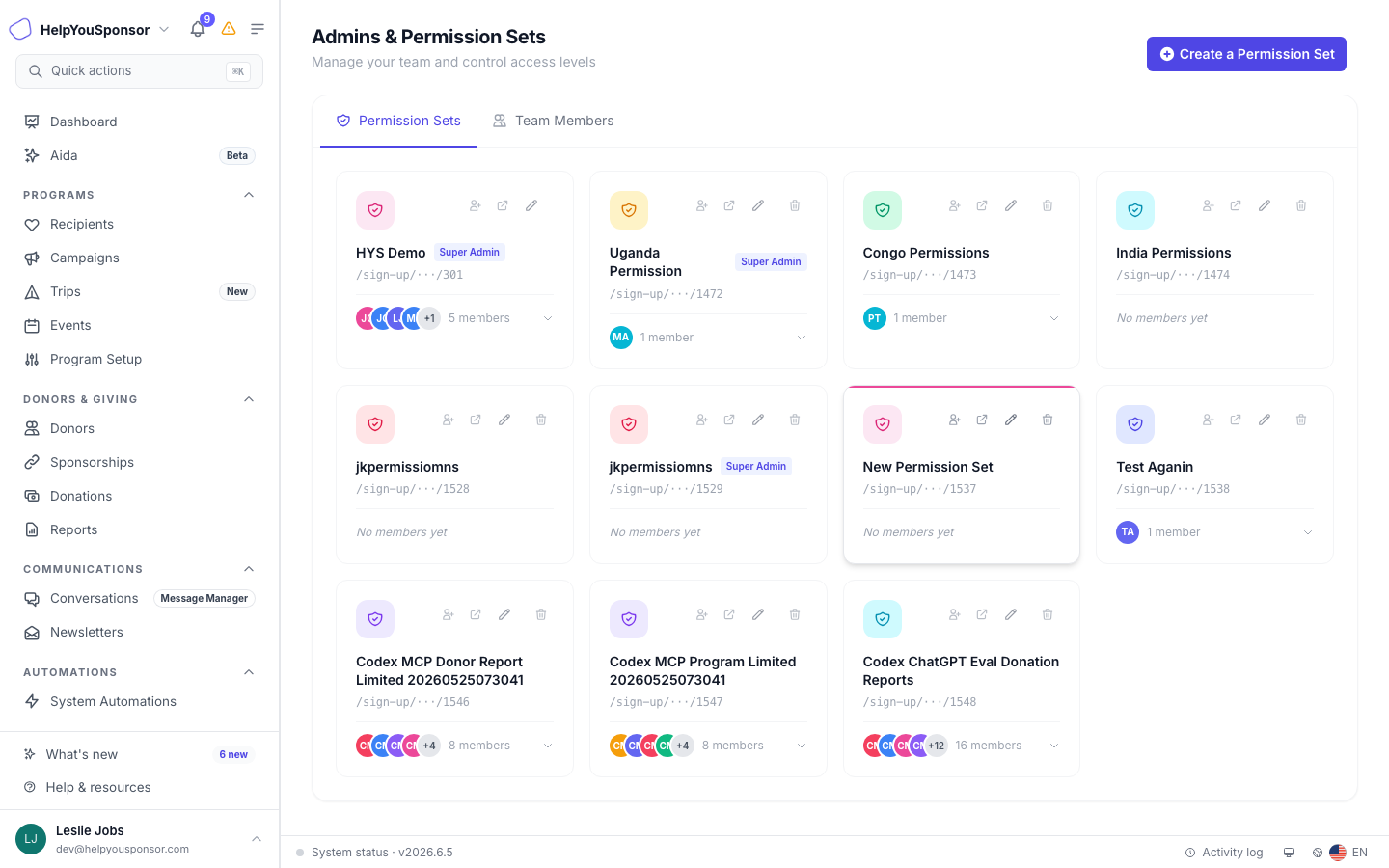
Admin Options — Permission Sets tab showing permission set cards
Here you can see the Permission Sets you have in the account.
From here you can perform actions like;
Creating a permission set
Editing a permission set
Deleting a permission set
Creating a permission set
To create a permission set, click the Create a Permission Set button. This will open up a drawer to set up your permission set.
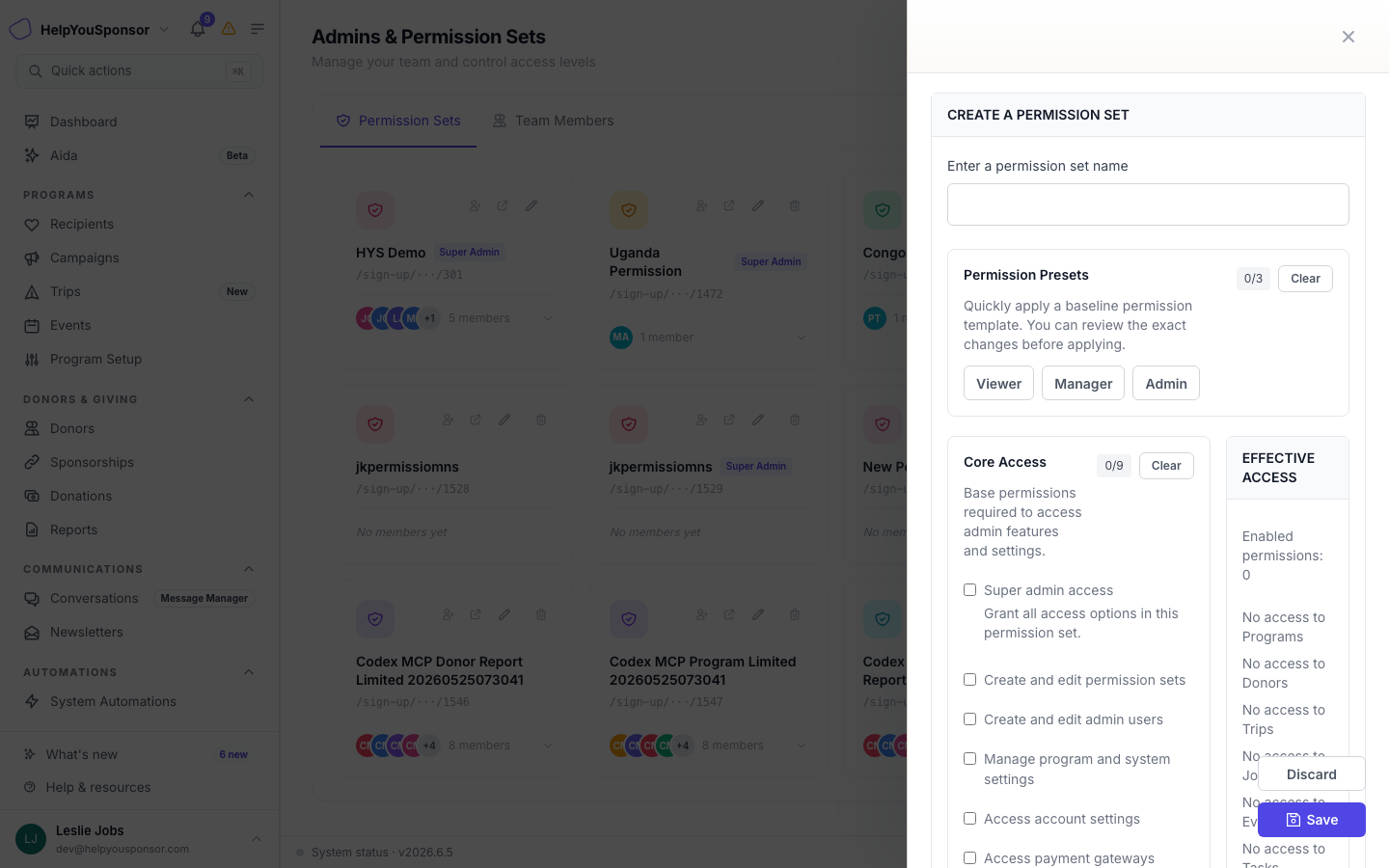
Create Permission Set drawer with the four permission sections
From here you can configure permissions across four sections:
Core Access — Super admin, create/edit permission sets, create/edit admin users, manage settings, and related controls.
Module Access — Programs, Donors, Trips, Journeys, Events, and other modules with None / View / Manage levels.
Scoped Access — Program-level scoping, donor-form scoping, and setting blocks.
Safety Restrictions — Toggleable blocks for message approval, archiving, restoring, and deleting.
Take time to read through what the checkboxes say to grant or deny admins the necessary permissions.
NOTE: Some areas, such as Insights and Wealth Insights, appear only when the related feature is enabled for your organization and the admin has the required access.
SMS Messaging permissions
SMS Messaging access is controlled by three permission levels:
View SMS shared inbox lets an admin open SMS Messaging and read donor text conversations.
Reply from SMS shared inbox lets an admin start donor conversations and send SMS replies.
Manage SMS shared inbox lets an admin assign conversations, change conversation status, and link unknown numbers to donors.
If an admin cannot see SMS Messaging under Communications, confirm that SMS Messaging is enabled for the organization and that the admin's permission set includes the needed SMS inbox access.
Print Mailings permissions
Print Mailings access is controlled by three permission levels:
View Print Mailings lets an admin open Print Mailings and review templates, generated mailings, runs, and history.
Generate Print Mailings lets an admin generate mailing runs from available templates.
Manage Print Mailings lets an admin create, edit, duplicate, and archive custom templates. When Handwrytten is enabled, this also controls stronger approval and submission actions.
If an admin cannot see Print Mailings under Communications, confirm that Print Mailings is enabled for the organization and that the admin's permission set includes the needed Print Mailings access.
Participation permissions
Attendance and enrollment access is controlled by four permission levels under the Programs module:
View participation lets an admin view participation periods, submitted checks, and program-status exceptions. It requires Programs access at View level.
Record participation lets an admin create scheduled checks and edit draft participant evidence. It requires Programs access at View level.
Submit participation checks lets an admin lock checks as submitted evidence and create corrections. It requires Programs access at View level.
Configure participation lets an admin manage locations, groups, periods, thresholds, and source mappings. It requires Programs access at Manage level and includes the view, record, and submit permissions.
Site and cohort restrictions are not separate permission-set checkboxes. They are stored as participation access scopes tied to a permission set, and an admin with Configure participation is not restricted by them.
Editing a permission set
To edit a permission set, click on the pencil icon on the permission set's card. This will open up a drawer with the details of the permission set. The checked checkboxes are the permissions that have been activated for the permission set.
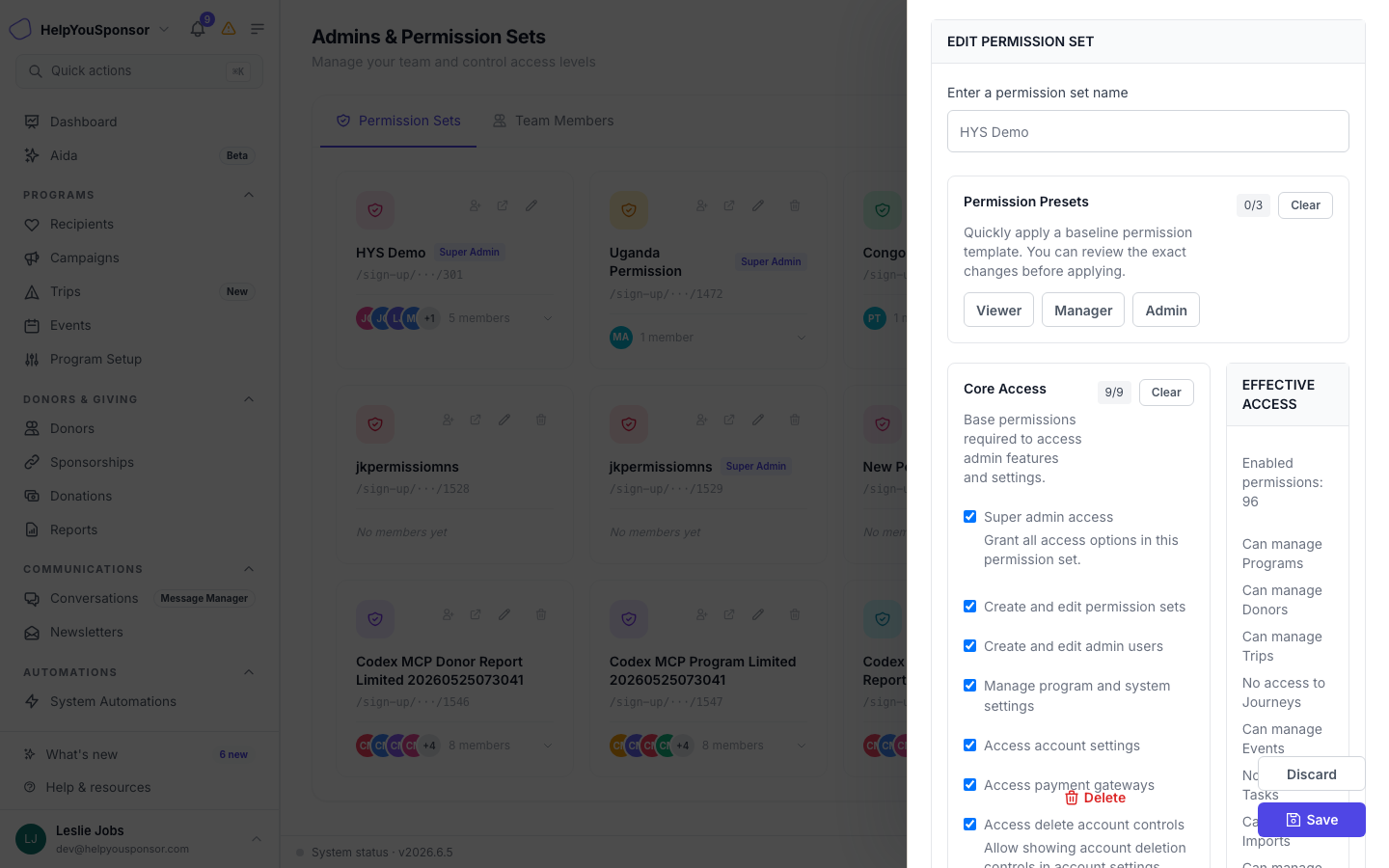
Edit Permission Set drawer showing configured permission checkboxes
After editing the permission set to your preference, click Save to update the permission set.
Deleting a permission set
To delete a permission set, click on the delete icon on the permission set's card. This will pop up a dialog to confirm the deletion. Click Confirm to delete the permission set.