
How do I record one check for multiple sponsorships?
Updated 2 weeks ago
When a donor sends one check that covers several sponsorships, record each sponsorship's portion separately with that sponsorship's Add payment action. When the check is an additional gift to be divided among multiple recipients or designations, use Add donation in the donor profile header with Split Donation. Record each portion only once, and do not also enter the full check as another donation.
Example: an anonymous donor mails one $80 check to cover two $40 monthly child sponsorships. Enter $40 with Add payment on each sponsorship. If a check is an additional gift to split across two designations, enter it once with Add donation and Split Donation.
Choose where to record the check
What the check covers | Where to record it |
|---|---|
Regular payments for existing sponsorships | Add payment on each sponsorship, entering only that sponsorship's portion |
An additional gift divided among recipients or designations | Add donation in the donor profile header, with Split Donation enabled |
Split Donation allocates the gift across the designations you choose, but it does not update existing sponsorship payment status or advance scheduled payment dates. A sponsorship's schedule only moves when you record a payment with Add payment on the sponsorship itself.
Record each sponsorship's portion with Add payment
Use this flow when the check pays the regular amount due on sponsorships that already exist. Work from the donor profile so each portion stays connected to that sponsorship's payment schedule.
Open the donor's profile from the Donors Table and stay on the Overview tab.
In the current commitments area, open the three-dot actions menu on the first sponsorship and choose Add payment.
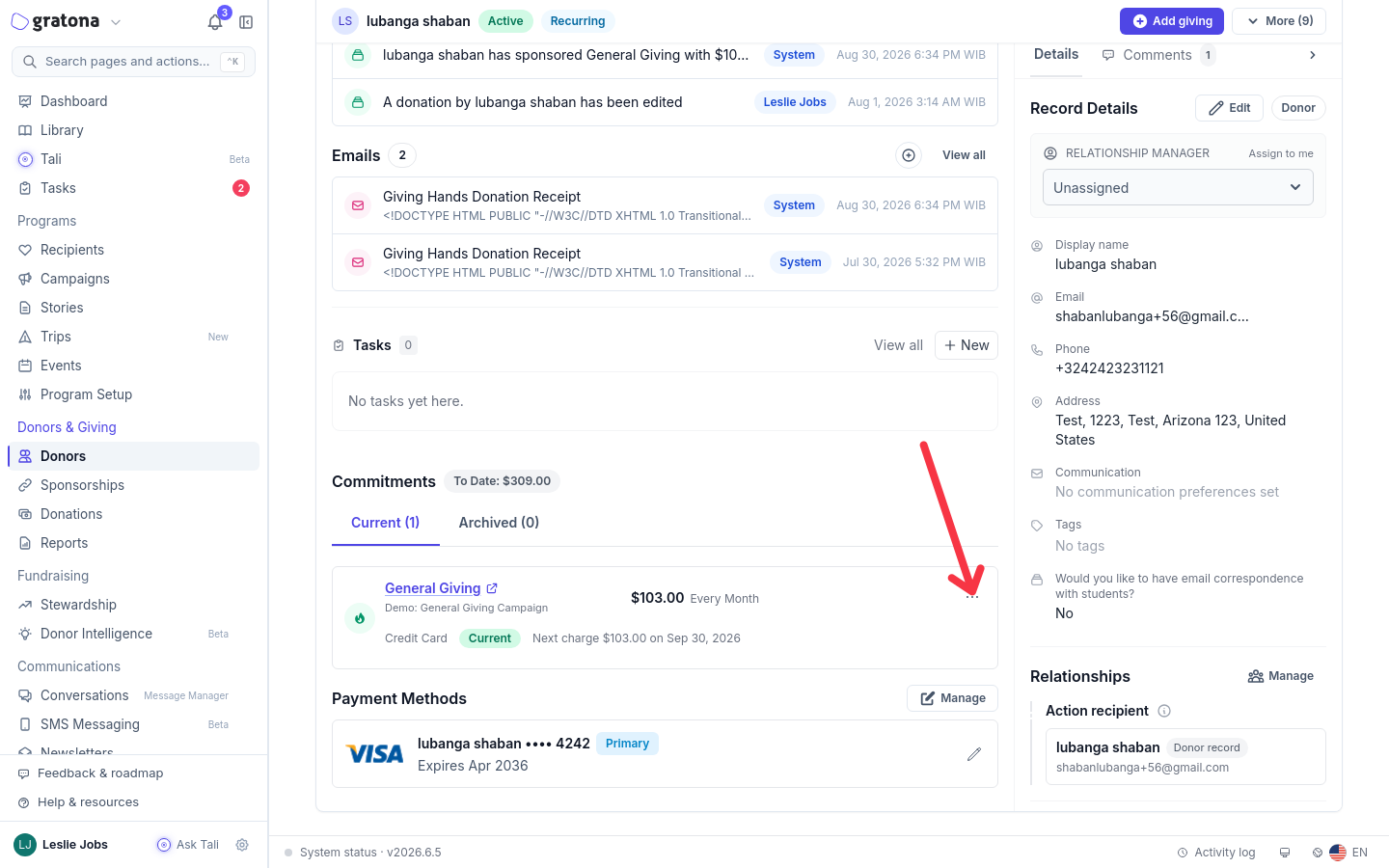
The payment applies to the sponsorship you opened the menu from, so confirm the designation shown matches that sponsorship before continuing.
Enter the payment details
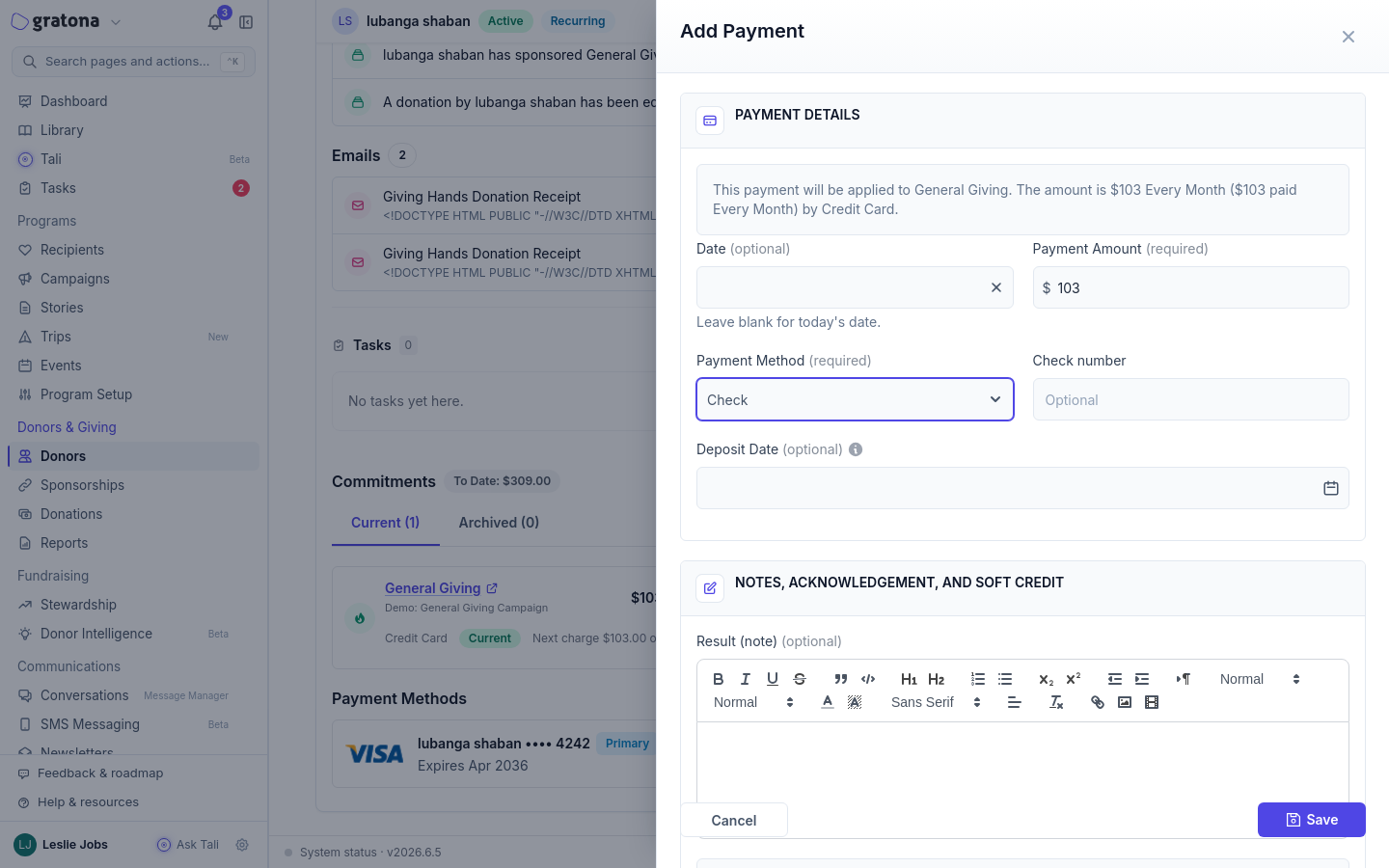
Enter the check date in Date and the sponsorship's portion in Payment Amount, for example 40.00.
Choose Check in Payment Method, and enter the check number in Check number if you have it.
In Result (note), record which check the portion came from, for example: Check #1234, $40 of $80, first sponsorship.
Review Receipt settings. Leave Don't send payment receipt email to donor unchecked when the donor should receive a receipt. Each payment has its own receipt setting, and the confirmation step shows whether a receipt will be sent and to which email address.
Review and confirm
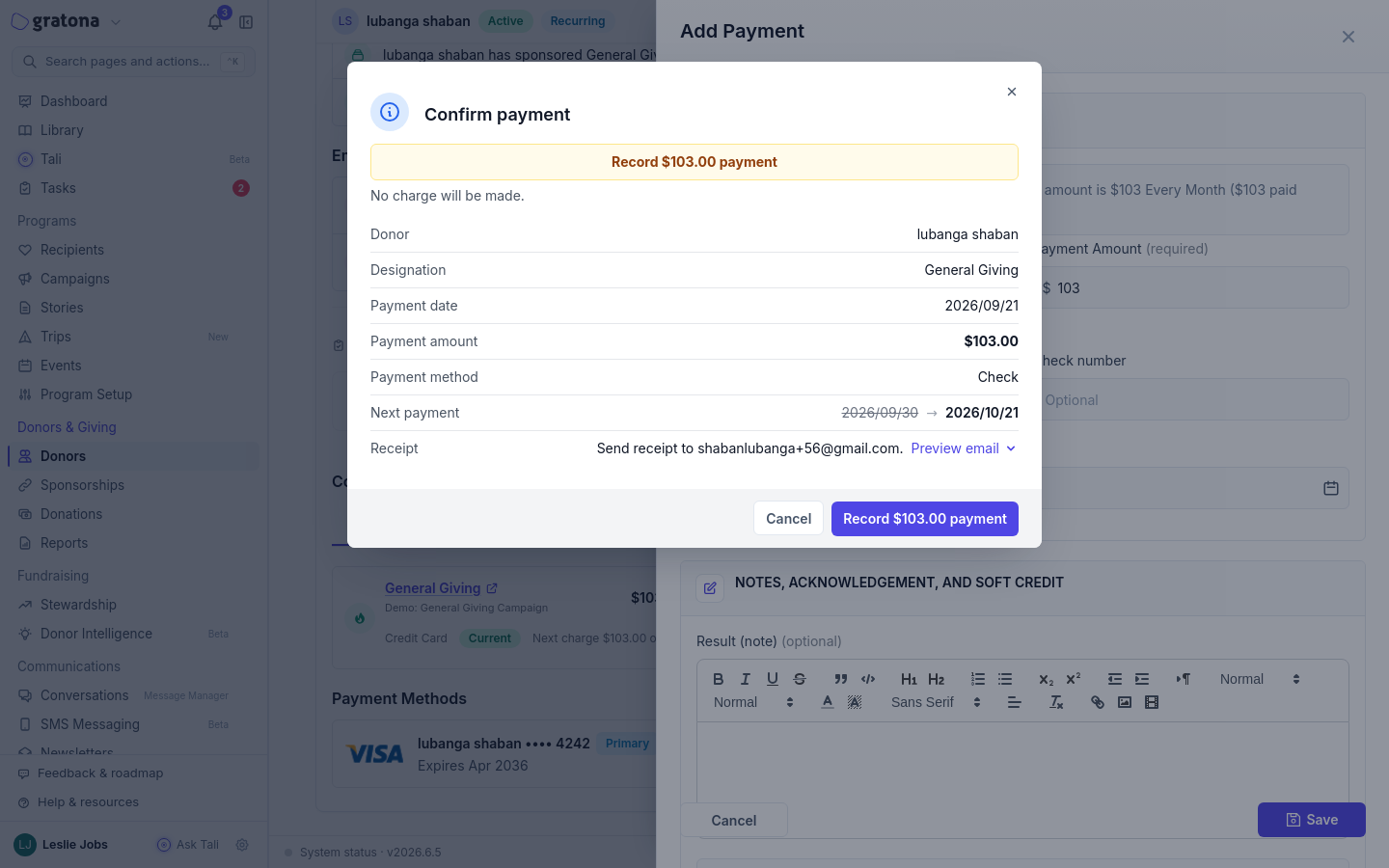
Select Save. The Confirm payment dialog summarizes the donor, designation, payment date, payment amount, payment method, and receipt.
Check the Next payment row. It shows the current next payment date struck through next to the new projected date.
Confirm the payment.
Repeat for the second sponsorship: open its three-dot actions menu, choose Add payment, and enter its $40 portion with the same date and check reference.
How a payment affects the schedule
A successful payment with a positive amount records the amount you entered and moves that commitment's next payment date forward by one interval, such as one month for a monthly commitment. The amount does not change how far the schedule moves: entering 80.00 on a 40.00 monthly sponsorship still advances the schedule by one month. That is why each sponsorship gets its own Add payment entry at its own portion.
For a payment that covers several installments at once, catches up arrears, or is an unusual partial amount, contact support before recording it so the schedule stays accurate.
Record an additional gift with Split Donation
Use this flow when the check is an extra gift beyond the sponsorships' regular payments and should be divided among multiple recipients or designations. Split Donation allocates the gift without changing any regular sponsorship schedule, so two 40.00 allocations can sit alongside two commitments that keep their usual 40.00 monthly payment dates.
Open the donor profile and click Add donation in the header.
Enter the check date in Date and the full check amount in Amount, for example 80.00.
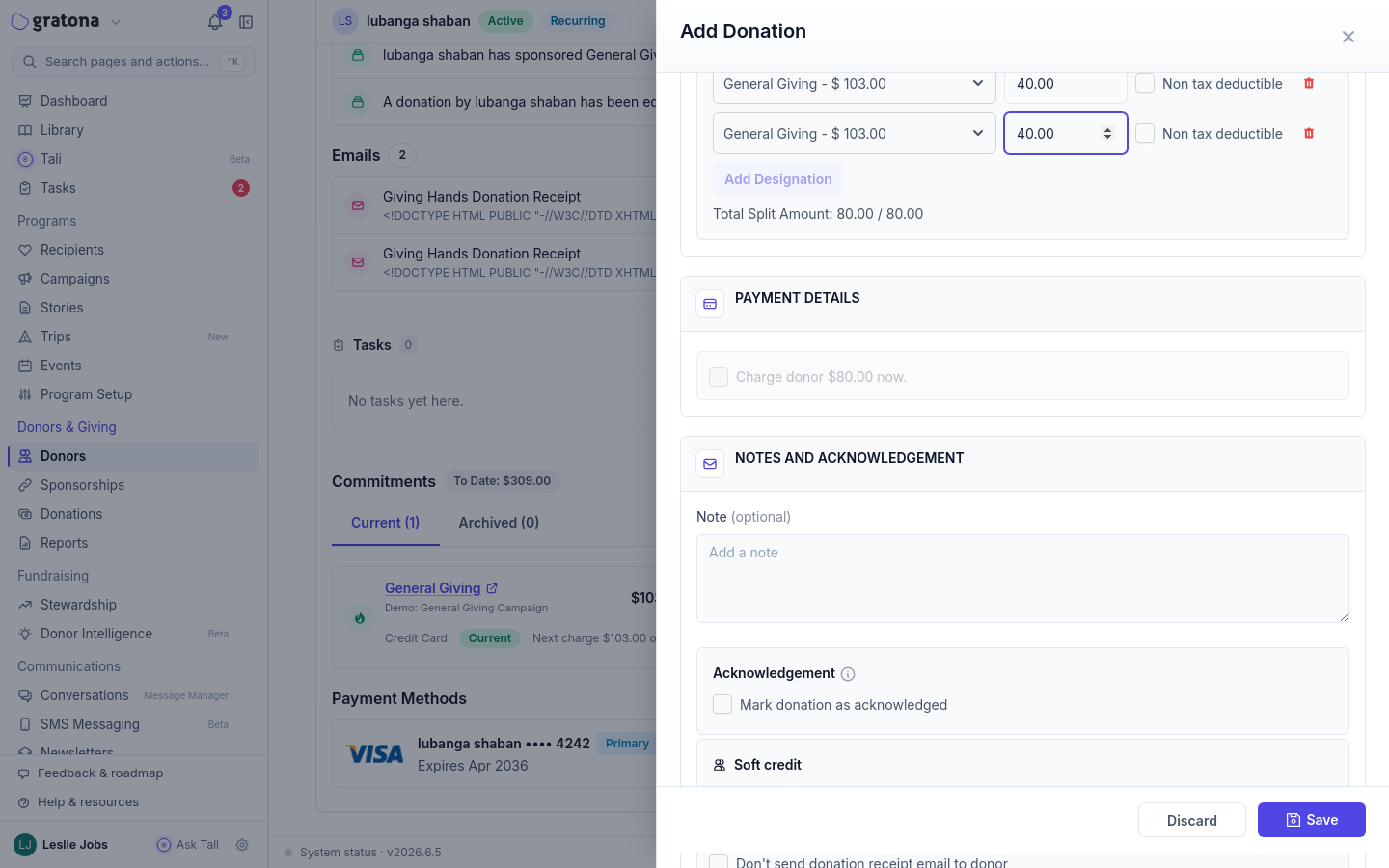
Check Split Donation. Two rows appear: choose a recipient or designation in each and enter its portion, for example 40.00 each. Use Add Designation when the gift covers more recipients.
Check the Total Split Amount display. It must exactly equal the full amount, for example 80.00 / 80.00. A split total above or below the donation amount is rejected.
Choose Check in Payment Method, and enter the check number if you have it.
In Note, record the check reference.
Review Don't send donation receipt email to donor and leave it unchecked when the donor should receive a receipt.
Select Save, review the Confirm donation dialog, including the designations and the receipt line, then confirm.
Record each portion only once. Entering the full check again as a separate donation double-counts the gift in the donor's history and reports.
Verify the records
Open the donor profile and go to Transactions > Donation History.
Check each new entry's recipient or designation, amount, payment method (Check), and date.
Confirm all portions together total the physical check, for example 40.00 plus 40.00 equals 80.00.
For sponsorship payments, return to the profile Overview and check each commitment's status, Current or Due, and its Next Payment date.
To review the same entries across all donors, use the Donations Table.
If the check was recorded the wrong way
Do not enter the check a second time to fix it. Review Transactions > Donation History for duplicated or misallocated entries, then contact support for a correction.