
Sponsorships Table
Updated last week
.
Sponsorships Table
Use the Sponsorships table when you need to review donor-recipient commitments across programs, check which commitments are current or due, create new sponsorship relationships, update commitment settings, export or import relationship data, or work with selected sponsorships in bulk.
Start from Sponsorships in the sidebar.
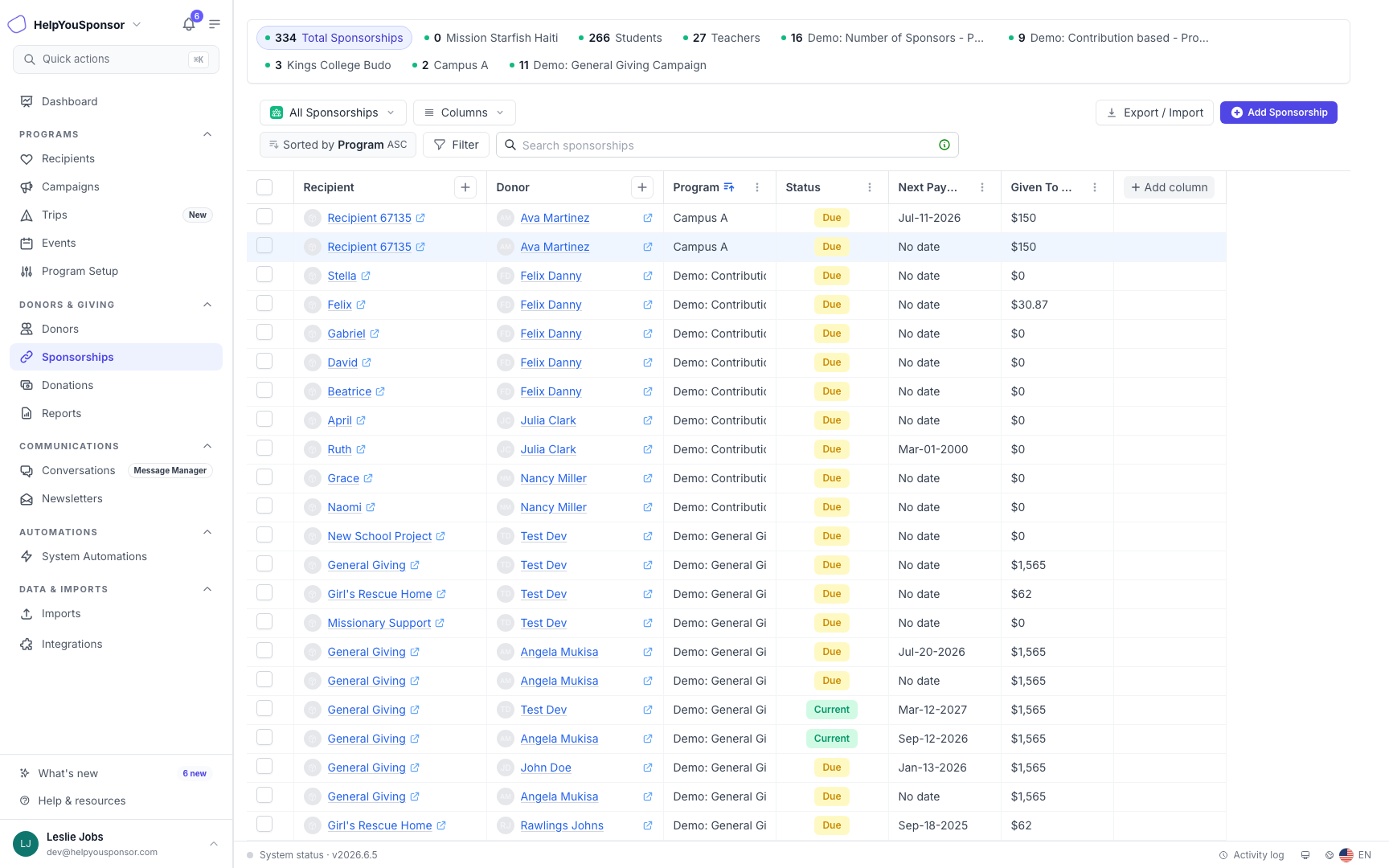
The Sponsorships table brings donor-recipient commitments, payment status, and program context into one worksheet-style view.
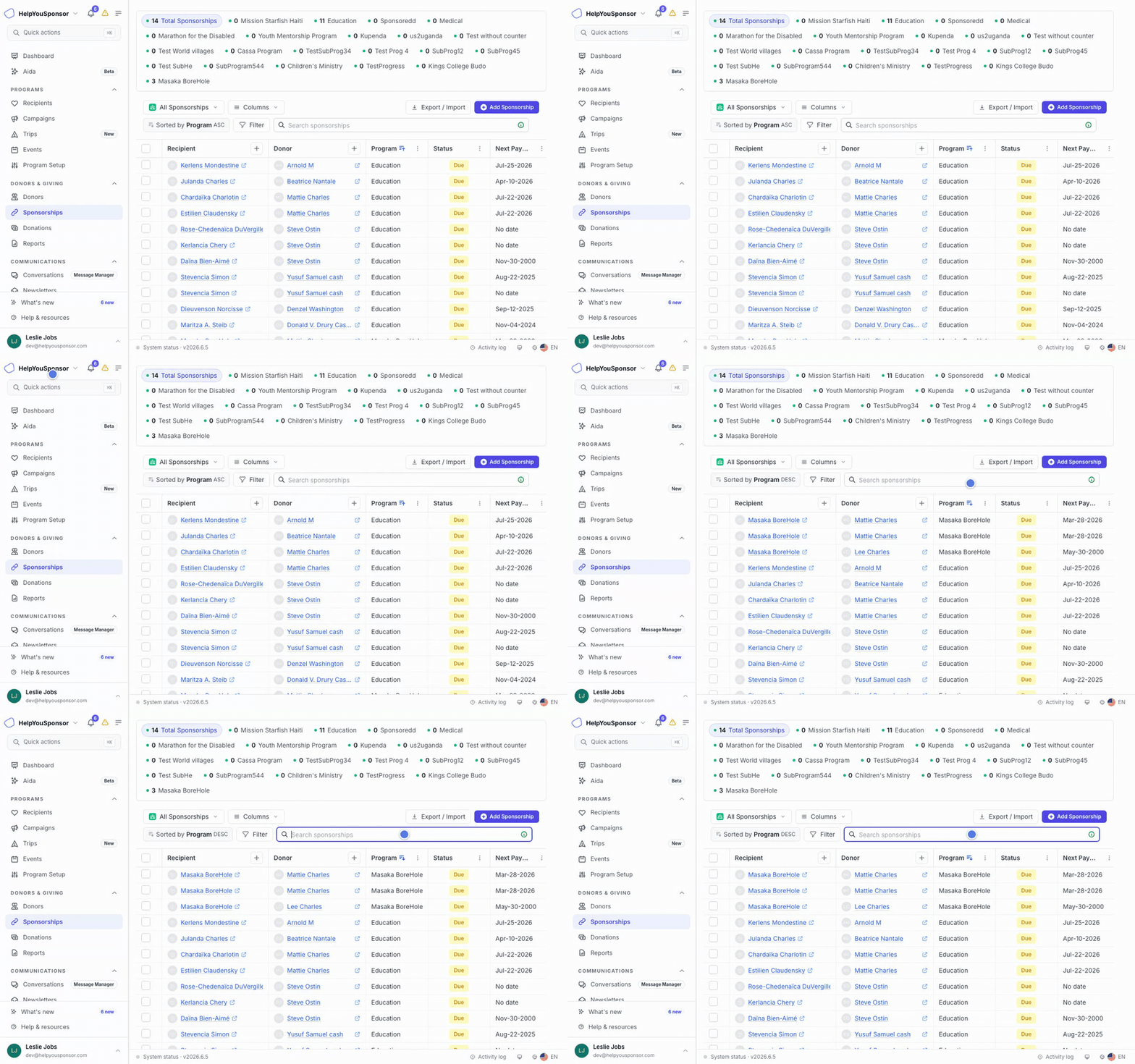
Walkthrough: reviewing and searching the sponsorships worksheet.
Choose the Commitments You Want to Review
Use the count strip above the table when you need to narrow the list by program.
Total Sponsorships shows the sponsorship relationships your role can access across programs.
Program counts show sponsorships for each accessible sponsorship program.
The All Sponsorships program selector lets you switch from all programs to one program.
The programs you see depend on your role and program access. If you do not have access to any sponsorship programs, Gratona shows a message instead of the table.
Read the Sponsorships Table
Each row represents one donor-recipient sponsorship relationship.
Common columns include:
Recipient: the sponsored recipient or record
Donor: the donor connected to the recipient
Program: the program where the relationship exists
Status: whether the sponsorship is Current or Due
Next Payment: the next expected payment date, when available
Given To Date: the amount recorded for the relationship so far
To record one check that covers several sponsorships, enter each sponsorship's portion from the donor profile. See How do I record one check for multiple sponsorships?
Recipient and donor names can open more detail when your role allows it. Recipient actions can open the recipient drawer, and donor actions can open the donor profile. Some worksheet views also show quick preview actions, such as opening a donor, emailing a donor, logging an interaction, editing a recipient, or viewing recipient files.
Search and Filter Sponsorships
Use Search sponsorships when you need to find records by the columns shown in the table. Search also includes the donor and recipient title fields for the active sponsorship form.
Use Filter when you need a more specific list.
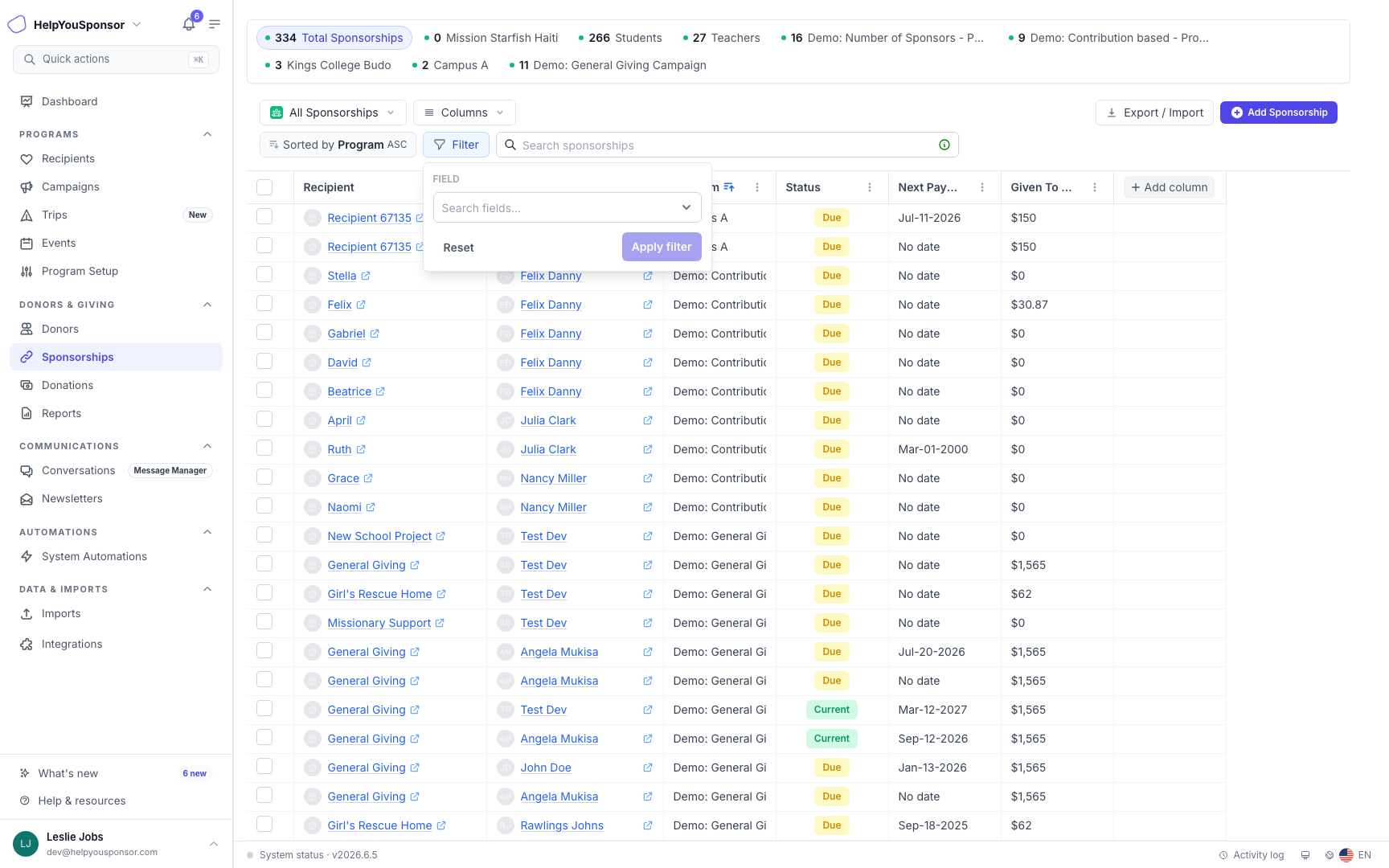
Filters narrow sponsorships by field, comparison, and value.
Filters can use:
recipient fields and system recipient fields
donor fields and system donor fields
payment fields, such as next payment, given to date, recurring amount, frequency, method, until, and last payment
logical combinations such as AND and OR
date presets and custom date ranges for date-based fields
Active filters affect the table, saved views, and exports where those tools are available.
Save Views and Choose Columns
Use Columns when you want the table to show the fields that matter for your current task.
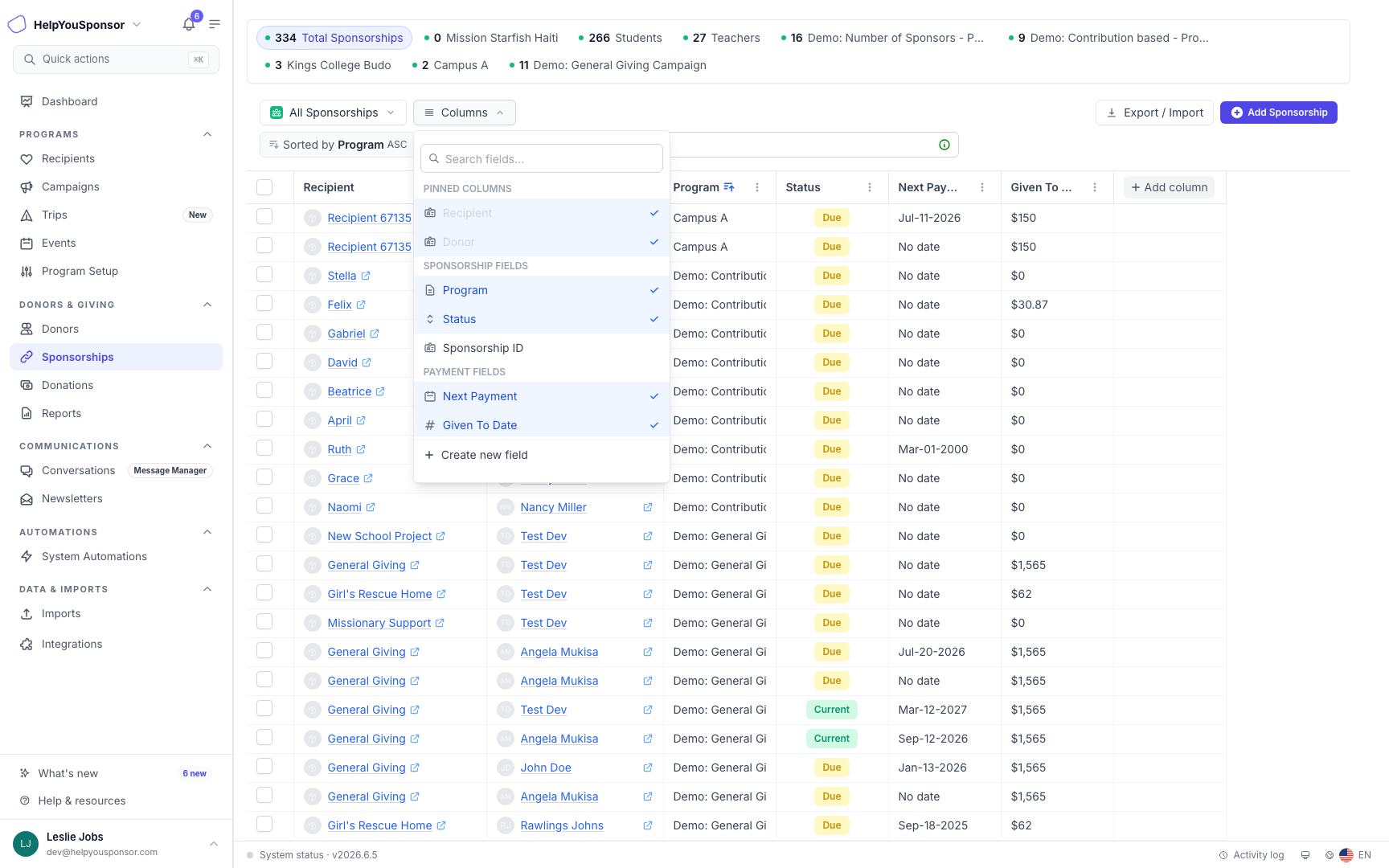
The Columns menu controls which sponsorship, payment, donor, and recipient fields appear in the table.
You can add or hide columns from the column menu. Worksheet views can also include an Add column control in the table header.
Save a view when you want to reuse a combination of:
selected program context
visible columns
column order
sorting
filters
Some accounts may still show the classic table tools. In that experience, use Views or Manage Fields to choose the fields shown in the table.
Export or Import Sponsorship Relationships
Use Export / Import when you need a CSV of sponsorship relationships for reporting, commitment review, or offline analysis.
Confirm the active program, view, columns, search, and filters.
Select Export / Import and choose your option:
Current page CSV — downloads the rows currently shown on the page.
All as CSV — starts a background export of all sponsorships matching the current view.
All sent to email — starts a background export and emails a download link when ready.
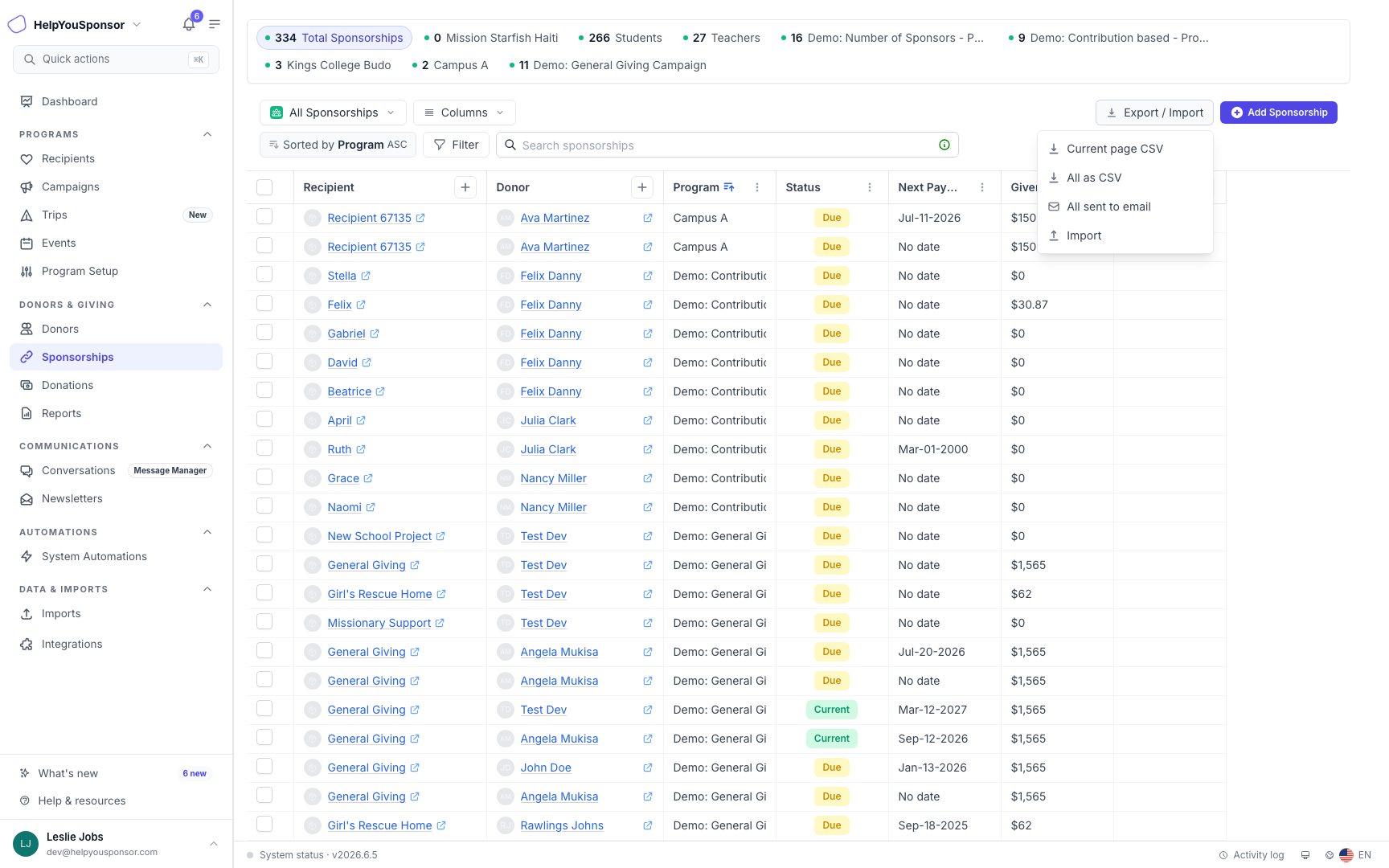
Export options include the current page, all matching sponsorships, email delivery, and CSV import.
Large exports are prepared in the background. A progress section appears at the top of the page while processing and provides the download when ready.
CSV import is for sponsorship relationships. The import template includes columns such as donor ID, recipient ID, amount, frequency, start date, next payment date, payment method, status, and notes.
Add or Update Sponsorships
Use Add Sponsorship when you need to create a donor-recipient relationship.
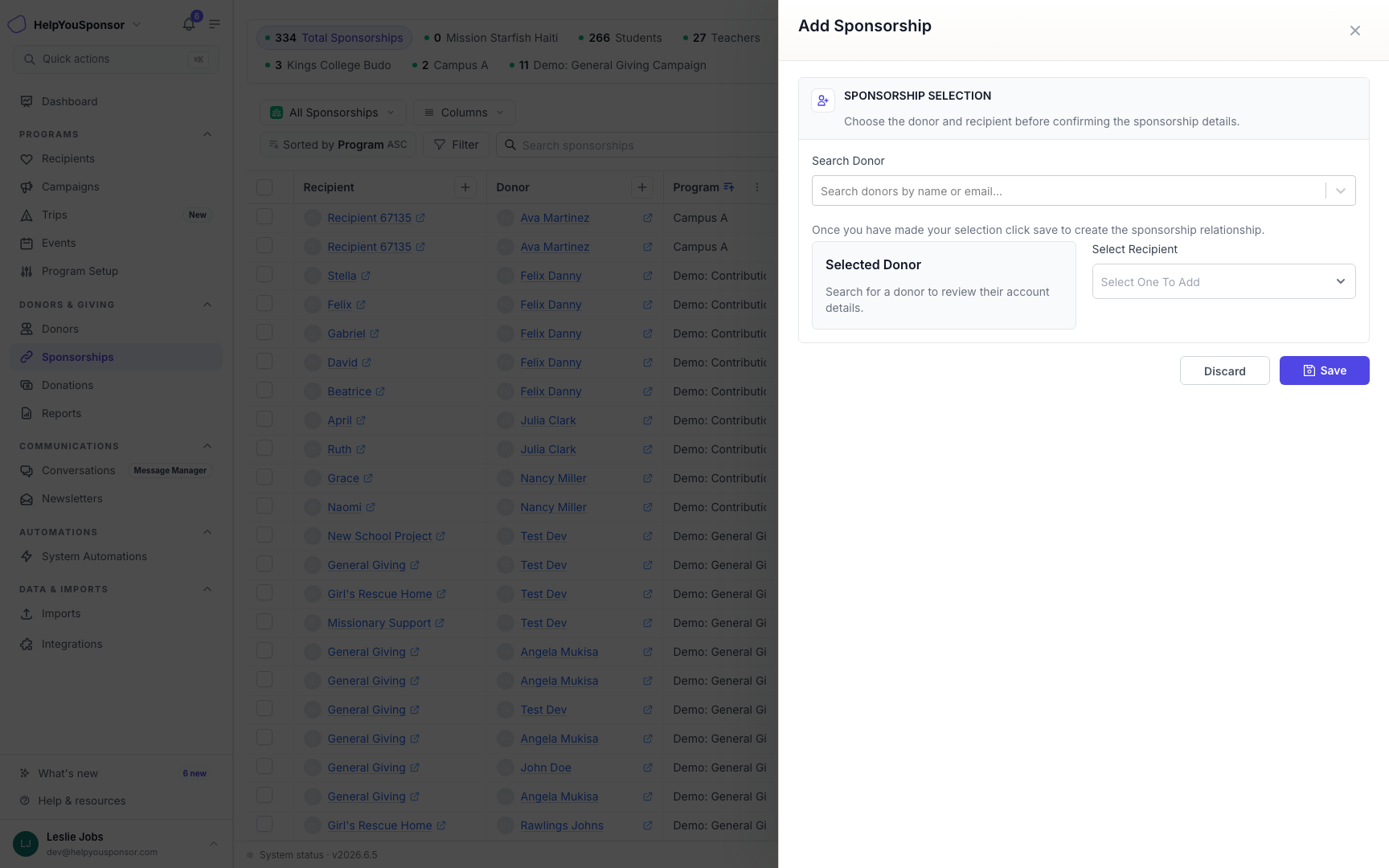
Add Sponsorship starts by choosing the donor and recipient for the relationship.
The add workflow starts with donor and recipient selection. After you save that selection, Gratona loads the remaining commitment details for the chosen donor and recipient, such as amount, payment method, payment frequency, and next payment due. Review the confirmation before creating the sponsorship.
See Add Sponsorship for the full add-sponsorship workflow. To change an existing sponsorship's frequency, amount, payment method, or schedule instead, see Edit an existing sponsorship.
Work With Selected Sponsorships
Select one or more sponsorship rows when you need to update or end existing relationships.
Selected-row actions can include:
Bulk Edit to update commitment fields such as payment frequency, end date, next action date, payment method, commitment amount, or amount basis
End to stop the sponsorship while retaining its history
Mailings when mailings are enabled for your account and compatible templates are available
When you select all rows on the current page, Gratona may offer a second option to select all matching sponsorships in the current filtered view. Review the selected count before running a bulk action.
Ending a sponsorship stops future charges and reminders managed by Gratona for that relationship. Review the confirmation before continuing. A subscription managed by an external payment provider must be canceled with that provider separately. To update a single sponsorship, use Edit Commitment on the donor profile or run Bulk edit on one selected row: see Edit an existing sponsorship.
Permissions
Your role controls what you can see and do in the Sponsorships table. Program access, sponsorship management, donor access, recipient access, donations access, exports, imports, bulk edit, archive, mailings, reports, and saved views can all be permission-gated.