
Edit Commitment is available only for current commitments. Check that the Current tab is selected under Commitments; archived commitments show no edit action. If the status is unexpected, ask a workspace administrator to review it. Restore an archived commitment only when you intend to resume its recurring schedule, after reviewing the billing impact and next action date.
Edit an existing sponsorship
Updated last week
Use Edit Commitment on a donor profile to change an existing sponsorship's payment frequency, amount, payment method, schedule, or end date. Sponsorship changes are made in your organization's Gratona admin workspace, not in the donor's personal portal. Saving an edit does not charge the donor, prorate, or refund anything by itself; the confirmation dialog shows exactly what will change and when the next payment action happens.
Before you start
You need a role with permission to manage donations or donors. The sponsorships you can reach depend on your program access.
Edit a sponsorship from the donor profile
The sponsorships you can edit are the donor's current commitments, shown under Commitments on the profile's Overview.
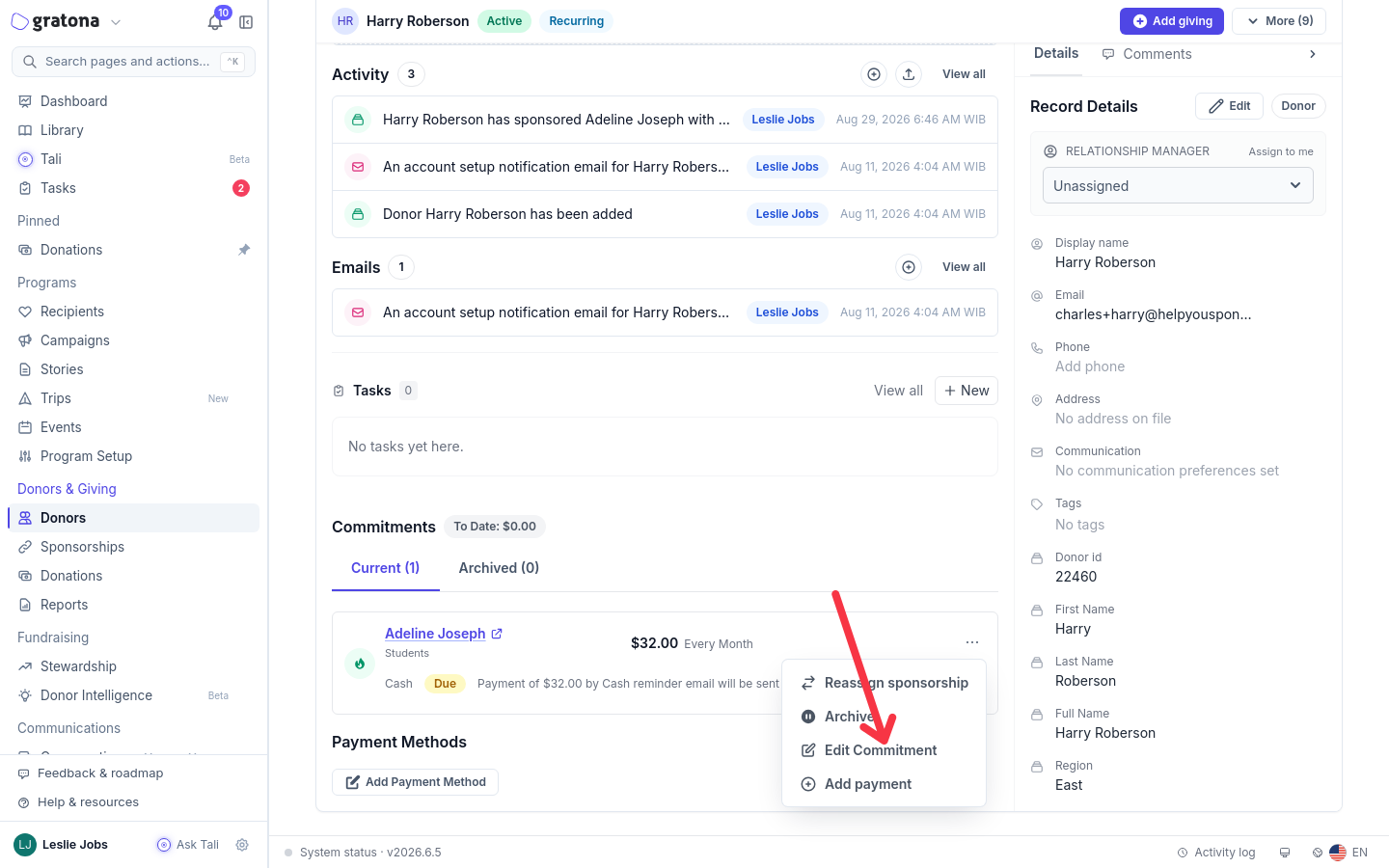
The commitment's three-dot actions menu opens the edit drawer.
Open the donor's profile from the Donors table and scroll to the Commitments section. Make sure the Current tab is selected.
Open the three-dot actions menu on the sponsorship you want to change.
Select Edit Commitment. The Edit Commitment drawer opens.
Under Commitment schedule, set Payment Frequency and Next Action Date. Review the next action date carefully. If the field is empty, Gratona displays a warning asking you to choose a date before saving. Set it explicitly when the next payment or reminder must happen on a specific date.
Under Commitment schedule, set the end date if needed. A commitment with no end date shows No end date; select Set End Date to reveal the Sponsorship Ends date field, or Set No End Date to clear an existing end date.
Under Payment details, update Payment Method (required) and the commitment amount. The amount field is labeled Monthly Commitment Amount or Per-Period Commitment Amount, depending on how the commitment's amount is stored.
If the commitment should move to a different program, change Program Assignment under Program assignment.
Select Save. The Confirm commitment changes dialog lists each changed value as its old value and new value, and shows an Impact: line describing the payment or reminder effect. Unchanged values are grouped under Show other details.
Review the changes and select Save changes. The commitment row on the donor profile now shows the updated amount and frequency.
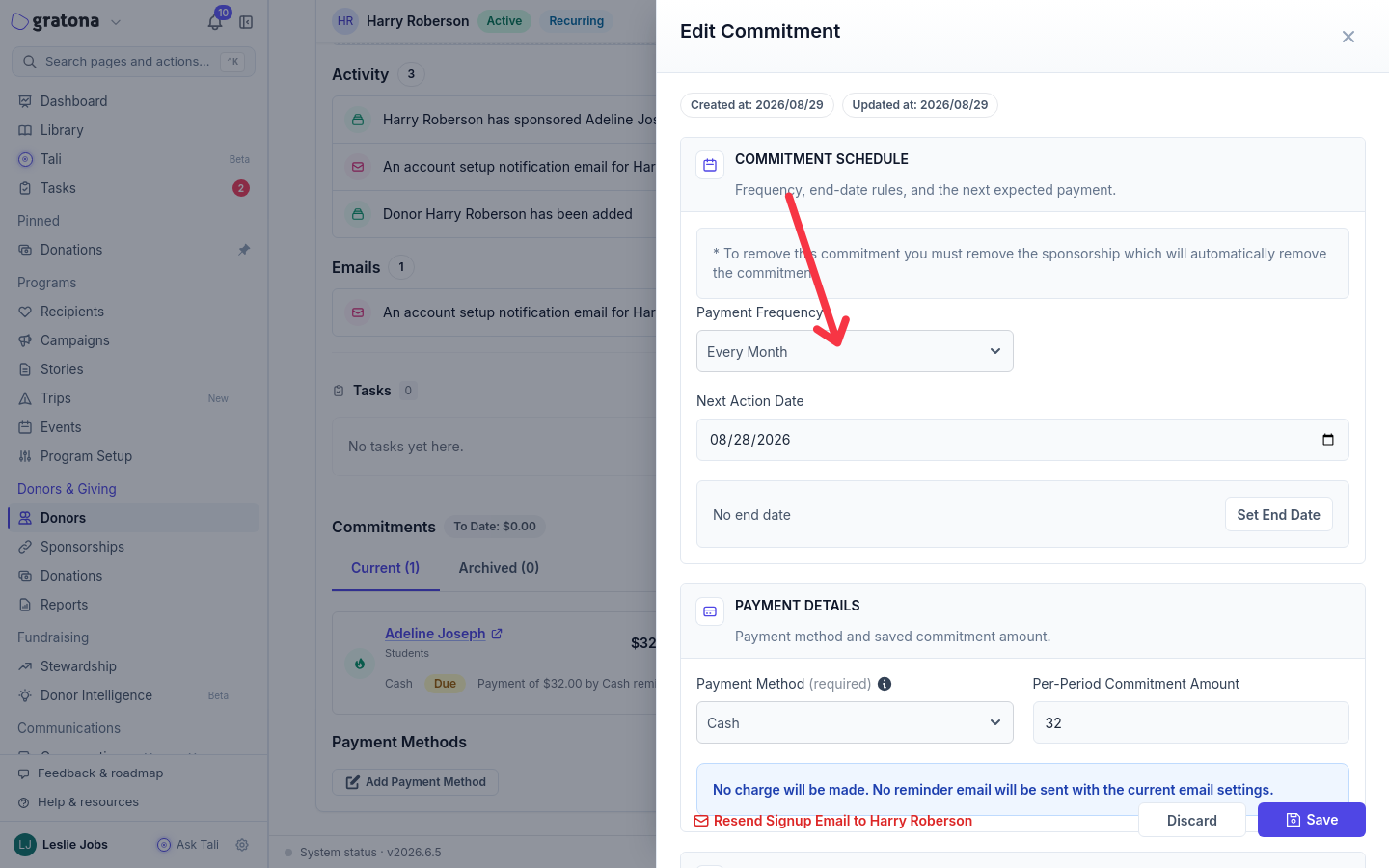
The Edit Commitment drawer groups schedule and payment details, and shows an impact notice based on the current payment method.
Discard closes the drawer without saving anything.
What the amount basis means
The label on the amount field tells you what the saved number means, and it matters whenever you change the frequency:
Monthly Commitment Amount: the number is a monthly amount. Gratona multiplies it by the period length when charging: every 3 months charges three times the amount, every 6 months charges six times, annually charges twelve times, every 2 months charges twice, and biweekly charges half.
Per-Period Commitment Amount: the number is charged for each period exactly as entered.
The saved number does not change when you switch frequency, so check the label before you save: a per-period amount that was right for one frequency is usually wrong for another.
Bulk edit can change the basis itself by selecting Amount basis and choosing Monthly amount or Per billing period amount.
What happens after you save
Saving updates the saved commitment only. Gratona does not charge the donor, prorate, or refund when you save; the next payment or reminder happens on the schedule you saved.
Methods Gratona charges automatically, such as a saved card or bank payment: Next Action Date controls when the next charge happens. The confirmation's Impact line states the charge, including the amount, frequency, start date, and payment method.
Manual methods, such as cash, check, or wire transfer: no charge is made. When reminders are enabled, Next Action Date schedules the reminder email; with reminders off, nothing is sent.
Commitments billed by the payment provider under their own subscription, such as a PayPal subscription or an external processor arrangement: payments are recorded in Gratona as they occur, and changes to that billing are made with the provider, not in this drawer.
Review Next Action Date whenever you change Payment Frequency, and explicitly choose the intended date for the next payment or reminder. When payment reminders and grouped delivery are enabled for the program, eligible scheduled gifts with the same donor, date, payment method, and message set are included in one reminder.
Example: switch an annual sponsorship to monthly next year
A donor gives $360 once a year to an Education Sponsorship Program and should give $30 every month starting January 1 of next year. You make this change now in Edit Commitment; the next payment action then happens on the next action date you set.
Open Edit Commitment for the sponsorship.
Set Payment Frequency to the monthly option.
Check the amount field label and set the amount:
Per-Period Commitment Amount: the saved amount (360) is charged every period, so enter 30. Leaving it unchanged would charge $360 every month.
Monthly Commitment Amount: the saved amount is already the monthly equivalent ($30 for a $360 annual gift), so leave it unchanged.
Set Next Action Date to January 1 of the intended next year. For an automatic payment method, that is the scheduled date of the first $30 charge. Check both the day and year before saving.
Select Save, then review Confirm commitment changes. The Impact line states the result, such as the donor being charged $30 monthly starting January 1.
Select Save changes.
The saved schedule changes immediately, but the donor's next payment happens on the next action date. For a manual method such as cash or check, no charge happens at all; the next action date schedules the reminder email instead when reminders are enabled.
Edit one sponsorship with Bulk edit
You can also change commitment fields from the Sponsorships table. Bulk edit works for a single selected row as well as for many, and it shows a confirmation before anything is applied.
In the Sponsorships table, select the row for the sponsorship.
Choose Bulk edit. With one row selected, the action shows the selected count, for example Bulk edit (1).
In the drawer, pick the fields to update: Payment frequency, End date, Next action date, Payment method, Commitment amount, or Amount basis.
Select Save, then review the confirmation dialog, which compares the current values with the values after the update. Select the confirmation button to start the update. Wait for it to finish, check for any reported errors, and reopen the sponsorship to verify the new values.
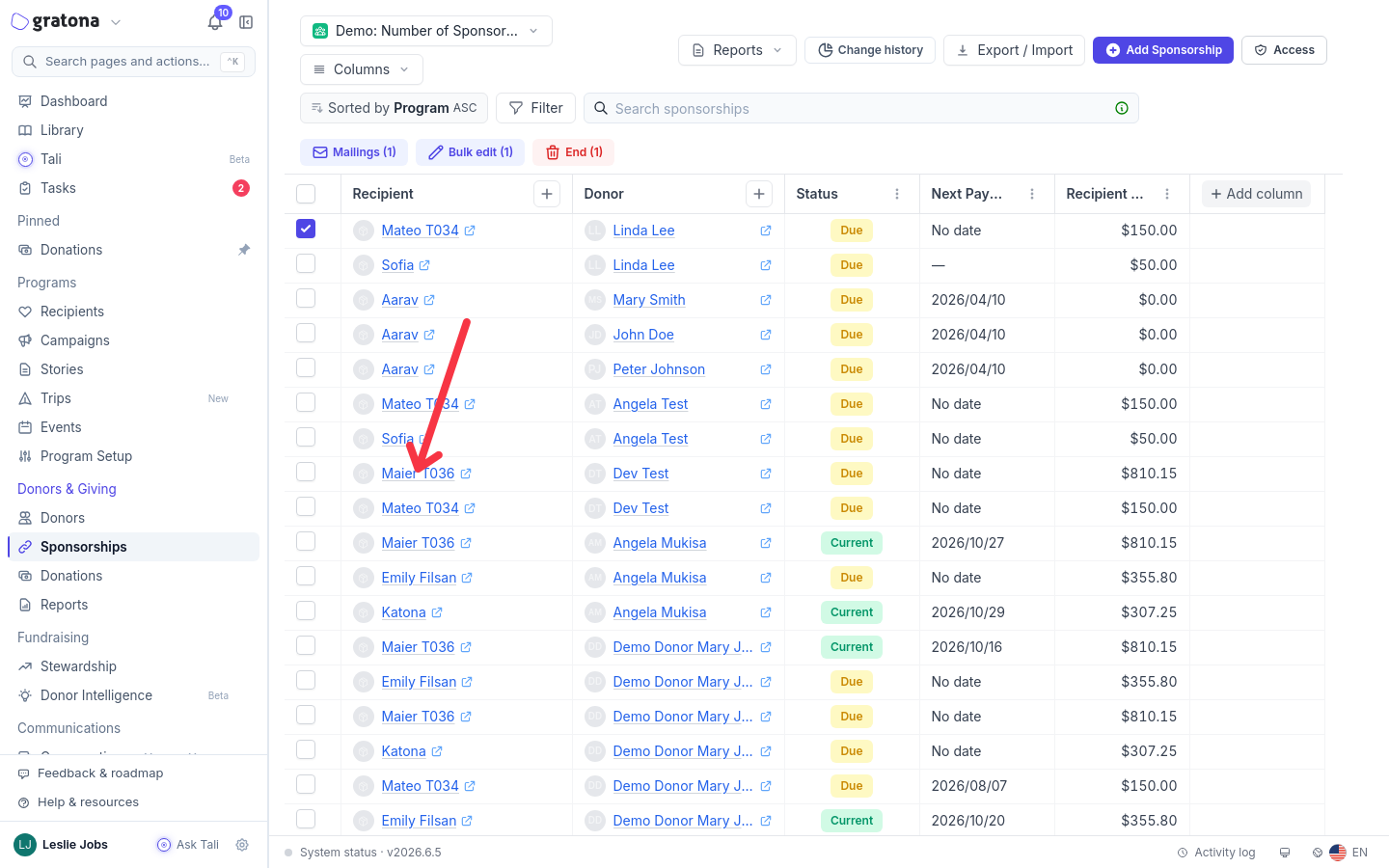
One selected row is enough to open the Bulk edit action.
Bulk edit requires the bulk updates feature and donations permission for your role.
End or cancel a sponsorship instead
Editing changes how a sponsorship is paid. Ending it stops the sponsorship altogether, and there is no separate pause action for commitments.
From the donor profile, open the commitment's actions menu and choose Archive. The confirmation states that archiving stops the commitment while keeping its history, that Gratona will no longer process future charges or payment reminders for it, and that the recipient stays in the program and may become available for sponsorship. If your workspace asks for a reason or notes, provide them before confirming.
From the Sponsorships table, select one or more rows and choose End. In the End sponsorship dialog, review the billing impact when shown and provide any reason or notes requested by your workspace. Confirming ends the selected sponsorships and stops their future charges and reminders managed by Gratona.
For a commitment billed under its own subscription with the payment provider, ending the sponsorship in Gratona does not cancel that subscription. Manage it with the provider separately.
Record why the sponsorship ended so the outcome stays in the sponsorship's history for reporting. See Record a reason when a recipient leaves or a sponsorship ends.
Archived commitments keep their history. Restoring a commitment resumes its recurring schedule, so review the billing impact and next action date before confirming a restore.
If Edit Commitment is missing
The edit page is denied
Opening the edit requires a role with permission to manage donations or donors. Ask a workspace administrator to grant the needed permissions.
Bulk edit is missing on the Sponsorships table
Bulk edit requires the bulk updates feature and donations permission for your role. Contact your Gratona representative if the action does not appear.
Related guides
Add Sponsorship — create a new donor-recipient relationship
Reassign a sponsorship — move an existing sponsor to another recipient
Record a reason when a recipient leaves or a sponsorship ends — record the outcome and staff notes
Sponsorships Table — search, filter, and bulk-manage sponsorships
Donor Profile Page — the record where current commitments live
Was this helpful?
Was this helpful?