
Record a reason when a recipient leaves or a sponsorship ends
Updated last week
Record a reason and optional staff notes whenever a child leaves a program or a donor ends a sponsorship, so the outcome stays part of the child's and sponsorship's history for reporting. These are two related but separate decisions: a recipient exit is recorded from recipient management, and a sponsorship ending is recorded from the donor's commitments.
Understand the two decisions
A recipient exit and a sponsorship ending are separate events that you record in different places, even though they often happen at the same time.
Recipient exit — a child leaves a program (for example, graduates or the family moves). You record this from the recipient's record, and you can choose what happens to each of the child's current sponsorships.
Sponsorship ending — a donor ends their sponsorship. You record this from the donor's commitments.
Recording an outcome keeps it as part of the child's and the sponsorship's history rather than removing the record, so the information stays available for reports.
Record a reason when a recipient leaves a program
Open the recipient's record and use the Archive action in the edit drawer header. The dialog collects a reason and optional staff notes, and lets you decide what happens to each current sponsorship before the recipient is archived.
Open the recipient from the Recipients table for the program, then open the recipient's edit drawer.
Select Archive in the drawer header.
Under Why is this recipient being archived?, select a reason from the list.
Optionally add staff notes. Notes are limited to 2,000 characters and are saved for history and reports.
For each current sponsorship, choose Archive sponsorship (stop the sponsorship) or Reassign sponsorship (keep it active with a different recipient). If you reassign, choose the new recipient for each sponsorship.
Select the confirmation button to archive the recipient.
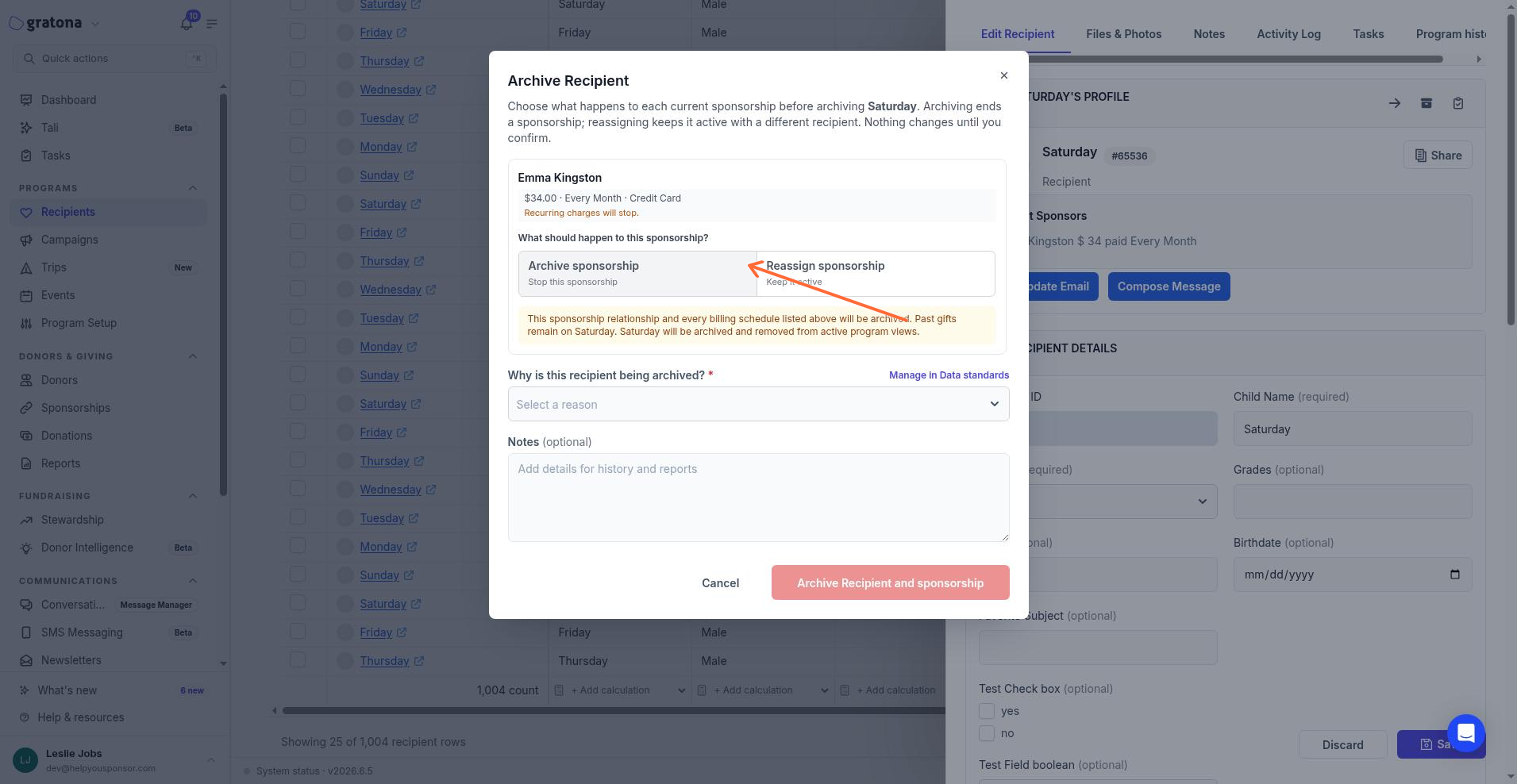
The Archive Recipient dialog asks for a reason and lets you archive or reassign each current sponsorship.
The default reason list for a recipient exit is Graduated, Dropped out, Family moved, Transferred to another program, Transferred to another site, No longer eligible, Unable to contact, Deceased, and Other. Whether the reason is required, and whether a reason requires a note, depends on your workspace's Data standards settings.
If the recipient has no current sponsorships, archiving only removes the recipient from active program views. Archiving a recipient can affect sponsorship relationships and recurring payments, so review the confirmation before completing the action.
Archive sponsorship ends the donor–recipient relationship and archives its recurring commitments. Gratona stops future charges and payment reminders that it manages for those commitments, while preserving past gifts and history. A subscription billed directly by a payment provider must be managed with that provider separately.
Reassign sponsorship moves the existing sponsorship and its recurring commitments to the selected recipient. The amount, payment method, frequency, and billing schedule continue, and past gifts remain attributed to the original recipient. See Reassign a sponsorship.
When a child continues in another program, create or locate the new program's recipient record first, then choose it as the destination for each continuing sponsorship. Resolve the sponsorships before archiving the old recipient, or reassign them within the archive dialog.
Record a reason when a sponsorship ends
End a sponsorship from the donor's commitments or in bulk from the Sponsorships table. Both paths collect an ending reason and optional staff notes.
To end one sponsorship from a donor's profile:
Open the donor's profile and go to their current commitments.
Open the actions menu for the sponsorship and select Archive.
Under Why is this commitment being archived?, select a reason from the list.
Optionally add staff notes.
Select Archive to end the sponsorship.
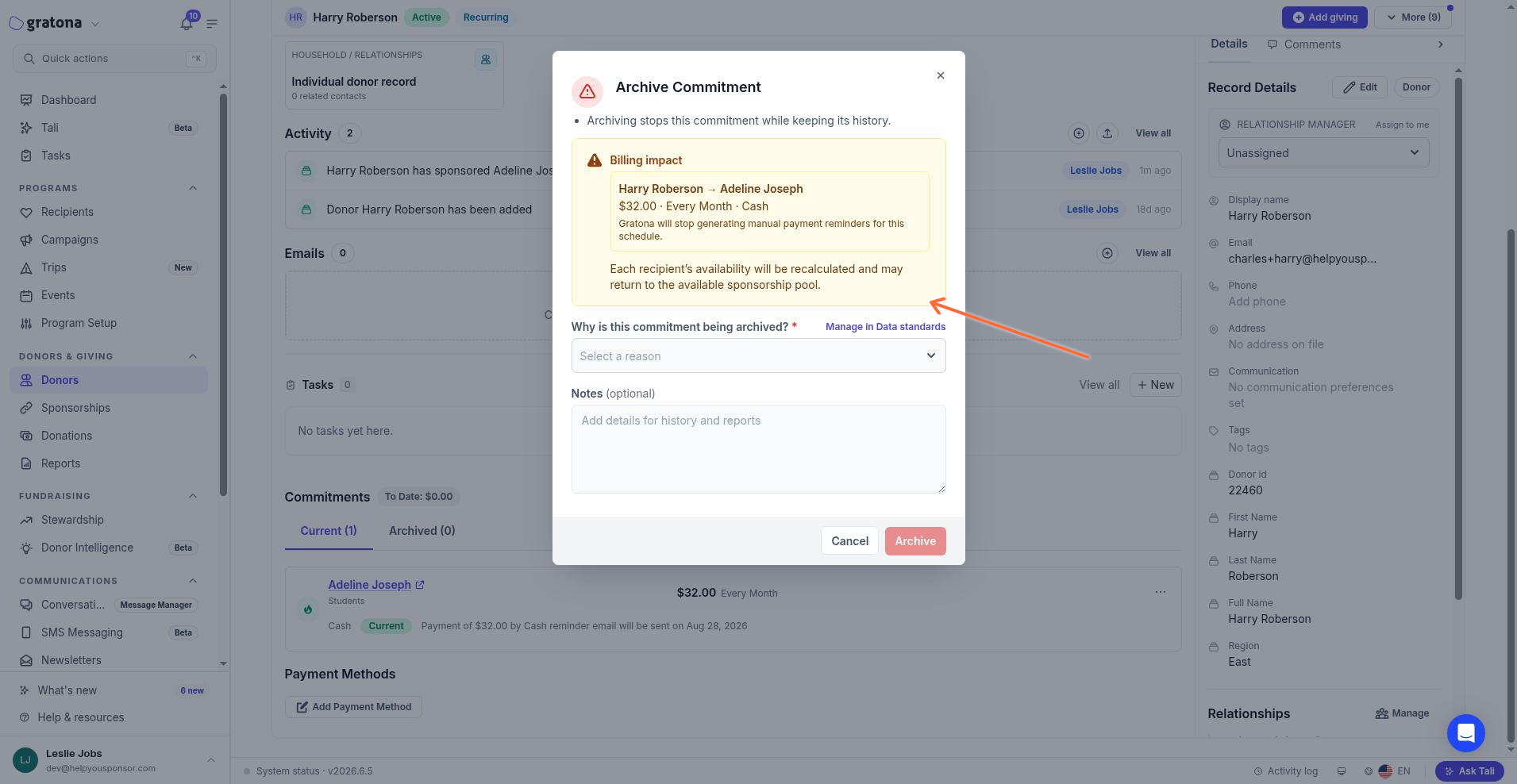
The Archive Commitment dialog collects the reason a donor is ending a sponsorship.
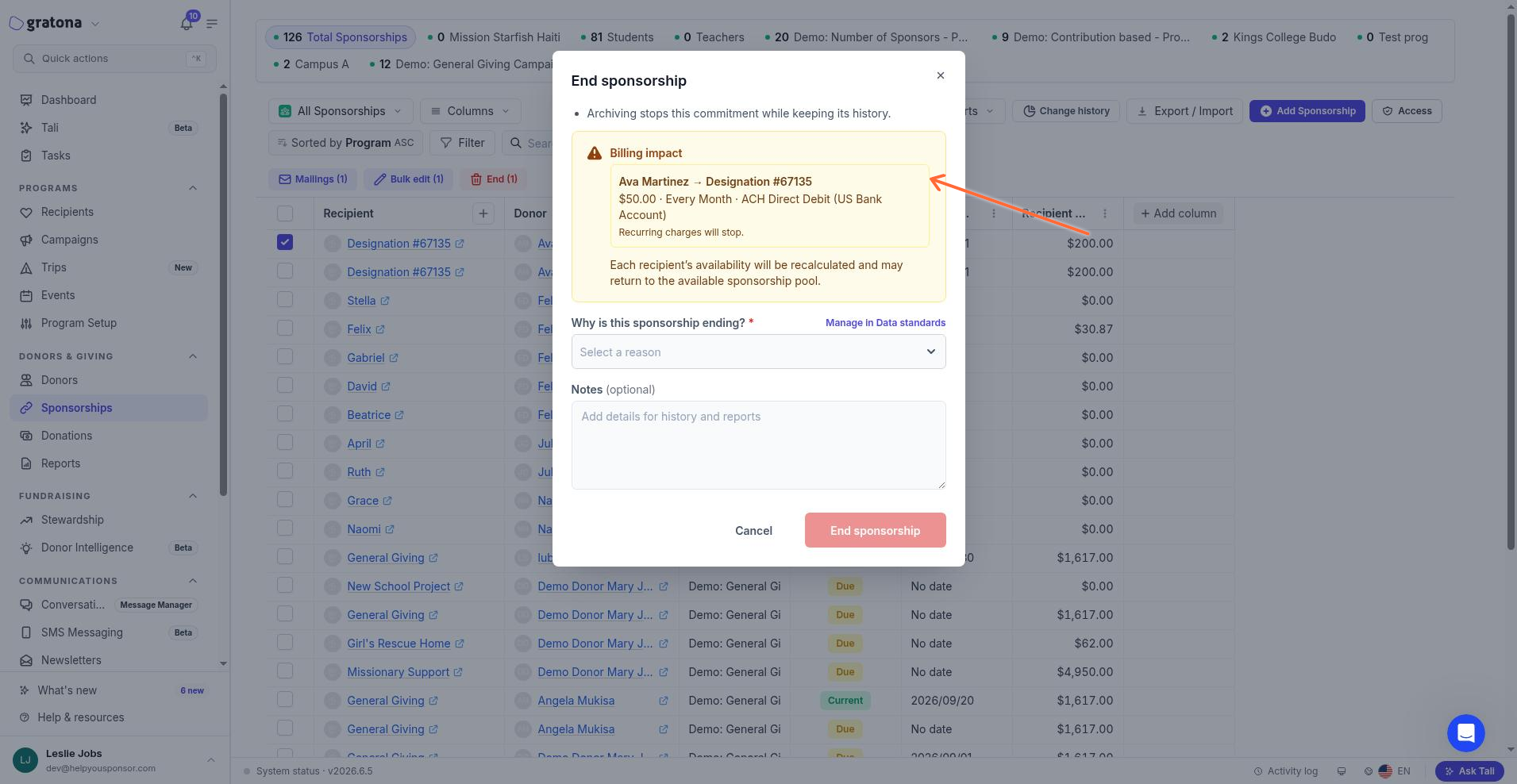
To end several sponsorships at once, select the rows on the Sponsorships table and choose End with the selected count.
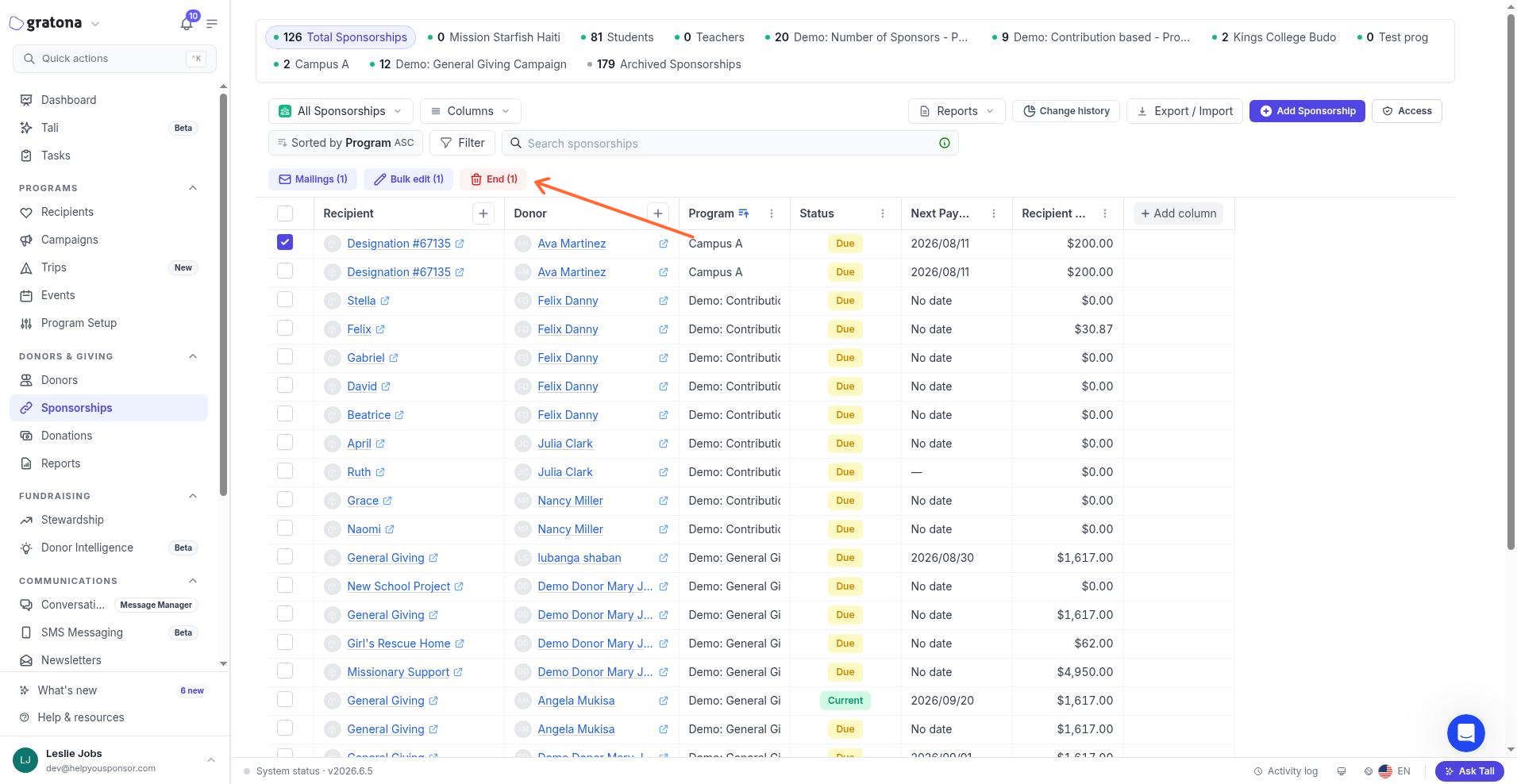
The End sponsorship dialog shows the billing impact for each selected sponsorship and asks Why is this sponsorship ending? with a required reason and an optional notes field, then confirms with End sponsorship.
The default reason list for a sponsorship ending is Donor cancelled, Donor financial circumstances changed, Payment could not be recovered, Donor moved support elsewhere, Unable to reach donor, Sponsorship completed, Duplicate relationship, Data correction, and Other.
The Archive and End actions may not be enabled in every workspace. If the controls do not appear for your role or workspace, contact your Gratona representative.
What recording an outcome does
Lifecycle history is append-only: a recorded outcome cannot be edited or deleted, and it stays as part of the child's and the sponsorship's history. Past transition records keep their original reason code and label even if you later change or deactivate a reason, so historical reports do not change.
Because outcomes stay in history rather than moving records into separate archives, you can report and filter on them by reason, type of change, donor, child, program, amount, and date.
Customize the reason lists
Your team can customize the reasons used for recipient exits and sponsorship endings in Data standards, under Settings. The page groups the catalogs under Sponsorship & recipients and includes Recipient archive reasons, Sponsorship ending reasons, and Sponsorship reassignment reasons. Only workspace settings managers can change these standards.
You can add, edit, reorder, and deactivate reasons, choose whether a reason is required, and set whether a reason requires a staff note. Deactivating a reason removes it from future actions but keeps past transition records unchanged. See Customize sponsorship change reasons for the full workflow.
Permissions
Your role controls whether you can archive recipients and end sponsorships. The Archive action appears in the recipient edit drawer only when your role allows managing the recipient and archiving the record, and ending a sponsorship requires the relevant commitment and sponsorship permissions. If your permissions do not allow archiving a sponsorship, the recipient archive dialog requires you to reassign every current sponsorship before continuing.