
Customize sponsorship change reasons
Updated 3 weeks ago
Customize the reasons your team picks when a recipient leaves, a sponsorship ends, or a sponsorship is reassigned from the Data standards settings, where each of the three change types keeps its own list of reasons you can add to, edit, reorder, and deactivate.
Where the reasons live
Open Data standards from your user menu under Organization settings to manage the reasons staff record when a sponsorship changes. The page groups the reasons under Sponsorship & recipients into three contexts, each with its own list:
Recipient archive reasons — why a recipient leaves or is archived.
Sponsorship ending reasons — why a sponsorship ends, including donor cancellations.
Sponsorship reassignment reasons — why an existing sponsorship moves to another recipient.
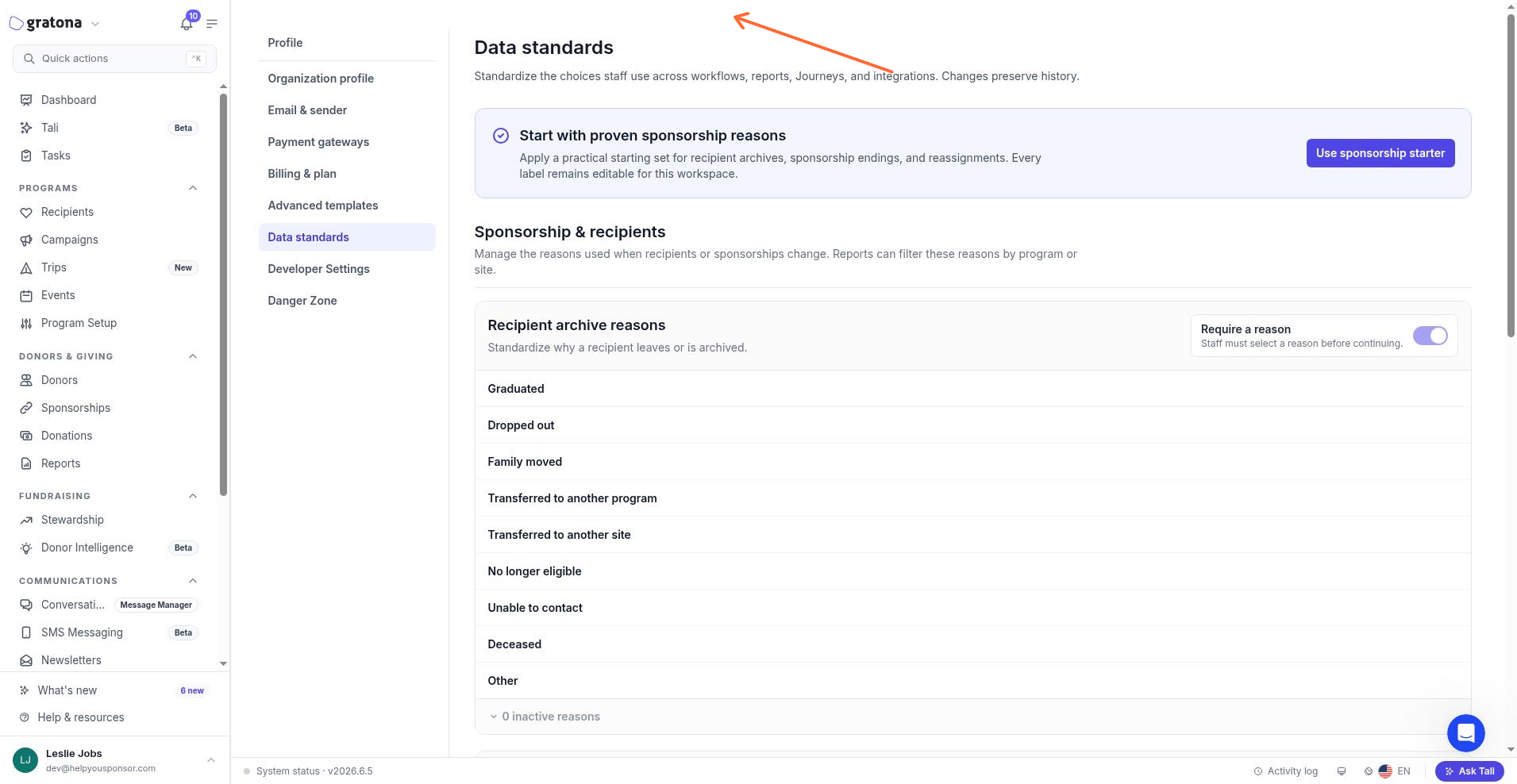
Each context starts with a default set. Recipient archive reasons include Graduated, Dropped out, Family moved, Transferred to another program, Transferred to another site, No longer eligible, Unable to contact, Deceased, and Other. Sponsorship ending reasons distinguish cancellations (Donor cancelled, Donor financial circumstances changed, Payment could not be recovered, Donor moved support elsewhere, Unable to reach donor) from endings (Sponsorship completed, Duplicate relationship, Data correction, Other). Reassignment reasons include Recipient graduated, Recipient dropped out, Recipient family moved, Recipient is no longer eligible, Program transfer, Donor requested a change, Data correction, and Other.
Add a reason
Add a custom reason when the default list does not match how your team describes a change.
In Data standards, open the context whose list you want to change.
Select Add reason.
Enter a Label. The label is required; the save button stays disabled until you enter one.
Optionally set Guidance, and for sponsorship ending reasons choose a Reporting outcome (Donor cancellation or Other sponsorship ending).
Select Require a staff note if a note is required whenever this reason is chosen.
Save the reason.
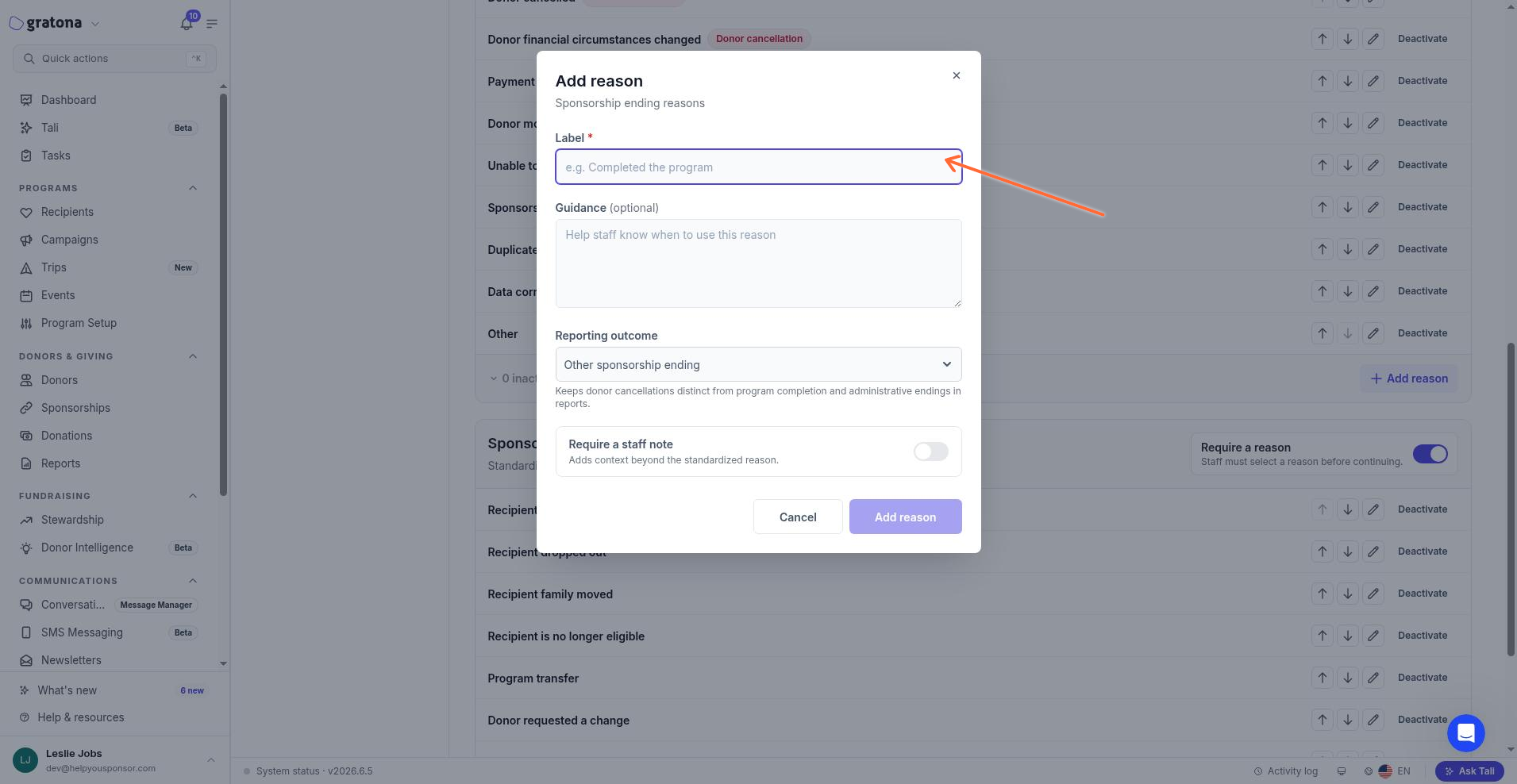
The new reason appears in the context's active list and is available in future archive, ending, or reassignment actions.
Edit a reason
Edit a reason to change its label, guidance, reporting outcome, or staff-note requirement.
Select the edit icon on the reason row.
Change the fields in the Edit reason dialog.
Select Save changes.
Editing a reason updates the label going forward. Past transition records keep the original code and label, so historical reports do not change.
Reorder reasons
Use the up and down arrows on a reason row to change the order it appears in the list. Active reasons reorder only among other active reasons, and inactive reasons only among other inactive reasons; an active reason and an inactive reason cannot cross each other.
Deactivate or reactivate a reason
Deactivate a reason when your team should stop using it. Select Deactivate on an active reason and confirm.
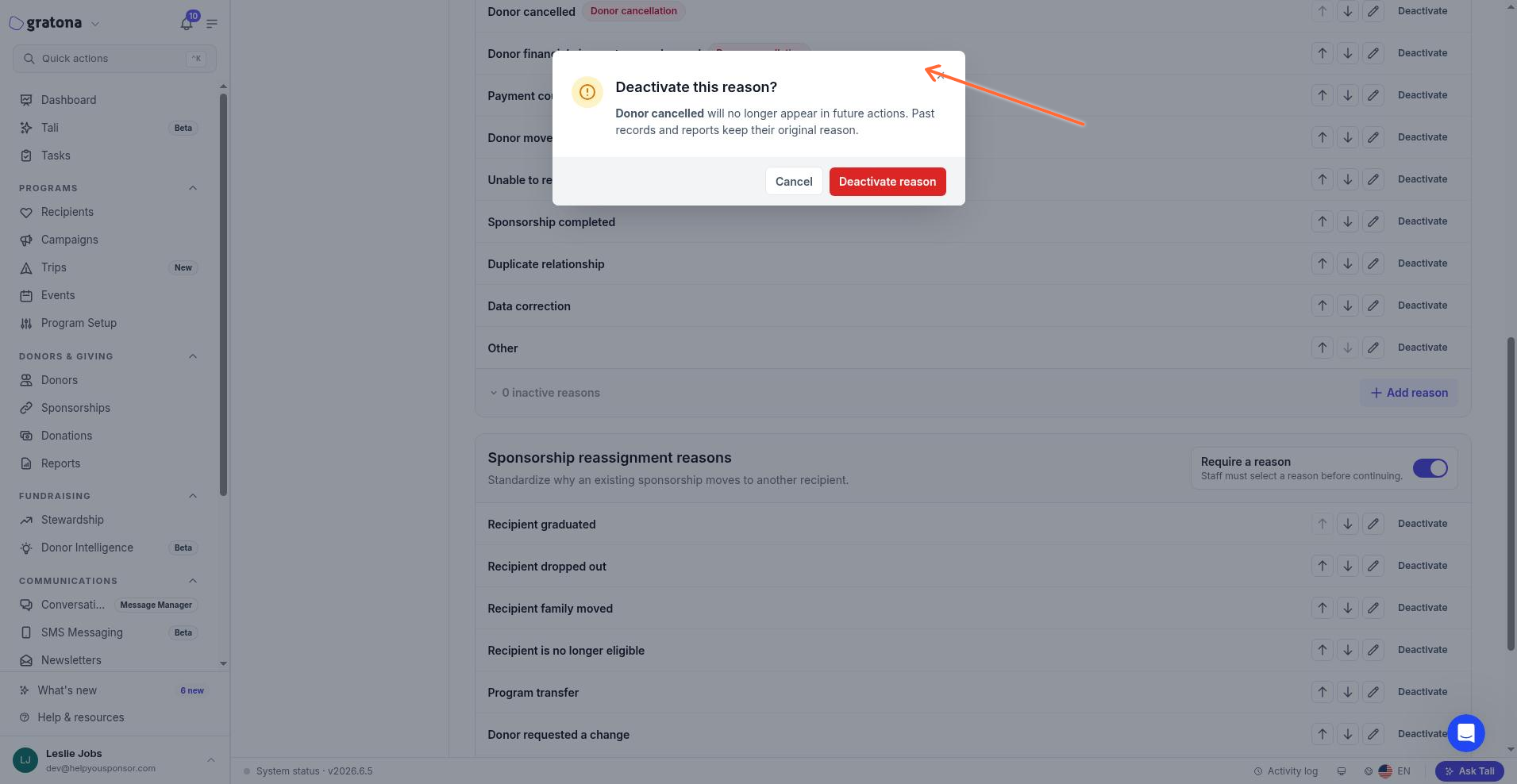
Deactivating a reason removes it from future actions, but past transition records keep the original code and label, so historical reports do not change.
To bring a deactivated reason back, open the inactive list and select Reactivate. The reason becomes available for future actions again.
Use the sponsorship starter
When a context has not yet been set up, select Use sponsorship starter to load the default reason list for it. The starter applies to the contexts that are not yet set up and leaves every label editable. Once a context is set up, the starter does not overwrite it.
Require a reason
Turn on Require a reason for a context to make staff choose a reason instead of leaving it blank when a recipient is archived or a sponsorship ends or is reassigned.
Permissions
You need permission to manage workspace settings to change these standards. Users who can view the surface without that permission see a message that they can review the standards but only workspace settings managers can change them, and the add, edit, reorder, deactivate, reactivate, and starter controls are hidden.
The Data standards surface may not be enabled in every workspace. If it is not available in yours, contact your Gratona representative to turn it on.
Related guides
Record a reason when a recipient leaves or a sponsorship ends — record the outcome a reason describes
Reassign a sponsorship — move an existing sponsor to another child