
Sponsorship & recipient changes reports
Updated 3 weeks ago
The Sponsorship & recipient changes report module (presented under Historical data) tracks the lifecycle of sponsorship relationships — starts, reassignments, transfers, cancellations, ends, recipient exits, and restorations — and ships with four ready-to-use templates, each marked with a History badge in the templates gallery.
Ready-to-use templates
Open Reports from the sidebar, then open Report templates to browse these four templates. Each carries a History badge and pre-fills the report builder with its default filters and columns.
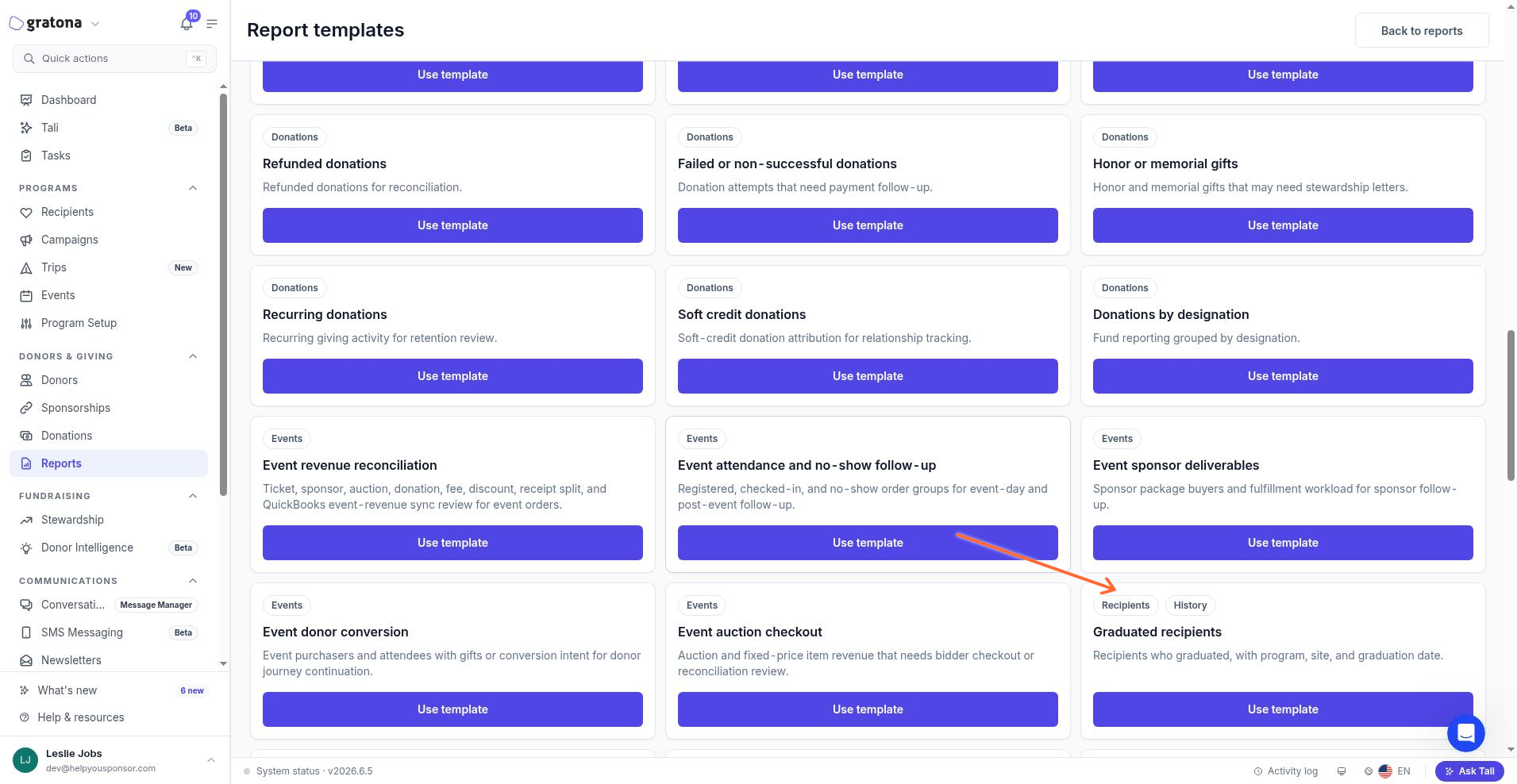
Template | Returns | Default filters |
|---|---|---|
Graduated recipients | Recipients who graduated, with program, site, and graduation date | Reason: Graduated; date range: This year |
Recipient exits | Recipients who left a program, with exit reason and date | Transition: Recipient exited or Recipient archived; date range: All time |
Sponsorship reassignments | Sponsorships reassigned to a different recipient, with donor, program, amount, and reason | Transition: Reassigned; date range: All time |
Ended sponsorships | Ended sponsorships, with donor, recipient, reason, amount, and end date | Transition: Ended or Cancelled; date range: All time |
The templates appear under the Historical data category. In the templates gallery, filter the All categories dropdown to Historical data to see only these lifecycle templates.
Key lifecycle fields
These are the fields you can add as columns and filters when you build a report from the Sponsorship & recipient changes source.
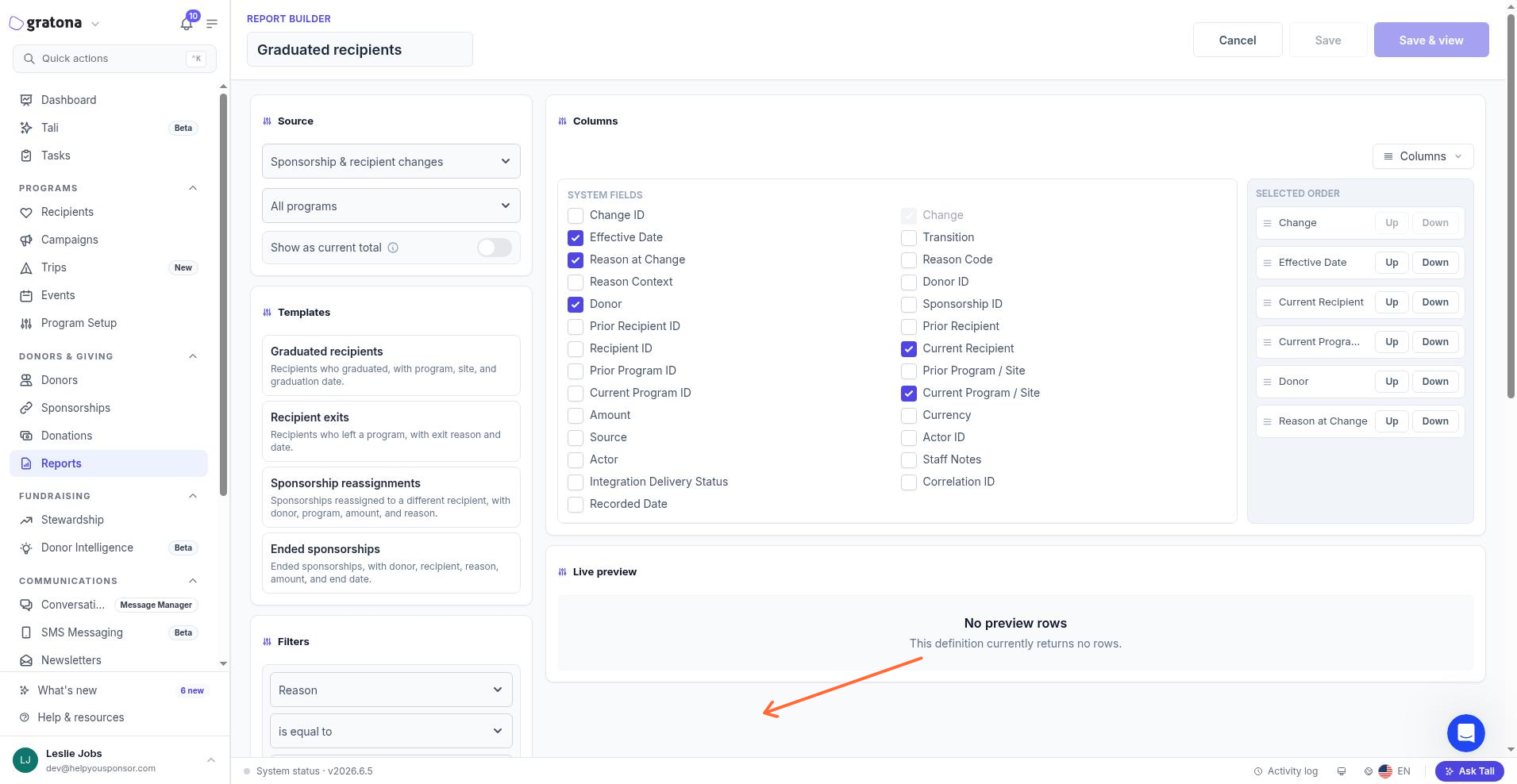
Field | What it shows |
|---|---|
Transition | The type of change: Started, Reassigned, Transferred, Cancelled, Ended, Recipient exited, Recipient archived, or Restored |
Reason / Reason at Change | The reason recorded for the change |
Effective Date | The date the change took effect |
Recorded Date | When the change was recorded in Gratona |
Donor | The donor on the sponsorship |
Prior Recipient / Current Recipient | The recipient before and after the change |
Prior Program / Site / Current Program / Site | The program or site before and after the change |
Amount | The sponsorship amount |
Staff Notes | Optional notes your team recorded with the change |
Filtering and report grain
Reason at Change is the display column — the readable reason label you see in results. Filtering uses the underlying reason key instead, so filter on the Reason field, not Reason at Change, which is not itself filterable. Effective Date and Recorded Date are separate fields, each filterable with date comparisons and ranges.
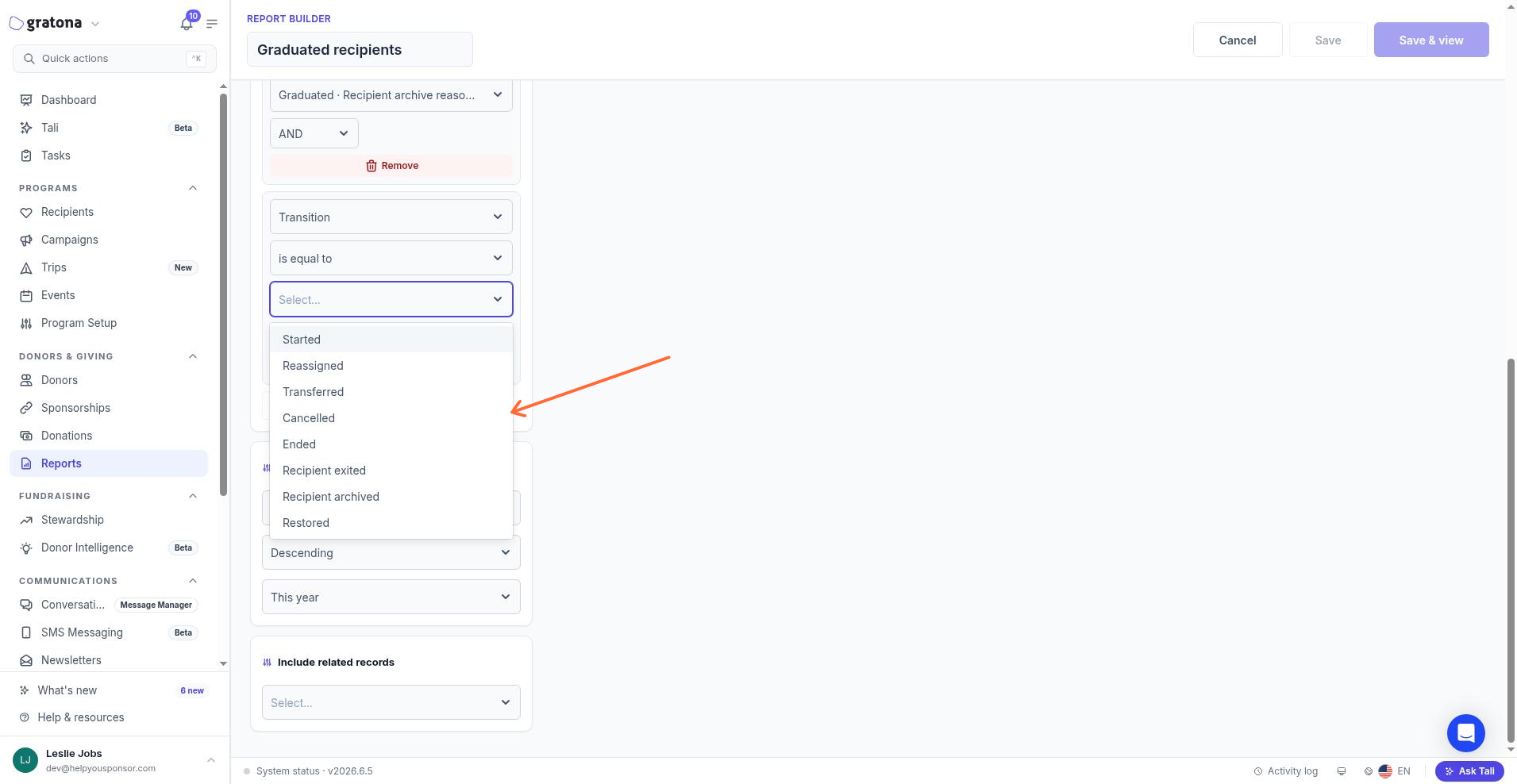
Each row in the report represents one recorded lifecycle event or change, not one donor–recipient relationship. A relationship that changes more than once over time appears in multiple rows, one per recorded change.
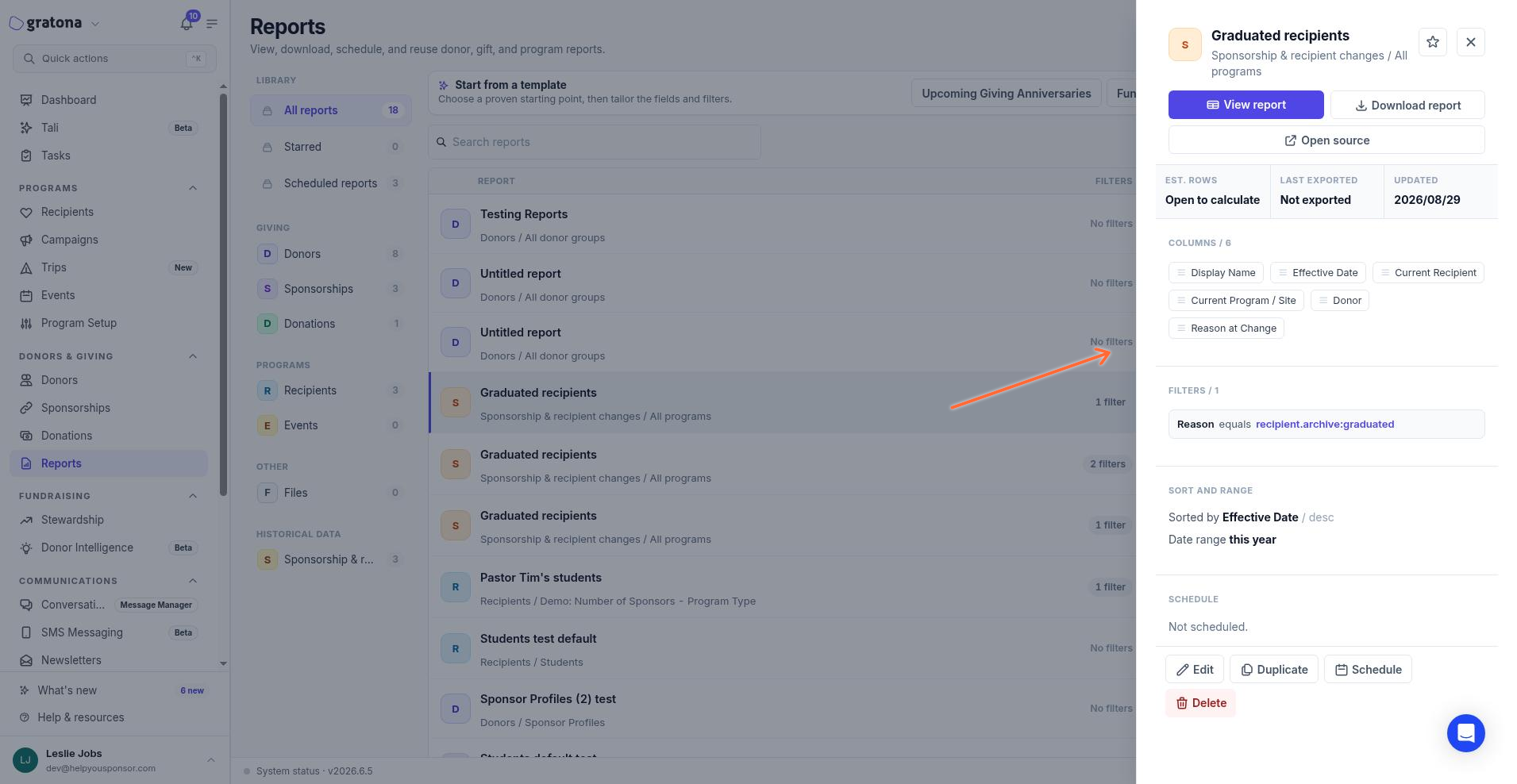
The Graduated recipients template pre-fills the Reason filter with Graduated · Recipient archive reason and the date range with This year, sorted by Effective Date descending. When no recipients graduated in the current range, the preview shows No preview rows and notes that the definition currently returns no rows.
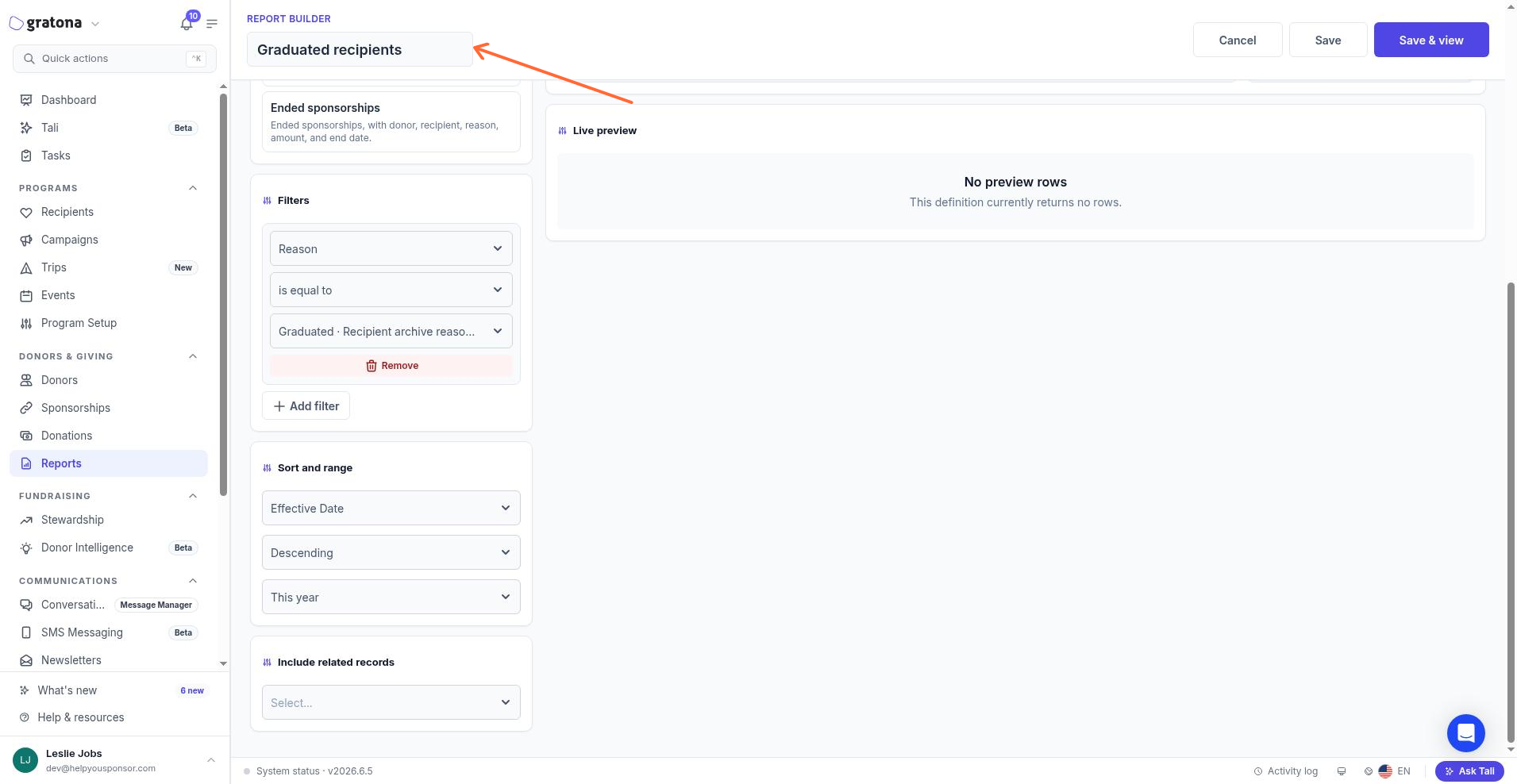
You can save a report for reuse. In the report builder, select Save or Save & view. Saving opens the saved report details, where you can view, download, edit, duplicate, schedule, or delete it. The saved report keeps its filters — for example, the Graduated recipients report saves with the Reason filter set to recipient.archive:graduated and the date range to this year.
To build and save your own views around these changes — for example, a report filtered to a specific reason or program — use the general report builder. See Reporting and Analytics for how to create, filter, and save reports.