
Reassign a sponsorship
Updated last week
Reassign a sponsorship to move an existing donor-recipient relationship to a new active recipient while keeping the sponsorship and its payment setup intact. You need access to the existing sponsorship and to the program the new recipient belongs to.
What reassignment does
Reassignment moves an existing sponsorship from its current recipient to another active recipient. The previous assignment stays in the sponsorship history, and the payment schedule keeps its existing amount, frequency, method, and billing date.
To change the amount as well, use Edit Commitment separately. Reassignment carries the current amount forward. For subscriptions billed directly by a payment provider, update the billing amount with that provider.
Reassignment is different from Add Sponsorship. Add Sponsorship creates a brand-new donor-recipient relationship and its own payment setup. Reassignment changes the recipient on the existing relationship and keeps its payment setup running.
Choose where to start
You can start a reassignment from a current sponsorship on a donor profile, or from the recipient archive flow.
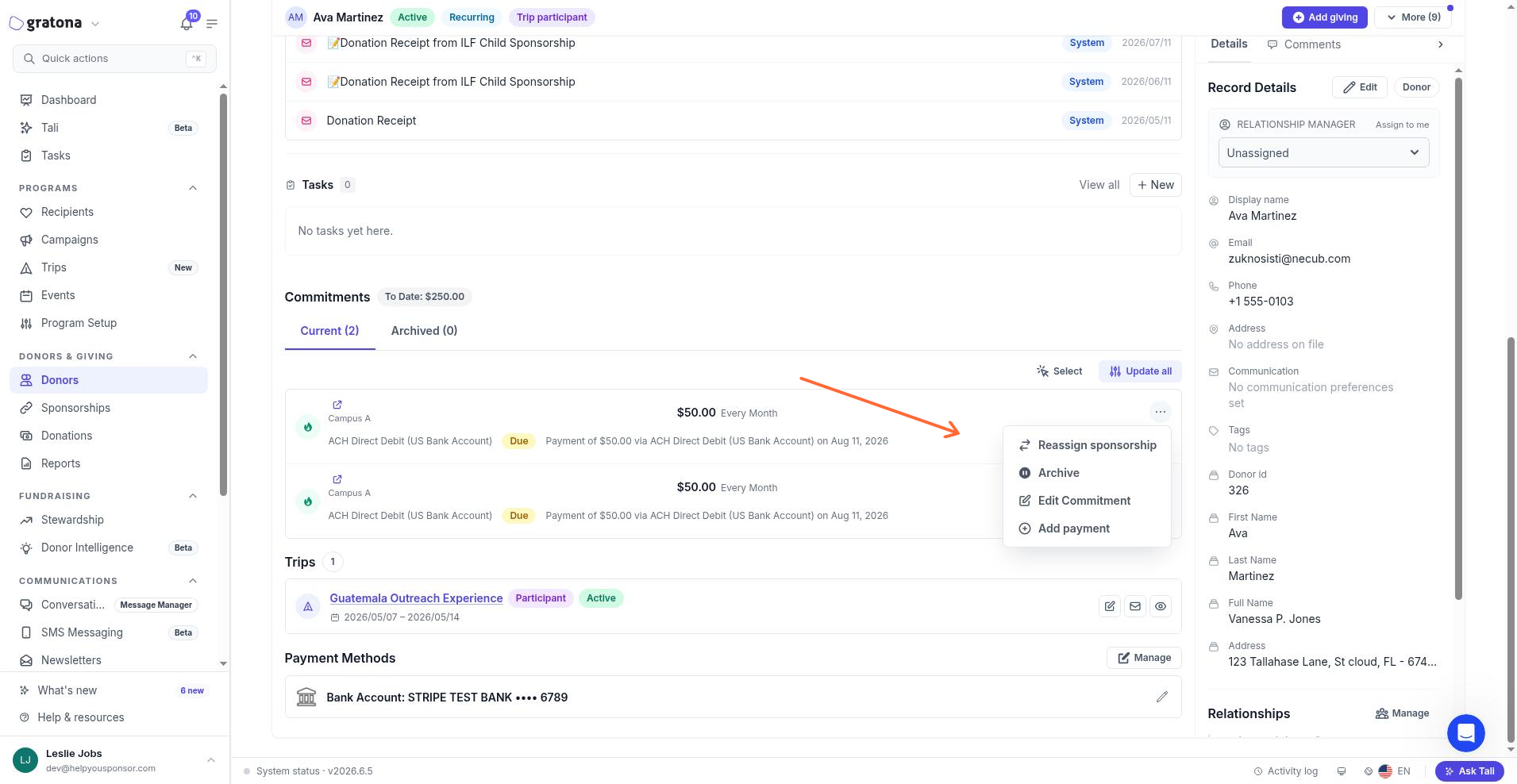
On a donor profile, open the current sponsorship and select Reassign sponsorship. This option is available when your role can reassign sponsorships.
When you archive a recipient, the archive flow asks what should happen to each current sponsorship. You can choose Archive sponsorship to stop it or Reassign sponsorship to keep it active with a different recipient. Reassigning from this flow keeps every billing schedule's amount, frequency, payment method, next payment date, and recurring schedule, and past gifts stay on the original recipient.
Reassign a sponsorship
Complete the reassignment from the Reassign sponsorship dialog.
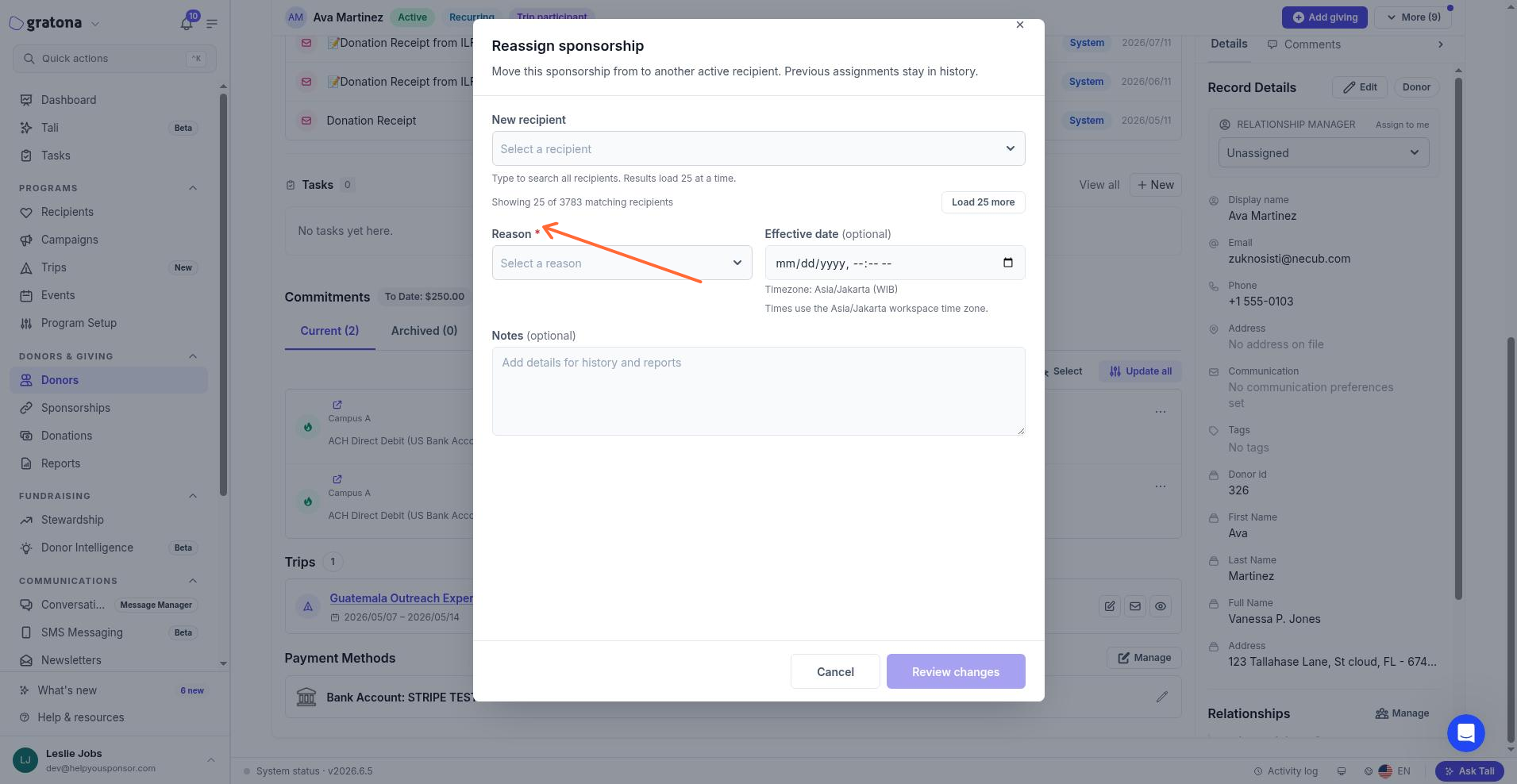
Select a new recipient. Search the New recipient field and choose an active recipient. The current recipient is excluded from the list, and recipients you already sponsor are excluded where applicable.
Choose a reason. Select a reason from the Reason field. The reason is required unless your organization's policy makes it optional. If the reason you choose requires notes, you must add them before continuing.
Set an effective date (optional). Enter the date to record in the sponsorship history. The date is interpreted in your workspace time zone. Leave it blank to record the current time. Confirming the reassignment moves the sponsorship immediately; entering a future date does not schedule the move.
Add notes (optional). Enter details in the Notes field for history and reports. Notes are limited to 2,000 characters and are optional unless the selected reason requires them.
Review changes. Select Review changes to preview the reassignment. This button stays disabled until you pick a new recipient, choose a valid reason, and any required notes are present.
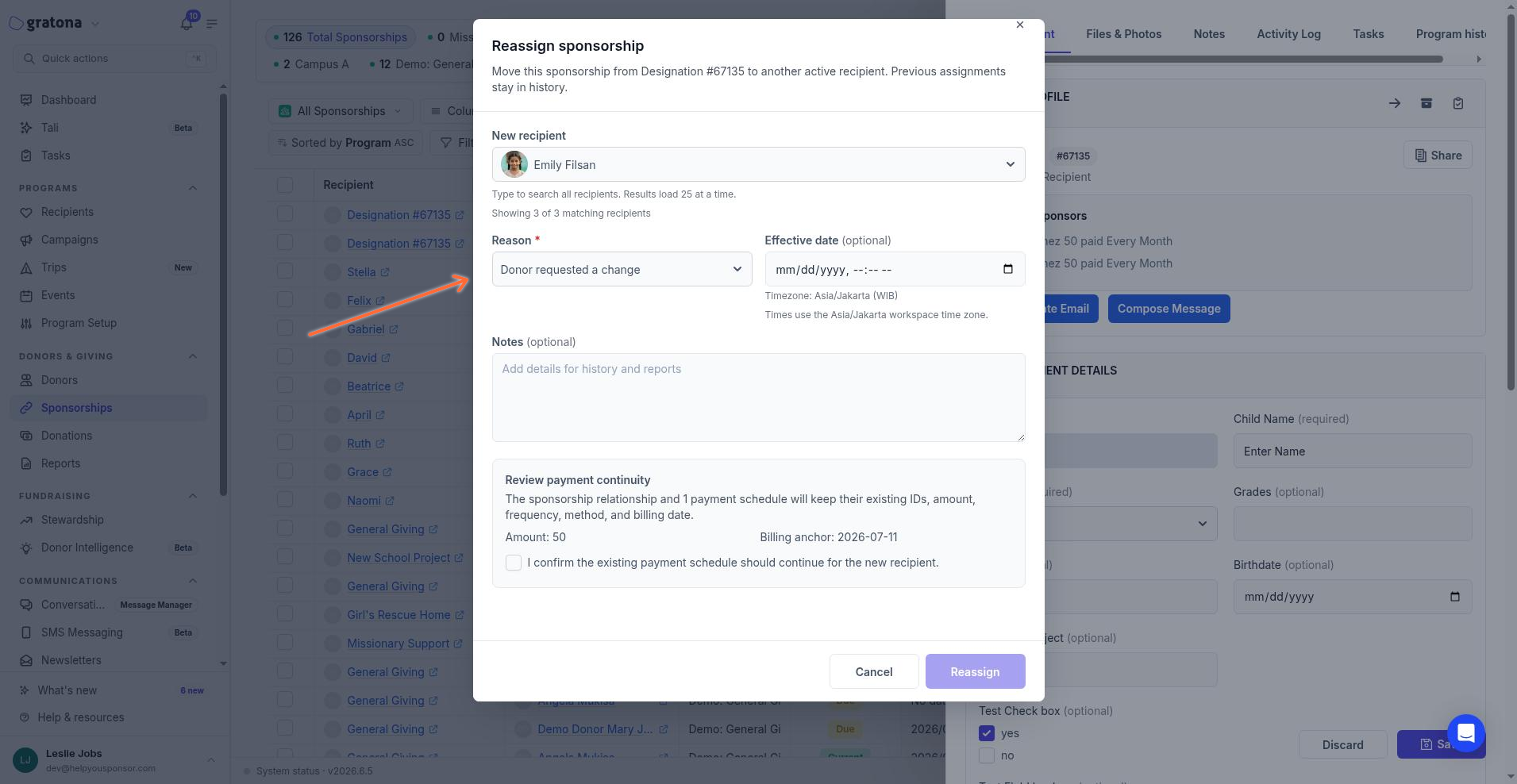
Confirm payment continuity. The Review payment continuity panel shows the amount and billing date that will carry over. Check I confirm the existing payment schedule should continue for the new recipient.
Reassign. Select Reassign to complete the change. A success message confirms the sponsorship was reassigned.
When reassignment cannot complete
The reassignment is not completed when:
Invalid effective time — the effective date you entered cannot be read in your workspace time zone. Choose a valid date and time and try again.
Unable to prepare preview — the preview could not be generated. Reload the sponsorship and try again.
Unable to reassign sponsorship — the reassignment could not be submitted. Review your selection and try again.
The sponsorship changed while it was being prepared — the relationship changed after the dialog loaded, so the reassignment is stale and is rejected without changing the sponsorship. The dialog refreshes the sponsorship and returns you to the review step; review the latest details and confirm payment continuity again before retrying.
Permissions
Your role controls whether you can reassign sponsorships. If the Reassign sponsorship action is missing, your account may not have the required permission. You also need access to the target program so the new recipient is available to select.