
Prepare your workspace for a migration
Updated 4 days ago
Set up the programs, forms, fields and privacy your records will land in before you import anything. This is the preparation step of the migration path. The setup work is the same on every onboarding path; what changes is who does it.
Who does what
Self-onboarding: your team completes every section below.
Guided onboarding: your team completes the setup assigned in your onboarding plan and supplies the source exports; your Gratona lead reviews the result.
White-glove onboarding: Gratona prepares programs, forms and messages within your onboarding agreement, and your team supplies the exports and confirms the result.
Connect programs and forms
Choose the programs or campaigns that will receive the imported data, and attach the donor and recipient forms they will use. Start from First Program Setup for a sponsorship program or Campaign Setup for a general cause, fund or designation. Program Forms covers building the forms themselves.
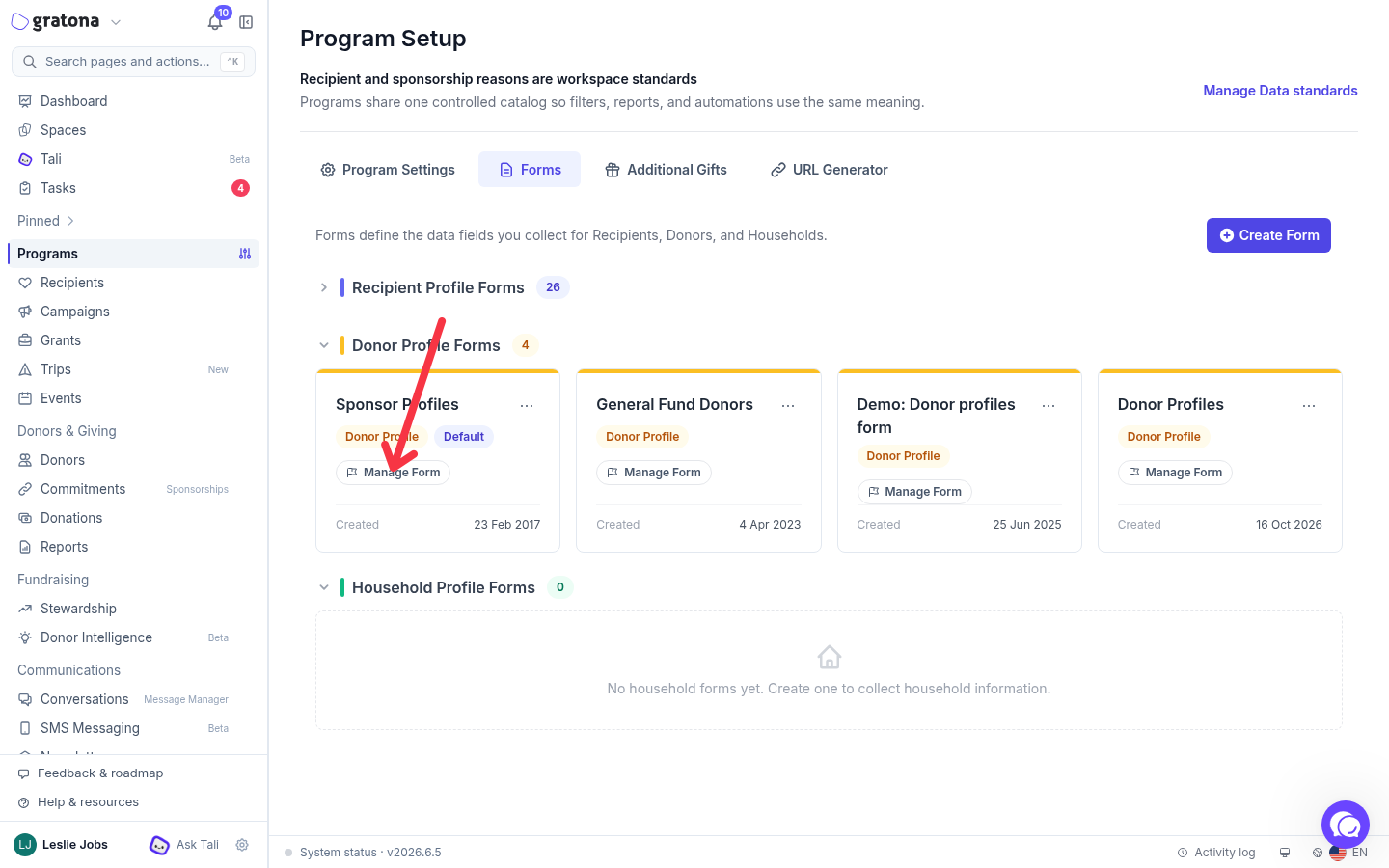

Program Setup, Forms: the donor and recipient forms your programs attach. Open Manage Form on a card to review or change its fields and settings.
Choose field types that match the source
Create only the fields your organization uses, and pick types that keep values consistent:
Select List for controlled choices such as country, status or grade. Enter the options separated by commas, so staff and donors pick from the list instead of typing free text.
Radio when there must be exactly one choice from a short list, also configured with comma-separated options.
Age for a birth date: it takes the date and displays the date and the current age automatically, so the age stays correct over time.
Text for historical values: an age recorded at a past date is not a birth date, so keep it in its own field rather than an Age field.
Date for a plain date with no calculation.
The import guide explains how fields, IDs and sample files behave during mapping: see Bring in your records.
Keep donor emails off
Follow the email preparation checklist before importing. It covers programs, donor forms and Journeys, plus attaching email sets while sending stays off. If an attachment control is unavailable, leave sending off and ask Gratona to complete that step.
Keep current collections running
Record migrated sponsorships as externally collected while your original provider still charges. The External Processor setting prevents automatic charges in Gratona; email and reminder settings are managed separately. Prepare payments for your migration covers the payment side.
Record the source and keep exports intact
Keep original exports unchanged. Record the export date, covered period and source IDs, and use separate working files for donors, recipients, sponsorships and giving history. Identity matching relies on system IDs or a verified source-ID mapping, so keep the crosswalk with your files. Upload working files to the private Gratona Space rather than email.
Keep profiles and files private during review
Recipient profiles and uploaded source files stay private until their visibility has been reviewed. On a recipient record, the Sponsorship page section has Hide recipient on sponsorship page: checked keeps the recipient off the public sponsorship listing. Imported recipients are visible there unless hidden, so review this control for each imported recipient.
Hiding removes a recipient from the public listing; it is not an access restriction on the profile's direct link. Review each profile's public fields and photo before sharing any link, and rely on the donor experience review to confirm what is visible.
On a public profile, a configured detail field appears only when it has a value, so a blank field simply does not render. Review the donor experience before launch walks the public pages.
Ready to import
You are ready when you know which programs and forms will receive the data, automatic donor emails are off, and the first file has a clear mapping and owner. Next: Bring in your records.