
Campaign Setup
Updated last week
.
Campaign Setup
Use a campaign when donors should give to a cause, fund, appeal, or designation instead of choosing an individual recipient to sponsor. A complete campaign has a campaign program, campaign-compatible settings, a donor form, a designation form, required email templates, usable payment methods, and a donation page you can share.
New accounts may already include General Campaign. You can update that campaign, or create a new campaign when you need a separate fundraising destination.
Create the campaign
Open Programs and choose Campaigns.
Select Create a campaign.
Confirm Campaign is selected as the setup path.
Select Continue.
Enter the campaign name and abbreviation.
Select Create program.
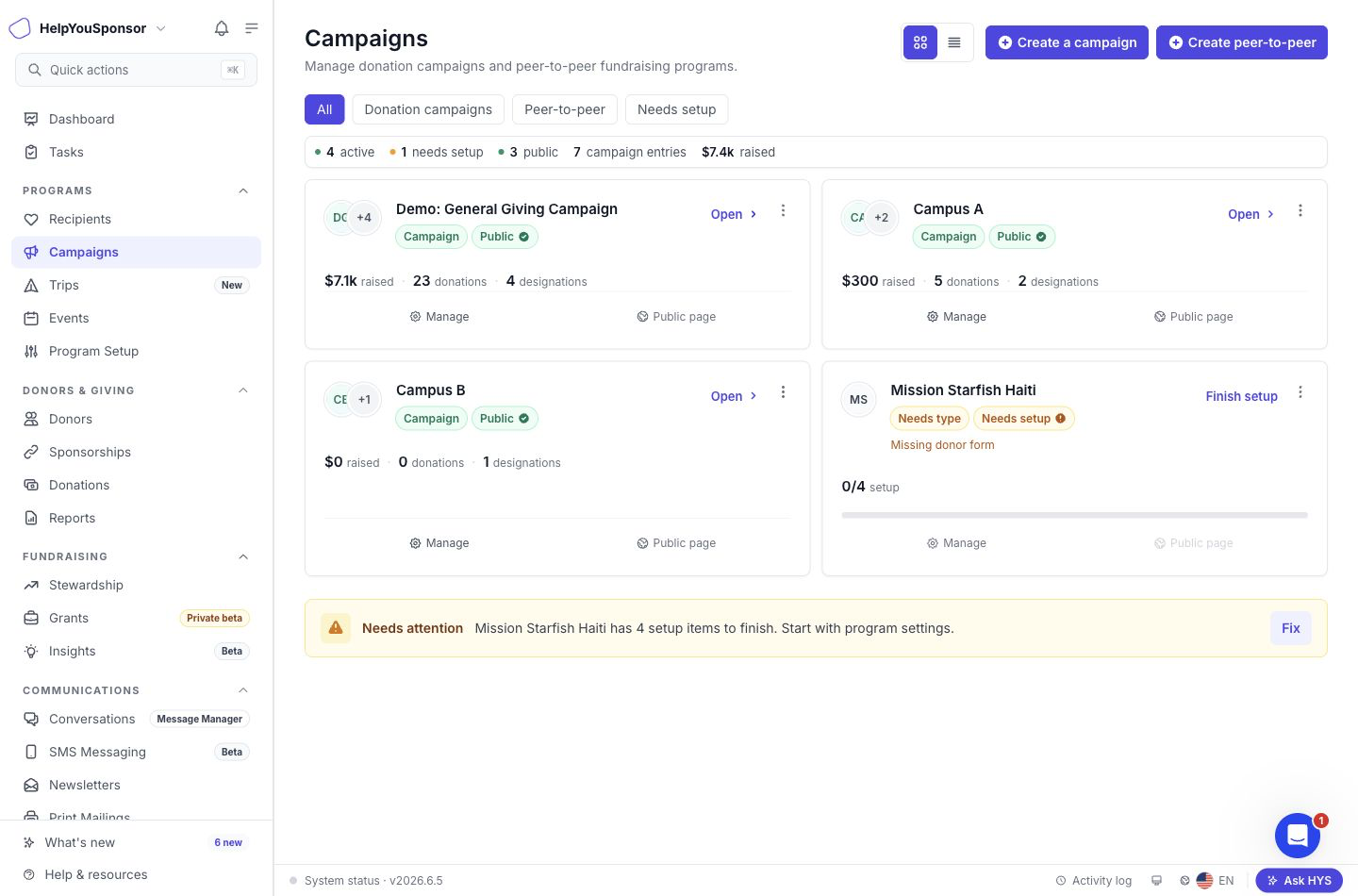
Campaigns shows campaign programs, peer-to-peer programs, public status, designations, and setup status.
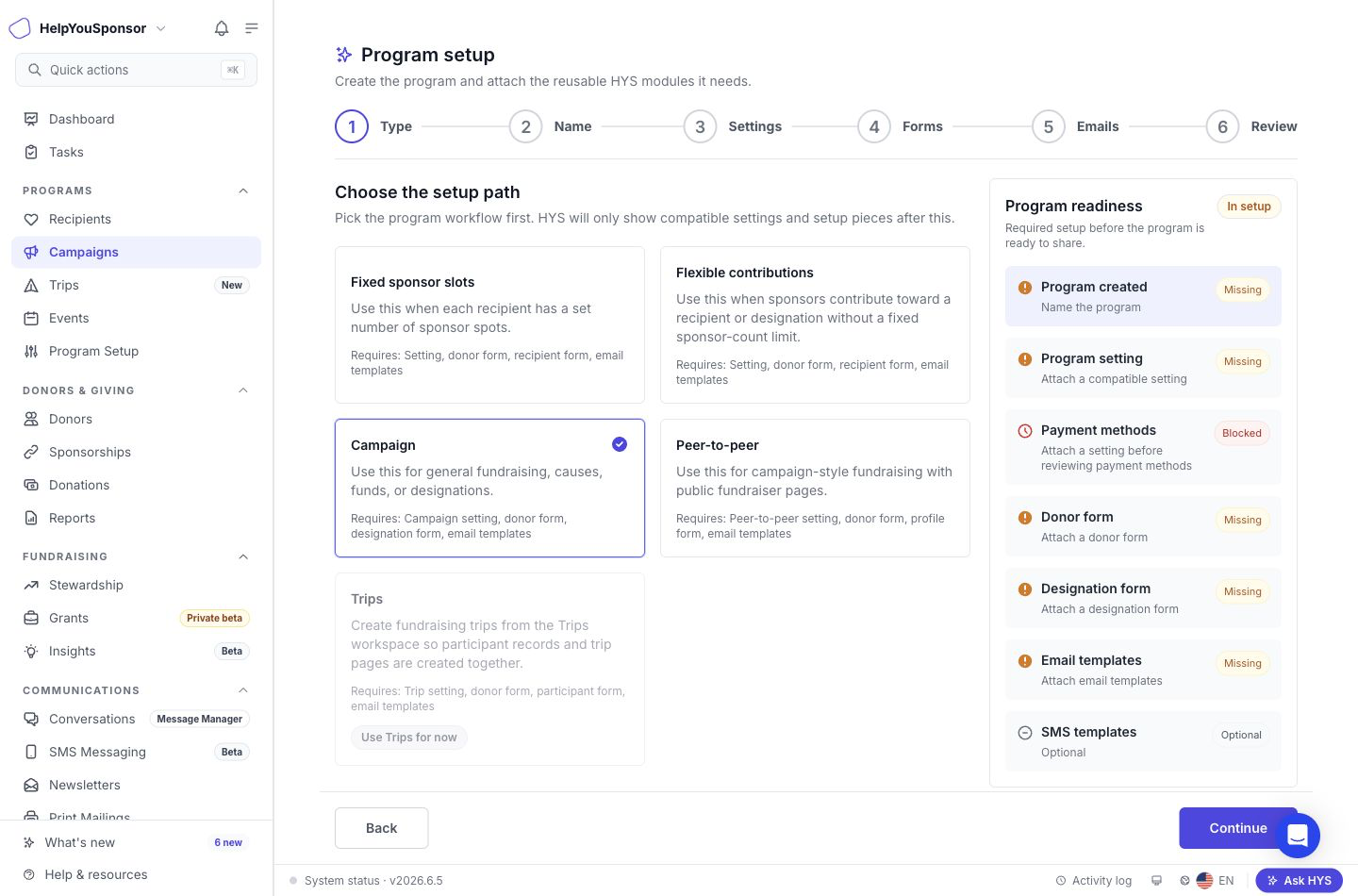
Choose Campaign when donors should give to a general fundraising destination or designation.
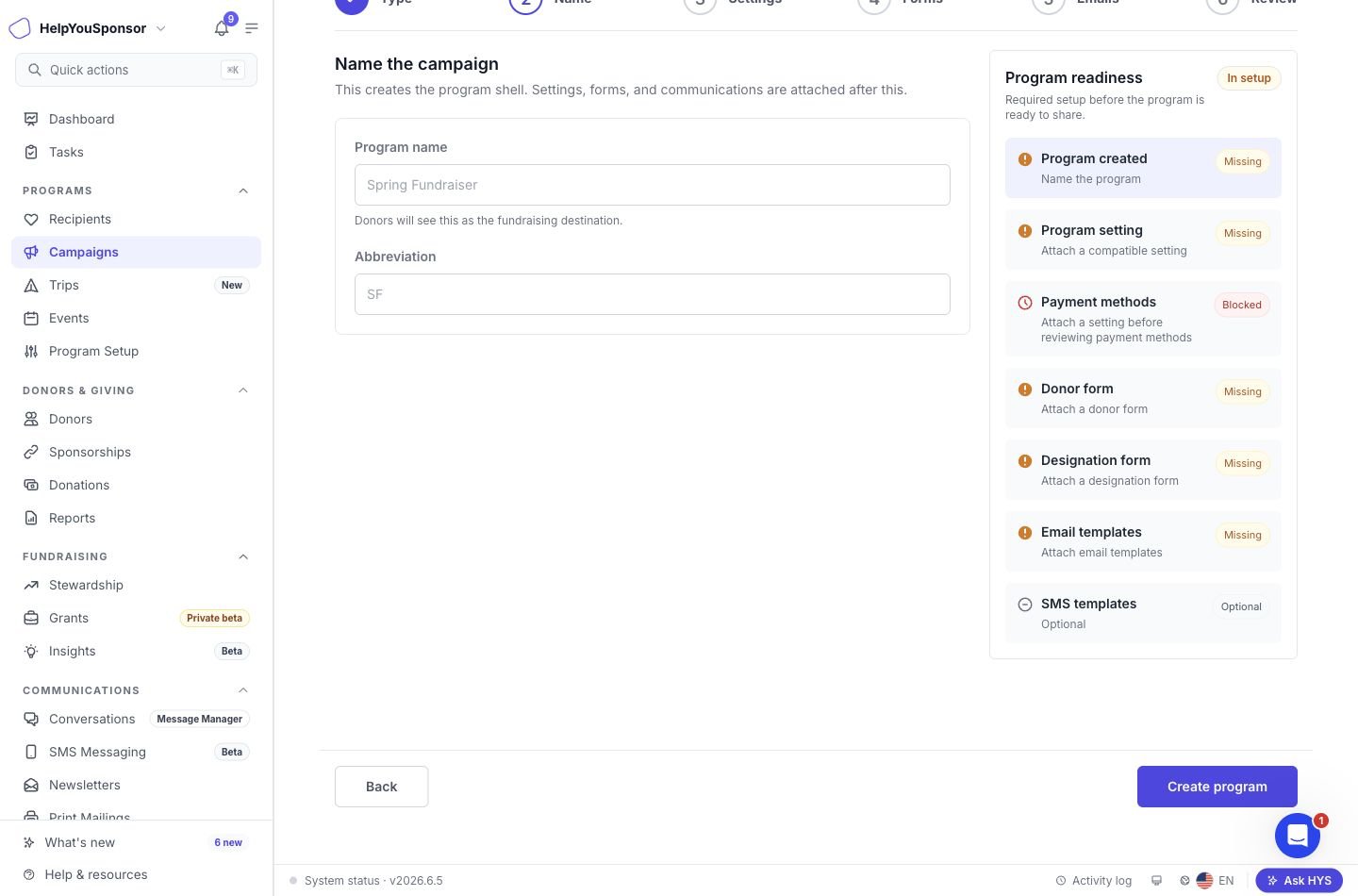
Name the campaign and add a short abbreviation before attaching campaign settings.
Attach campaign settings
Choose a setting whose program type is Campaign. Campaign settings control the donation amounts, donation target, payment methods, donation button text, public page behavior, processing fees, and checkout options.
If there is no compatible campaign setting, select Create starter setting. Starter campaign settings include common donation amounts and a donor-facing Donate button so you can finish setup, then review the full settings later.
Select the setting, then choose Attach selected setting.
Note: Settings from recipient programs are not compatible with campaign setup. If a setting appears under Other settings, it uses a different setup path and cannot be attached to this campaign.
Note: After a campaign setting is attached, if no usable payment method is available, the readiness panel keeps Payment methods marked as missing. Review payment gateway setup and the payment options inside the setting before sharing the donation page.
Attach donor and designation forms
A campaign needs two forms:
Donor form: captures donor information during donation checkout.
Designation form: defines the campaign funds, causes, or designations donors can support.
Choose the recommended forms when they match your campaign. If the designation form is missing, create the recommended starter designation form. The starter campaign form includes a Campaign Name field.
Existing designation forms must have at least one field before they can be attached. If a form shows Needs fields, add fields or create the recommended starter form.
Select the donor form and designation form, then choose Attach selected forms.
Attach communications
Attach email templates when the selected campaign setting requires email. The email set must have at least one enabled template before it can be attached.
If no usable email set exists, select Create email templates. Gratona creates a starter campaign email set with a donation receipt template that you can edit later.
SMS templates are optional when SMS is available for your account. You can attach them during setup or add them later.
Select the communication set you want to use, then choose Attach selected templates.
Review campaign readiness
Use the Program readiness panel to confirm the campaign is ready. Required setup usually includes:
Program created
Campaign setting
Payment methods
Donor form
Designation form
Email templates, when email is enabled
When everything required is complete, choose Finish setup. If you need to pause, choose Save and continue later and resume from the campaign card.
Add or review designations
Campaigns can receive gifts to the campaign itself and can also use designations when donors should choose a specific fund or cause. Open the campaign to review the designations that donors can support.
Use designations for choices such as:
Building fund
Medical fund
Education fund
Emergency appeal
General support
Share the donation page
When the campaign is ready, open Manage on the campaign card to use Website & Embed.
Use this workspace to:
Check readiness before sharing.
Preview the campaign donation page.
Copy the Donation Page link.
Copy donor login links.
Copy Smart Embed code for your website.
Send the embed handoff to your website developer.
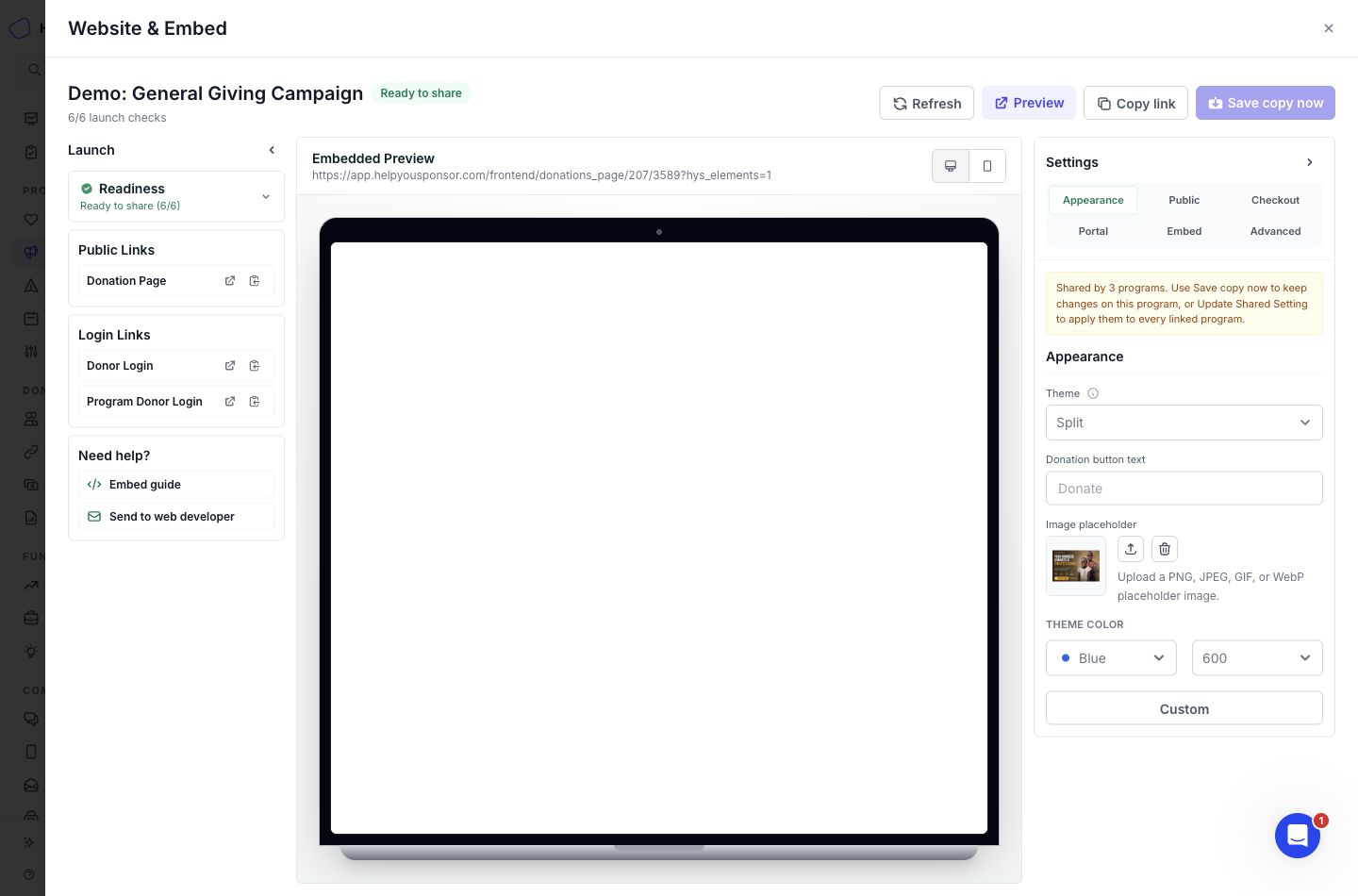
Website & Embed shows readiness, the campaign donation page link, donor login links, preview, and campaign page settings.
For the full website workflow, see Website Integration and Website & Embed.
Offer a sponsorship during checkout
A campaign can suggest one public sponsorship recipient while the donor checks out. Donors choose whether to add it, and their original gift stays in the order either way. See Offer an optional sponsorship during campaign checkout for setup and details.
What is different from recipient programs?
Recipient programs show records donors can sponsor. Campaigns show a donation destination.
The main differences are:
Campaign setup uses a Campaign setting.
Campaign setup uses a Designation form instead of a recipient form.
Campaign public links show a Donation Page instead of recipient list links.
Campaign settings use transaction amounts and donation-page options instead of recipient sponsorship completion rules.