
Review the donor experience before launch
Updated 4 days ago
Before launch, check what donors will actually see and do: public recipient pages, photos and biographies, forms, donor account access, and the messages they will receive. This is the review step of the migration path, after records are imported and while payment preparation runs.
Who does what
Self-onboarding: your team reviews every section below and records fixes.
Guided and white-glove onboarding: Gratona prepares the review with you; your team approves what becomes public and what stays private.
Open the public pages
Open Recipients, use a program card's Manage action and select Website & Embed. The workspace shows launch readiness, the public links for the program, donor login links, and a live preview of the donor-facing page.
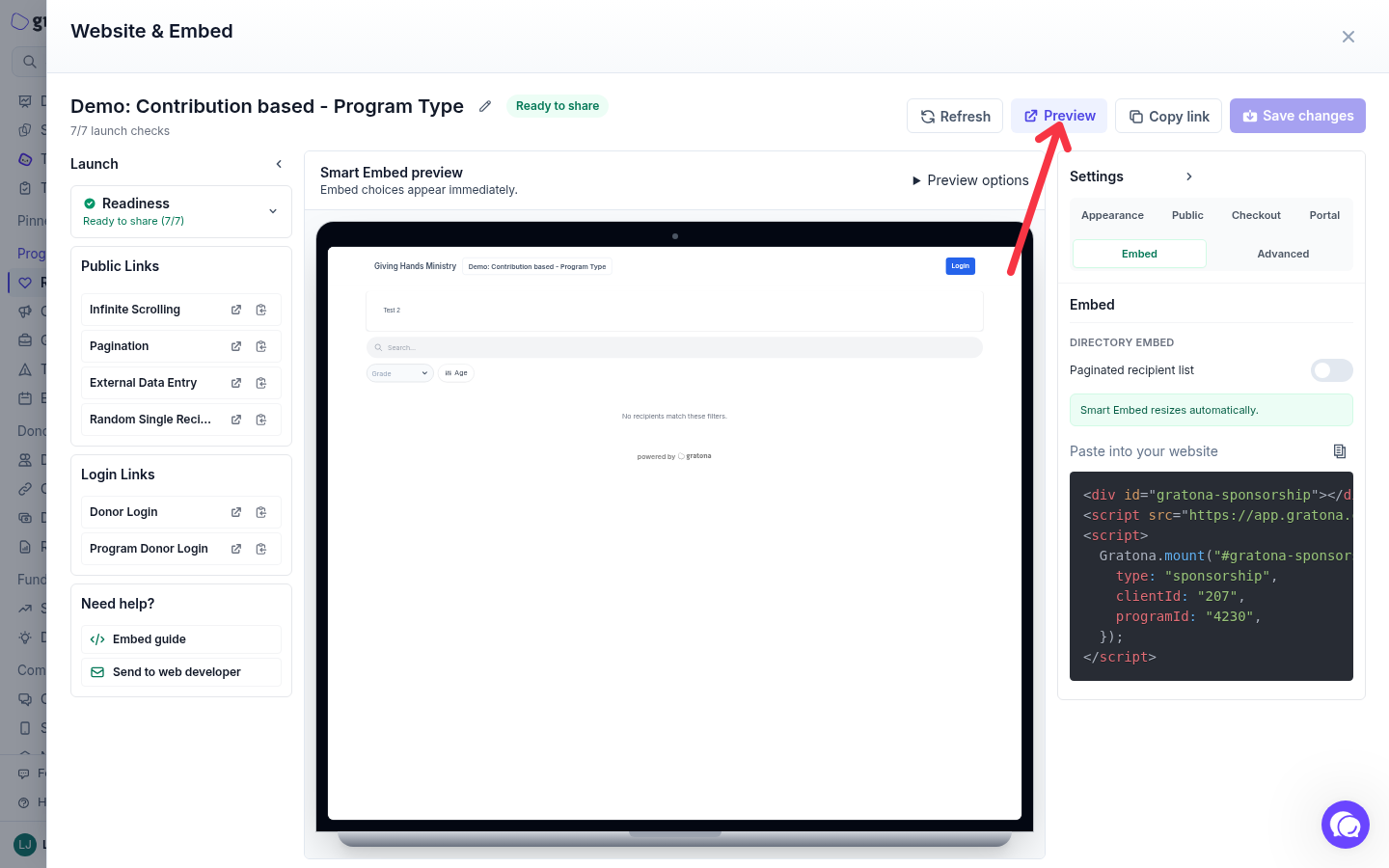

Website & Embed: launch readiness, public links, donor login links and the live preview of the donor-facing page.
Use Preview to open the program's public page as donors see it. The Public Links rows, such as Infinite Scrolling, Pagination, External Data Entry and Random Single Recipient, each open or copy their link. See Website & Embed for the full workspace.
Check recipient profiles from the donor's side
On a recipient record, use Share to copy the recipient's public page link, then open it. Check the photo, biography and each field you chose to show publicly.
Visibility: the Sponsorship page section of the recipient record has Hide recipient on sponsorship page. Checked removes the recipient from the public listing; imported recipients are visible there unless hidden, so review each record. Hiding is a listing control, not an access restriction on a direct profile link, so review the public fields and photo before sharing any link.
Blank fields: a public detail field renders only when it has a value. Open at least one profile with blank fields so you see what donors see.
Multiple programs: a public profile header shows the program name, and when more programs apply it adds a count of the additional programs. Include a donor or recipient connected to more than one program in your review.
Imported photos follow the administrative imports before profiles are shared; see How do I import recipient photos?
Check donor account access
In Website & Embed, the Login Links section lists Donor Login, the general donor portal login for your organization, and Program Donor Login, a donor login scoped to this program. Open or copy each link and sign in as a demo donor to see the portal: profile details and giving areas, including recipient funding and donation history where available.
See Donor Portal Login for how donors sign in.
Check the forms donors complete
Review donor and recipient forms separately. Donor forms hold the fields new donors complete at signup and checkout; check them from the donor's side on the public pages above, and confirm the email requirement matches your migration decisions: the form's Require email address setting controls whether an email is mandatory. Recipient forms hold the recipient data that reaches public profiles; check those fields through the recipient profile review above.
Check messages and receipts
Follow the receipt and donor email checklist for the sending pause, attaching email sets, sample receipts and the controlled test procedure.
If a donor gives through more than one program, include them in your sample review.
Ready check
Records, payment setup and the donor experience have been reviewed together: public pages show the right recipients with the right photos and fields, listing visibility matches your decisions, donor access works, and the message plan is approved. Next: Launch and hand over your migration.