
Launch and hand over your migration
Updated 4 days ago
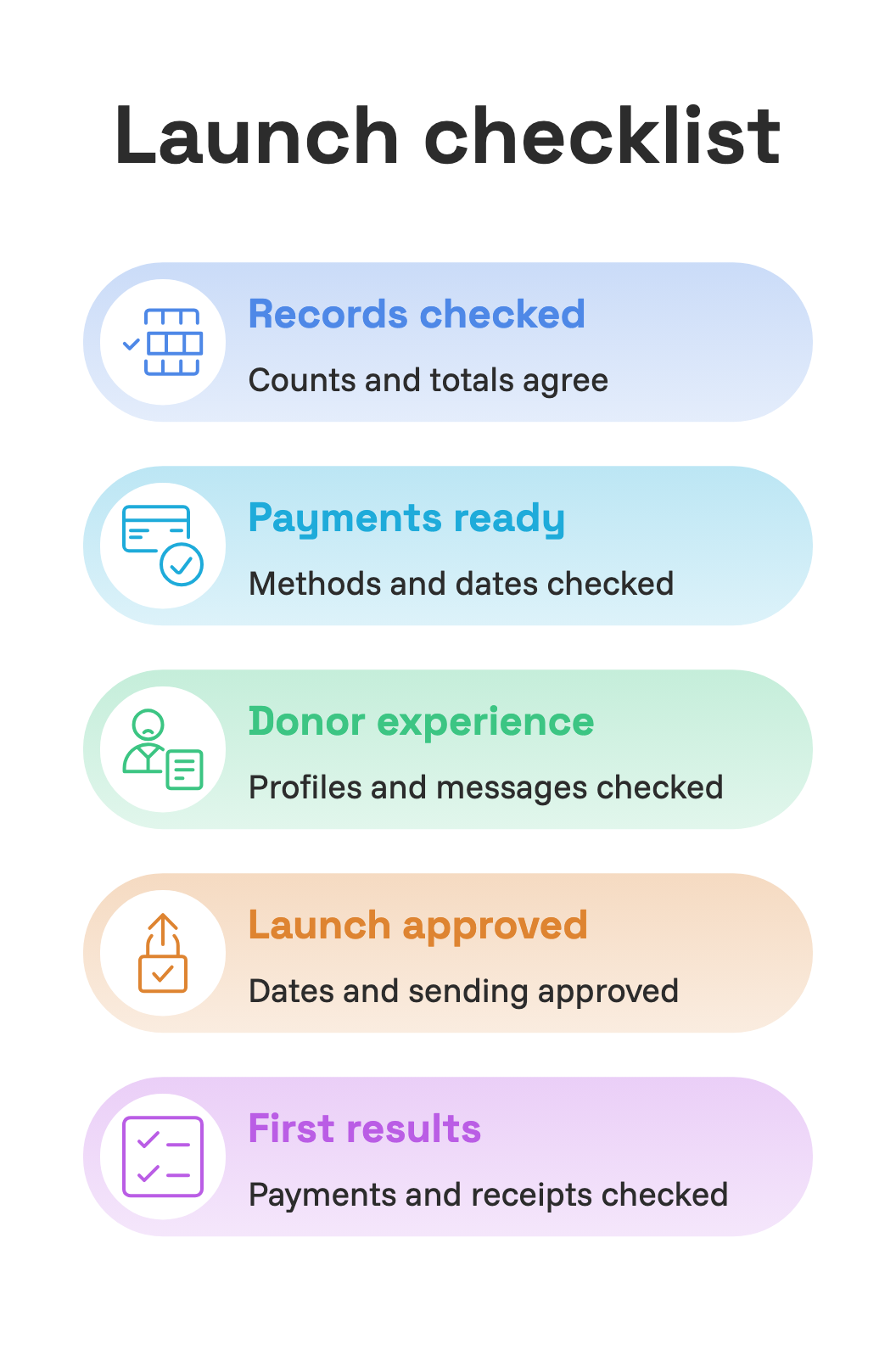
Switch collections to Gratona in approved groups, confirm the first results, and hand the finished workspace to its owners. This is the launch step of the migration path. Before the switch, check your records, payment setup and donor experience together.

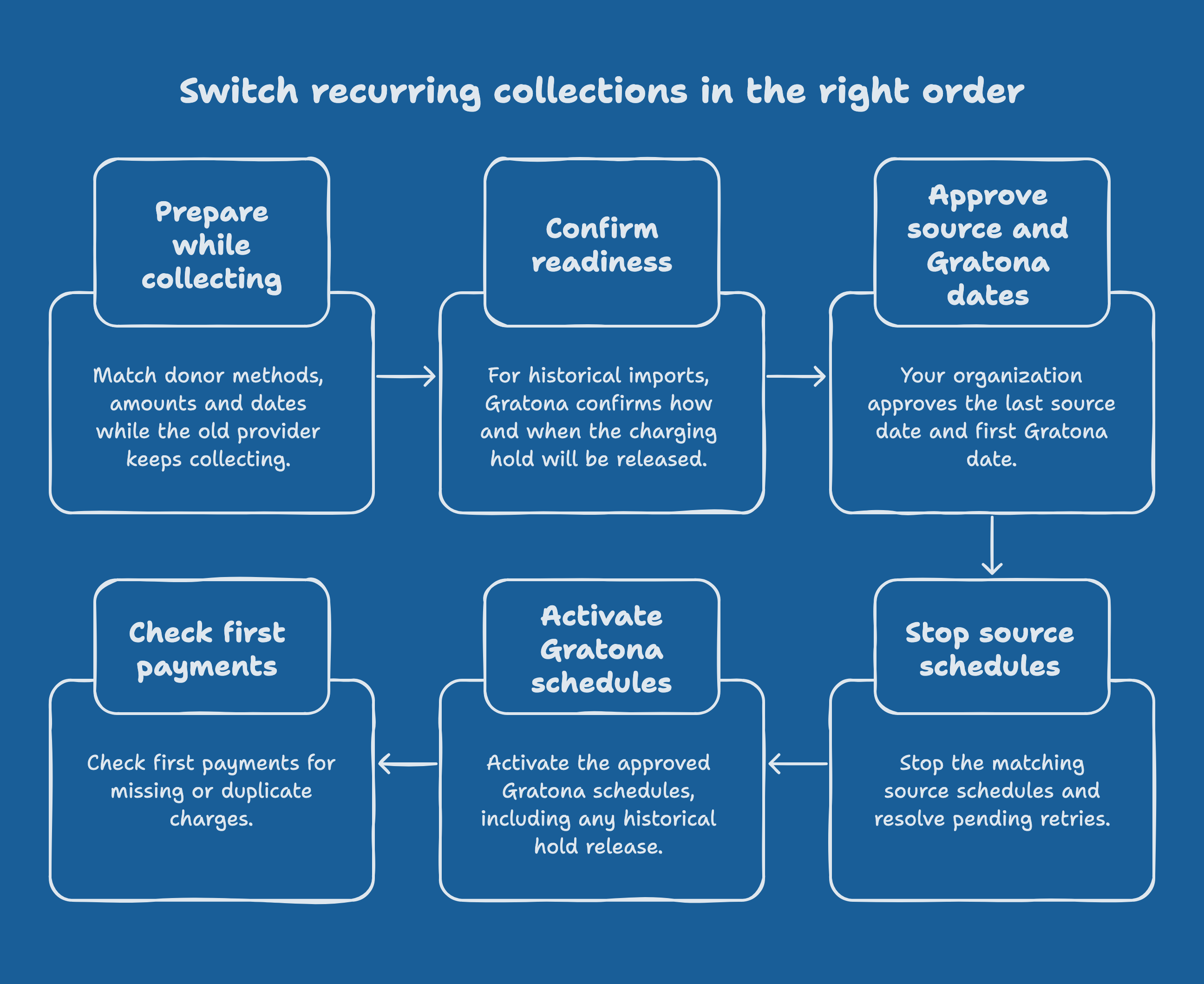
Move gifts in approved groups, keeping their amounts and usual payment dates: a $50 gift on the 15th stays $50 on the 15th. The order for each group is fixed. Confirm collection readiness, stop the matching source schedules, then activate the Gratona schedules.

Who does what
Your team carries out the switch for self-onboarding, the owner named in your plan for guided onboarding, or Gratona for white-glove onboarding. Your organization approves the dates on every path.
Ordinary commitments and historical imports
What saving the commitment does depends on how it came into Gratona, so settle this for the group before any source schedule stops:
Ordinary commitment that is ready to charge: Saving makes it eligible for scheduled collection. Approve a future first Gratona date, and enter it as Next Action Date in the same edit.
Historical import (imported with the historical safeguards option in the import wizard): Does not start collection. A separate hold on charging stays in place, and changing the payment method or date does not release it. Have Gratona confirm the activation route for these records.
Switch the collections
Confirm readiness and approve the schedule. For each gift, approve its Donor ID, program or recipient, payment method, amount per period, currency, frequency, last source payment and first Gratona date. Confirm the matched method appears under Payment Methods for each donor. For historical imports, keep source schedules running until Gratona has confirmed how and when the charging hold will be released. Record who will stop the source schedule.
Finish source collections for that group. Check pending payments, retries and changes since the export. Then have the source administrator stop the matching recurring schedules and retries, and keep the dated confirmation or source report. Preserve access to the history; closing the source account is a separate decision.
Open the commitment. Open Donors, choose the donor, and find the commitment under Overview → Commitments. Open its Actions → Edit Commitment, or select its amount. While the gift is still externally collected, Payment Method shows External Processor and the card displays Automatic charges are stopped. A Due status alone does not mean Gratona will charge it.
Set the approved schedule. Check Payment Frequency, the displayed commitment amount, program and end date. Set Next Action Date to the approved first Gratona collection date, replacing any old or overdue date. Preserve annual totals by using the amount basis shown in the editor. See the $50 monthly-equivalent / $600 annual example in the import guide.
Select the matched payment method. Choose the bank or card option that matches the method you checked for this donor in Prepare payments for your migration. If the method is unavailable or the displayed details do not match, leave the commitment on External Processor and ask Gratona to resolve the mapping.
Review and save. Do not select Resend Signup Email to [donor name] in the drawer footer. It requests the signup email immediately, with no confirmation step. Select Save, read the payment-impact notice, and check the amount, frequency, method and next date before confirming Save changes. Use Edit Commitment for schedule changes. The separate Add payment flow can charge a payment immediately.
Reopen and check. Verify the saved method, amount, frequency, next date and collection readiness. For historical imports, include Gratona's confirmation that the charging hold is resolved. Leave other commitments on External Processor until their own switch is ready.
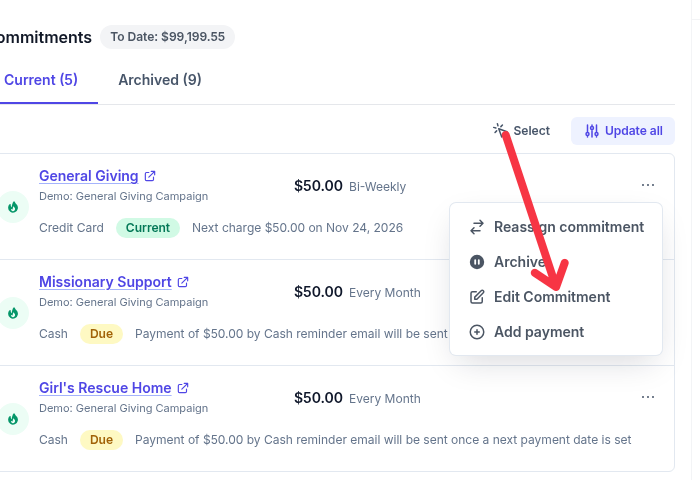

Open the commitment's actions menu and choose Edit Commitment. Add payment is a separate flow that can charge immediately.
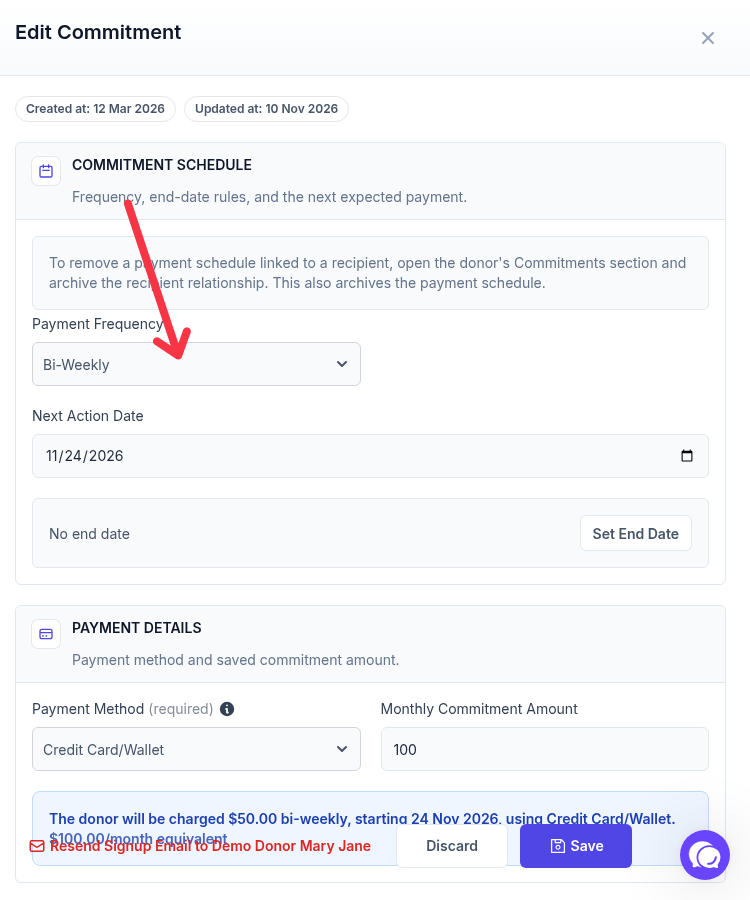

Check the frequency, next date and amount basis together. Resend Signup Email is an action button; leave it alone while donor emails are paused.
After the source schedules for the group have stopped and pending payments and retries have settled, import the final source history since your last export cutoff using stable transaction references. Reconcile the final totals to the source. Donor messages are their own step: complete the receipt and message activation checks before switching any on.
Check the first collections
On each first due date, review Donations or the donor's Transactions tab against the approved schedule list. Look for the expected amount, method, date and status, and for missing or duplicate attempts. Treat pending bank payments as pending until their final result is available. Reconcile successful collections, refunds and fees to the processor's settlement report; an imported-row count is not a collected-funds total. Check the approved receipt for each distinct program configuration. Give each exception an owner and next action in your migration record.
Finish and hand over
The migration is complete when:
Each import is finalized, and its counts, identities, allocations and collected amounts reconcile to the source. Unresolved items have an owner and next action.
Transferred methods are matched to the right donors, and amounts, currency, frequency and next dates match the approved schedule.
Old schedules and retries are handled for each switched group. First Gratona collections and receipts have been checked for omissions, duplicates and failures.
Only approved messages and Journeys are active. Sender details, recipient visibility and administrator notification addresses have been reviewed.
Your team knows how to record externally collected gifts, maintain recipient profiles and handle payment failures. Remaining agreed work, such as trips or additional automations, has an owner.
Keep the source exports, final mappings, batch results and approvals in your private workspace. Closing the source account is a separate decision, made after records and reporting access are preserved.