
Collect missed sponsorship payments and set the next billing date
Updated 3 weeks ago
Collect authorized missed sponsorship payments as a one-time donation, then set each sponsorship's next billing date. This guide uses a saved card or a verified US bank account in your organization's Gratona admin workspace.
Add donation does not automatically advance existing sponsorship schedules. You will update those dates separately. The screenshots below use a staging sample donor and a $4.00 example; enter your donor's approved amount.
Before you charge
Confirm which installments are unpaid and obtain the donor's authorization for the total you will collect.
Review Transactions → Donation History and the payment provider's records. A payment still marked Processing may already have been collected. Refresh or reconcile unresolved earlier payments before creating another charge; contact support if the outcome is unclear.
Confirm that the saved payment method is ready. ACH requires an available, verified US bank account and a supported USD payment.
Agree the next regular billing date for each sponsorship. If a schedule is already overdue, set its intended future Next Action Date using the schedule steps below before submitting the catch-up charge, so automatic billing does not collect the same period while you work.
For example, one missed month across three $35 monthly sponsorships totals $105. Include later installments only when they are already due, unpaid, and authorized. Different sponsorships can have different due dates.
1. Enter the catch-up donation
Open the donor from the Donors table.
Select Add donation in the profile header. If your profile has an Add giving menu, open it and choose Add Donation.
Keep Giving source set to Direct for a payment collected from the donor's own saved method.
Use today's Transaction date (or Date). Describe the missed months in the Note instead of backdating a new charge.
Enter the approved total in Amount and select the recipient or designation.
When the total covers several recipients, enable Split Donation, select each recipient, and enter that recipient's catch-up portion. Use Add Designation for more rows. Total Split Amount must exactly equal the total Amount.
If Apply to sponsorship is shown, leave Don't apply to a sponsorship schedule selected for this one-time charge and manual schedule-update workflow.
Example: the donation form shows today's transaction date, the amount, designation, and saved ACH payment method.
2. Select the saved method and request the charge
Choose ACH Direct Debit (US Bank Account) in Payment Method to use the donor's saved bank account, or choose the available saved-card option for an authorized card charge.
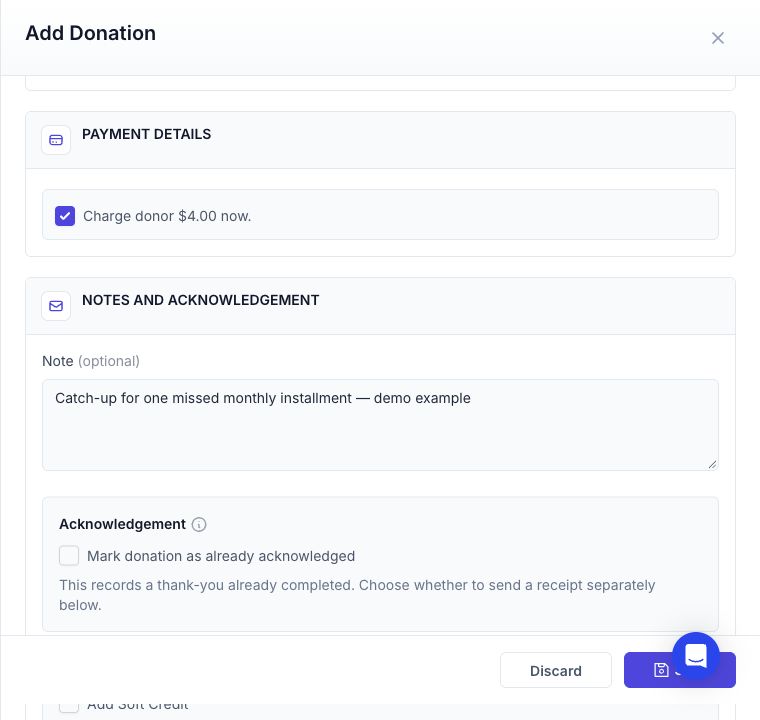
Under Payment details, select Charge donor [total] now. Choosing a payment method alone does not request a charge. Leaving this checkbox off records a donation without collecting money.
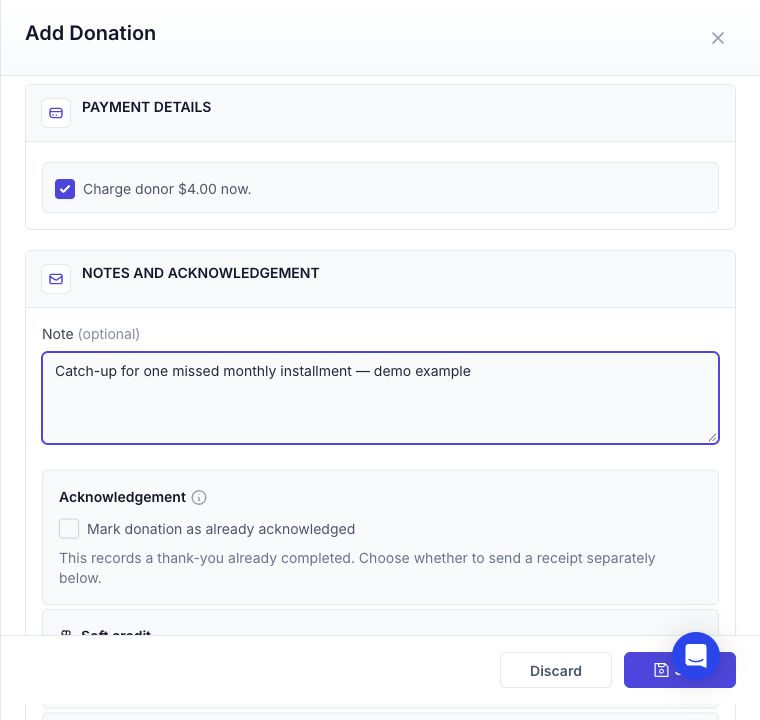
In Note, identify the missed periods and each recipient's portion, for example: September sponsorship catch-up, $35 for each of three recipients; donor authorized collection.
Review the receipt choice. Sending a receipt is separate from Mark donation as already acknowledged.
The checked Charge donor control requests collection of the amount shown. The sample below is for illustration only.
Review the final confirmation
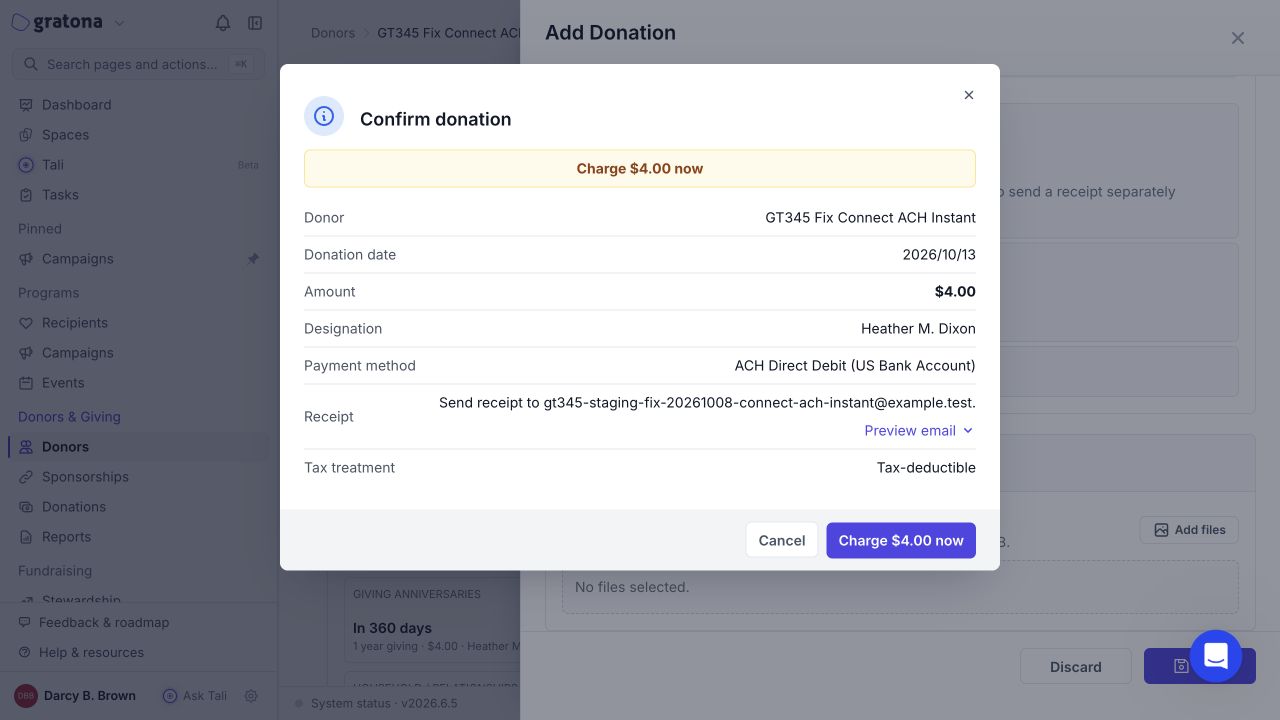
Select Save to open Confirm donation.
Check the donor, total amount, payment method, recipient or split allocations, transaction date, and receipt choice.
The confirmation must say Charge [total] now when you intend to collect money. If it says Record donation, cancel and review the method and charge checkbox.
Select the final Charge [total] now button only when everything matches the donor's authorization. This submits the payment request. A split donation requests the total once and records the recipient allocations.
ACH submission is not settlement. A bank debit can remain Processing while the bank confirms the outcome. Do not submit the same catch-up charge again while it is pending. If a timeout or error leaves the result unclear, check the transaction and provider before retrying.
Confirm donation shows the exact amount and ACH method before the final charge action.
3. Set each sponsorship's next billing date
Once the catch-up request is accepted and visible in the donor's history, set the next dates promptly if you have not already deferred overdue schedules. Setting a future date does not prove the catch-up payment has settled.
Return to Overview → Commitments → Current on the donor profile.
Open the sponsorship's three-dot actions menu and choose Edit Commitment.
Under Commitment schedule, set Next Action Date to the next regular installment that was not included in the catch-up amount. Check the day, month, and year.
Review Payment Frequency, the recurring amount, payment method, and end date. Keep the intended ongoing terms; the one-time catch-up total is not the new recurring amount.
Select Save. In Confirm commitment changes, review the old and new dates and the Impact line, then select Save changes.
Repeat for every affected sponsorship and verify each row's next payment date.
For a monthly sponsorship normally billed on the 4th, collecting both September and October means the next regular date is November 4. If another sponsorship's catch-up covers September only, its next date remains its normal October due date. Use the periods actually included for each recipient.
Saving a schedule edit does not charge the donor. Automatic collection uses the saved next action date. Changing that date does not repair an older unresolved payment or guarantee that billing can resume while earlier attempts remain pending.
Edit Commitment contains the Next Action Date field. The staging sample below already has a future date.
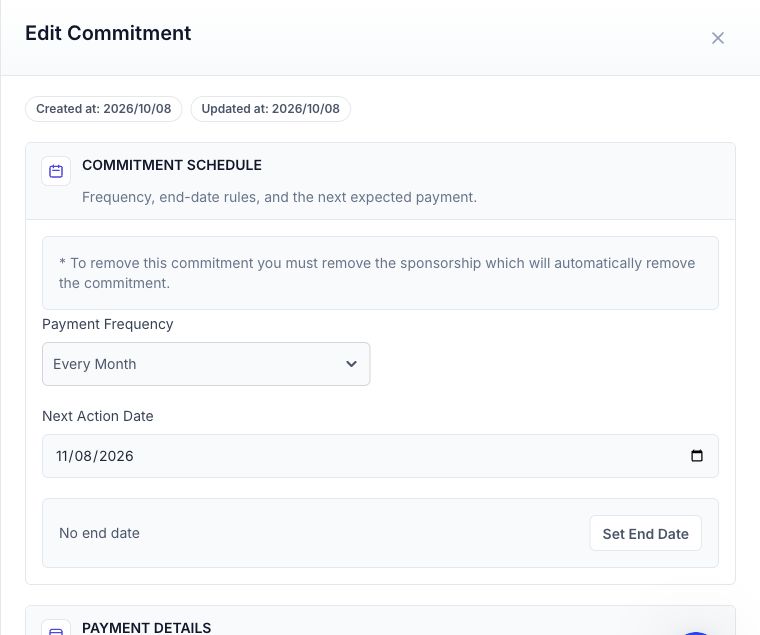
The October example assumes the other sponsorship's October installment is still upcoming. If it is already overdue, review whether it belongs in the authorized catch-up amount before choosing the next date.
4. Verify the payment and recurring schedule
In Transactions → Donation History, check that the new amount, payment method, date, and recipient allocations match the request. Do not also record the same money with Add payment.
For ACH, wait for the payment to settle and confirm the status matches Stripe. A receipt or a saved donation row alone is not proof of bank settlement.
Check each sponsorship's next payment date and the regular recurring amount. If older transactions or recurring attempts remain unresolved, ask support to reconcile them so future billing can resume correctly.
If the catch-up request fails, retain the unpaid-period notes and review the future schedule with support. Moving a next action date does not make an unpaid installment paid.
If the charge option is unavailable
Use today's transaction date, confirm that the selected saved method is available and verified, and review Payment Methods on the profile. ACH is available only for supported US bank/USD payments. If the bank account is pending verification or the control remains disabled, resolve that before continuing.
If a submitted ACH payment stays Processing after Stripe confirms success, review the Stripe webhook connection or ask support to reconcile it. Do not create another charge just to change the displayed status.
Related guides
Record payments across multiple sponsorships — explains the existing sponsorship's Add payment action and how it advances one interval.