
Email Settings
Updated 2 months ago
.
Email Settings
Use Email Settings when you need to control the sender identity Gratona uses for donor-facing emails, export completion emails, verified sending from your own domain, and optional Mailgun delivery. Authenticated sending applies to new donor-facing template emails and newsletters; scheduled reports, export completion emails, and other admin or internal messages keep their existing delivery path. In the admin app, this page is called Email & sender and lives under Organization settings at /admin-options/organization/settings/password.
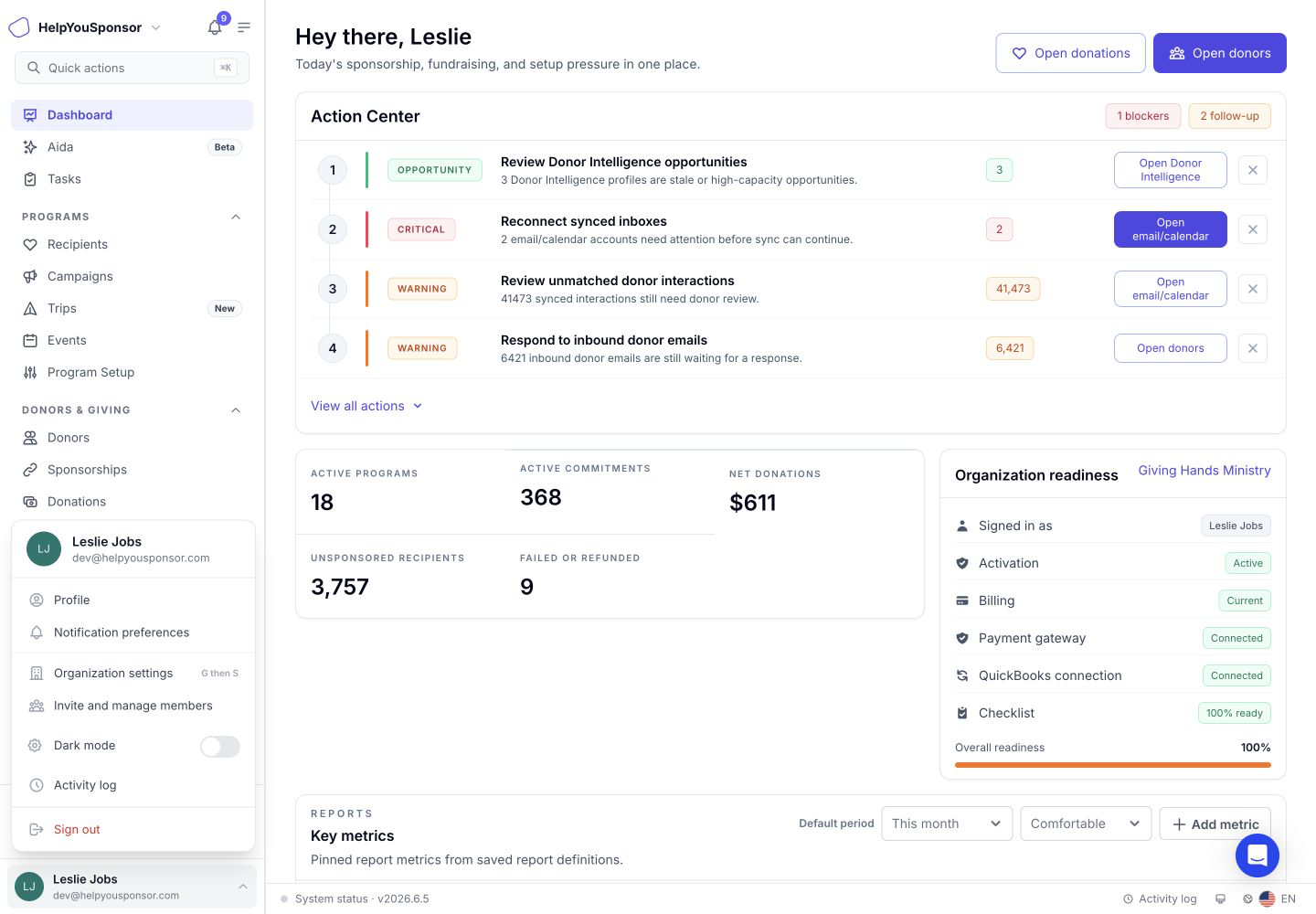
Open Organization settings from the account menu when you need to manage organization-wide email sender setup.
Open Email & Sender
Use Email & sender when the change should apply to account-wide email delivery, not only to your personal admin profile.
Open the account menu at the bottom of the sidebar.
Select Organization settings.
Select Email & sender.
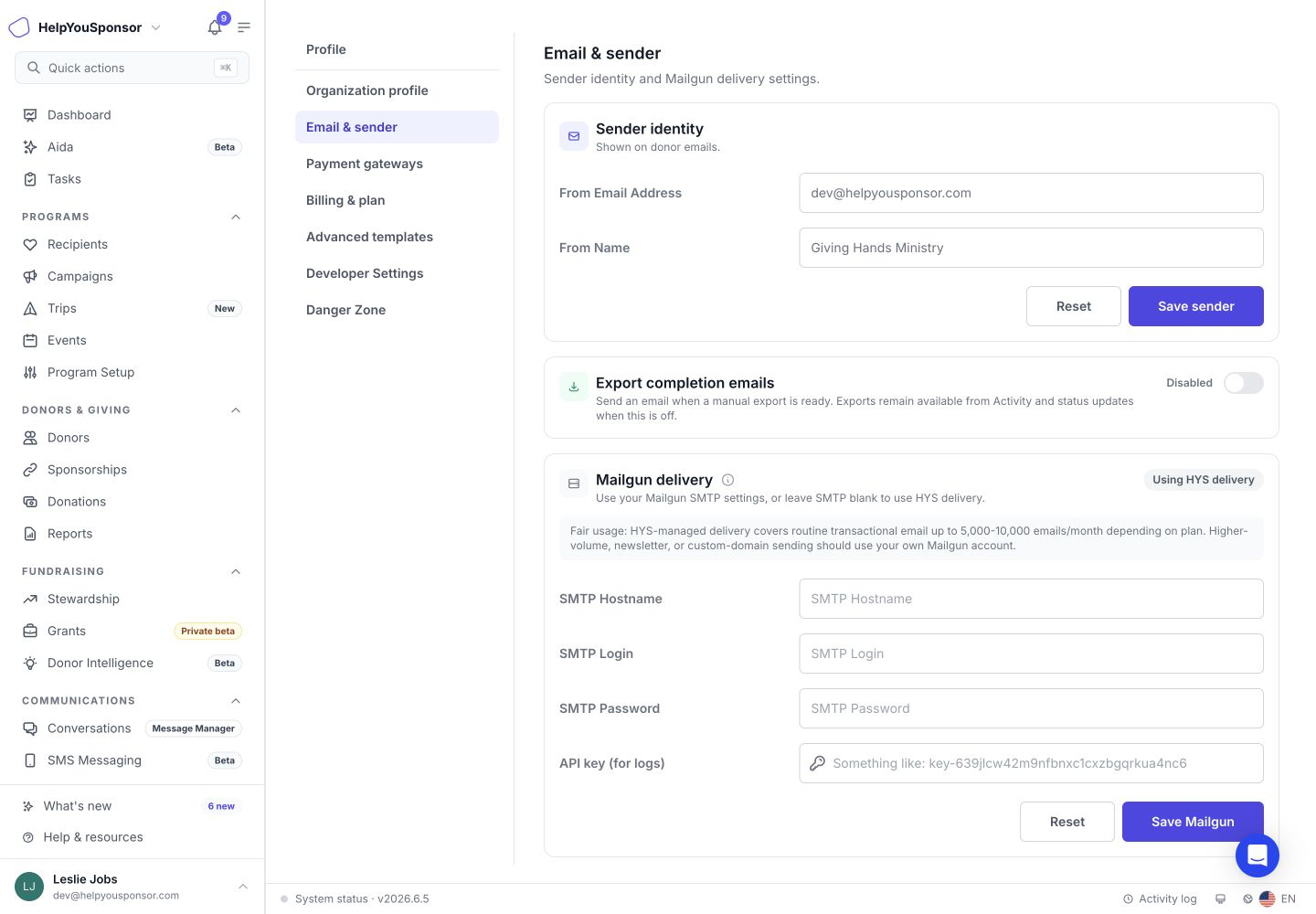
Email & sender is the current Organization settings page for sender identity, export completion emails, and Mailgun delivery.
Set Sender Identity
Use sender identity when you want donor-facing emails to come from the right address and display name.
Enter the From Email Address.
Enter the From Name.
Select Save sender when the sender details are ready.
From Email Address is the email address Gratona uses as the sender for donor-facing emails.
From Name is the name recipients see on emails sent from the account.
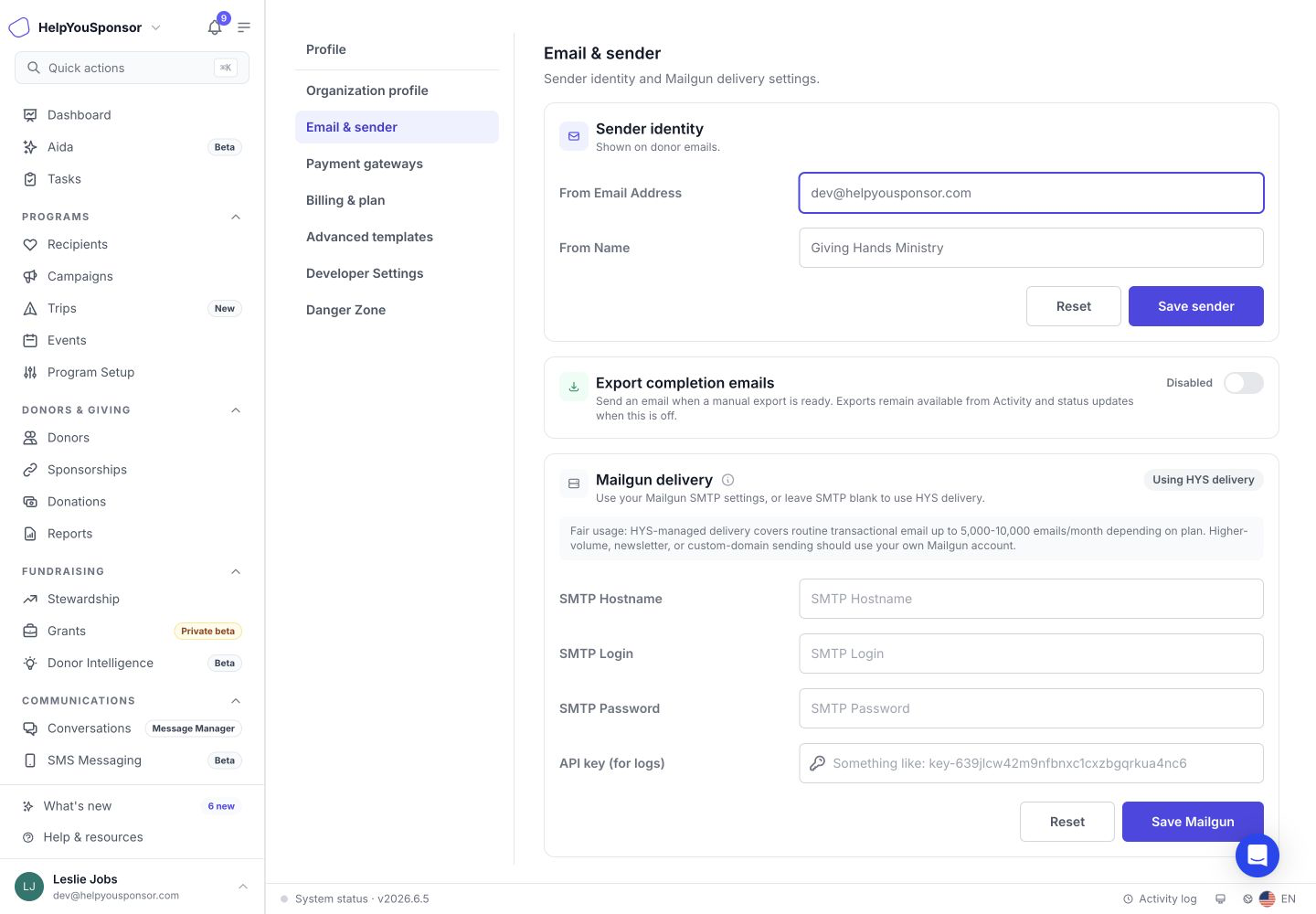
Sender identity controls the email address and name used for donor-facing emails.
Use Reset in this section when you want to restore unsaved sender edits. Resetting sender identity does not reset Mailgun fields.
Choose Export Completion Emails
Use Export completion emails when admins should receive an email after a manual export is ready. Exports remain available from Activity and status updates when this is off.
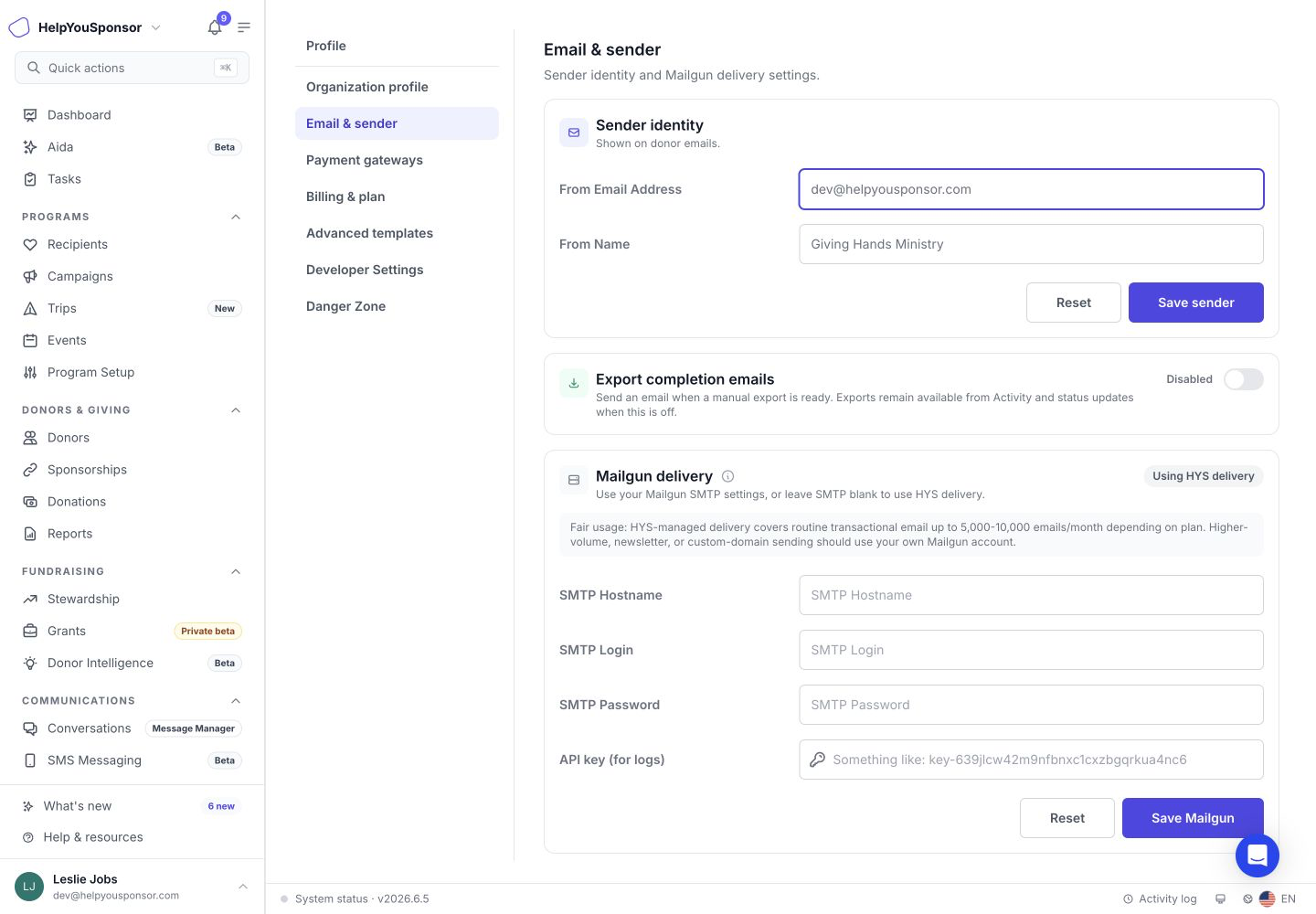
Export completion emails controls whether manual exports send ready notifications by email.
The export completion email toggle saves immediately. Change it only when you are ready to update the account's export email behavior.
Verify Your Sending Domain
Verify your organization's domain so email providers recognize donor-facing emails as coming from your domain instead of the shared sending domain used for default delivery (helpyousponsor.org). Verification is optional, and nothing changes until you send a successful test and activate verified sending. Authenticated sending uses Gratona's managed delivery, so you do not need your own Mailgun account.
You need email-management permission, and the From Email Address must already be saved on a domain your organization controls. Public mailbox domains cannot be verified: gmail.com, outlook.com, hotmail.com, aol.com, icloud.com, live.com, proton.me, protonmail.com, yahoo.com, and their subdomains.
In Sender identity, save the From Email Address on the domain you want to verify.
In the Authenticated sending section, select Verify domain. Gratona provisions a dedicated sending subdomain (mg. plus your domain) and displays the DNS records to publish.
Add the displayed records where your domain is managed. Copy the exact Type, Name, and Value shown in the panel; the records include SPF and DKIM authentication for the sending subdomain and are returned for your domain, so they are not listed here.
Select Check DNS. The status refreshes and each record shows Verified once it passes.
After every record is verified, select Send test. The test email goes to your saved From address, and live delivery continues unchanged.
Select Activate verified sending after the test succeeds. Emails sent after activation use the verified domain.
One verification covers every From address on the verified domain.
While verified sending is active, the From address cannot be changed to a different domain; deactivate verified sending first. Deactivate and restore previous delivery clears the managed sending pointer and restores your previous donor-delivery path, which Gratona retains for rollback. An active setup cannot be removed before deactivation.
If the DNS records later stop passing verification, Gratona restores the previous delivery path automatically.
Email sets that send from a different domain are not authenticated by the verified domain. See Auto Emails for how email sets choose their From address, and Newsletter for how newsletters are delivered.
Configure Mailgun Delivery
Use Mailgun delivery when your organization wants to send from its own Mailgun account. Leave these fields blank to use default email delivery, which covers routine transactional email up to 5,000-10,000 emails per month depending on your plan. Use your own Mailgun account for higher-volume, newsletter, or custom-domain sending.
Mailgun delivery can include:
SMTP Hostname
SMTP Login
SMTP Password
API Key
Mailgun delivery can use your organization's SMTP credentials and API key, or remain blank to use default email delivery.
After Mailgun secrets are saved, Gratona does not display the saved password or API key in the form. Blank password and API key fields do not mean the saved secret is visible or removed.
The Mailgun status shows the current delivery state:
Using default email delivery means custom Mailgun delivery is not configured.
API key saved means the API key is saved for provider logs and troubleshooting, while Gratona delivery remains available until SMTP hostname, login, and password are complete.
Configured means Mailgun delivery is configured with the required SMTP settings.
Use Save Mailgun when the Mailgun settings are ready. This saves only the Mailgun delivery section.
Use Reset in this section when you want to restore unsaved Mailgun edits. Resetting Mailgun fields does not reset sender identity.
If Mailgun is configured, Use default email delivery appears in the sender identity section. Select it once to review the confirmation state. Select Confirm default email delivery only when you intend to clear custom Mailgun delivery and return to default email delivery.
Review Mailgun Guidance
Use the information icon beside Mailgun delivery when you want to understand why an organization might connect its own Mailgun account.
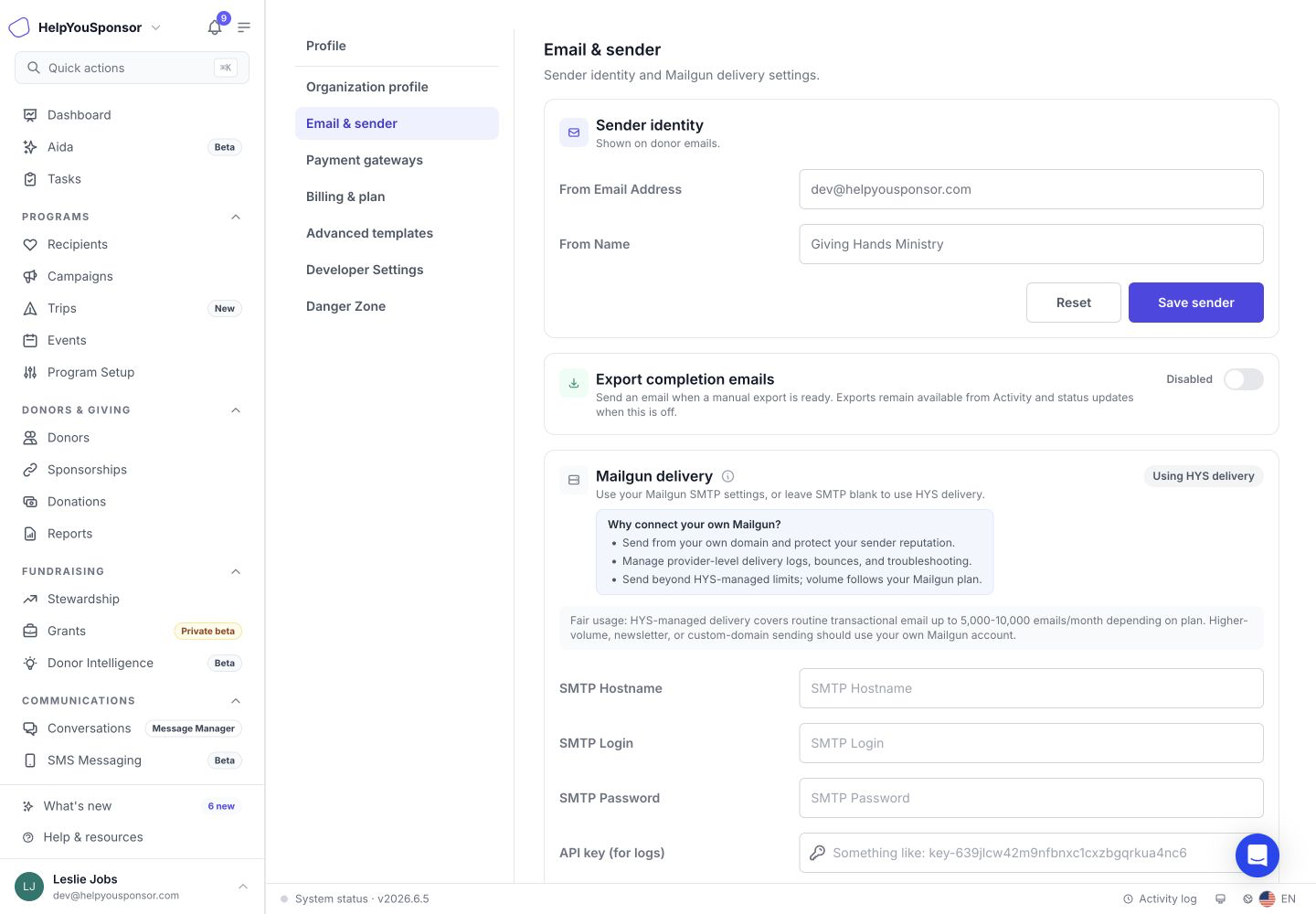
The Mailgun help panel explains own-domain delivery, provider logs, bounces, troubleshooting, and higher-volume sending.
Connecting your own Mailgun account can help with own-domain sending, provider-level logs and bounces, and higher-volume email sending based on your Mailgun plan.
What Authenticated Sending Changes
Activation changes only donor-facing delivery; scheduled reports and internal messages keep their existing transport.
Uses the verified domain: donor-facing email templates and newsletters.
Unchanged: scheduled reports, export completion emails, and other admin or internal messages continue to use the organization's existing email settings. Scheduled Reports explains how report delivery works.