
Connect Chariot DAFpay and track grants
Updated last week
Connect Chariot DAFpay so donors can give from a donor-advised fund on your checkouts, then track the resulting grant recommendations in Donations > DAF grants until the money arrives and you record or link the gift.
Before you start
You need permission to manage organization settings to open Connected apps.
Two separate controls matter: the Chariot connection in Connected apps, and the Donor-advised fund (DAF) payment switch on a program or setting. Connecting the provider does not by itself decide which checkouts offer DAFpay.
Live donations also require Gratona to enable DAFpay for your organization.
Keep test and live separate: the sandbox connection moves no money and its grants cannot be recorded as real gifts.
Connect Chariot DAFpay
Open Settings > Connected apps.
Select Add provider and choose Chariot DAFpay.
Under Donations, choose the environment: Live donations for real grants, or Test first (no money moves) to connect Chariot's sandbox. Live donations is selected by default, so choose deliberately.
Search the Chariot nonprofit directory by EIN or organization name and select your organization. Organizations Chariot marks ineligible cannot be selected.
Enter Contact email at your organization, then select Connect with your organization's name.
Review the DAFpay panel: it shows the connected organization, the Chariot contact, DAFpay status, and grant and directory details. Use Check status to run a connection check and Refresh DAF directory to update the nonprofit directory.
Live giving needs more than a connection: Gratona must also enable DAFpay for your organization. The panel warns you when DAFpay is enabled but the selected environment is not ready, so check both before telling donors to expect the option.
Turn DAFpay on for a checkout
The Donor-advised fund (DAF) switch lives with your other payment methods: in a program's launch workspace under Payment methods, or under Order Page Options > Payment methods in a shared setting. New settings start with DAF on. Turning the switch off removes the method from that checkout without disconnecting Chariot, stopping recurring gifts, or affecting grants already started. The payment-method row also shows why DAF may be unavailable, such as not connected, disabled by Gratona, a missing donor form, or an unsupported page type.
Track grants
Open Donations > DAF grants. A recommendation is not revenue: grants appear here as soon as a donor submits a recommendation, and nothing is recorded as a donation until the money arrives and you record or link it.
Filter by In progress, Needs attention, Received, Closed, or All. The view opens on Needs attention when it has grants, otherwise on In progress. Search by tracking ID, grant ID, or sponsor; sponsor search matches the fund name, not donor names. Columns show Date, Recommended by, DAF sponsor, Amount, Status, and Tracking ID.
Statuses range from Confirming with DAFpay and Sent to DAF sponsor to Received and Canceled by DAF sponsor. Test grants show a Test label in the list and Test grant in the detail drawer.
Open a grant to see the donor details, DAF sponsor, amount, tracking and sponsor grant IDs, designations, provider status, and timeline. Where shown, the drawer also lists the DAFpay Network fee and expected net arrival, and the authorized amount if the donor changed it inside DAFpay.
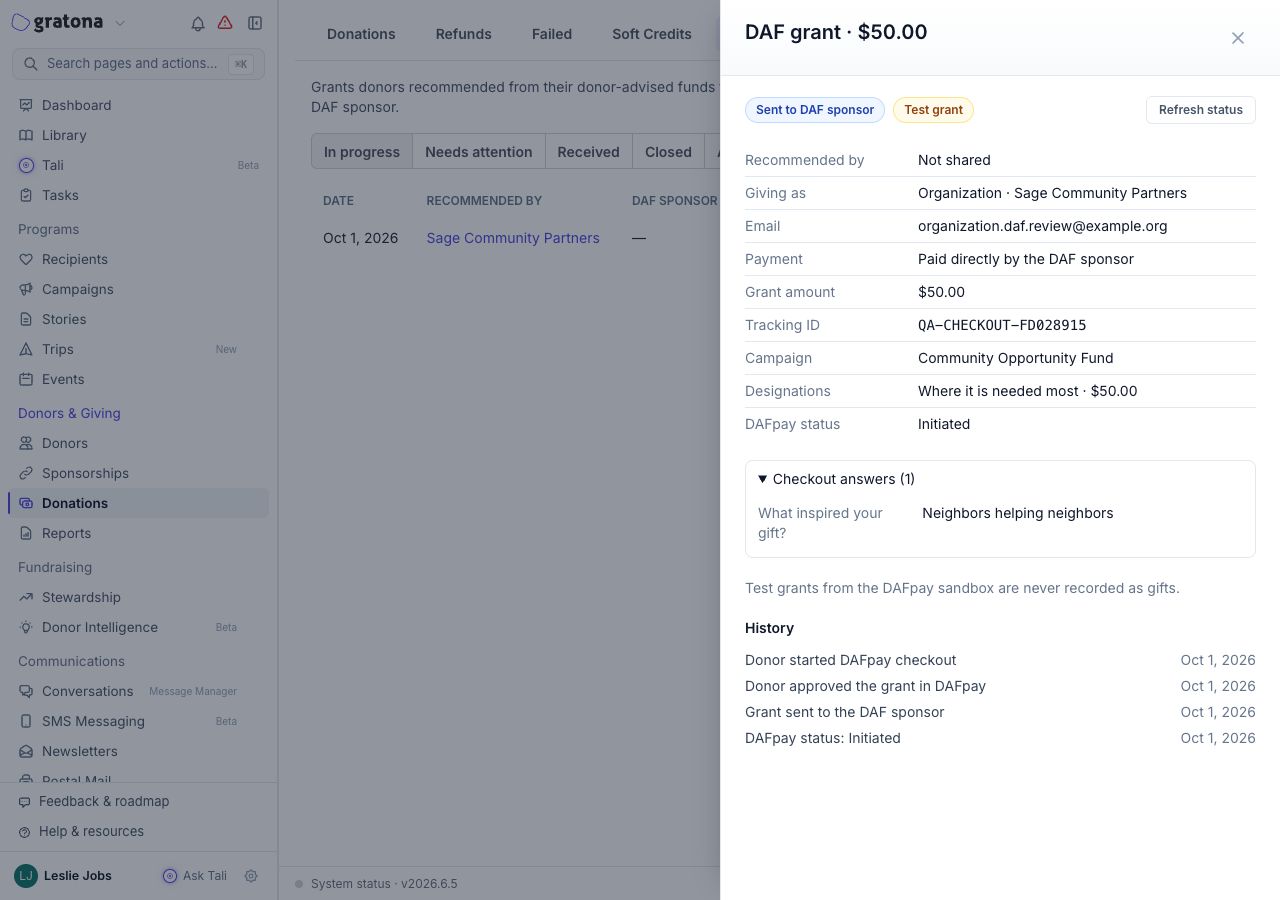
Use Refresh status when it is offered to check with the provider; it updates the status and never records money. If the refresh fails, the drawer shows the provider's error or DAFpay didn't respond. Try again in a few minutes.
When the money arrives
For an eligible live grant whose funds have arrived, the When the money arrives section offers two ways to record the funds, and each grant is recorded once:
Link a recorded gift: offered only when Gratona finds a matching recorded donation, for example a payment your team already recorded from the same grant. Link the existing record instead of duplicating it.
Record the gift: select it, then fill in the actual received details: the paying institution (the DAF sponsor), how the advisor is disclosed, the received date, payment method, and reference, plus the amount and its allocations and any DAFpay Network fee. Confirm receipt and select Record gift.
Sandbox grants are intentionally test data: they cannot be recorded or linked as real gifts. Do not work around this by creating a manual donation for a test grant.
Acknowledgments and related guides
Received-gift acknowledgments, such as the DAF grant receipt and the advisor thank-you, depend on templates you review and enable in Automated email. See Auto Emails for the template prerequisites; not every organization sends every acknowledgment automatically, because templates can be disabled and delivery also depends on addresses and preferences.
To see what donors experience when they give this way, read Give from a donor-advised fund with DAFpay.
For grants you receive outside DAFpay, including manual entry, giving source, ownership, recognition, and acknowledgments, see Record a received DAF grant. To review a donor's apparent DAF decline, see Review a supporter's DAF giving and check an apparent decline.