
Yearly Wrapped
Yearly Wrapped turns your organization’s annual giving activity into a set of report cards. Administrators can review the report, refresh its figures, and download individual cards as images.
Open and review a report
Sign in to the correct Gratona workspace with administrator access.
Open Wrapped when it appears in navigation during December and January. Outside that period, open a year directly, for example Wrapped 2025. Change the year at the end of the address for another reporting year.
Check the year beside the report title. The year selector offers recent completed years.
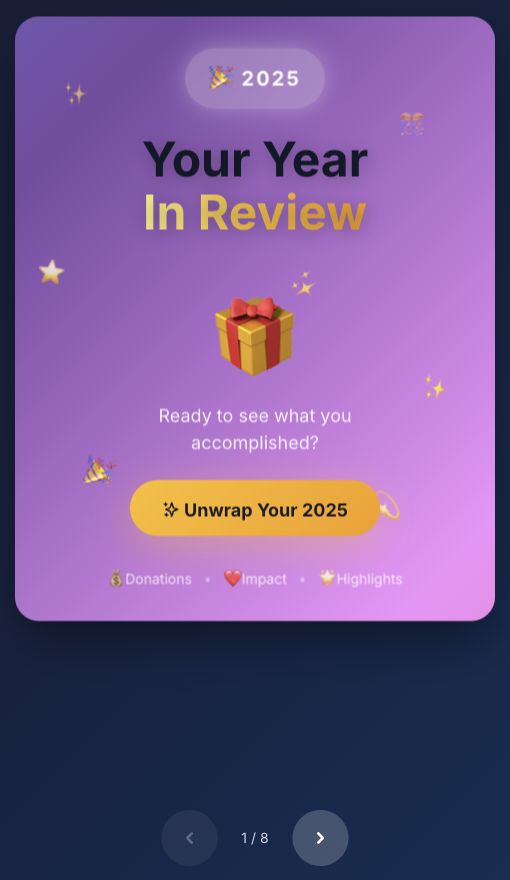
Select Unwrap Your [year], then use the arrows or slide indicators to move through the cards.
Review the figures and the Last updated date before using the report in a board update, email, or public post.
The report is generated from existing workspace data; there is no separate report-design or approval form. Cards cover giving totals, donor growth, monthly giving, program performance, retention, top donors, and an annual summary. Some cards appear only when relevant data is available.
Refresh the figures
Select Refresh after correcting or adding records that affect the reporting year. Keep the page open while the calculation finishes. Larger datasets can take a few minutes; the page checks progress and loads the report when it is ready.
Loading: Gratona is retrieving the report.
Calculating: Gratona is preparing or refreshing the figures. Wait for the cards to return before downloading.
Ready: The report cards are visible. Check the selected year and Last updated date.
No data: Confirm the workspace and year, then check whether the expected records exist.
Error: Read the message and select Try Again. If the problem continues, contact support with the year and the error message.
If figures differ from another report, check the reporting year and underlying records before sharing. Refresh the Wrapped report and ask support to investigate any difference you cannot explain.

Download and share a card
Navigate to the card you want to use.
Select Download.
Open the downloaded PNG and check its contents before attaching it to an email, adding it to a presentation, or posting it publicly.
Download saves the current card, not the whole report or a PDF. Repeat the steps for additional cards. If the download fails, wait until the report has loaded and try again.
Protect donor information: the administrator’s Top Donors card contains names and giving amounts. Downloading an admin card does not anonymize it. Only distribute a card to an audience authorized to see its contents.
Public report links
The current Wrapped screen has Refresh and Download controls. It does not provide a button to create or revoke a public report link. Public-link management is available through the Wrapped API.
If your organization has enabled a public report link through an integration, recipients can open the complete link without signing in. The link contains a token that grants access to that organization’s report for the specified year. Anyone who receives or is forwarded the link can view the shared report.
The public view omits the administrator’s Top Donors card. The public API replaces top-donor names with anonymous labels and removes donor IDs, while retaining giving amounts and counts. Review the financial information you intend to make public before distributing a link.
Disabling sharing invalidates the link. Enabling sharing again after revocation creates a new token, so distribute the new link. If a recipient sees that a report is unavailable, check that they have the complete link and that sharing is still enabled. An administrator’s signed-in report address is not a public share link.
Email a report
The current Wrapped screen does not have a Send email button. You can download a suitable card and attach it to an email you compose.
For organizations using the Wrapped API, the email action sends a Year in Review summary to the requesting user’s email address by default, or to an explicitly supplied recipient. It sends a summary of key figures with a link to the full admin report; it does not automatically enable public sharing or send to all donors.
API email requests are limited to one successful send per hour for each organization and reporting year. If a request is rate-limited, wait before trying again. If an expected email does not arrive, check the recipient address and spam folder before requesting another send. The full admin report requires administrator access; for a recipient without access, use an approved downloaded card or an enabled public report link.