
Create a report by describing it
Updated 2 weeks ago
Use Describe it to fill in report settings from a sentence. You choose the source and scope, review the result, and save when you are ready.
Before you start
You need permission to manage reports and access to the source data. The fields you can use depend on the source and scope you choose.
Fill in a report
Open Reports under Donors & Giving. Select New report, or edit a saved report.
Choose the Source and its scope first, such as Donations and a donor group.
In Describe it, enter the records you want, any conditions, the columns to show, and the order you need.
Select Fill in report. Gratona fills in the available settings and refreshes Live preview. The report is not saved at this point.
Read the summary. Answer any clarification question and review anything listed under Not included.
Check the filters, columns, sort, date range, and preview rows. Adjust the settings by hand if needed.
Select Save to save the report and return to the library, or Save & view to save it and open its worksheet.
Try a description
Donations acknowledged in the last 7 days. Show donation ID and acknowledgment date.
With Donations selected, this uses an Acknowledged At date filter and shows Donation ID and Acknowledged At. The overall date range can remain All time: the field filter already limits when acknowledgment happened.
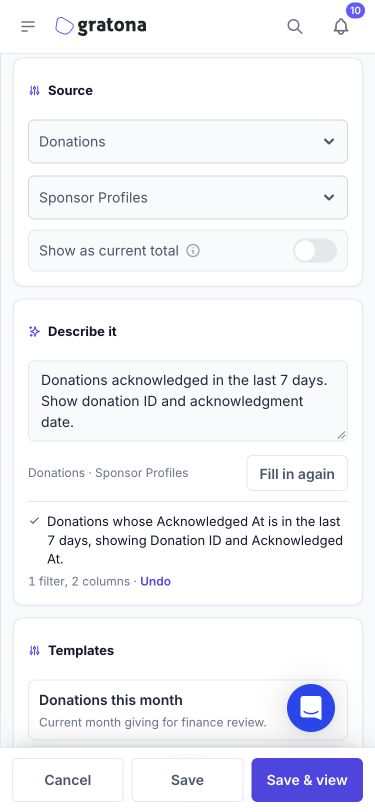
The filled result includes the acknowledgment-date filter and both requested columns.
For acknowledgment status, try:
Donations that haven't been acknowledged yet. Show donation ID and acknowledgment status.
This asks for Acknowledged to be Unacknowledged. Status answers whether a donation has been acknowledged; Acknowledged At answers when.
With Donors selected, try:
Donors with lifetime giving over $500, largest givers first. Show name, email and lifetime giving.
Review questions and omissions
A phrase such as “major donors” may need a choice about what it means. Select the option that matches your organization. A condition held for a question is applied after you choose an answer; other clear conditions may already be filled in.
Not included lists parts of your request that were left out and explains why. A partial result may still be useful, but check that it answers your question before using it. Rephrase the request or adjust the report manually when needed.
Describe it combines conditions with AND. For conditions joined with OR, configure them in Filters and check the preview.
Adjust or undo the result
You can edit the filled-in settings before saving. Undo returns to your original settings, even after Fill in again. To revise the description, edit it and select Fill in again, then review the new result.
Filling in a report does not send it, schedule it, or save it. Use the normal report actions after reviewing and saving.