
Choosing a default program alone is not enough. Under Select Programs to Display, check at least one additional program before selecting Make URL. The validation message is "Select at least one additional program".
URL Generator
Updated 7 days ago
URL Generator creates one donor-facing link where supporters browse and select from compatible sponsorship programs and giving campaigns on a single page, then pay for everything in one combined checkout. For example, one link can offer a Child Sponsorship program, a Site Sponsorship program, and a Clean Water campaign together.
Before you start
Programs can share a generated link when all of these are true:
Each program is a sponsorship program (fixed-slot Number of Sponsors, contribution, funding, or one-time) or a campaign program.
Each program has a setting profile and a donor form attached.
All programs belong to your organization and are top-level programs, not linked sub-programs.
All programs use the same donor form. Their recipient and designation forms can differ: programs with the same donor form can be combined even when their recipient forms differ.
If you do not see the URL Generator tab, your role may not include access to view or manage programs.
Create a multi-program URL
The default program anchors the donor experience. It is included in the link automatically, and its settings supply page-wide defaults such as currency and amounts, so choose the program that should set the tone.
Open Program Setup and select the URL Generator tab.
Under Choose Default Program Settings, select the program whose settings should supply the defaults. In this example, choose Child Sponsorship.
Under Select Programs to Display, check each additional program donors should browse. The default program appears as included by default and cannot be removed, and only programs that share its donor form are listed. Changing the default program clears any additional selections. In this example, check Site Sponsorship and Clean Water.
Select Make URL.
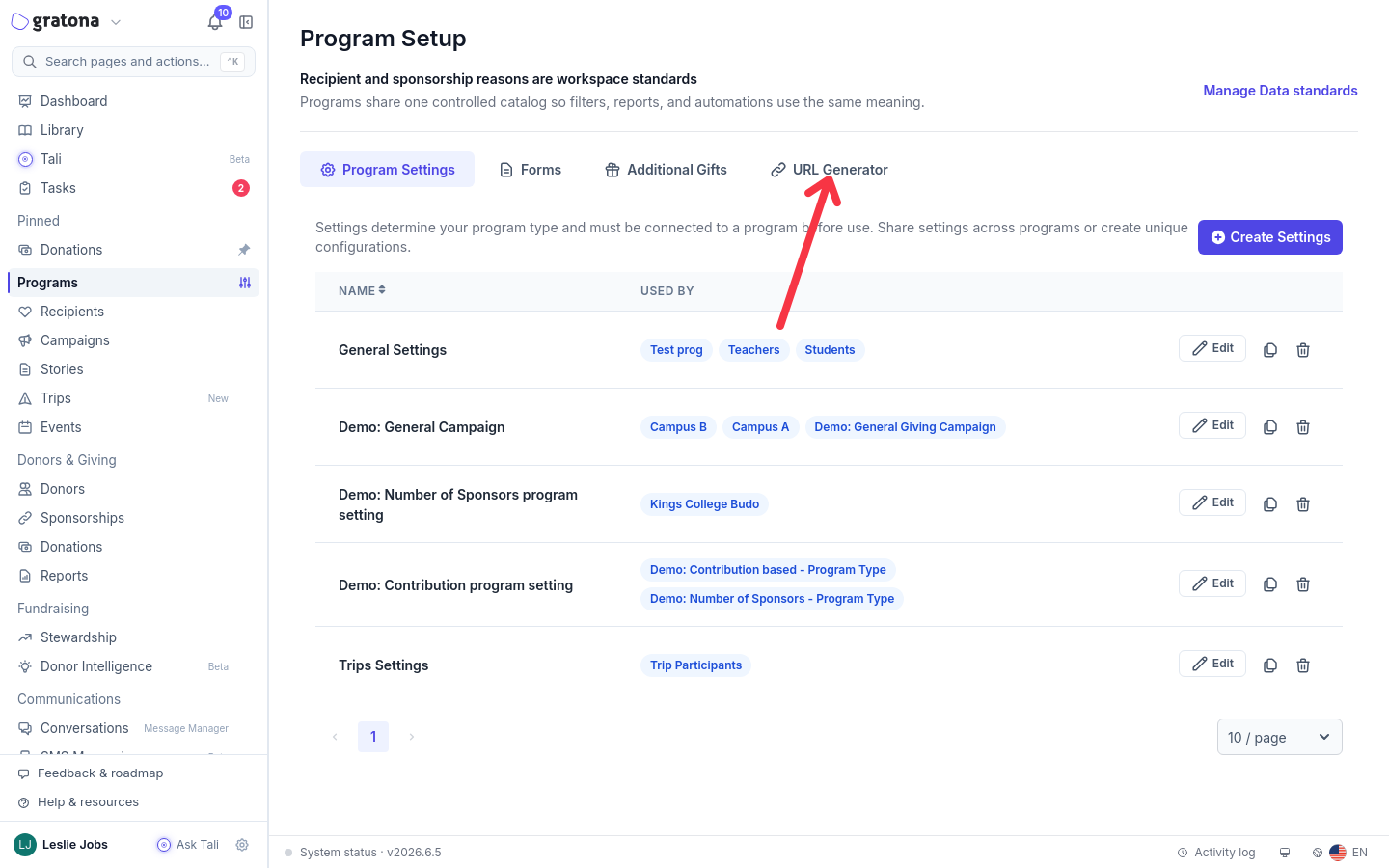
Program Setup > URL Generator creates one link for a multi-program donor selection page.
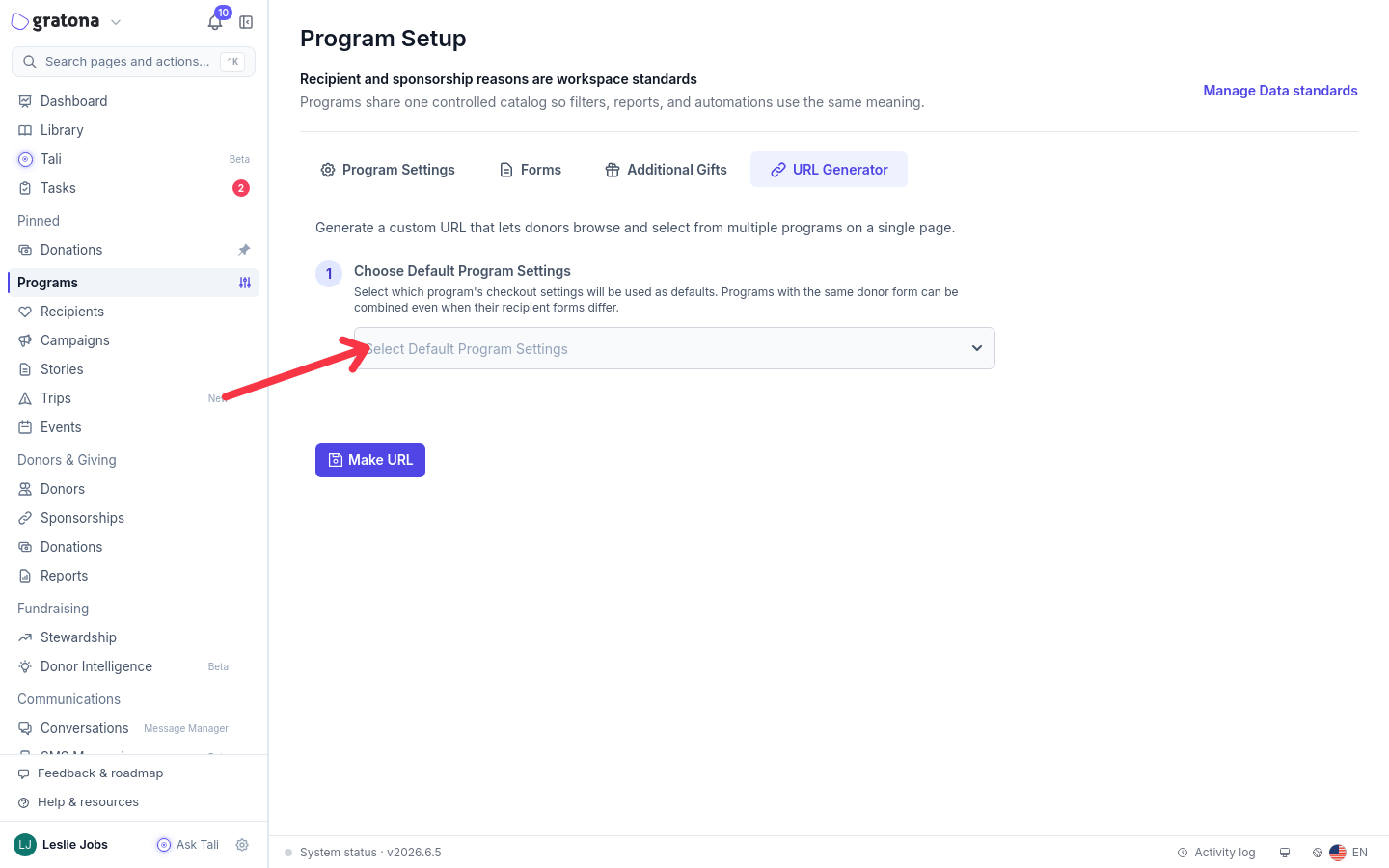
Choose Default Program Settings supplies the defaults used by the generated multi-program page.
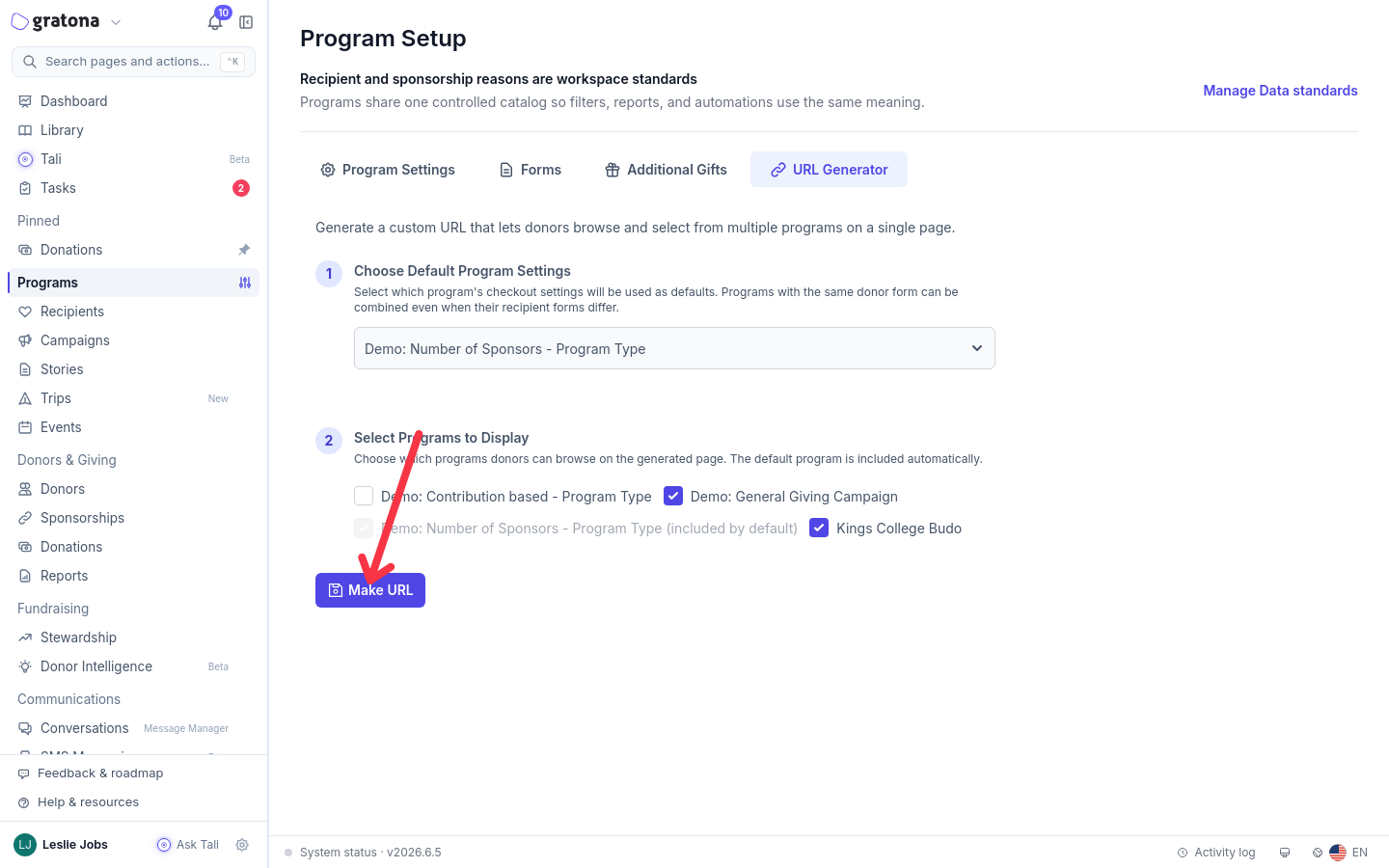
Select Programs to Display controls which programs donors can browse from the generated link.
Gratona confirms the link with a URL Generated Successfully message. The link points donors to a page in the form /frontend/view_all/ followed by your organization and program identifiers.
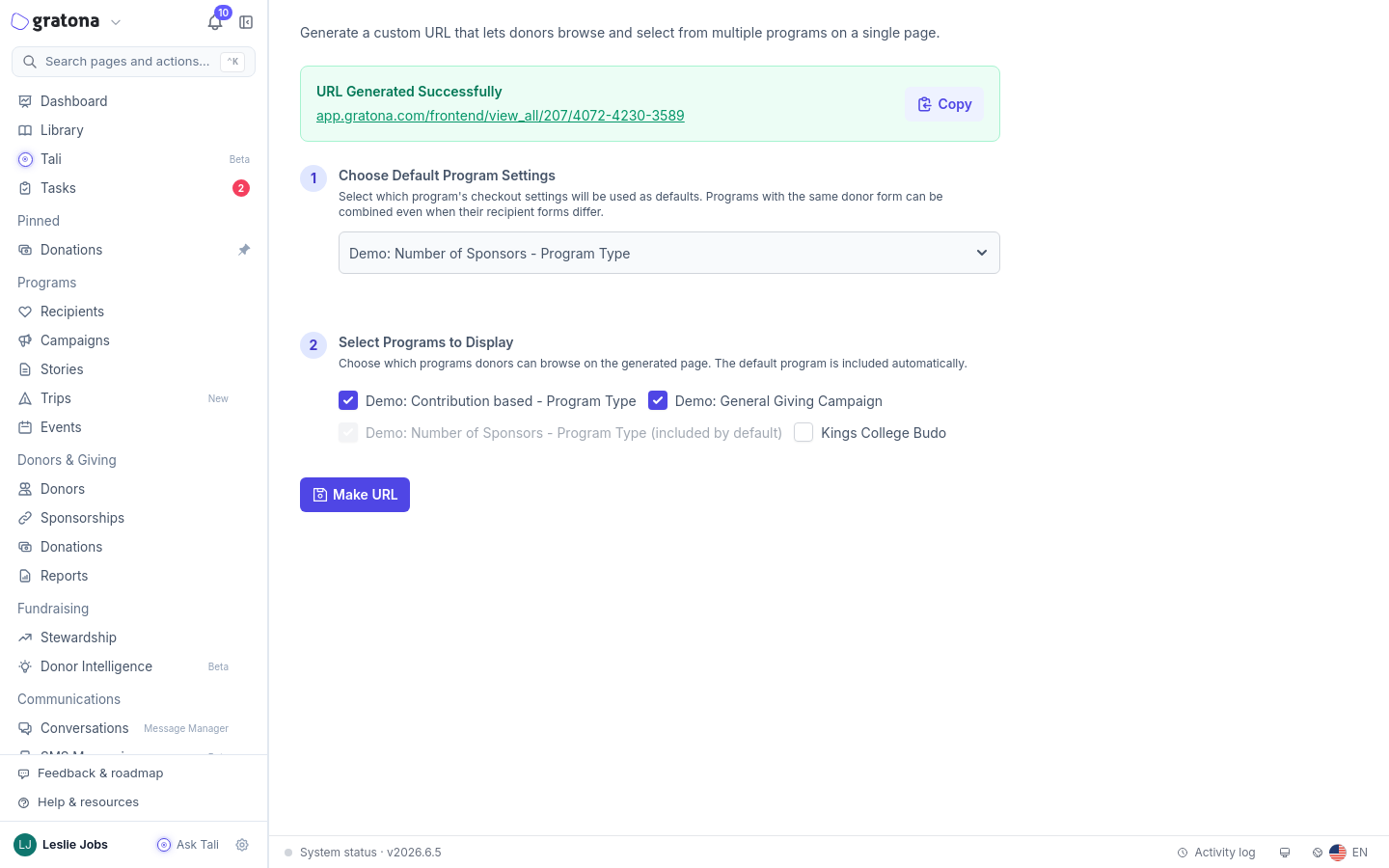
Make URL generates the donor-facing link with a Copy action next to it.
Copy the generated link
Select Copy next to the generated link, then paste the link wherever donors will find it: your website, an email, or a social post. The button shows Copied briefly after you select it. The link works like the public recipient links described in Website and Embed, but it combines the selected programs into one page.
What donors see
Donors open one page that lists recipients from the sponsorship programs and designations from the campaigns on the link. In the example above, they can browse Child Sponsorship recipients, Site Sponsorship recipients, and Clean Water designations without leaving the page.
The page header shows your organization's mark and provides program navigation between the programs on the link.
A search box and a program filter, with a View All option, let donors browse one program or all of them at once.
Each card shows the amount and the action to add that recipient or designation to the order.
Selecting a card opens the recipient's or designation's profile, where the donor completes the details and payment steps. The item is saved to the order, and Add Another Sponsorship returns the donor to the list to pick something from another program.
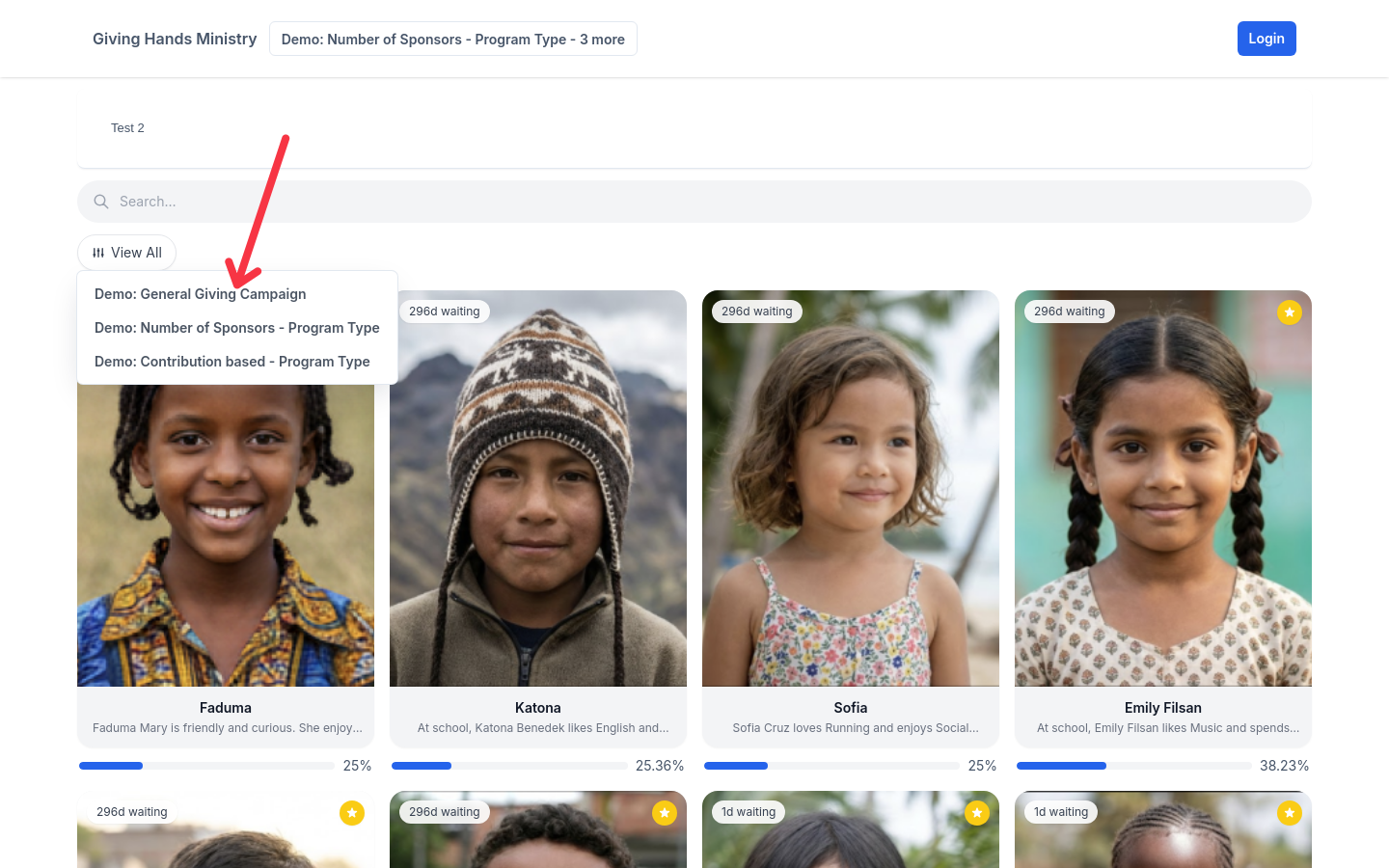
The View All filter lists every program on the link.
A cart indicator keeps count of what the donor has saved so far.
Sign in or continue as a guest
Donors who are not signed in use the New Sponsor Sign-up form, which collects the donor email and checks for a matching donor account. If an account already uses that email, the donor can continue with that account and verify it with a 6-digit code sent by email. Verifying can also make a saved payment method available for the checkout.
When donor login is enabled in the program's setting profile, checkout also shows Already have an account? for signing in with an email or username and password. Checkout sign-in uses donor accounts: admin accounts are not donor accounts, so a staff login will not sign a donor in at checkout.
One cart and one checkout
Selections from every program on the link share one cart and one checkout. The order summary lists each sponsorship and each gift with its own amount and frequency, followed by one donor and payment form and a single combined Total:. After payment, the confirmation shows the combined order, for example Order with the detail 1 sponsorship + 3 gifts.
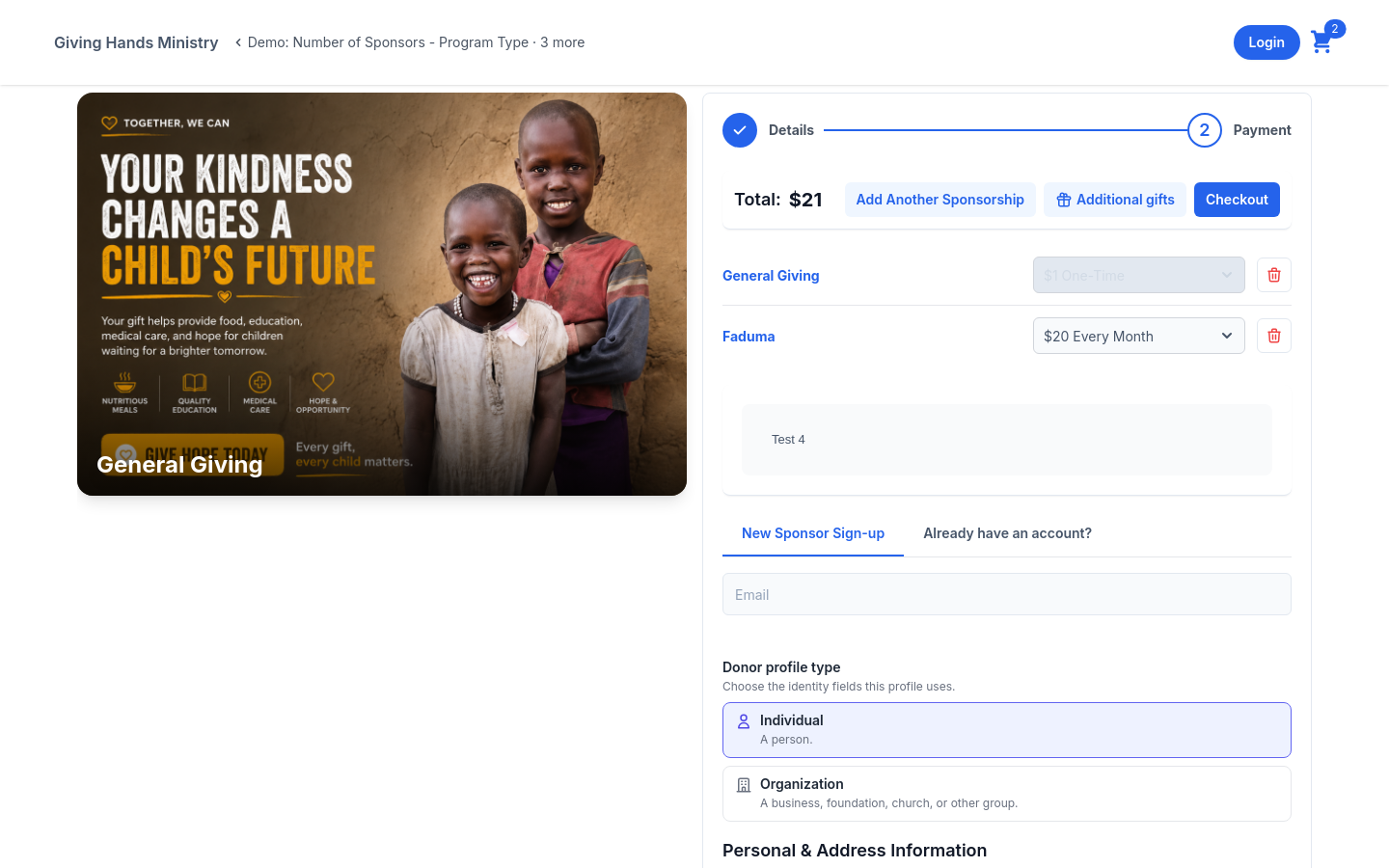
One checkout: each item keeps its own amount and frequency, and the order has a single combined total.
Each item keeps the amount and available payment frequencies configured for its source program. Check the frequency shown beside every item before submitting. Completing one checkout does not make the items share the same recurring schedule.
Combined checkout, combined charges, and combined receipts
These are three separate behaviors, and only the first happens automatically:
Combined checkout: items from compatible programs share one cart, one donor form, one payment form, and one total. This is built into every link the URL Generator creates.
Combined charges: the Combine same-day charges setting groups a donor's commitments that share a payment method and charge date. This applies to commitments charged on their schedule, such as a monthly sponsorship and another commitment that charge on the same day.
Combined receipts: the Combine email receipts setting puts the receipts of the combined charges into one email. Both settings must be enabled.
Donors complete one checkout for the selected items. Processor charges and receipt grouping depend on the applicable payment and program settings; the two settings in the next section control how later charges and receipts combine.
Send one combined receipt
To give donors one receipt that lists every donation from a combined charge, turn on both combining settings, then include the required table shortcode in the receipt template.
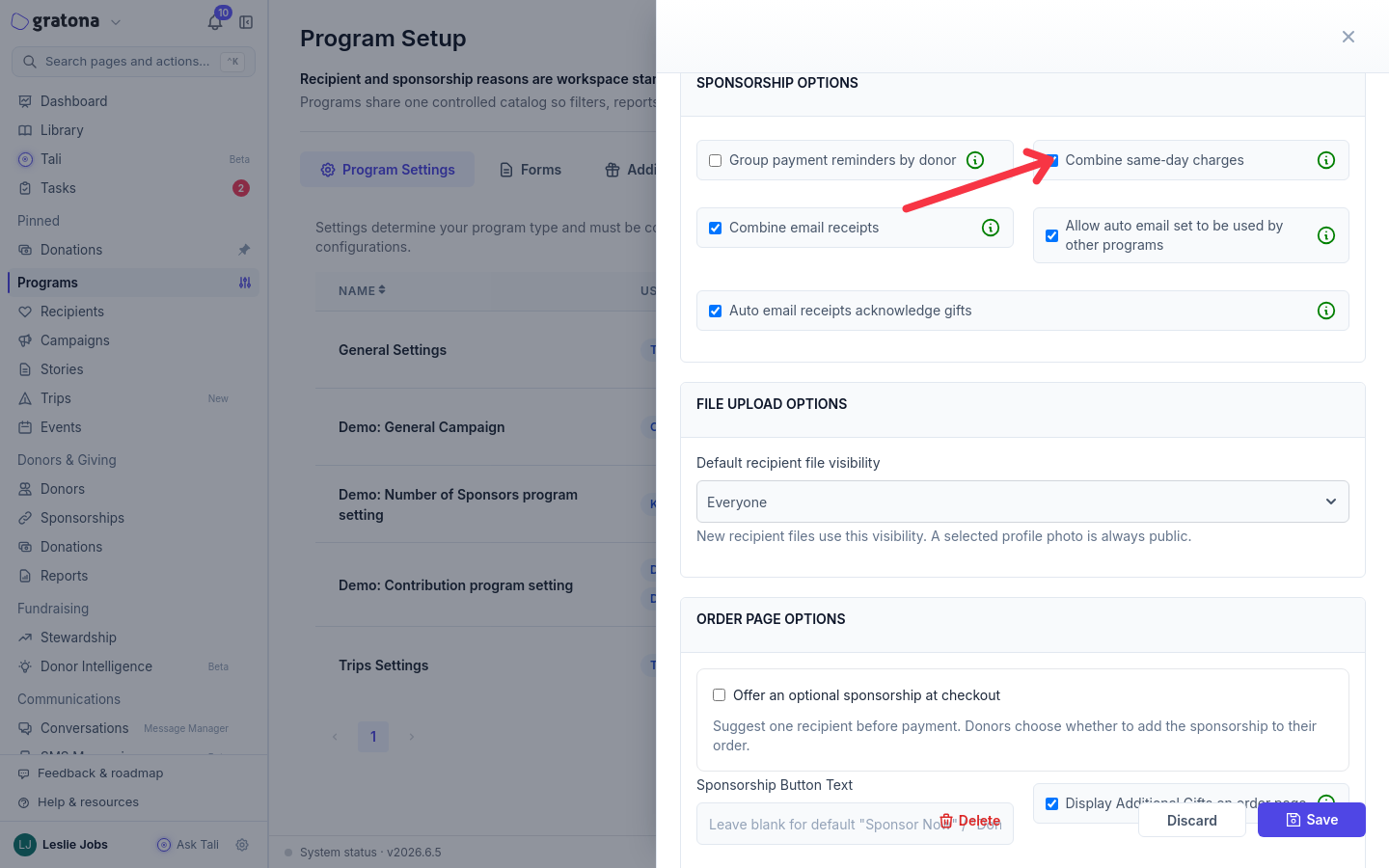
The two combining settings sit in the Sponsorship Options section of the setting profile.
Open Program Setup > Program Settings and edit the setting profile used by the programs. In Sponsorship Options, enable Combine same-day charges.
In the same section, enable Combine email receipts. The option stays unavailable until Combine same-day charges is on.
Open System Automations and select the Auto Email tab.
Open the Donor Payment Receipt template and edit the Standard Donation variant.
Include
[donations_table], spelled exactly like that, in the email body. With both combining settings enabled, this shortcode is required. It renders a table with one row per donation showing Date, Designation, Method, and Amount, followed by a combined total row that names the number of donations and shows the combined total.
![Email template editor for the Donor Payment Receipt Standard Donation variant with [donations_table] in the message body.](https://static.ferndesk.com/user-images/file_01M3YGF2SSW733EZKXGECJWJVV.png)
The Standard Donation variant of the Donor Payment Receipt template contains [donations_table] in the email body.
With both settings enabled, [donations_table] replaces the ordinary receipt shortcodes. When either setting is off, the template uses the ordinary receipt shortcodes instead.
The setting profile can be shared by several programs, so these options affect every program attached to it. Clone the profile first when only some programs should combine charges and receipts.
If no programs are available
URL Generator only lists eligible programs that have a setting profile and a donor form. If there are no available programs, create at least one eligible sponsorship or campaign program with settings before generating a multi-program URL.
If the program selection is rejected
Gratona asks for at least one additional program
A program I want to combine is not listed
Only programs that share the default program's donor form are listed under Select Programs to Display. Update the program's donor form in Program Forms, or choose a default program that shares its donor form.
Checkout reports "Choose an available payment frequency for this item."
The order included a frequency that the item's source program does not offer. The donor can choose one of the frequencies available for that item, which come from the item's own program settings.
Related guides
Was this helpful?
Was this helpful?