
Trips Table
Updated 2 weeks ago
The Trips list is where you find trips, review fundraising progress and open the tools for each trip.
Open Trips
In the main navigation, open Programs → Trips.
Create or find a trip
Select Create trip to open the creation drawer. After saving, the new trip opens so you can continue its setup.
Search by trip name or destination. Use the status filter to find Draft, Active, Completed, Archived or Cancelled trips.
When no trips match your filters, adjust the search or status selection.
What the list shows
On a larger screen, the list groups information into:
Trip: Name, destination and available trip dates. Sample records have a Sample badge.
Fundraising: The raised amount, goal and fundraising progress together.
People: Participant count.
Status: The trip's lifecycle state.
Row menu: Available trip actions.
On smaller screens, status and fundraising details move into the Trip cell and some secondary columns are hidden. Use the trip's three-dot menu for actions.
Dates use the organization's date order, and amounts use its currency.
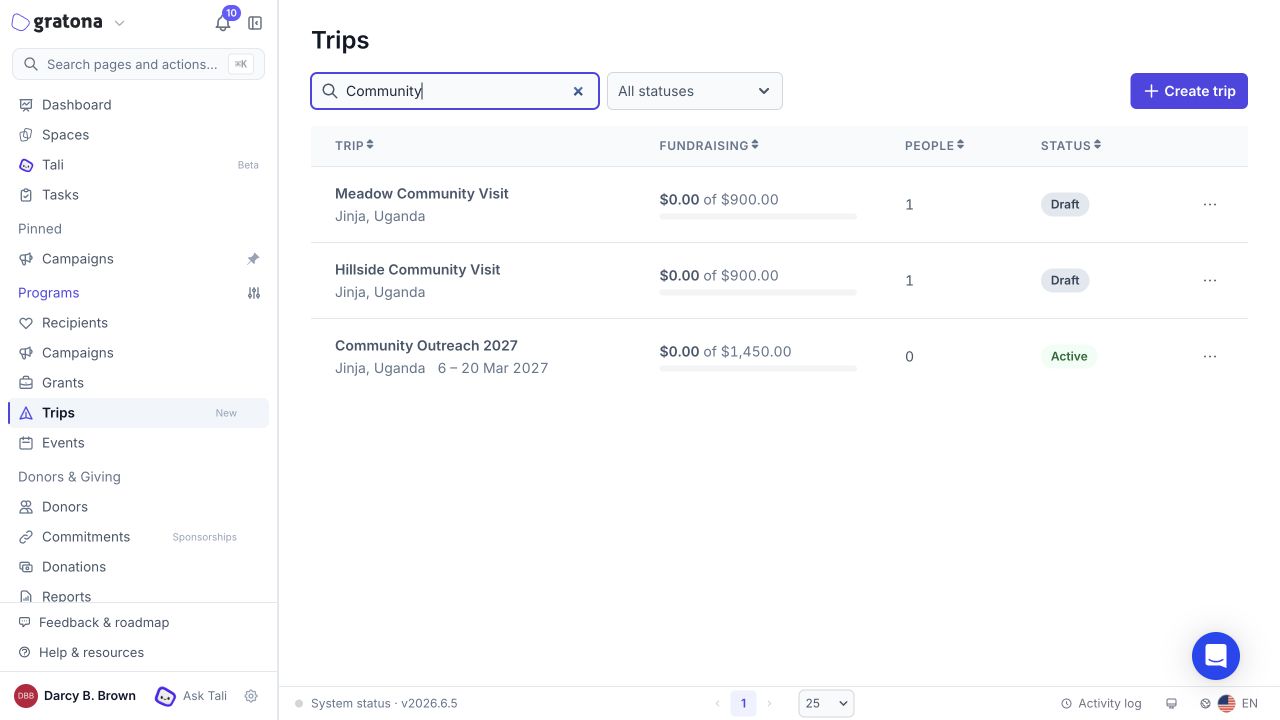
The Trips list groups identity, fundraising, people and status, with a menu for each trip.
Open a trip
Select the trip name or open Actions for [trip name] → Open trip.
The trip record contains participants, budget, tasks, milestones, documents and the other available trip tools.
Row actions
Depending on your permissions and the trip's state, the three-dot row menu includes:
Open trip
Clone trip
Archive trip, or Restore trip for an archived record
Delete trip
Cloning is not available for sample trips. Review a deletion confirmation carefully before removing a trip.
See Trip Cloning.
Your first trip
If the account has no trips, the first-run view provides Create trip and a short setup sequence.
A Try a sample trip option appears only when sample creation is enabled for your account. Its absence does not prevent creating a normal trip.
Sample trips
When available, Try a sample trip creates a private practice trip marked Sample. It can contain demonstration participants, budget items, milestones, tasks and draft communication history.
Sample creation does not send invitations, outbound messages, signature requests or background checks. Sample trips are not public fundraising pages.
Pagination
Use the footer to move through pages and change Rows per page. The shown range helps you see which records are currently displayed.
Related: Create a Trip, Trip Details, Trip Settings.