
Public Trip Page and Website Integration
Updated 2 months ago
.
Public Trip Page and Website Integration
Every active trip can publish a public fundraising page that supporters can visit directly or embed into your website. The public trip page can show trip details, participant cards, fundraising progress, donation entry points, social sharing, and an optional Request to Join workflow.
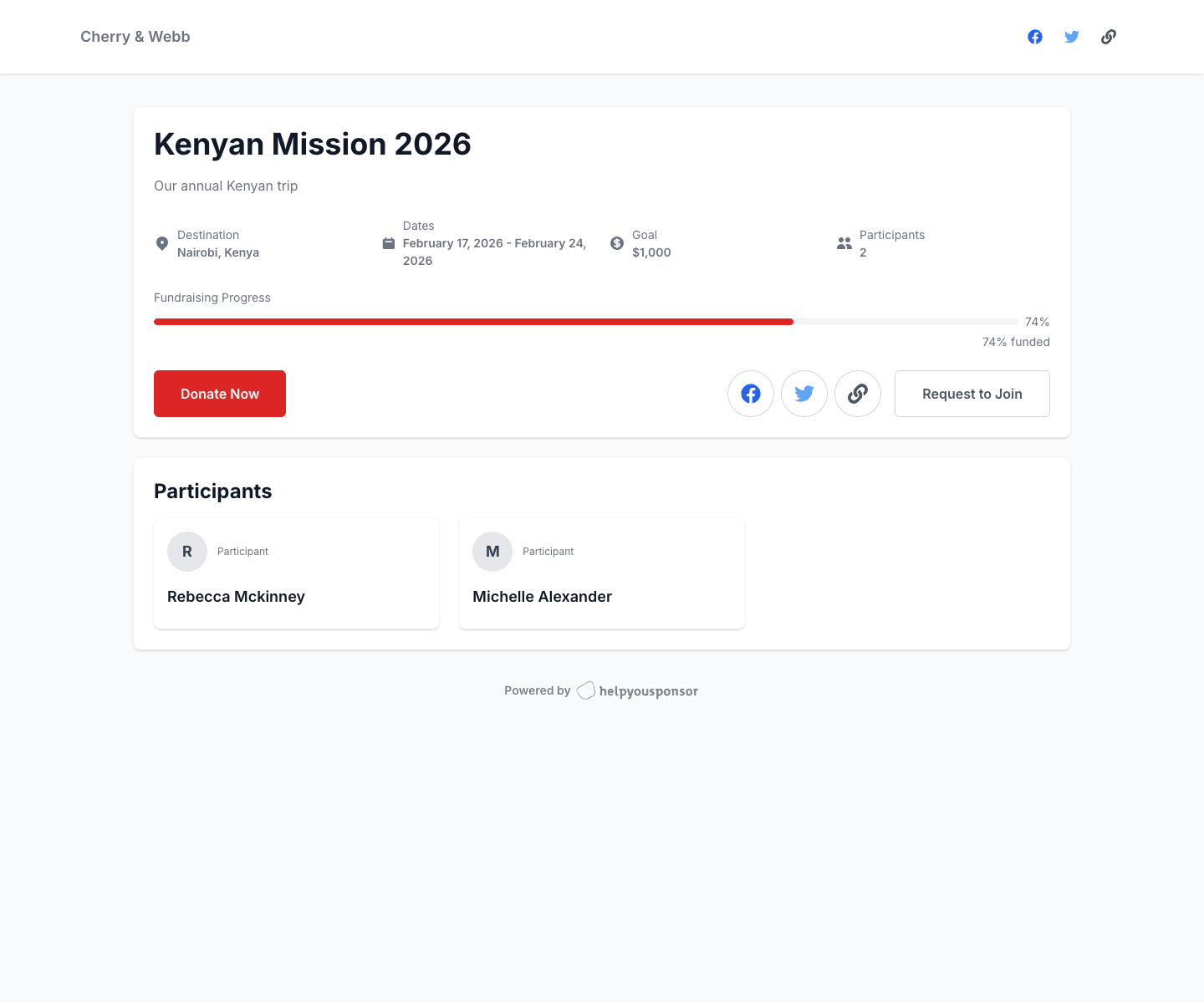
Screenshot placeholder: Public trip page showing the trip overview, progress, social sharing, and participant cards
What the public trip page can show
The public trip page can include:
organization name in the header
optional Login button
social share buttons
cover image
trip name and description
destination
trip dates
fundraising goal
participant count
fundraising progress
Donate Now button
optional Request to Join button
participant cards
Donate Now behavior
The public trip page only shows Donate Now when:
the trip is accepting donations
at least one public participant is available on the page
Trips accept donations when:
the trip status is Active
or the trip status is Completed and the selected Trips Program Settings allows completed trips to keep accepting donations
If a completed trip is no longer accepting donations, the public page shows an informational message instead of the Donate button.
Trip Fund and participant giving
The public donation flow can support both:
Trip Fund donations for the trip as a whole
donations to a specific participant
Trip fund donations count toward the trip total, but they do not increase any individual participant's personal fundraising total.
Request to Join
If the trip is active and Request to Join is enabled in the selected Trips Program Settings, the public page shows a Request to Join button.
Supporters can use that button to submit a join request from the public page. See Request to Join and Participant Approvals.
Participant cards and profile pages
The participant grid links to public participant pages.
Participant cards can show:
participant photo or avatar
participant name
short bio
amount raised
individual goal
fundraising progress
What supporters can see depends on the trip's selected Program Settings, including whether donation amounts and participant goals are public.
Public participant pages
Each participant can have their own public page with:
profile photo
bio
optional video
individual fundraising progress
donation button
Open the trip URL and embed tools
From Trip Details, click Embed.
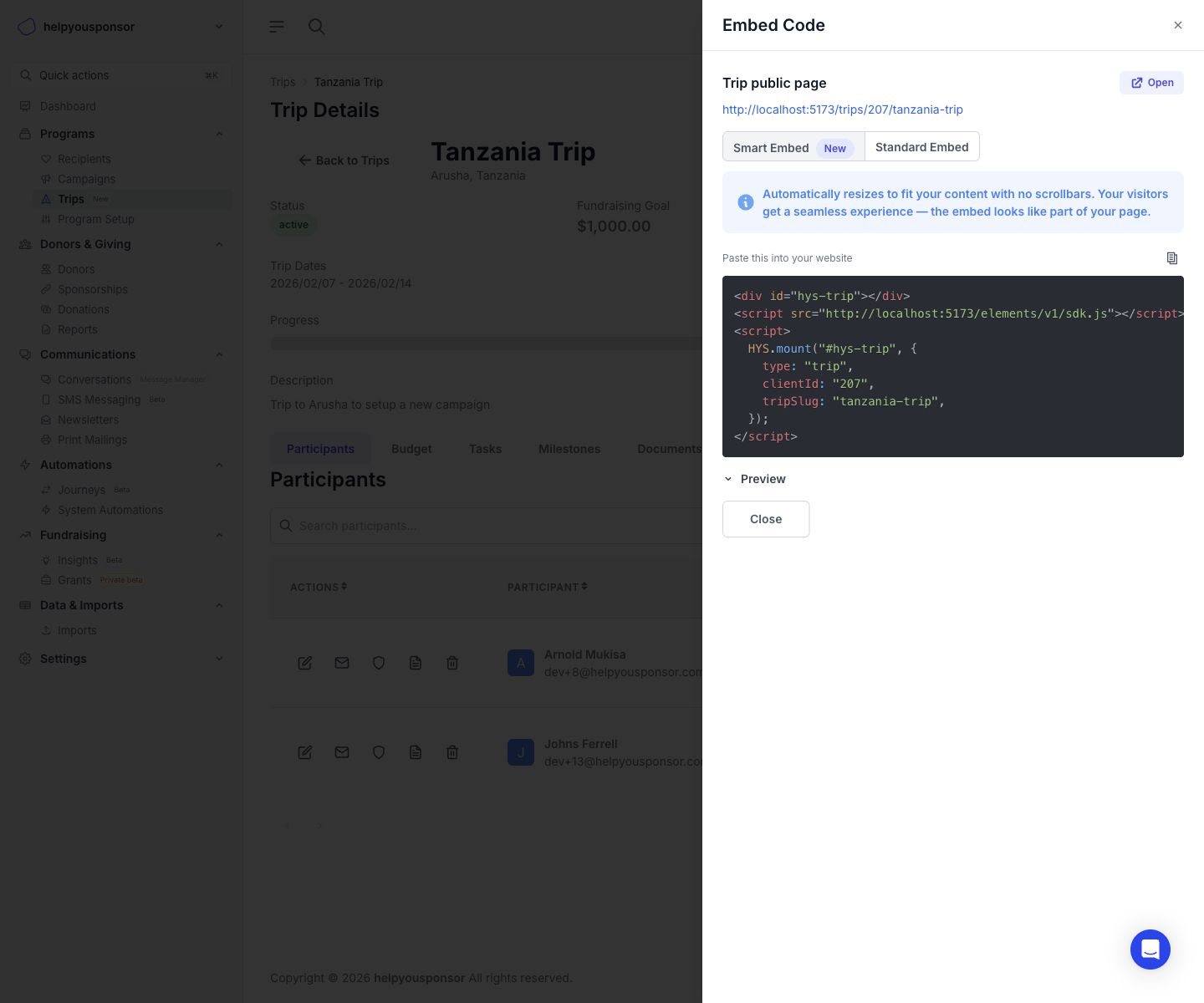
Screenshot placeholder: Embed drawer showing the trip public URL, Smart Embed, Standard Embed, and preview
The drawer includes:
the direct public URL
an Open button to preview the public page
Smart Embed
Standard Embed
a built-in preview panel
Smart Embed
Smart Embed generates an HYS Elements embed snippet that automatically resizes to fit the trip content. This is the best option when you want the trip page to feel native inside your website without managing iframe height manually.
Standard Embed
Standard Embed gives you a traditional iframe snippet.
In this mode, you can:
turn scrolling on or off
copy the generated iframe code
preview the result before publishing it to your site
Website embedding workflow
Open Embed from Trip Details.
Choose Smart Embed or Standard Embed.
Copy the generated code.
Paste it into your website where the trip page should appear.
Use the preview to confirm the experience before publishing.