
Participant Management
Updated 2 months ago
.
Participant Management
Participant Management is where you build and maintain the trip roster. Each participant is linked to a donor record and can have an individual goal, role, tags, trip status, background check status, and e-signature status.
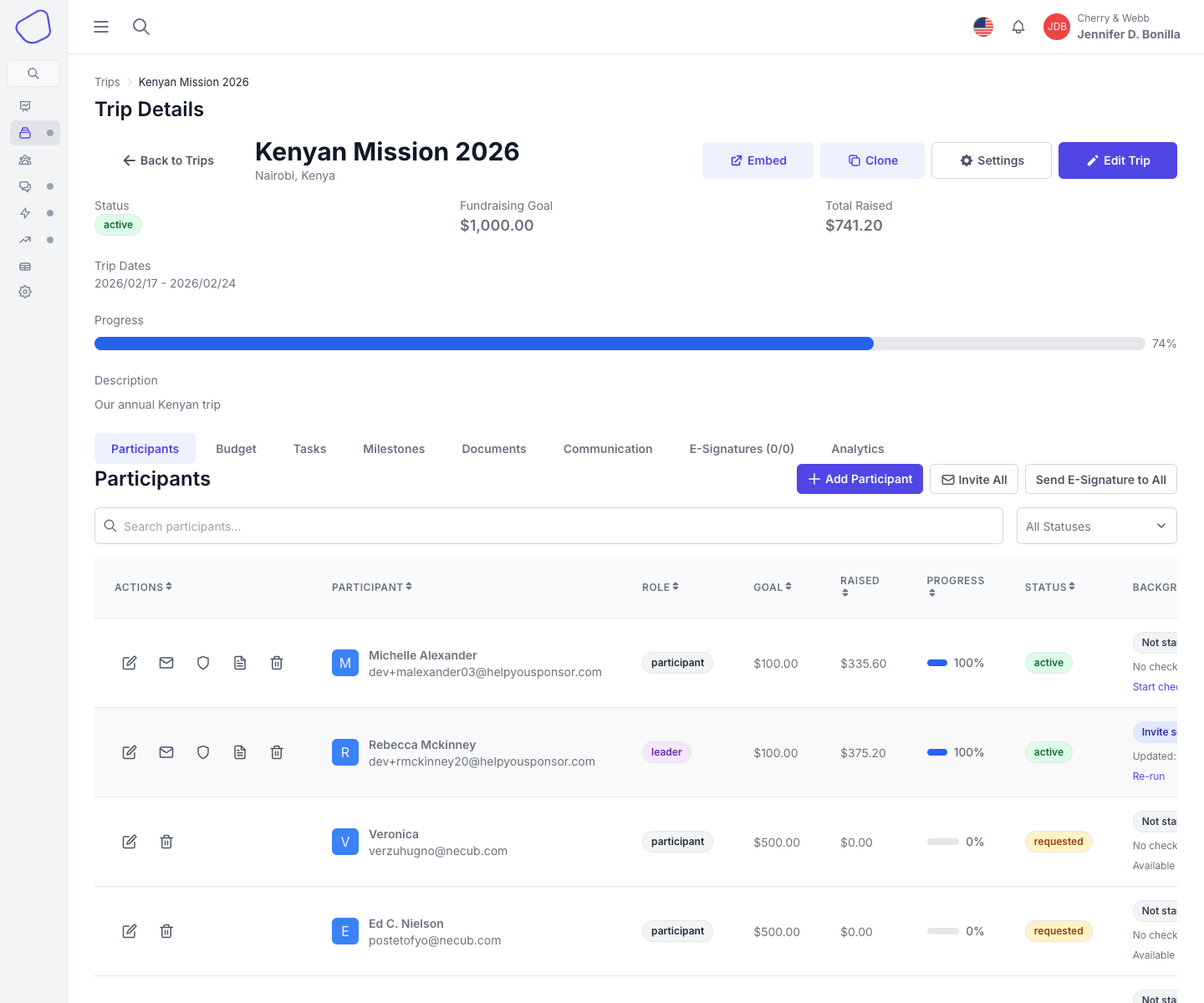
Screenshot placeholder: Participants tab showing the participant roster, status filter, and participant workflow columns
Open Participant Management
From Trip Details, open the Participants tab.
Toolbar actions
The Participants tab can include:
Add Participant
Invite All
Send E-Signature to All
participant search
status filtering
Participant statuses
Trip participants can be in one of four statuses:
Requested: Waiting for review after a public Request to Join.
Active: Fully part of the trip.
Withdrawn: No longer participating.
Completed: Finished the trip.
What the table shows
The participant table includes:
Actions
Participant name and email
Role
Goal
Raised
Progress
Status
Background Check
E-Signature
The role column can also show:
a Minor badge
participant tags
Add a participant
Click Add Participant to open the participant drawer.
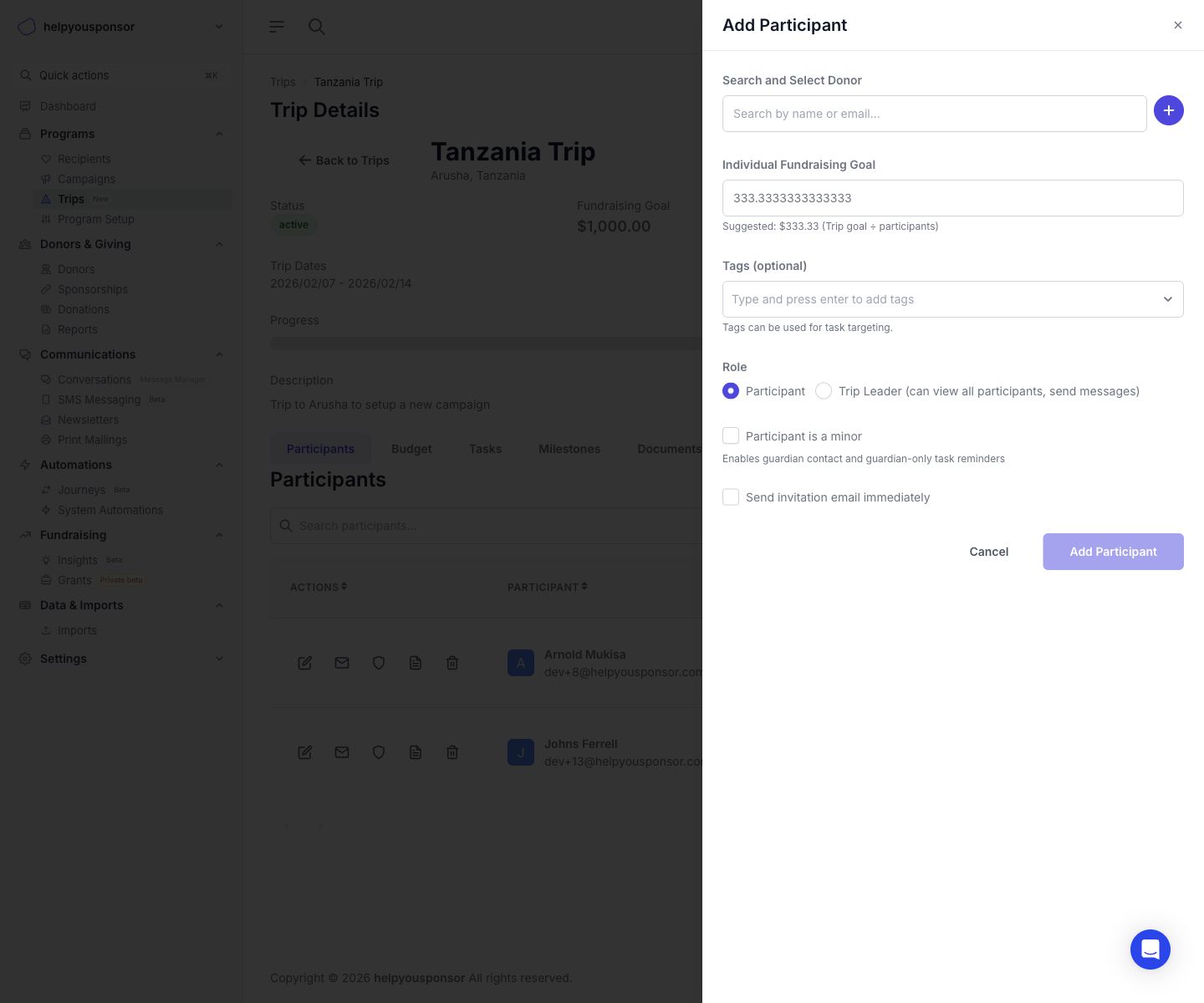
Screenshot placeholder: Add Participant drawer showing donor search, role, goal, tags, and minor options
1. Search and select a donor
Search by name or email to link an existing donor to the trip.
If the donor does not exist yet, use the plus button in the drawer to create the donor without leaving the trip workflow.
2. Set the individual goal
Enter the participant's personal fundraising goal.
The drawer also shows a suggested goal based on the trip goal divided by the active participant count.
3. Add tags
Tags are optional, but they are useful for:
segmenting the roster
targeting trip tasks
finding participants with shared preparation needs
4. Choose the role
Select:
Participant
Trip Leader
Trip leaders can receive extra Leader Console permissions. See Leader Console.
5. Mark minors and capture guardian details
If the participant is a minor, enable Participant is a minor.
You can then either:
enter guardian details manually
select an existing donor as the guardian
Guardian details are used for reminders and consent-related workflows.
6. Send the invitation immediately
When creating a new participant, you can enable Send invitation email immediately to send their access email as part of the add flow.
Edit a participant
Use Edit in the participant row to update:
goal
role
tags
status
minor and guardian information
When editing an existing participant, you can also change the status to move a public join request from Requested to Active.
Remove a participant
Use Delete in the row actions to remove a participant from the trip.
In the current Trips workflow, removing a participant sets their status to Withdrawn and keeps their donation history intact.
Invitations
The Participants tab supports two invitation workflows:
Invite All for active participants
Send Invitation from an individual participant row
Participants in Requested status do not receive invitation, background check, or e-signature actions until they are approved.
Background checks and e-signatures
The participant table gives you quick access to both compliance workflows:
Background Check: start, rerun, reuse, or review the current Checkr status. See Background Checks.
E-Signature: send or resend requests and track signature status. See E-Signatures.