
Keep event tickets out of tax summaries while including sponsorships
Updated 2 weeks ago
Set a ticket's fair market value equal to its price when your organization determines the ticket is entirely non-deductible, and enter the fair market value of each sponsor package's benefits so only the portion above that value counts as a charitable contribution. Gratona records the deductible and non-deductible amounts separately for completed event orders.
Fair market value decisions belong to your organization and your tax advisors. This guide shows where to enter the values you have determined; it does not decide tax treatment for you.
Before you start
You have an event with ticket types and, if you use them, sponsor packages. To build one first, see Create and Configure Events.
Your organization has already determined the fair market value, meaning the value of the benefits each ticket or package delivers to the buyer.
Set the fair market value on each ticket
Use the fair market value field to remove the value of benefits from the deductible portion. It is an amount in your event's currency that you enter on the ticket, not a separate tax checkbox.
Open Events and select the event.
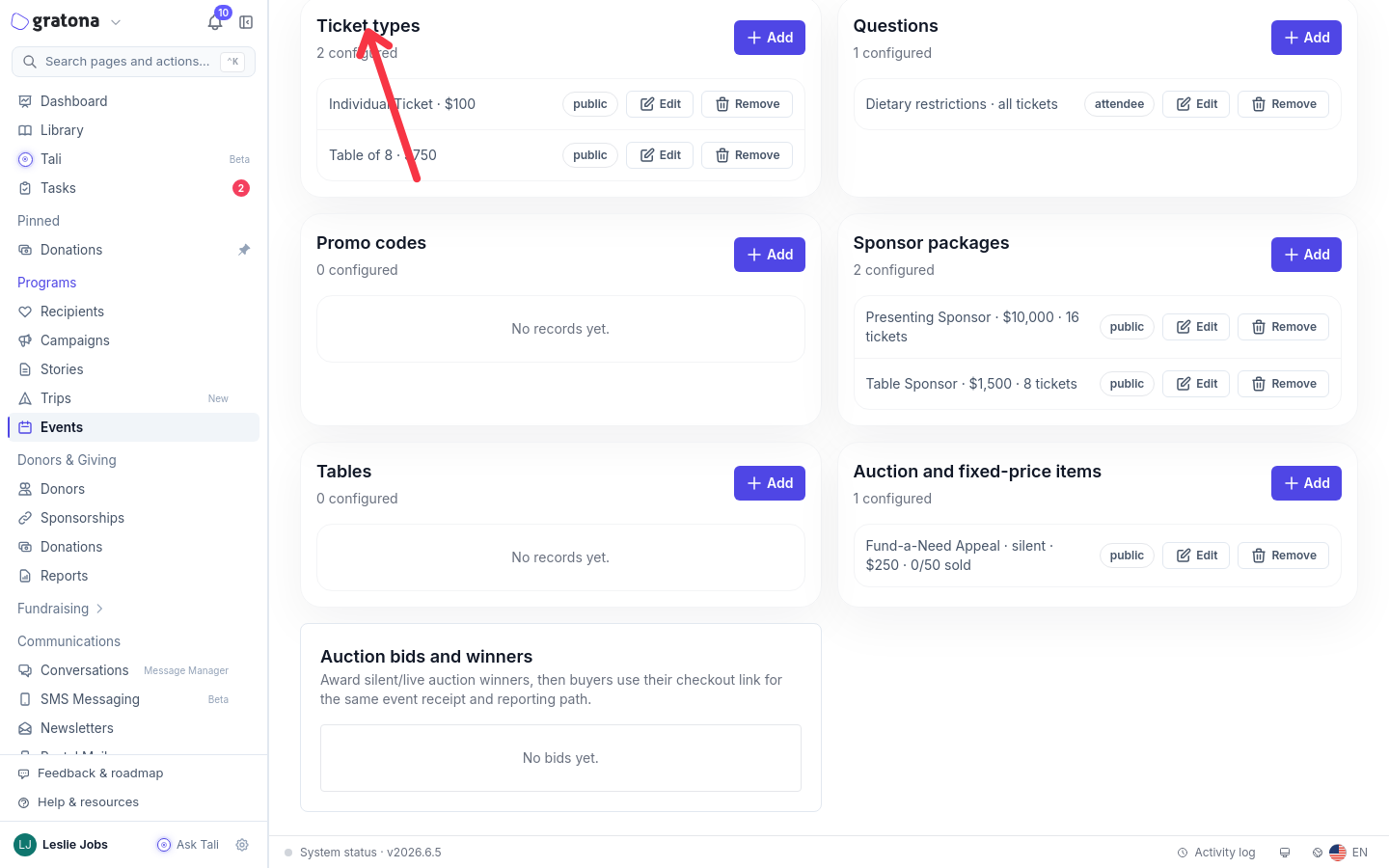
Open Registration, then Ticket types.
Edit each ticket that should be fully non-deductible, such as a tournament ticket.
Set Fair market value equal to Price. A $100 ticket with a $100 fair market value leaves $0 deductible.
Save the ticket.
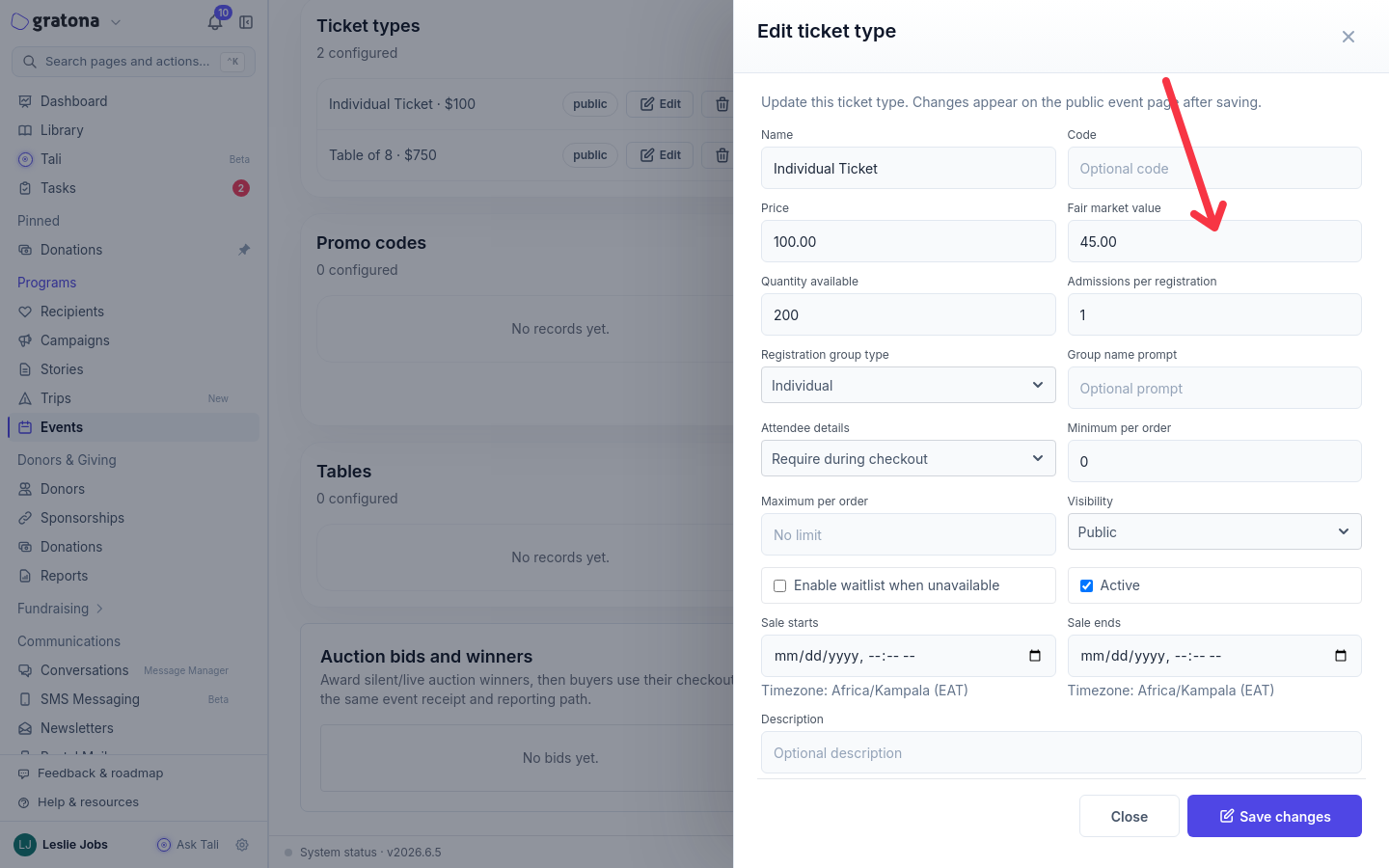
For a ticket with partial benefits, enter the fair market value of those benefits. A $100 ticket with a $40 fair market value leaves a $60 deductible portion.
Review sponsor packages separately
Sponsor packages may include benefits such as event admission or meals. Review each package's benefits separately rather than assuming its full price is deductible.
In Registration, open Sponsor packages.
Edit each package and enter the FMV (fair market value) of the benefits it includes.
Save the package.
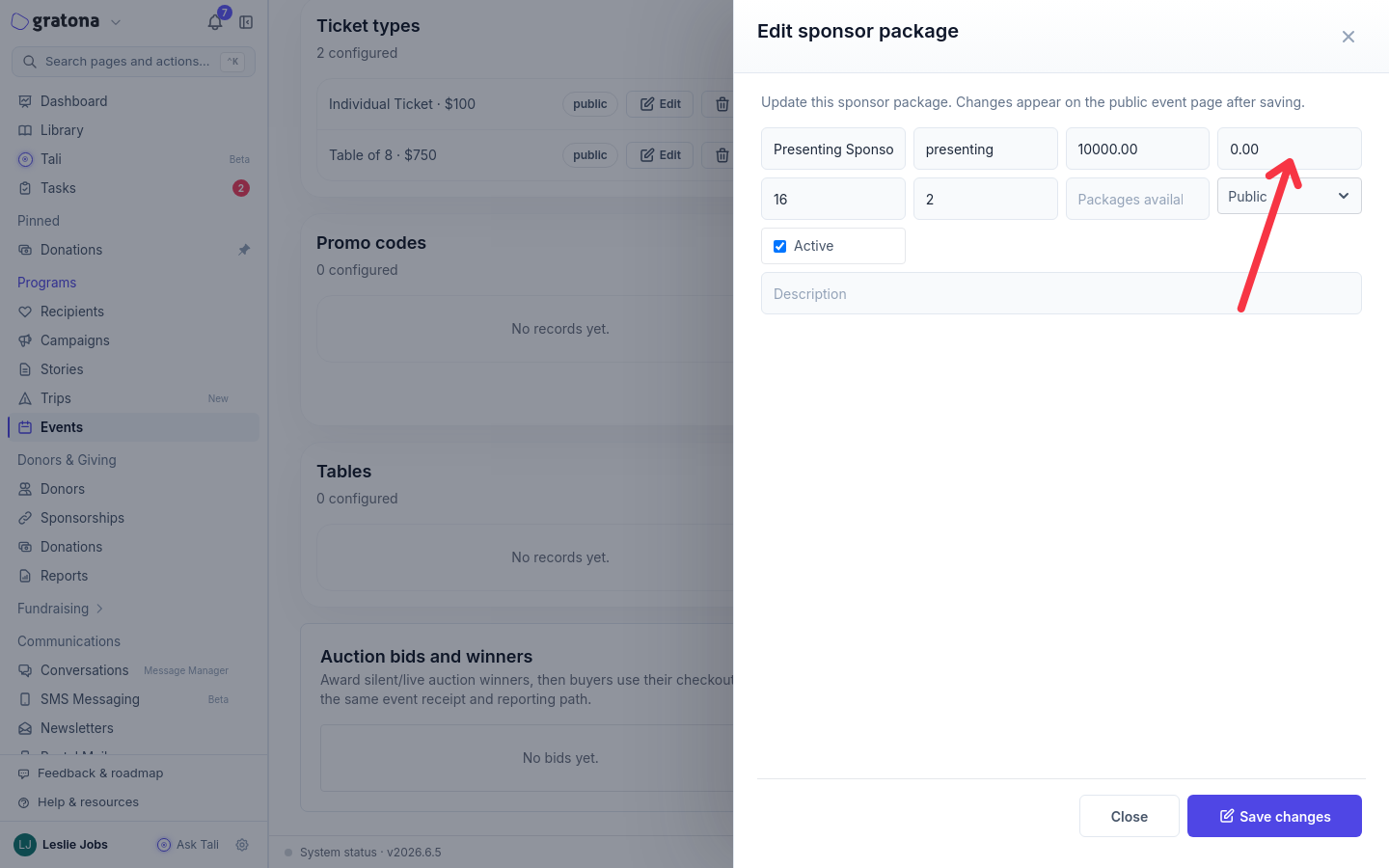
Only the portion above the fair market value is included as a charitable contribution. A $500 package with $100 of benefits contributes $400; a package whose benefits equal its price contributes nothing.
How the split works on a completed order
On an order with no discounts and no fees, the deductible amount is the order total minus the fair market value of the benefits received. In the example below, the $600 order total minus $200 of benefits leaves $400 deductible.
Item | Price | Fair market value | Deductible portion |
|---|---|---|---|
Tournament ticket | $100 | $100 | $0 |
Sponsor package | $500 | $100 | $400 |
Combined order | $600 | $400 deductible, $200 non-deductible |
One combined deductible contribution of $400 can represent the whole $600 order, so the donor's giving history shows a single contribution rather than one line per item.
What gets created after checkout
A completed order with a positive deductible amount creates or links the purchaser's donor record and the combined charitable contribution, including orders placed through a Minimal RSVP registration. Returning purchasers reuse their existing donor record, and existing profile details are kept, not replaced.
Free or fully non-deductible registrations in Minimal RSVP stay donorless when no donor was otherwise linked and create no charitable contribution. Not every registration creates a donor.
Confirm the deductible amount on the donor's Tax Summary
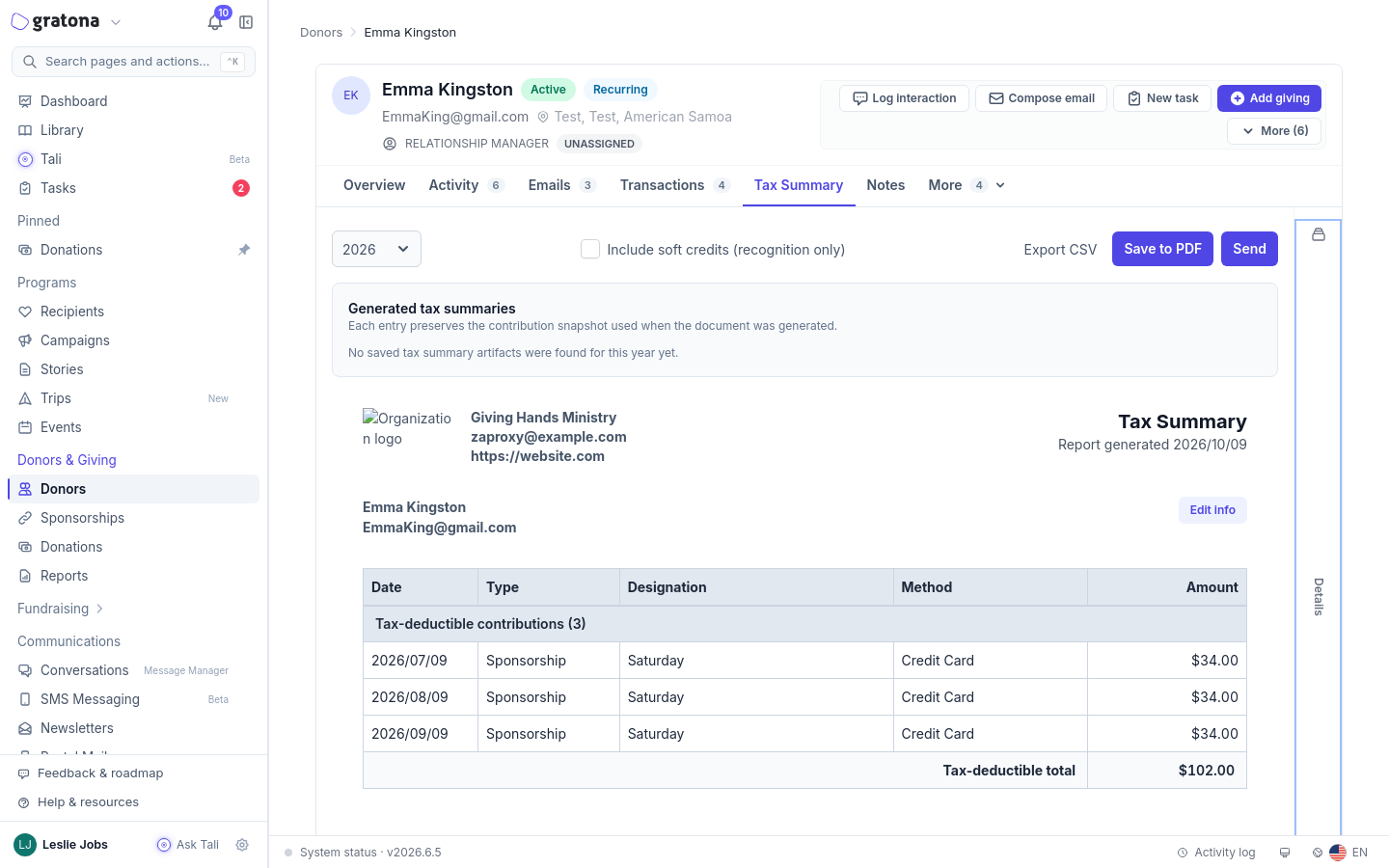
Use the donor's Tax Summary to confirm that only the deductible portion, not the full order total, counts toward the year's contributions.
Open the completed order or its receipt and note the total, the deductible amount, and the non-deductible amount.
Open the purchaser's donor profile.
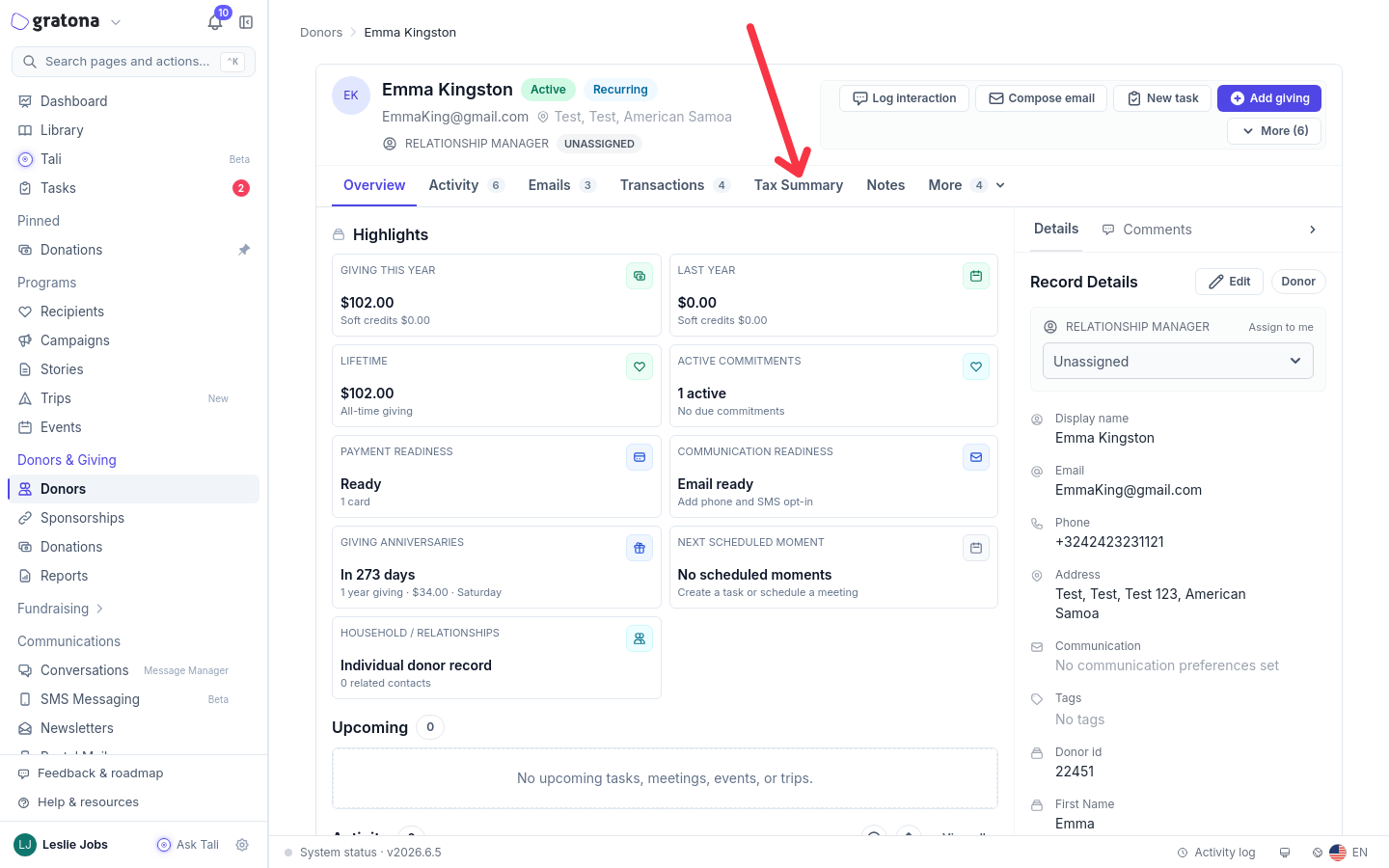
Open Tax Summary. If Tax Summary is not visible in the tab row, look under More.
Choose the year the contribution was recorded.
Confirm the summary shows only the deductible amount from the event order.
Changes only affect future orders
Price and fair market value edits apply to future orders and new quotes. They do not rewrite orders that are already completed, and they do not change stored receipts or saved tax documents, so older orders keep the split they had at checkout.
If an existing order's split needs review, contact support. Do not delete, recreate, or duplicate gifts to try to correct it.