
Create and Configure Events
Updated 2 months ago
For the complete documentation index, see llms.txt. This page is also available as Markdown.
Create and Configure Events
Create an event when you need a public registration page, ticket or sponsor inventory, event-day check-in, and event reporting for one fundraiser or gathering.
Most teams start with an event shell, add the registration options that guests can choose, then publish only after the readiness checklist is clear.
Set event defaults
Use Event Settings when several events should share the same defaults. For example, you can keep public pages, donation add-ons, fee coverage, magic-link management, check-in, auction items, and email templates consistent across gala events.
Open Events.
Select Settings.
Create or edit an Event Settings profile.
Choose the defaults you want new events to inherit.
Save the profile.
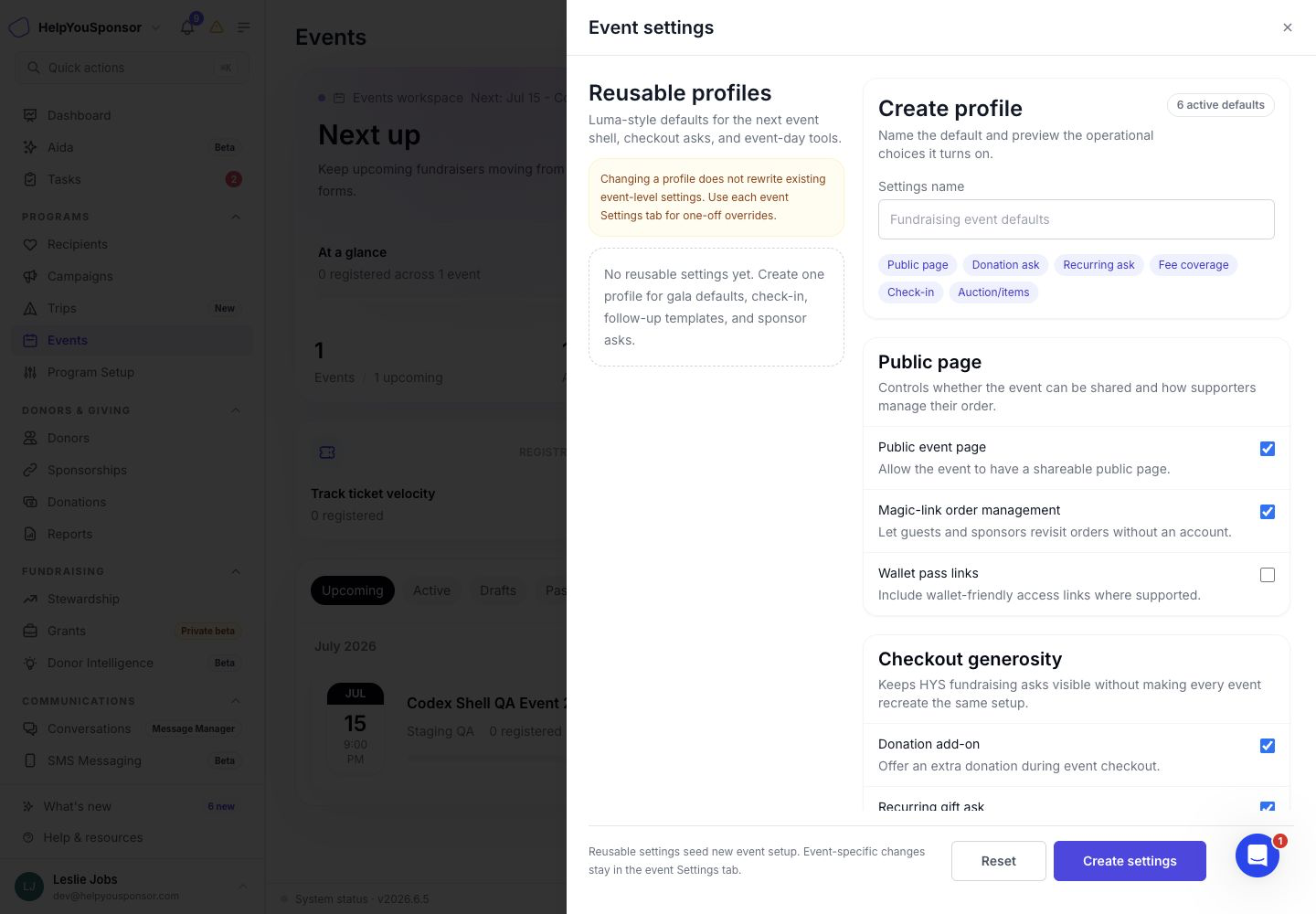
Event Settings let you reuse defaults for public pages, giving prompts, check-in, wallet passes, auctions, and email templates.
Event Settings are optional. You can still configure each event directly from the event workspace.
Start a new event
Use New event when you are ready to create the event record and move into setup.
Open Events.
Select New event.
Choose a template.
Enter the event name.
Confirm the event type, start date, timezone, capacity, and Event Settings profile if you use one.
Create the event.
The new event drawer creates the event shell and can apply a starter template.
Templates can add starter ticket types, sponsor packages, questions, auction or fixed-price items, and draft communication templates. After the event is created, review every starter item before publishing.
Complete the event profile
Use the event profile when you want the event page, admin list, check-in screen, and reports to show the right context.
In the event workspace, review:
event name and URL slug
description
cover image
event type
event start and end date
registration open and close dates
timezone
venue name and address
virtual event URL when the event is online
capacity
Connect the event to a Program, Campaign, Trip, Recipient Group, or Designation when event results should roll into a specific fundraising or CRM context. This is recommended for reporting and donor follow-up, but it is not required to create the event.
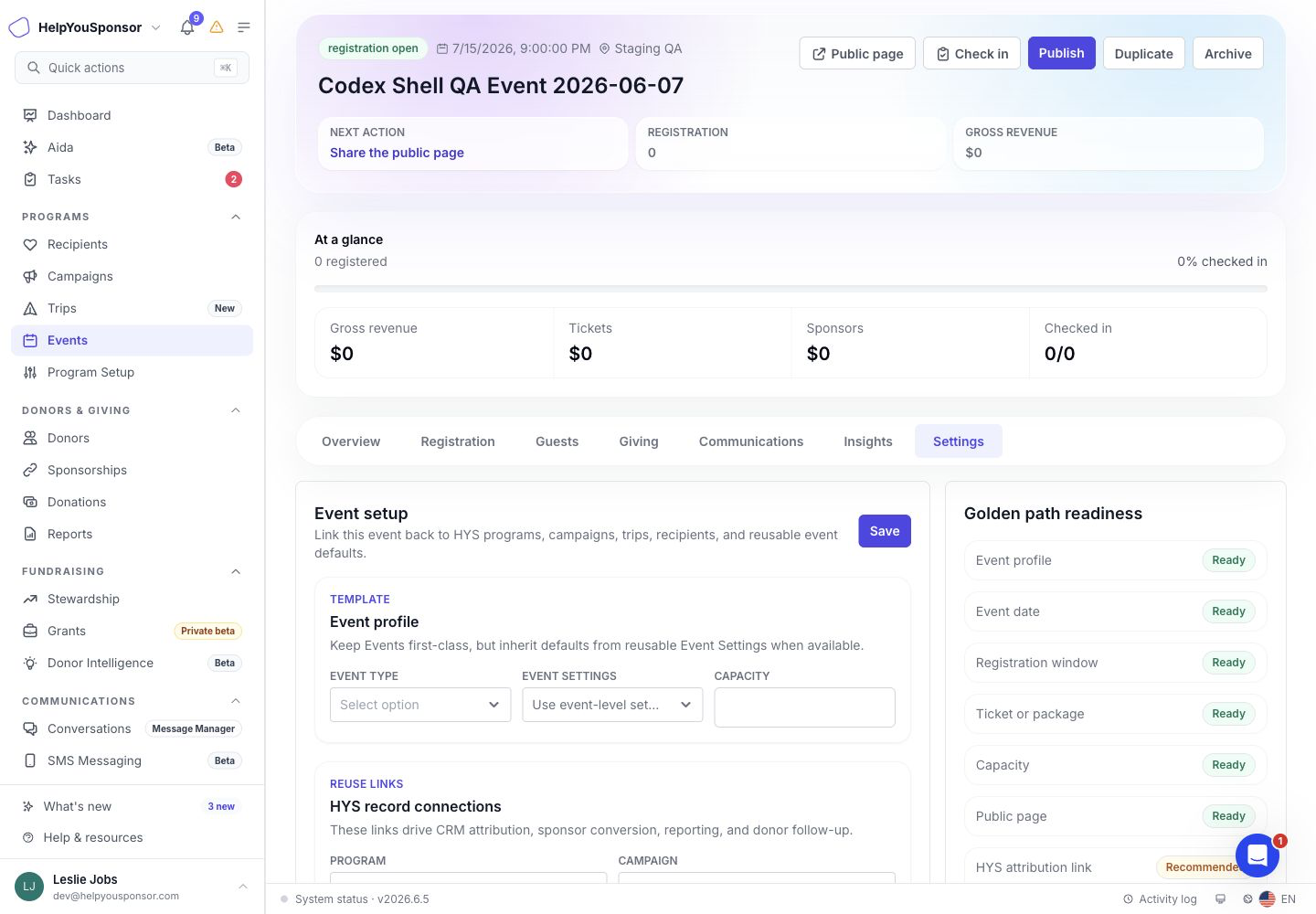
The event settings area controls the public profile, timing, location, attribution, and event feature toggles.
Add registration options
Use the Registration area when guests need something to select before checkout.
Ticket types
Create a ticket type for each option guests can choose, such as an individual ticket, RSVP, table, foursome, volunteer admission, or VIP ticket.
For each ticket type, review:
name and description
price
fair market value
quantity available
minimum and maximum per order
attendee detail requirement
public or private visibility
sale window
The fair market value is used to separate deductible and non-deductible portions on event orders and exports.
Sponsor packages
Create sponsor packages when sponsors should purchase a package through the event page or be tracked by the event team.
For each sponsor package, review:
package name
tier
price
fair market value
included tickets
included tables
public or private visibility
deliverable checklist
Sponsor packages can create sponsor records, included guest slots, deliverables, and sponsor self-service tasks.
Questions
Use questions when you need information that is specific to the event. For example, collect dietary restrictions, accessibility needs, table preferences, organization name, or waiver acknowledgement.
Questions can apply to the buyer or to attendees. If a question only applies to certain ticket types, limit it to those ticket types during setup.
Promo codes
Use promo codes when you need discounts or private access.
Promo codes can be:
percent discounts
fixed discounts
free-ticket codes
access-only codes
You can limit a code by redemption count, per-order limit, date window, ticket types, or sponsor packages.
Tables and seating
Use tables when you need assigned seating, table hosts, sections, foursomes, or event-day table lookup.
Create the table, set its capacity, add host information if needed, and then assign attendees from the guest list.
Auction and fixed-price items
Use auction or fixed-price items when guests can buy event items, make fund-a-need commitments, or place bids.
For each item, review:
name and description
fair market value
starting bid
buy-now price
quantity available
status
public or private visibility
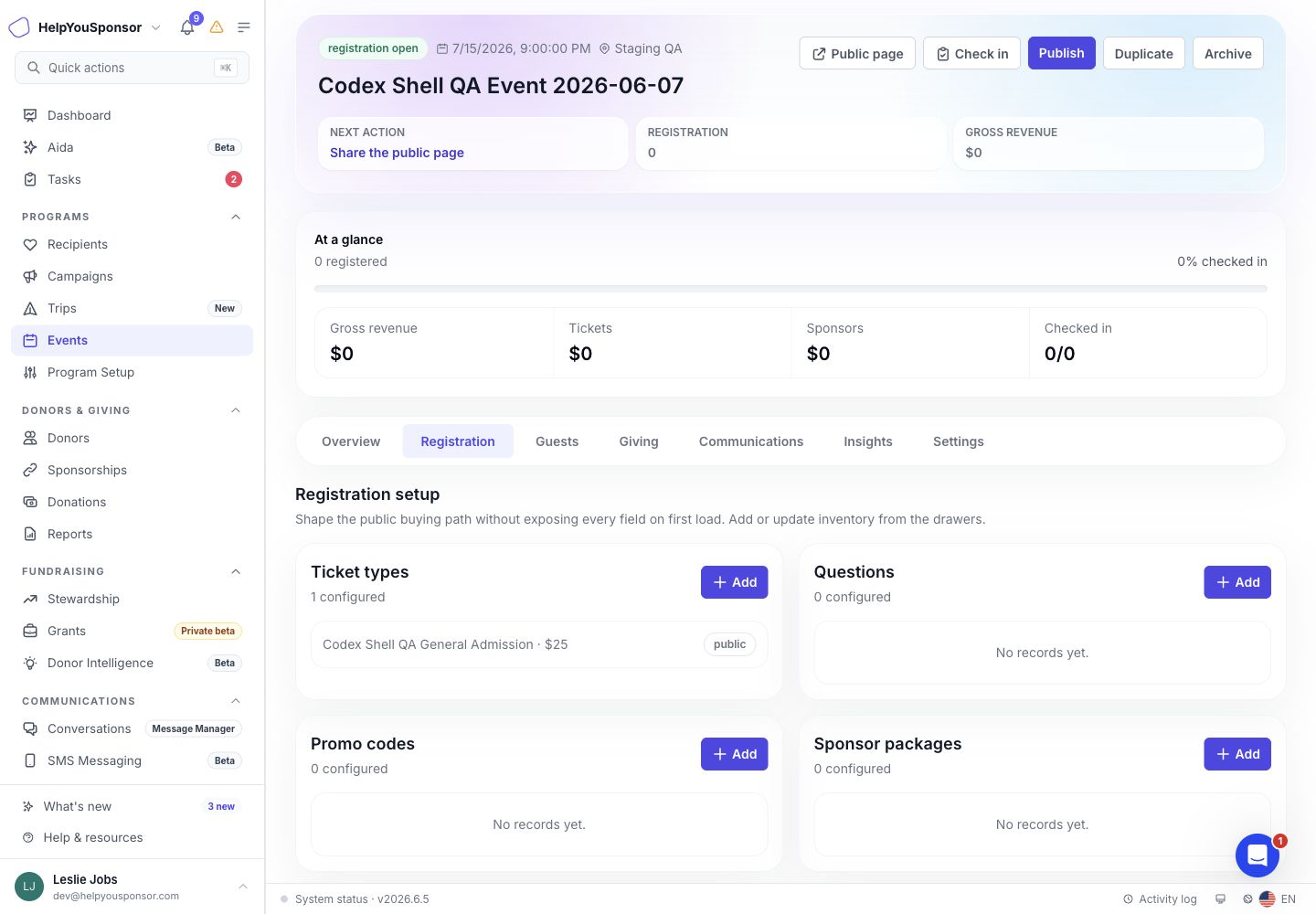
Registration setup brings ticket types, questions, promo codes, sponsor packages, tables, and auction or fixed-price items into one workspace.
Publish the event
Publish when the event is ready for public registration.
Before publishing, resolve required readiness items:
event name, slug, and type
event start date
valid event and registration date windows
at least one public active ticket, sponsor package, or fixed-price item
valid capacity
public page enabled
Optional readiness items may recommend a CRM attribution link, donation ask, or check-in setup.
Review the readiness checklist.
Confirm the public page and registration options.
Select Publish.
Open the public page link and review it before sharing.
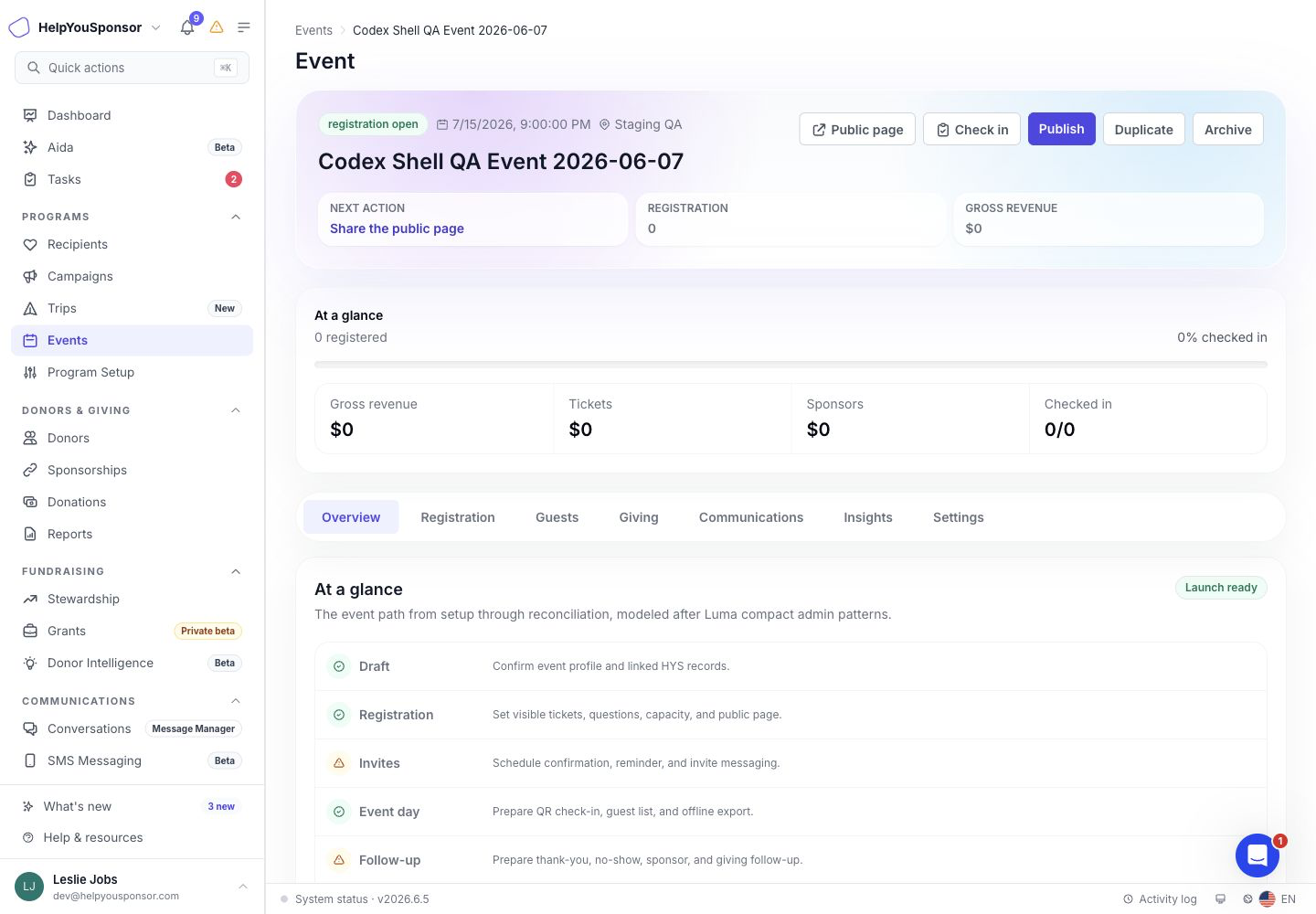
The event overview shows readiness, public page access, check-in access, auction display access, and event-level actions.
Duplicate or archive an event
Use Duplicate when a future event should reuse the setup from an existing event. Duplicating copies setup such as tickets, sponsor packages, questions, promo codes, tables, auction items, communication drafts, and report templates. It does not copy live orders, attendees, payments, check-ins, or sent communications.
Use Archive when an event should be removed from active working lists while keeping the historical record available.