
A declined payment was not submitted, so you can correct your payment details and try again.
Give through a campaign checkout
Updated last week
Give through a campaign checkout by choosing your gift, confirming your details, and paying. The checkout offers the payment methods your organization has enabled: available card and bank options depend on the organization, the page's currency, and its payment provider, so not every checkout offers every method.
Choose your gift
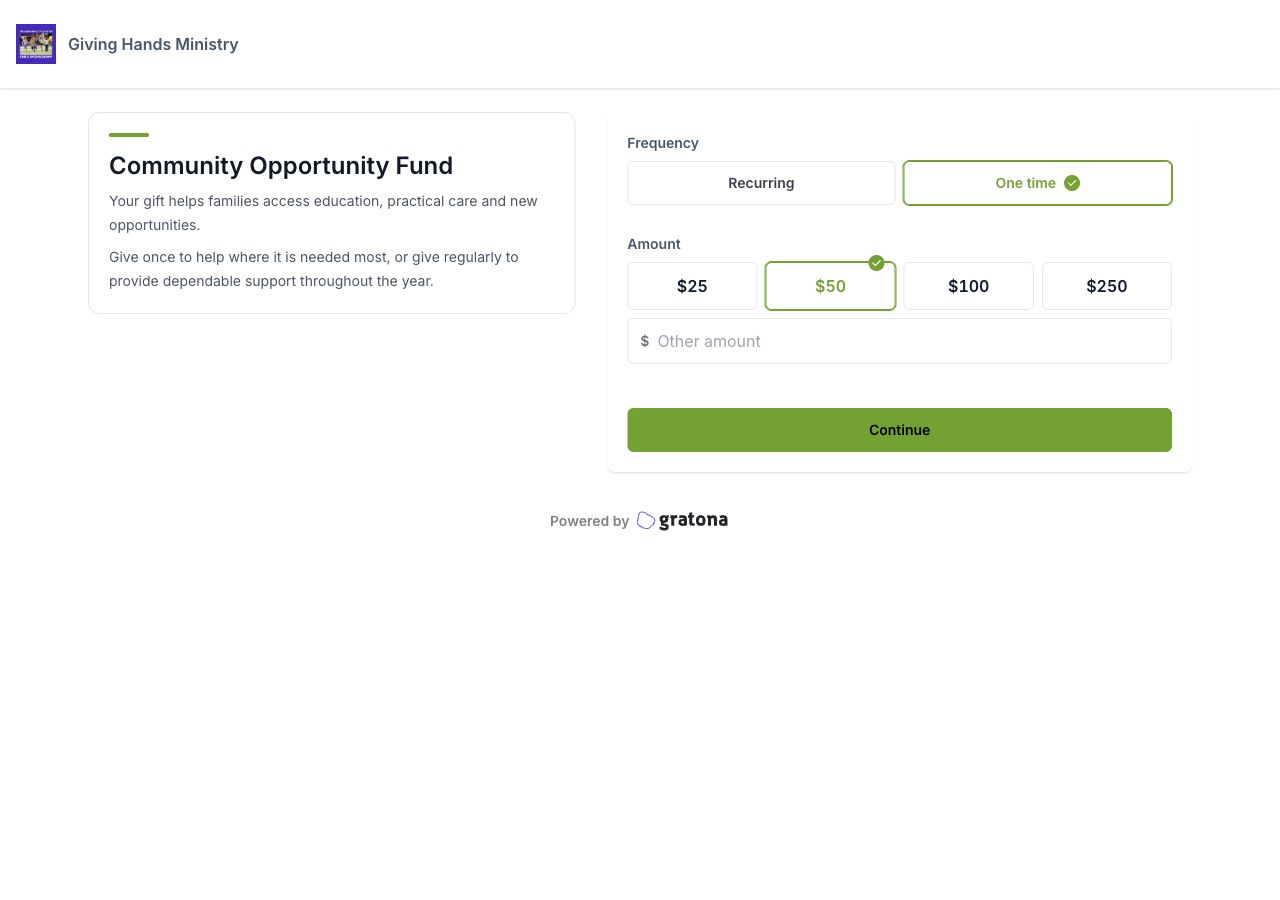
In the Your gift section, choose a designation when the campaign offers one, enter your amount, and pick a frequency when the campaign offers one.
Confirm your details
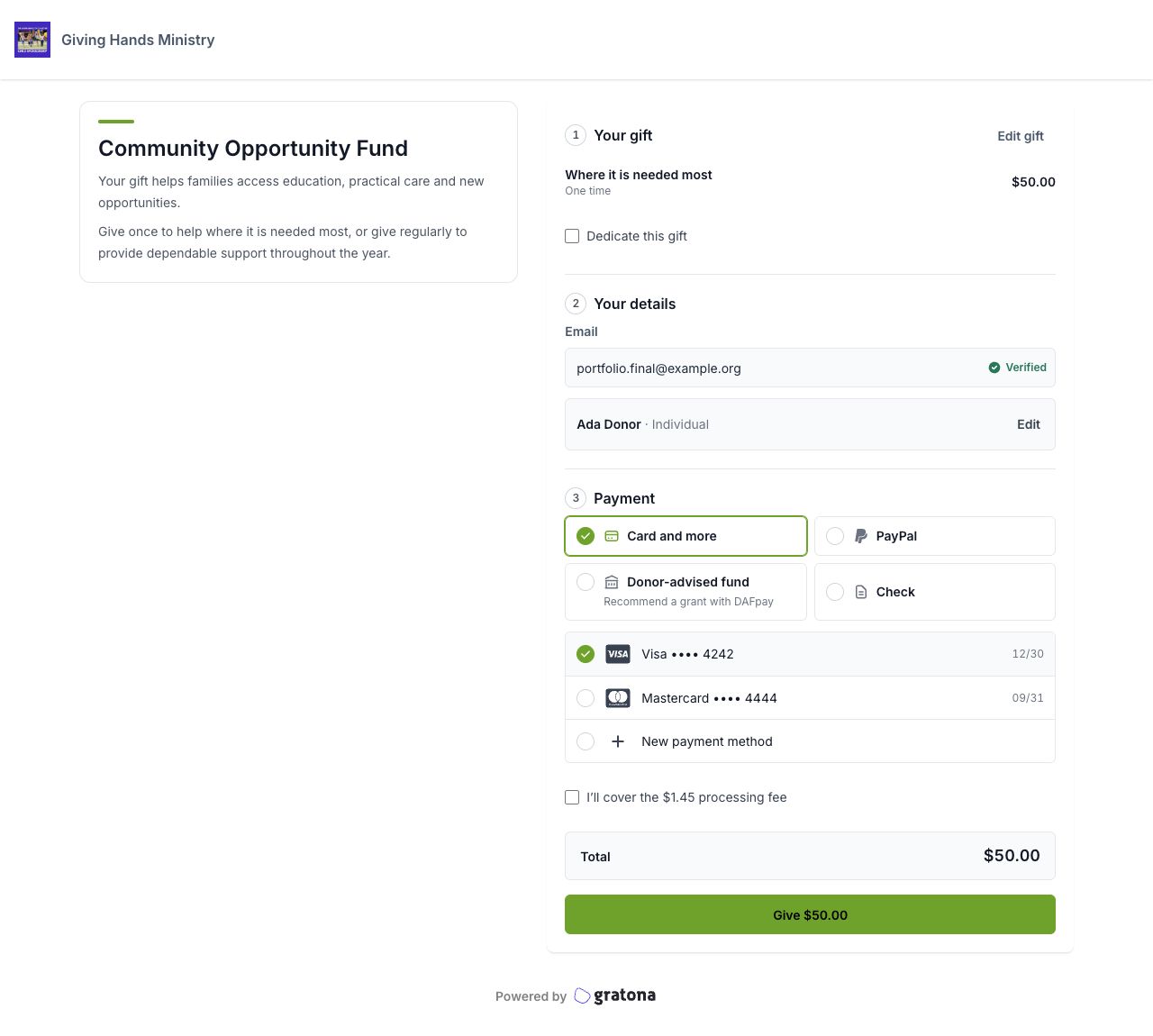
In Your details, choose New donor or I've given before. The returning-donor choice appears when the organization has enabled returning-donor sign-in.
Enter your email address. If Gratona recognizes it, select Use saved details; with several accounts, choose Account 1, Account 2, and so on.
Request a verification code, enter the 6-digit code, and select Verify. While you wait, the field shows Code sent · Resend.
After verification, the email field shows Verified and your saved payment methods become available in the Payment section. Until you verify, the checkout does not show your saved payment details.
Choose a payment method
In Payment, the Payment method list shows the options your organization offers. Labels you may see include Card and more (when the card form is provided by Stripe), Card, iDEAL | Wero, PayPal, Check, Wire transfer, Cash, and Donor-advised fund where it is available. Stripe's payment panel decides which card, wallet, and bank options it presents, so the same checkout can show different choices for different donors.
If you verified your email, your saved methods are listed first as Saved payment method entries with the card brand, masked number, and expiry. Choose New payment method (or New card) to enter new details. Saved methods marked Expired or Unavailable cannot be selected. If a checkout for a recurring gift would change the default card your other recurring gifts use, the checkout requires your explicit confirmation: Your recurring gifts will also switch to this method. One-time gifts preserve the payment method your recurring gifts already use, and a conflicting change is blocked.
Decide about the processing fee
When the organization offers it, a checkbox reads I'll cover the $[amount] processing fee, with the actual fee amount filled in. It starts selected or cleared according to the organization's setting. Selecting it adds the fee to your total; clearing it leaves your gift amount as the total. This option does not appear for a donor-advised fund gift.
Review your total
Checkout shows a Total line. When a processing fee is added, it itemizes Gift and Processing fee before the total. When your order mixes schedules, the total spells out the composition, for example "$150.00 every 3 months and $30.00 one time".
Confirm your gift
After payment, the confirmation screen tells you exactly what happened:
A completed one-time gift shows Your gift is confirmed with "Thank you for your generosity." and a View My Giving action that opens your donor portal giving history.
A completed recurring gift shows Your recurring gift is active with "Your first gift is confirmed." and an Open donor portal action to review the recurring gift's details.
Bank payments that are still processing
A bank payment is not always complete when you leave checkout, and the confirmation says which state you are in:
Payment processing with "Your gift has been submitted." means the payment is waiting for your bank to confirm it. Do not submit the gift again. Open donor portal shows the pending payment.
Bank verification pending with "Your sponsorship is reserved." means bank verification is still finishing. Open donor portal takes you to the reserved record.
A one-time gift does not change your recurring commitment
Giving a one-time gift does not replace or move an existing recurring commitment, and checkout blocks any card change that would affect them: This card change would affect recurring gifts. Choose another payment option.
If your payment is declined or you're not sure it went through
Your card was declined
"The donor form changed while you were completing it. Review the latest fields and try again."
The donation form was updated while you were checking out. Your typed details and selections are kept, but your payment details are not. Review the latest fields and try again.
"Check your payment before giving again"
The payment result was not clear, so the checkout holds the gift to prevent a double charge. Check your email for a receipt and contact the organization before giving again. Do not resubmit the payment.
"Payment has not been sent"
Your browser storage was unavailable, so your payment was not sent. Allow browser storage for this site or use another browser, then select Return to checkout, review your payment details, and give again from there.
Related guides
Was this helpful?
Was this helpful?