
Update your payment method in the donor portal
Updated 2 weeks ago
Use this guide when your card has expired, has been replaced, or you want future recurring payments to use a different card. Update the details securely inside your organization's donor portal.
Before you update
A successful payment-method update can affect future recurring payments across more than one program or sponsorship in the organization. For Stripe, it applies to eligible active automatic commitments already using Stripe card or bank payments; it does not switch manual or other-provider commitments to Stripe. Other payment providers may apply the update to all of your commitments in the organization. You do not choose a replacement card separately for each sponsorship in this form. If you want the change to apply to only one sponsorship or recurring gift, contact the organization first.
Sign in to the donor portal
Open the donor login link supplied by your organization. Ask the organization for the link if you do not have it.
Use Email Sign-In with the email address on your donor record, then follow the secure sign-in link or verification-code instructions. If you already have a portal password, select Use Password and sign in with it instead. If asked, choose the correct organization.
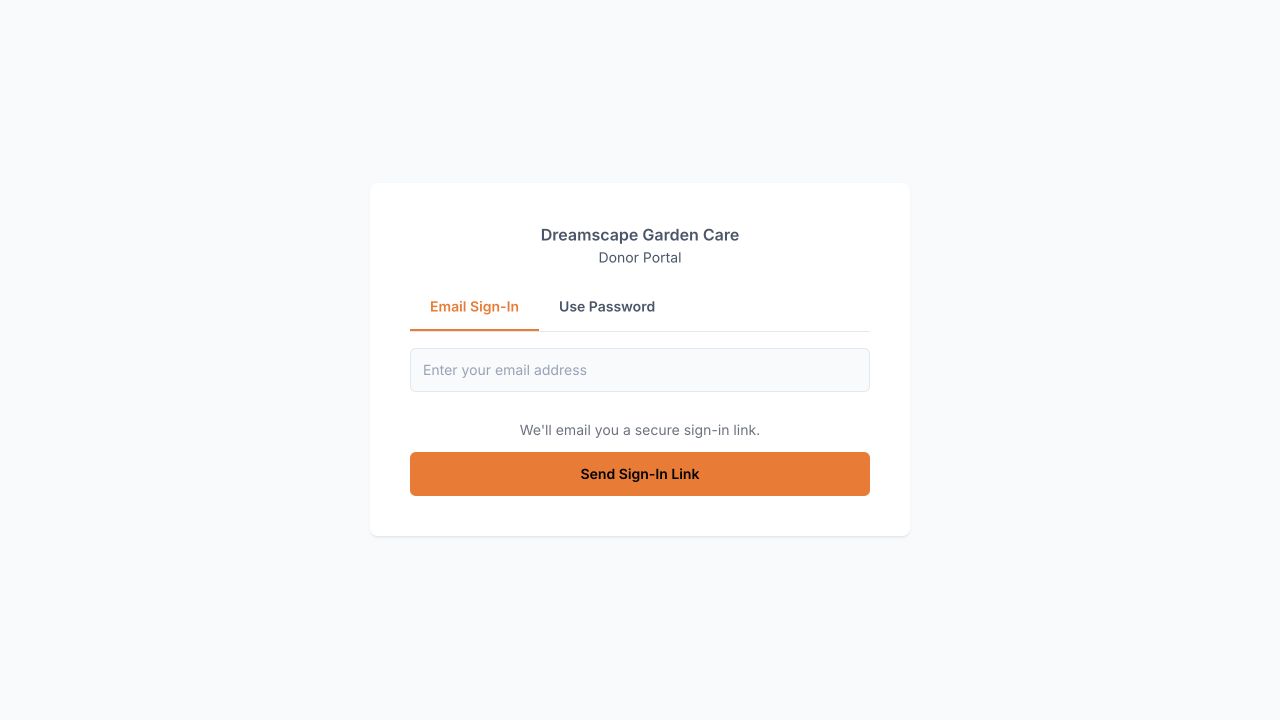
See Donor Portal Login for the full sign-in steps and help with expired links or missing emails.
Replace or add a card
Open the payment form from your donor profile, enter the new card details, and confirm the saved card.
Open the card form
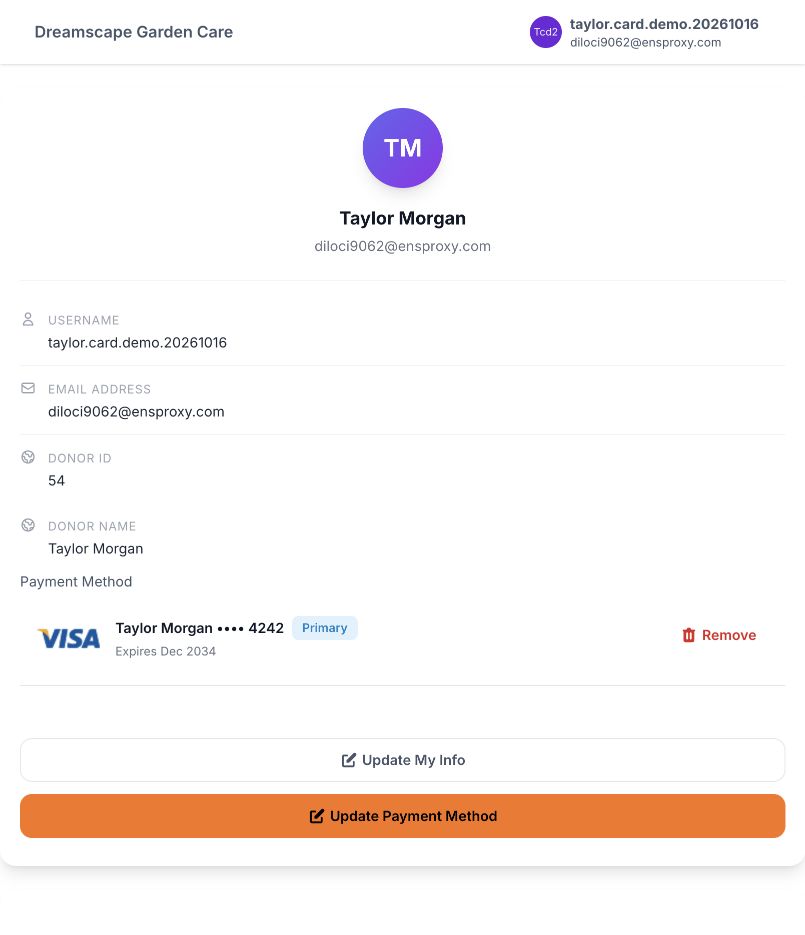
Find your donor profile details in the portal.
Select Update Payment Method. If you have no saved payment method, select Add Payment Method instead.
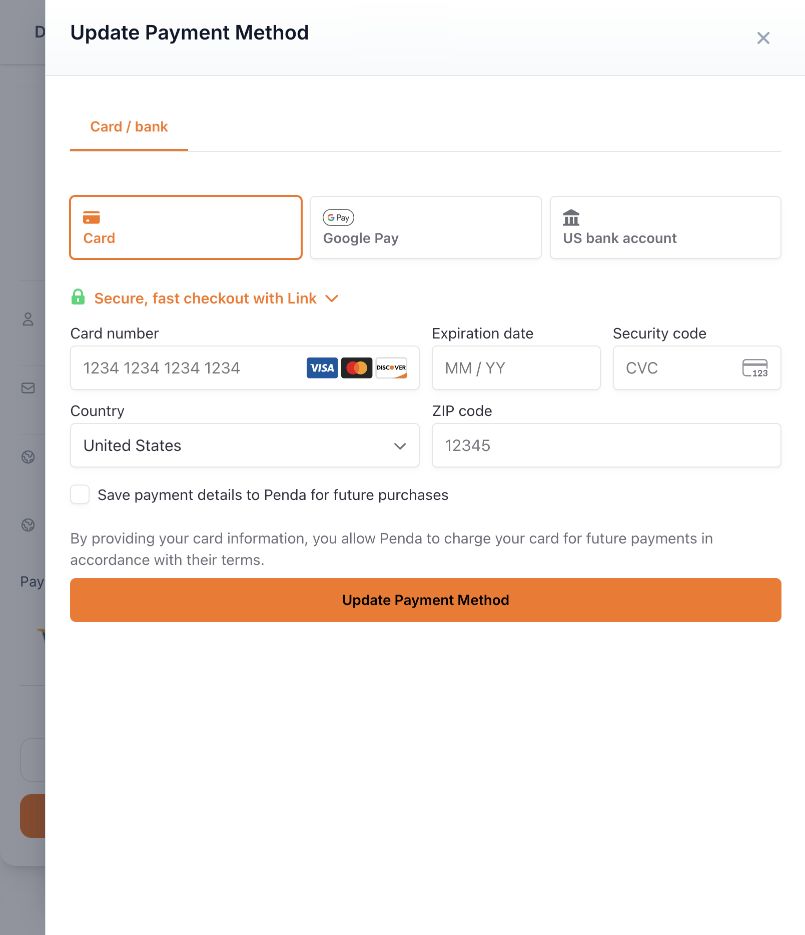
If payment tabs are shown, open Card / bank.
Enter the card details
Enter the card details requested by the secure form, including the card number, expiration date, security code, and billing country and ZIP or postal code where requested. Enter the account or cardholder name only if the form requests it. The fields shown depend on the organization's payment provider.
Save and confirm
Select the add or update button at the bottom of the form. Depending on the provider and whether you already have a saved method, it may say Update Payment Method, Add Payment Method, or Update Credit Card / Add Credit Card.
Complete any verification or authorization requested by the payment provider. You can leave optional fast-checkout enrollment unchecked. Follow any redirect back to the portal and wait for the result.
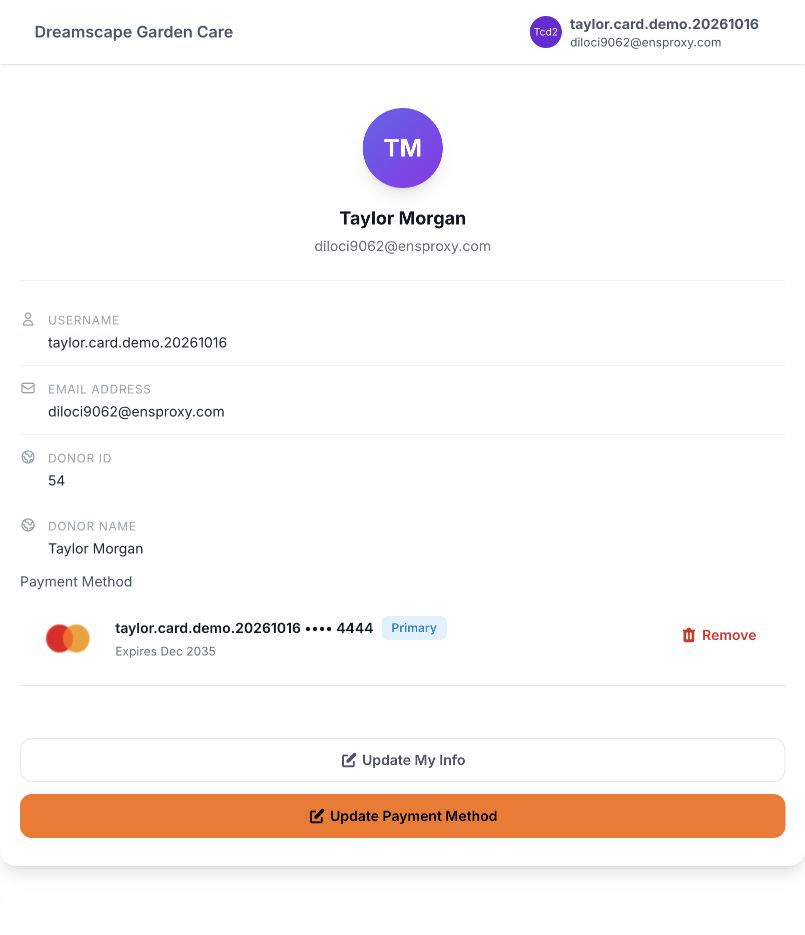
Check for a success message. After the form closes, review the saved card brand, last four digits, and expiration date on your profile to confirm the expected card is saved.
What happens to recurring payments?
After the card is saved and any required verification is complete, future scheduled payments for the affected commitments use the updated method. The commitments affected depend on the payment provider, as described above. This form does not offer a separate card selection for each sponsorship. Contact the organization if the change should apply to only part of your giving, or if you need help checking a missed or failed payment. A saved-card confirmation is not a receipt for an overdue payment.
If you cannot complete the update
No Add/Update Payment Method button: Available controls depend on the organization's payment setup and the program's donor portal settings. Contact the organization for help.
Payment form is loading or unavailable: Wait for the form to finish loading. Use the retry option if one is shown. If it remains unavailable, contact the organization.
Verification is required or pending: Follow the provider's instructions. Do not assume the update is complete until the portal confirms it.
An error appears or the old details remain: Read the message, correct any card details that need attention, and try again. If the problem continues, contact the organization with the error message. Never email your full card number or security code.
For organization staff
Give the donor your organization's Donor Login link. The Donor Portal Login guide explains how to copy it from the program's Program Settings > Donor Portal Login card using Copy Login Link, or from the launch workspace's Login Links section. Ask donors to enter payment details directly in the portal.