
Manage sponsorships from the donor portal
Updated 4 weeks ago
When you enable online sponsorship management, donors can change payment frequency, postpone the next payment or reminder date, and cancel a sponsorship from the donor portal. You choose whether changes apply immediately after the donor confirms them or wait for staff approval, and staff review pending requests from the Sponsorships page.
Enable sponsorship management for donors
This setting is off by default. Turn it on in the setting profile your sponsorship program uses, in Program Setup > Program Settings.
Open Program Setup > Program Settings.
Find the setting profile used by your sponsorship program and select Edit.
Open Donor Account Options.
Select Allow donors to change or cancel their sponsorships online.
Choose how changes take effect: Require staff approval or Apply immediately. Require staff approval is the initial mode when you enable the setting.
Select Save.
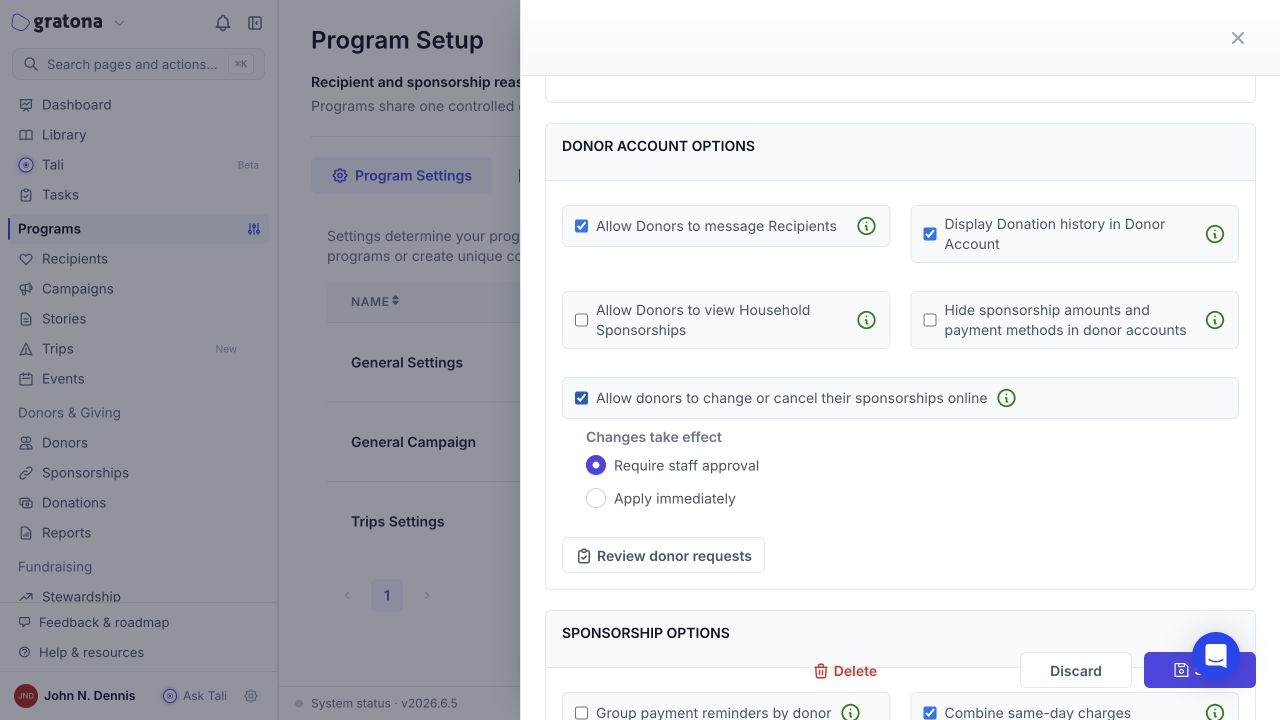
Example data: the Donor Account Options in a program settings profile, with both approval modes.
A shared setting profile applies to every program that uses it. Check the Used By tags on the profile first, and clone the profile if only one program should offer this option.
Open Manage on a sponsorship
Donors sign in to the donor portal and open My Sponsorships. Sponsorships that are eligible under your settings show a Manage control on the card.
Sign in to the donor portal.
Open My Sponsorships.
Select Manage on the sponsorship you want to change.
If Manage does not appear, the feature is not enabled for that program or the sponsorship is not eligible. Contact the organization, or see the limits below.
Change payment frequency
Donors change how often they pay, and Gratona recalculates the amount per payment so monthly-equivalent giving stays the same. For example, a $408 annual commitment becomes $34 monthly. Donors cannot enter an arbitrary amount, and the change does not touch the recipient, the program, or the payment processor.
Select Manage on the sponsorship card.
Choose the new payment frequency.
Select Review changes.
Inspect the NOW and AFTER comparison: amount per payment, frequency, next date, and monthly giving.
Select Confirm change to apply it, or Submit request when staff approval is required. In approval mode the comparison shows NOW and REQUESTED.
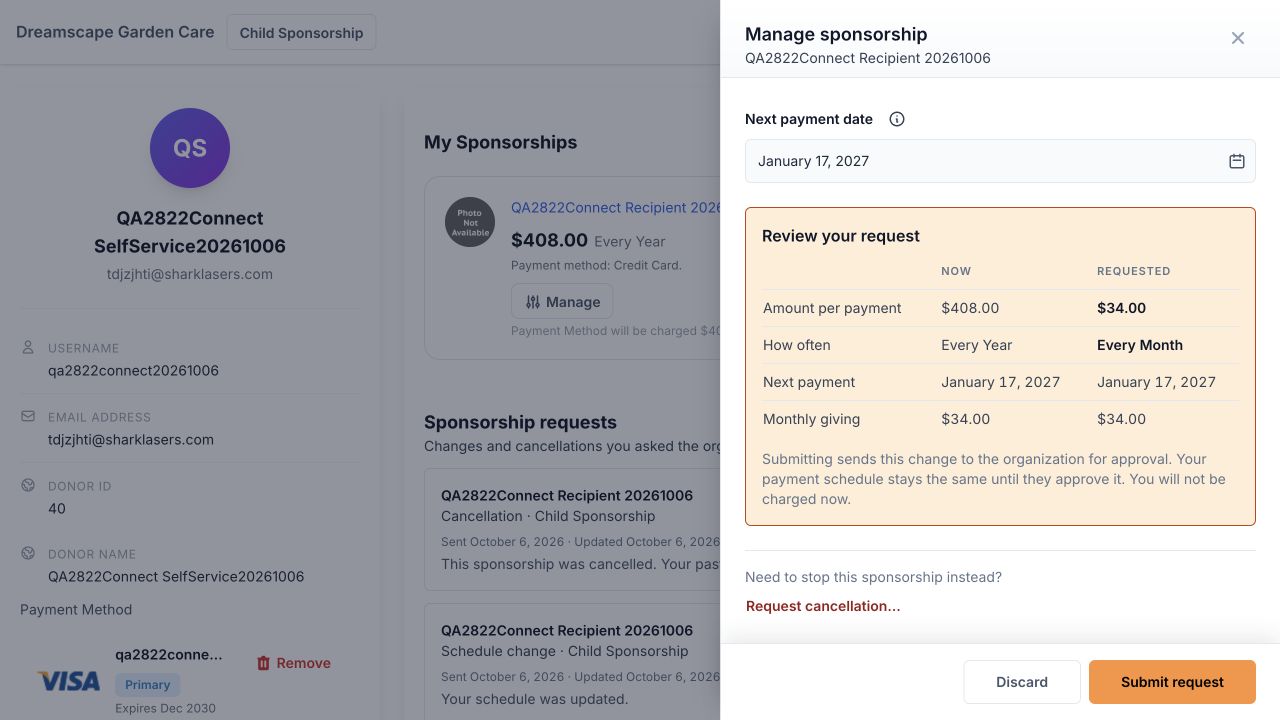
Example donor: changing an annual $408 commitment to $34 monthly in approval mode. Specific dates shown are examples, not promises.
Postpone the next payment date
Donors move the next payment or reminder date within an allowed range. Select the information icon next to the date field to see the range that applies. Dates cannot be earlier than the permitted current or paid coverage dates, and the upper bound is at most one year later and cannot pass the commitment end date. Always choose from the range shown in the portal rather than promising a donor a specific future date.
Select Manage on the sponsorship card.
Choose a new next payment or reminder date within the allowed range.
Select Review changes.
Inspect the NOW and AFTER comparison and select Confirm change, or Submit request when staff approval is required.
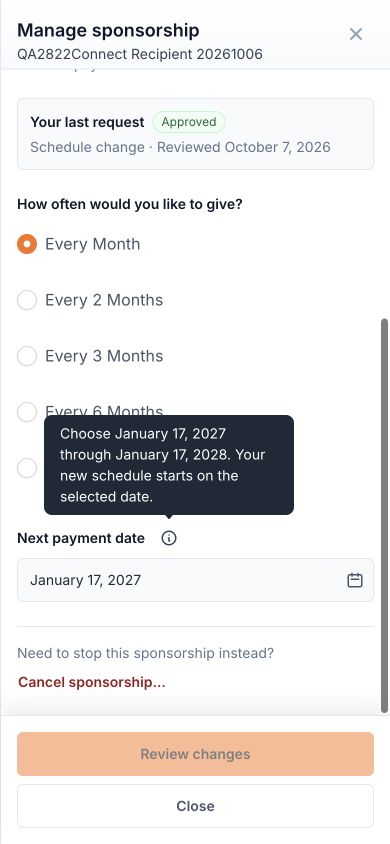
Example donor: the information icon explains the allowed range for the next payment date. Dates shown are examples, not promises.
For reminder-based schedules, this date moves the reminder, not an automatic charge.
Cancel a sponsorship
Donors can request or confirm cancellation of the active sponsorship from Manage.
Select Manage on the sponsorship card.
Select Cancel sponsorship… when changes apply immediately, or Request cancellation… when staff approval is required. Selecting it opens the cancellation review automatically.
Read the cancellation review, including what happens to future payments or reminders and the history and coverage that are kept.
Select Cancel sponsorship to apply it, or Request cancellation to send it for staff approval.
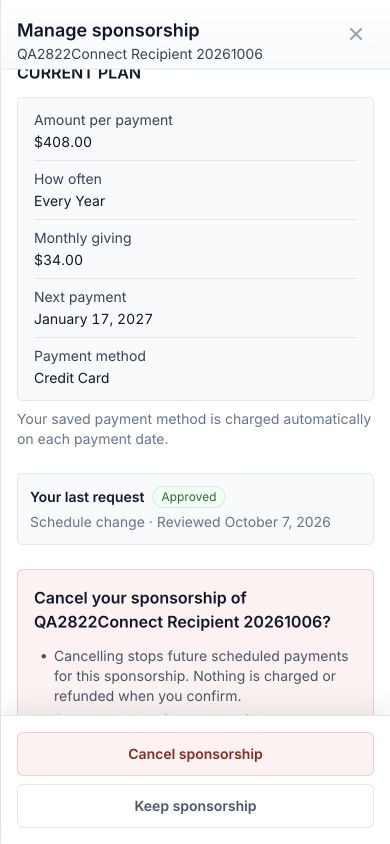
Example donor: the cancellation review before confirming.
Once a cancellation is applied or approved, Gratona stops future scheduled payments and reminders, archives the active sponsorship, and preserves past donations, recorded coverage, and history. Past gifts are not refunded.
How changes take effect
What happens after a donor saves a change depends on the mode you chose in Donor Account Options.
Apply immediately: after the donor confirms, Gratona updates the future schedule and refreshes the sponsorship card.
Require staff approval: the donor sends a pending request. A schedule change uses Submit request; a cancellation uses Request cancellation. Gratona creates a pending request. The existing schedule and sponsorship stay in force until staff approve, including cancellation requests, so payments may continue on the existing schedule while a request is pending.
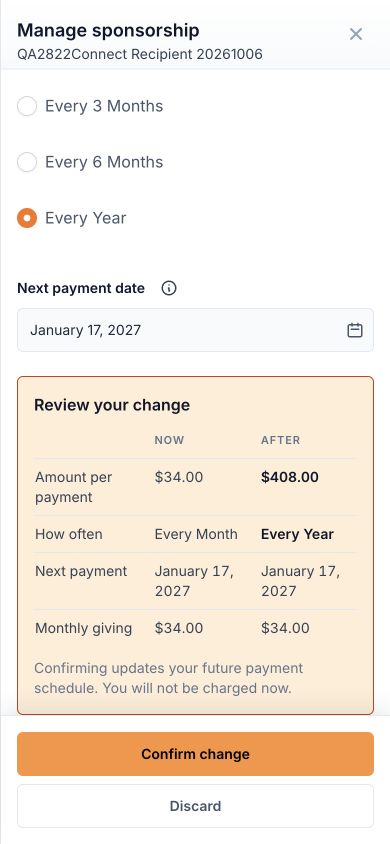
Example donor: immediate mode, changing $34 monthly to $408 annually. Specific dates shown are examples, not promises.
Saving a change never charges the donor immediately and never refunds past payments. Only the future schedule changes.
Track or withdraw a pending request
Donors follow their pending requests under Sponsorship requests in the donor portal, where each request shows its status. Only one pending request is allowed per sponsorship.
Open Sponsorship requests in the donor portal.
Review the status of each request.
Select Withdraw request on the pending request.
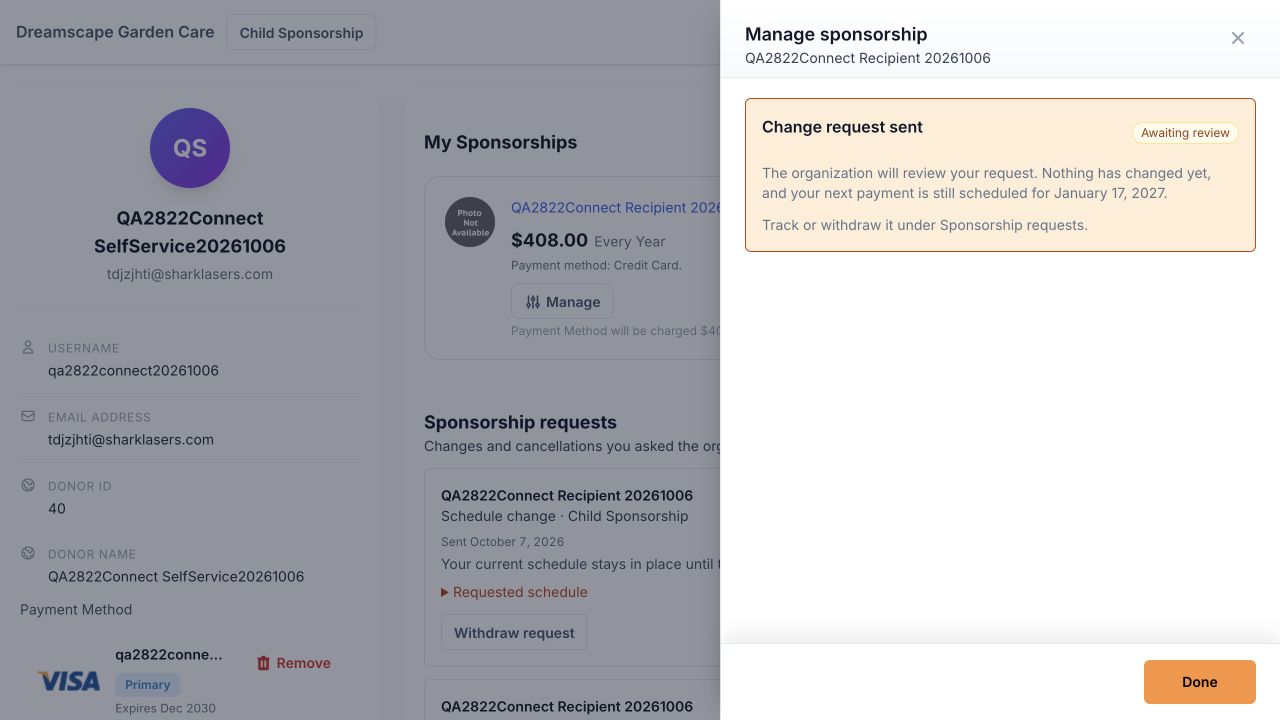
Example donor: a request awaiting review while the original schedule stays active.
Withdrawing a request does not change the schedule, and neither does a rejection by staff. The existing schedule continues unchanged.
Review donor requests as staff
Staff review pending donor requests from the Sponsorships page. Each request shows the exact comparison the donor saw.
Open the Sponsorships page.
Select Review donor requests.
Open a request. For a schedule change, inspect the amount per payment, frequency, next date, and monthly giving. For a cancellation, read the cancellation effects on future payments or reminders and the history and coverage that are kept.
For a schedule change, select Approve change to apply it.
For a cancellation, select Approve cancellation…, then confirm with Approve cancellation.
To reject, select Reject…, add an optional note the donor can see, then select Reject request.
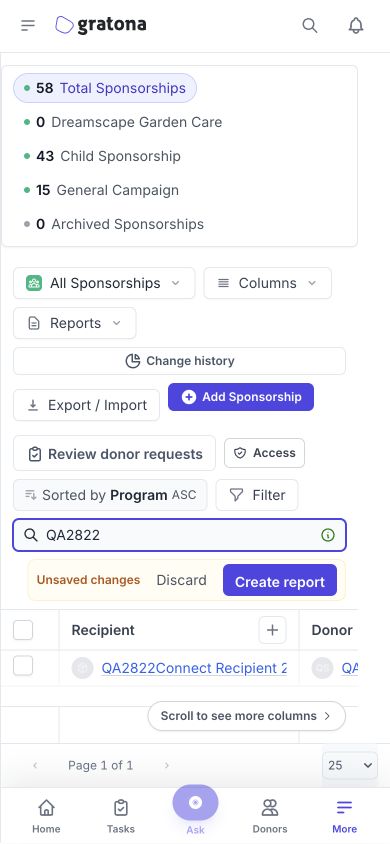
Example data: the Sponsorships page with the Review donor requests button.
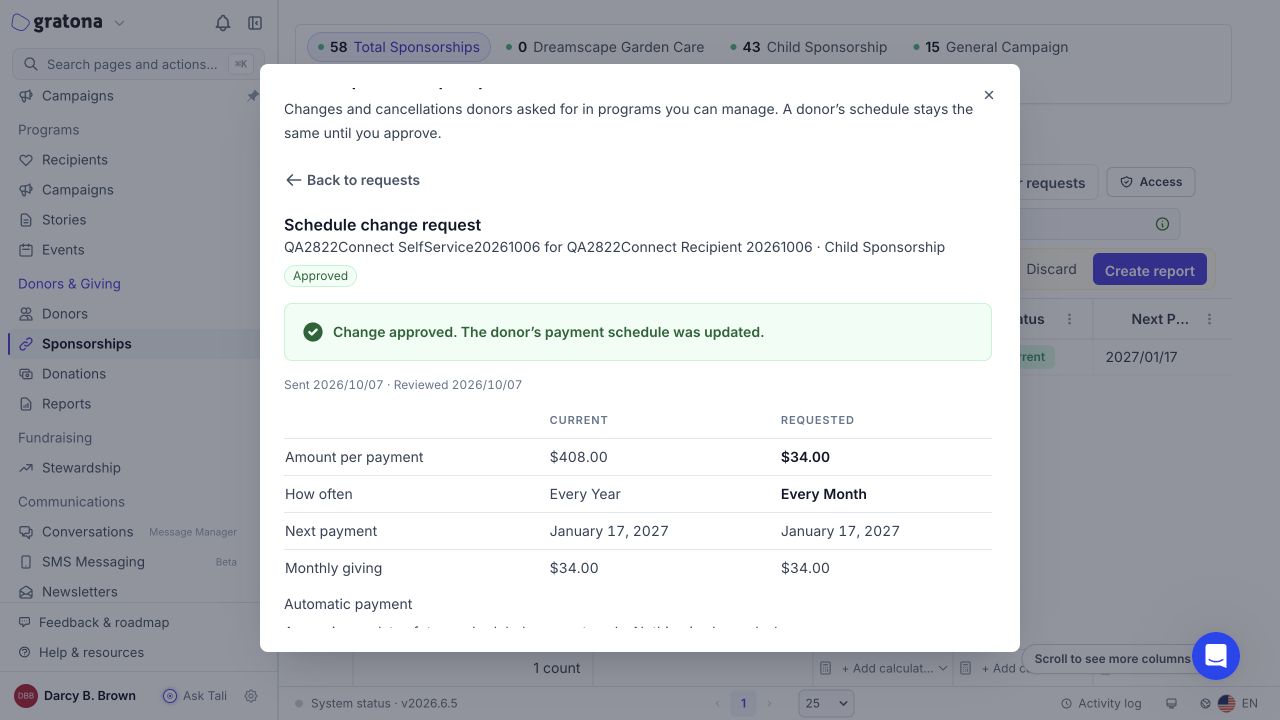
Example donor: an approved change with the updated schedule and request history.
Limits and unsupported cases
Some sponsorships cannot use Manage, and some changes need staff help:
Externally managed subscriptions are not supported through the portal.
Overdue schedules and schedules in a payment retry state may need staff help.
Bi-weekly frequency conversions may need staff help.
If Manage is missing or an action is unavailable, the donor should contact the organization.
Other donor portal options
Alongside sponsorship management, donors keep the standard portal options: profile and contact updates, payment-method updates, giving history, and donor email notification preferences. Each option follows your normal portal configuration, and donors manage their email choices in Notification Preferences.
Related guides
Donor Portal Login — give donors the right sign-in link
Program Settings — manage setting profiles and the Used By tags
Notification Preferences — donor email notification choices
Sponsorship management — staff workflows for sponsorships