
Build a Journey for sponsorship changes
Updated 3 weeks ago
Sponsorship changes can start Journeys, so your team can automate the follow-up that should happen when a sponsorship starts, is reassigned, ends, is cancelled, or is restored.
Journeys are relationship workflows in Automations. When a sponsorship event happens, the journey can send messages, notify staff, wait, branch, tag records, and create follow-up tasks. This guide covers the sponsorship lifecycle triggers and the Sponsorship Reassignment Stewardship starter journey you can build from.
Choose a sponsorship lifecycle trigger
Each trigger starts the journey when the matching sponsorship event happens. A reassignment, cancellation, new sponsorship, or restoration can each start whatever follow-up process your team builds.
When a recipient exits a program — starts when a recipient leaves a program.
When a sponsorship starts — starts when a new sponsorship begins.
When a sponsorship is reassigned — starts when an existing sponsorship moves to a different recipient.
When a donor cancels a sponsorship — starts when a donor ends a sponsorship.
When a sponsorship ends — starts when a sponsorship ends.
When a sponsorship is restored — starts when a sponsorship is restored.
Restoration has a lifecycle trigger, but no restoration-specific starter journey is included in the template library. Build one from a blank draft if you want a restoration workflow.
Use the Sponsorship Reassignment Stewardship starter
The Sponsorship Reassignment Stewardship starter coordinates staff and donor follow-up when an existing sponsorship moves to a different recipient.
Audience: Sponsors whose continuing support moves to a different recipient.
Goal: Confirm continuity and complete the donor follow-up.
Exit rule: Exit after the follow-up task is created or staff removes the sponsorship.
The starter is a linear workflow with these steps:
Start when a sponsorship is reassigned.
Notify the sponsorship coordinators with an internal message.
Send the Sponsorship reassignment update email to the donor.
Wait 7 days.
Create a follow-up task assigned to the journey owner, due in 2 days.
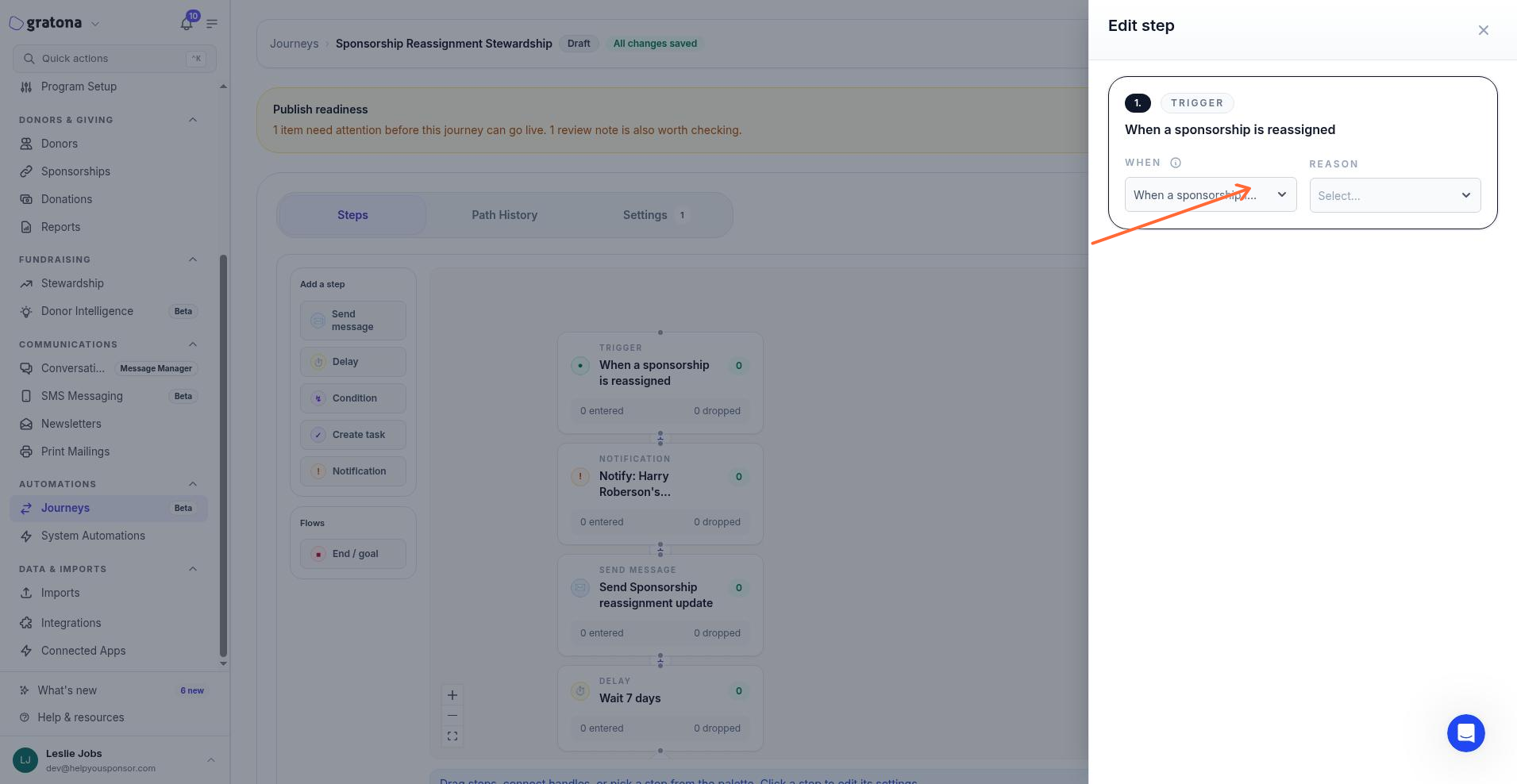
When you edit the When a sponsorship is reassigned trigger, you can narrow it by Reason. Leave the reason unset to start the journey for every reassignment, or choose one or more reasons to start it only for those.
This is only a starting point. Your team can change any step or build completely different workflows around these sponsorship events.
Selecting a template creates a draft, not a live journey
Choosing the starter from a template creates a draft only. It does not activate the Journey or send the donor message automatically.
After the draft is created, edit every step in the journey builder. The first version stays in draft until your team decides to publish it. People enter the journey only after you publish it and the selected trigger happens.
Next steps
Follow Create a Journey to start a sponsorship journey from a template or a blank draft, then Build and Publish a Journey to configure the steps and publish the workflow when it is ready to run.
Related guides
Sponsorship changes overview — how lifecycle changes fit together