
Update recipient information from a file (AI Intake)
Updated last week
Update recipient information from a file
AI Intake can read a document that is already attached to a recipient and propose updates for you to review. Compare the proposed values with what is on the record, select the fields you want, and save. Nothing on the record changes until you save.
Before you start
You need a JPEG, PNG, WebP, or PDF file attached to the recipient that AI Intake can read, and permission to edit recipients in the program. This flow updates one existing recipient. There is no donor equivalent: to correct a donor, edit the donor record directly.
Start the update
Open the recipient's profile and go to the record's Files & Photos.
Open an attached image or PDF that shows the recipient's information.
Select Update recipient information. Reading starts automatically.
Review the proposed changes
AI Intake shows Current and From document values side by side. Every proposed change starts selected, so review each field before saving.
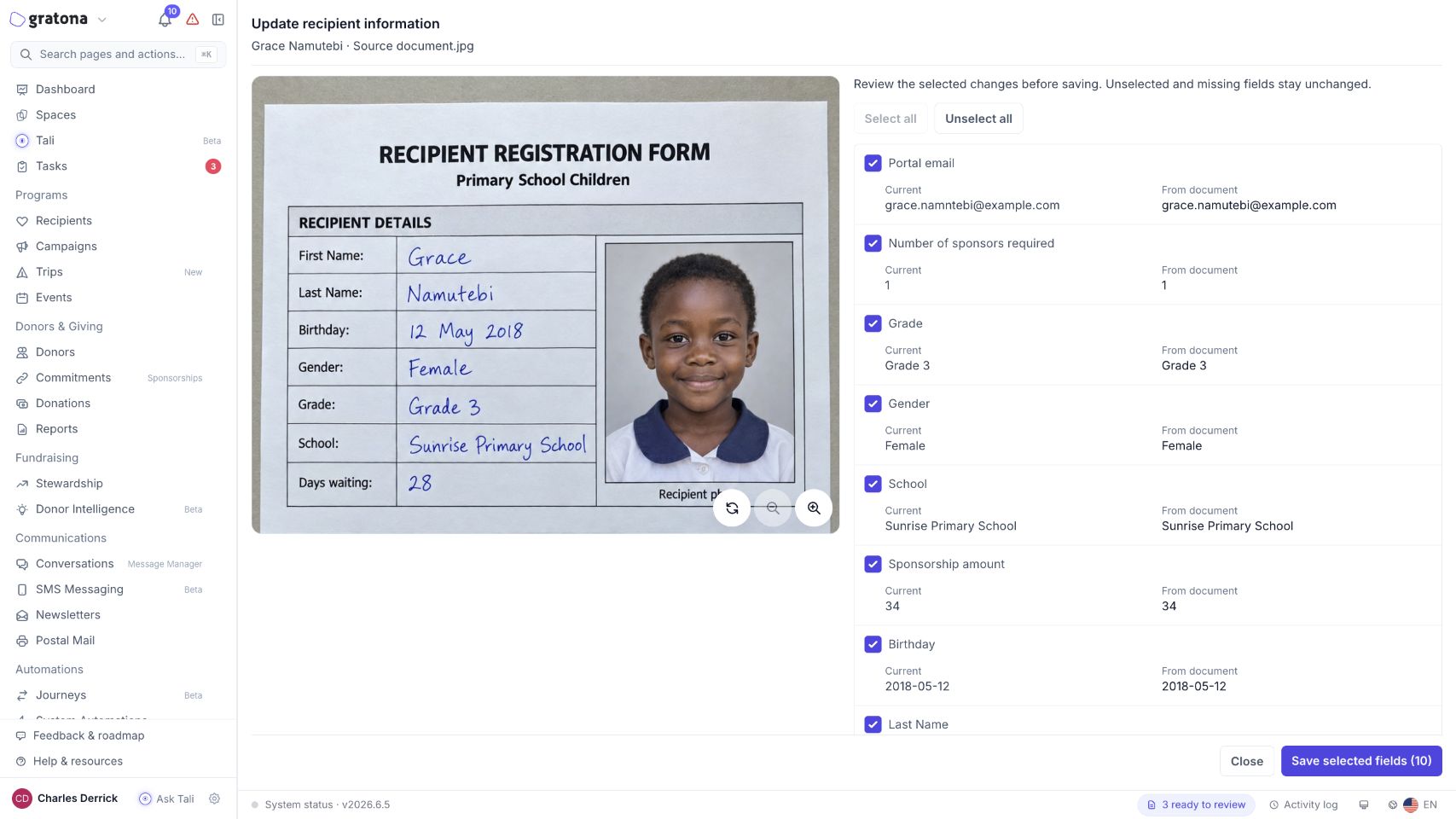
Select or clear individual fields, or use Select all or Unselect all.
Fields the document does not show, and fields you clear, keep their current values.
The proposals are read-only. Uncheck any incorrect proposal, save only the selections you trust, and edit the recipient manually if needed.
Saving is disabled when no fields are selected.
If the review looks out of date, use Reload review.
Save the selected fields
Review your selection.
Select Save selected fields. Only the selected fields change.
Saving updates only the selected fields. The original document stays attached in Files & Photos, and no duplicate recipient is created.
One person per document
This flow reads one person per document. A sheet with several people is rejected. Use Add recipients or donors from a photo or document (AI Intake) for sign-up sheets and multi-person pages.