
Add recipients or donors from a photo or document (AI Intake)
Updated last week
Add recipients or donors from a photo or document (AI Intake)
AI Intake reads paper forms, business cards, sign-up sheets, pledge cards, letters, scans, and PDFs, then fills a recipient or donor draft for your team to review. Nothing is created until someone selects Save. AI Intake fills records only: it does not record donations or charge payment methods.
Before you start
AI Intake may not be enabled in every workspace yet. You also need permission to create records in the area you are working in, and the documents you want to read: photos or scans of forms, sign-up sheets, pledge cards, letters, business cards, or PDF files.
Choose the program or donor form first
AI Intake follows the scope you open it from. Start from the program (recipients) or the donor profile form (donors) whose record you want to create: the fields, required fields, and permissions all come from that scope. Duplicate checks follow the same scope: a recipient draft is compared against other recipients in the same program, and a donor draft against donors on the same donor profile form.
Start an intake
To fill in a recipient, start from the program's recipient table:
Open Recipients and select the program.
Open the recipient table and select Add Recipient.
In the drawer, select Scan or upload under Have it on paper?
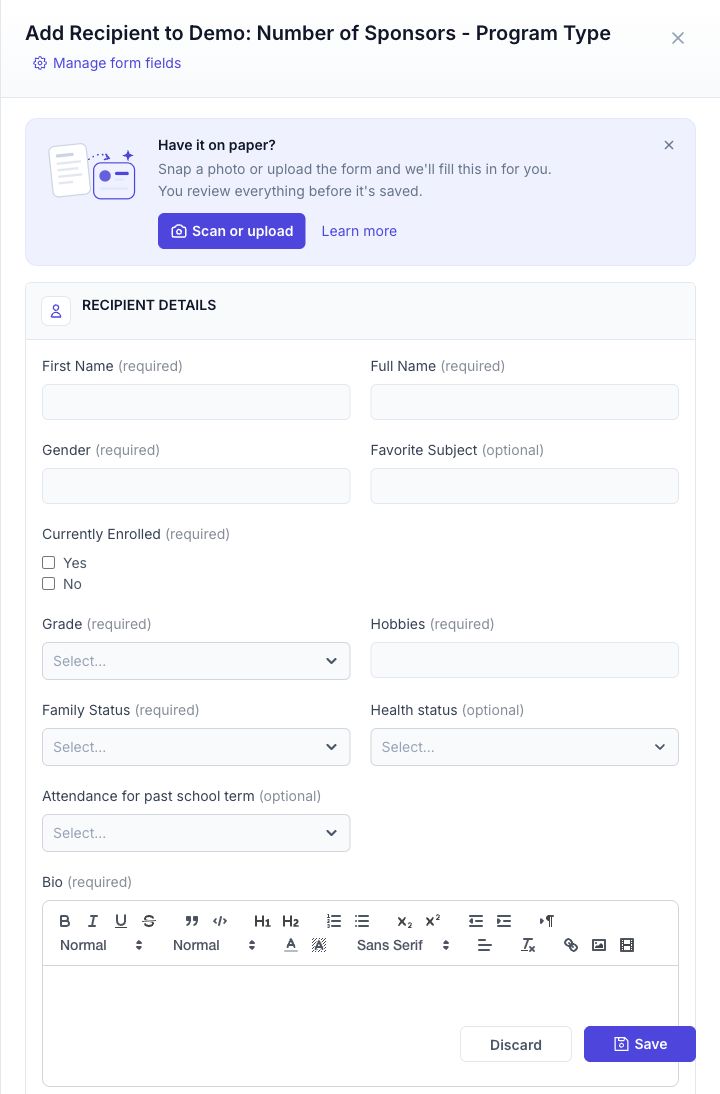
If you dismiss the banner, a compact Fill from a photo or document link stays available in the drawer.
To fill in a donor, start from the Donors page:
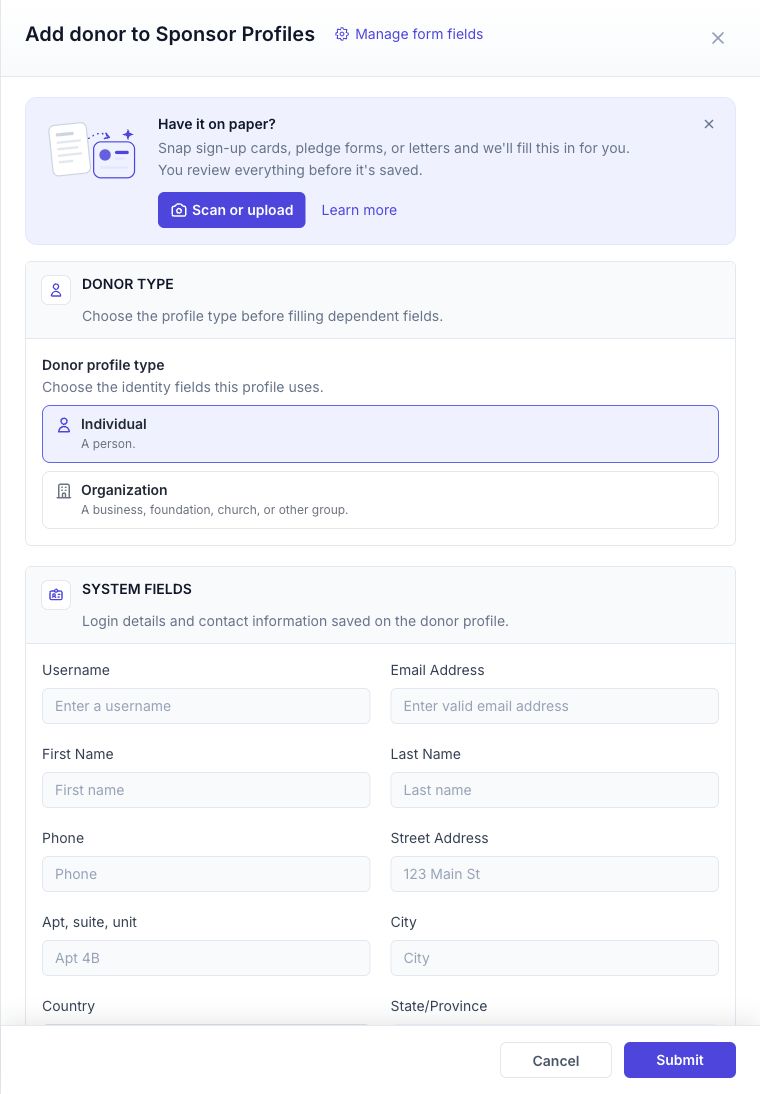
Open Donors and select a specific donor profile or form view. Add Donor is disabled in the all-donors view.
Select Add Donor.
In the drawer, select Scan or upload under Have it on paper?, or use the compact Fill from a photo or document link.
Add and arrange pages
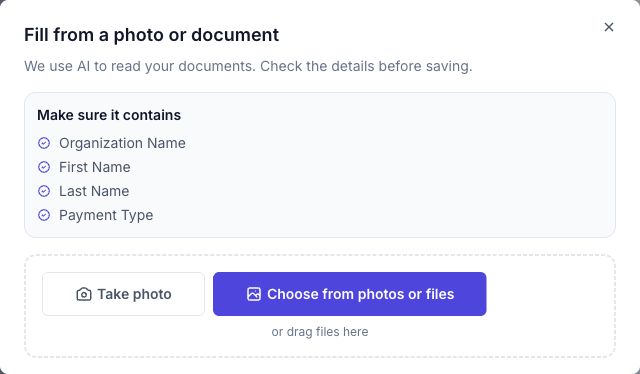
Add pages by taking a photo with your phone, choosing files from the picker, or dragging and dropping them into the intake. Then arrange what you added:
Add, reorder, or remove pages, or retake a photo.
Select Same form, next page when the next page continues the form you just added.
Combine several different forms in one intake.
A sheet with several people, such as a sign-up sheet, becomes one draft per person. Where a usable row region is available, only that person's row is attached as their source, never the whole sheet. If no safe row crop can be produced, including on PDF sheets, the draft may have no source attachment; you can still view the source page in the intake until it expires.
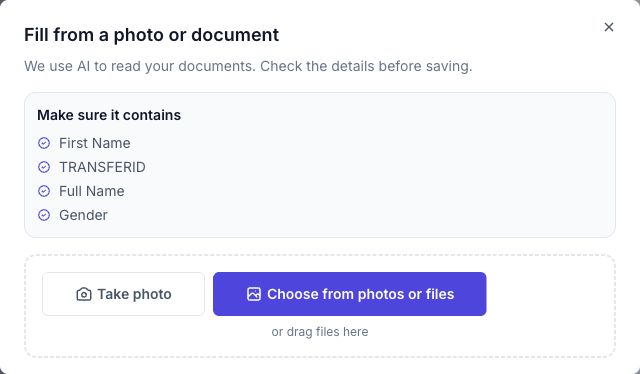
Before you continue, AI Intake warns you when a photo is hard to read or when a file was already added to the intake.
File limits and photo quality
Limit | Value |
|---|---|
Accepted file types | JPEG, PNG, WebP, HEIC, and PDF |
Files per intake | Up to 50 |
File size | Up to 20 MB per file |
Pages per PDF | Up to 20 |
Readable handwriting, and photos that are well lit and taken straight on, read best. AI Intake reads what it can and leaves the rest for you to complete; it does not read every field from every document.
Start reading
Select Start reading when your pages are arranged. Before reading starts, AI Intake shows an estimate of the AI capacity the intake will use.
Capacity is reserved while reading runs. Pages that read successfully spend that capacity, even if you later discard the draft. Unspent reservations for pages that failed, came back empty, or never read are released, and cancelling does not refund successful reads.
Reading runs in the background. Keep the tab open while your files upload; the reading itself can finish after you move on.
If the account has no available AI capacity, AI Intake shows a notice instead of starting. Ask an administrator about adding available AI capacity, then retry.
Pages end up pending, read, failed, or marked irrelevant or empty. If only some pages read, retry the failed ones: your drafts and saved records are not duplicated.
Review the draft
Each draft opens beside its source page. Select a value to see the source text it came from, and correct anything the reading got wrong. Highlighting the text on the source page may be available depending on the page.
A value marked Check this is a warning to inspect: compare that value against the source page before you save.
The checklist lists required fields the document did not supply. Complete them before saving.
A select option that is not configured on the form is flagged; choose an option that exists on the form or fix the value manually.
Confirm dates that could be read in more than one way.
Drafts autosave, so you can come back later or hand the review to a teammate.
When a draft matches an existing record, or another person from the same intake, AI Intake shows a duplicate notice. Select Open existing to review the record that already exists, or Save as new to keep the new record.
Optional recipient system fields
Before you select Start reading, the upload sheet offers one unchecked checkbox, Read system fields from this document. Turn it on if you want AI Intake to fill recipient system fields from the document, such as waiting days or date, sponsor count or level, the configured sponsorship amount, and Portal Email when the program enables recipient portal login. Tags are not extracted under this option.
This option cannot change after reading starts. To read different system fields, start a new intake with the option set the way you want.
Values the document does not show, does not support, or that are excluded from reading stay blank, and blank fields keep their normal defaults.
Choose or skip a portrait
If a document includes a portrait, select it and crop it for the profile, adjust the crop, or skip it. The source documents and extracted photos attach to the record's Files & Photos after you save. The attachment happens in the background, so it can be pending for a while and can fail. If it fails, reopen your intake and use the Retry control next to Source document couldn't be attached in the intake summary.
Visibility and consent settings can keep an extracted portrait out of the public profile slot. See Configure AI Intake settings.
Save, finish, or discard
Select Save & next to save the current draft and move to the next person.
Select Save & finish when the last draft is done.
Discard a draft you do not want, or Undo to bring it back before you finish.
Saving shows a summary with links to the records you created. Nothing is created or changed until you save: the draft autosave is separate from saved records.
Stop or discard an intake
Stopping or discarding an intake removes its remaining unsaved review material, and this cannot be undone. Recipient and donor records you already saved, and their attachments, remain. Expiring after 14 days of inactivity also does not delete saved records or their copied attachments.
This is different from the review controls: Discard throws away one draft, and Undo or Restore brings a discarded draft back before you finish.
Resume an intake
Unsaved drafts autosave, so you can close the intake and come back, and a teammate can pick up and finish the review. The intake header shows the status so you can see where reading stands. An intake expires after 14 days without activity.
Update an existing recipient instead
To propose updates to a recipient from a document already attached to the record, see Update recipient information from a file (AI Intake). That flow reads the file and applies only the fields you select.