
Run a historical QuickBooks sync
Updated 2 weeks ago
Backfill donors, recipients, and donations that existed before you connected QuickBooks Online. Historical QuickBooks sync lives in Connected apps: open your account menu, choose Organization settings > Connected apps, open the QuickBooks Online card, and click Manage. The older Integrations QuickBooks drawer shows Select a Program, but it does not contain historical run history.
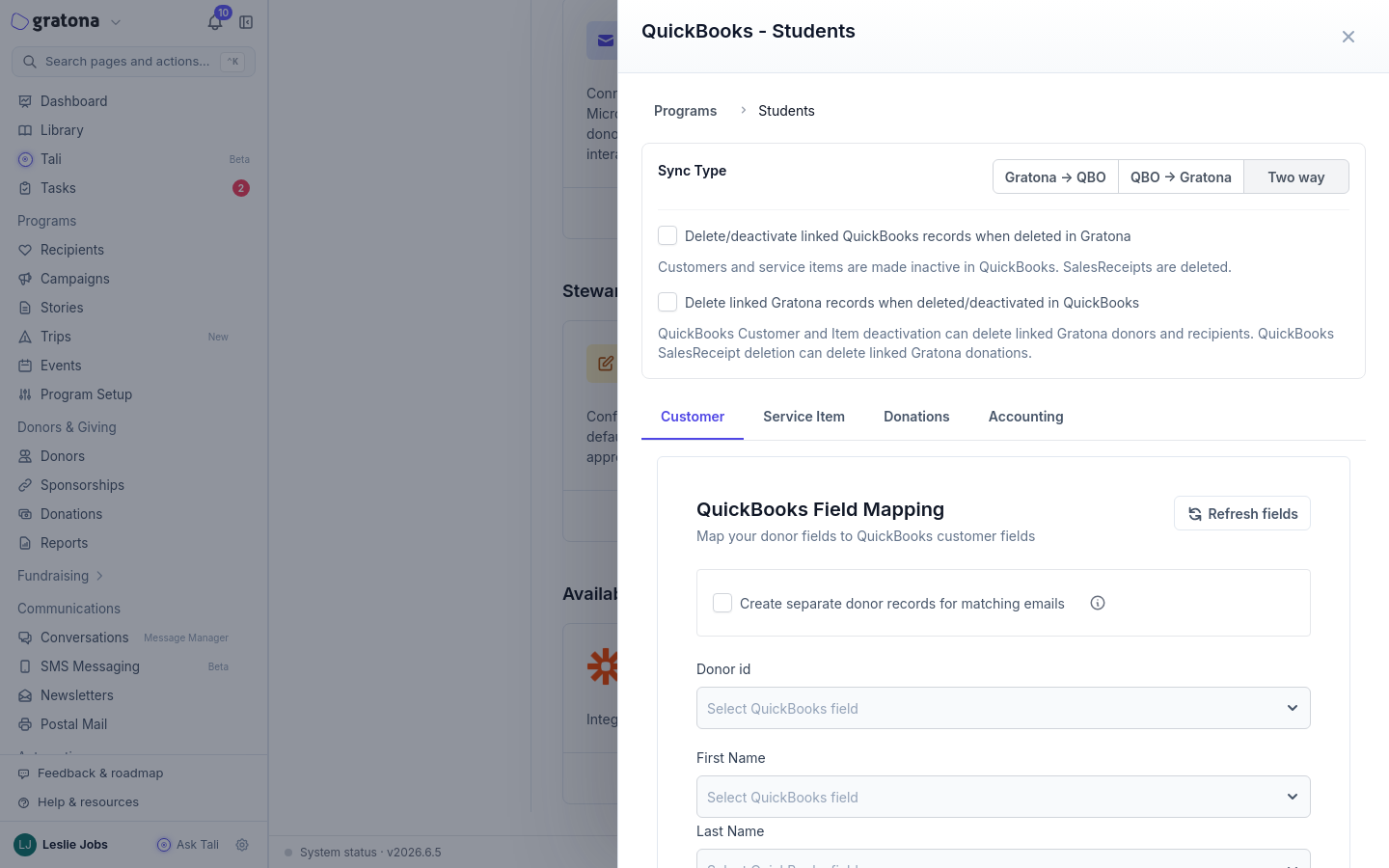
Before you start
QuickBooks Online must be connected under Connected apps. Confirm the expected QuickBooks company appears at the top of the Manage drawer before you continue. If the historical sync controls are unavailable, ask an organization administrator to confirm your permissions and feature availability.
Create a zero-write preview
The preview proposes what a backfill would do without writing anything to QuickBooks.
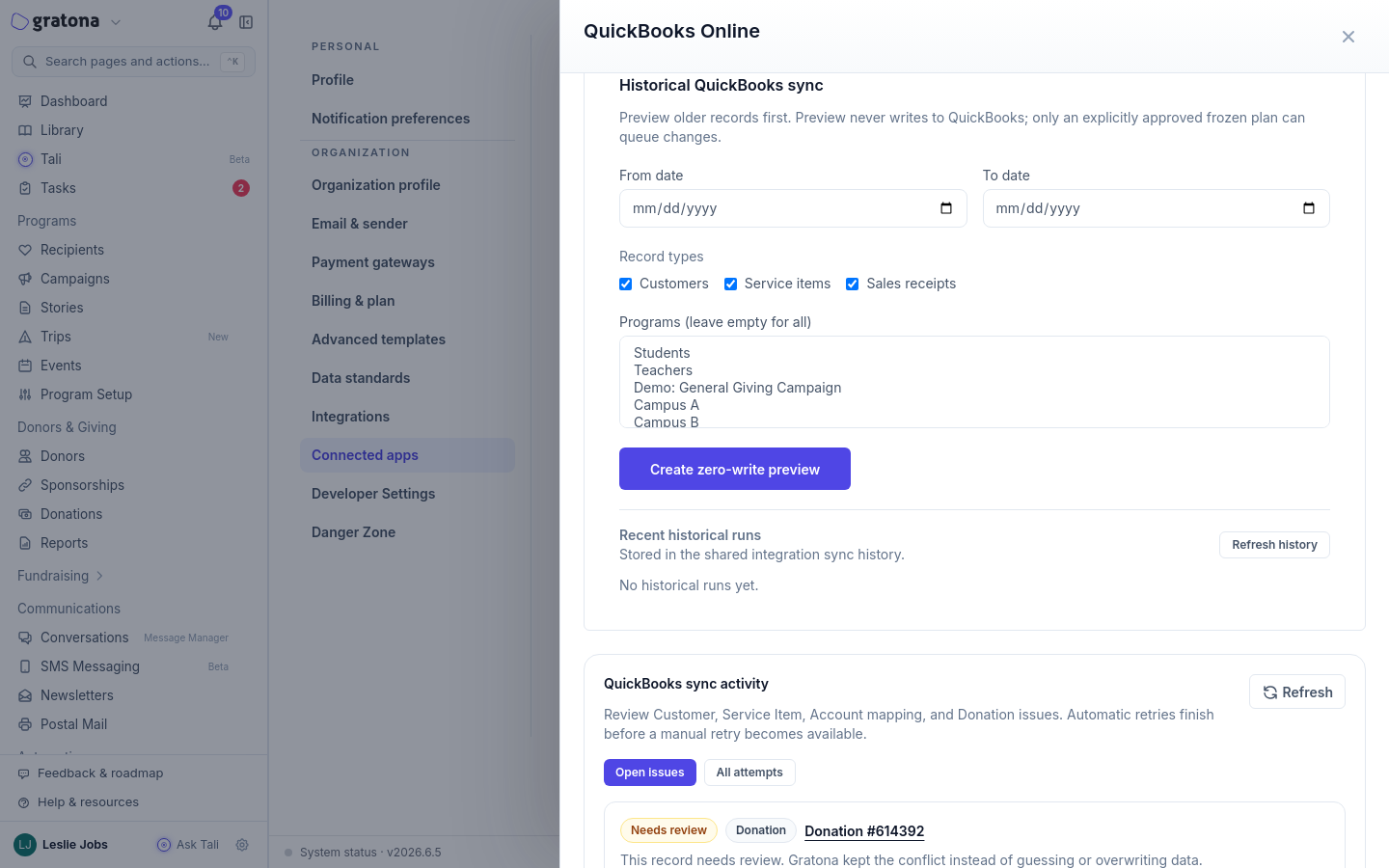
Open your account menu and choose Organization settings > Connected apps.
On the QuickBooks Online card, click Manage. The drawer opens with the connected company's name as its title.
Scroll to Historical QuickBooks sync.
Optionally choose a From date and To date.
Select at least one record type: Customers, Service items, or Sales receipts. Create zero-write preview stays disabled until you select one.
Select the programs to include, or leave the program list empty to include every program you can access.
Click Create zero-write preview.
Approve the frozen plan
The preview classifies each record as create, update, link, skip, or conflict and freezes the plan against the currently connected QuickBooks company. Review the records and totals, then click Approve and queue frozen plan.
Approval queues exactly the plan shown in the preview. To change the date range, record types, or programs, create a new preview instead of approving an old one.
Open the execution run, not the dry-run preview
Approving creates a separate execution run that writes to QuickBooks. In Recent historical runs, click Refresh history to load the latest runs, then open the run labeled Execution run. Preview runs are labeled Frozen preview: they perform no writes and never post receipts, so a preview will not show you what posted.
Check each Sales receipt action and status
Each record in a run shows the QuickBooks object type, the Gratona record number, a reason code, the plan action, and the checkpoint status, with the currency and amount where present.
Plan actions:
create makes a new QuickBooks record
update changes an existing QuickBooks record
link attaches the Gratona record to an existing QuickBooks mapping
skip and conflict take no action and do not call QuickBooks
Checkpoint statuses appear exactly as written:
Status | Meaning |
|---|---|
queued | Waiting to run |
processing | Running now |
processed | Completed successfully |
skipped | No action taken; the plan classified it as skip |
failed | Did not complete |
needs_review | QuickBooks returned an outcome a person must review |
A completed run is not proof every receipt posted
A run completes when no checkpoint is still queued or processing. That does not prove every selected Sales receipt created a new QuickBooks record: update, link, skip, and conflict outcomes do not create new records. Open the run and review every failed and needs_review checkpoint before you rely on the results in QuickBooks.
Retry failed or reviewable records
Records with a failed, needs_review, or skipped status show Retry record when the record can be retried. Retrying requeues that record and refreshes the run's status and counters. If a whole run failed, Resume failed checkpoints requeues the failed checkpoints for that run.
If no execution run appears
Click Refresh history in Recent historical runs. If you approved a plan and the list still shows No historical runs yet. after refreshing, contact support.