
Map donations, designations, accounts, and classes
Updated 2 months ago
Configure donation categorization on the program Donations and Accounting tabs after QuickBooks is connected. Use deposit accounts for where money lands, service items and designation overrides for revenue lines, and classes for reporting splits.
If QuickBooks is not connected yet, complete Connect Gratona to QuickBooks Online first. For how donations become sales receipts after mapping, see Donations (Sales Receipt).
Open program donation and accounting settings
Mapping is per program. Open QuickBooks from Integrations or Connected Apps, select a program, then use the Donations and Accounting tabs.
Open QuickBooks from Integrations or Connected Apps.
Under Select a Program, choose the program to configure.
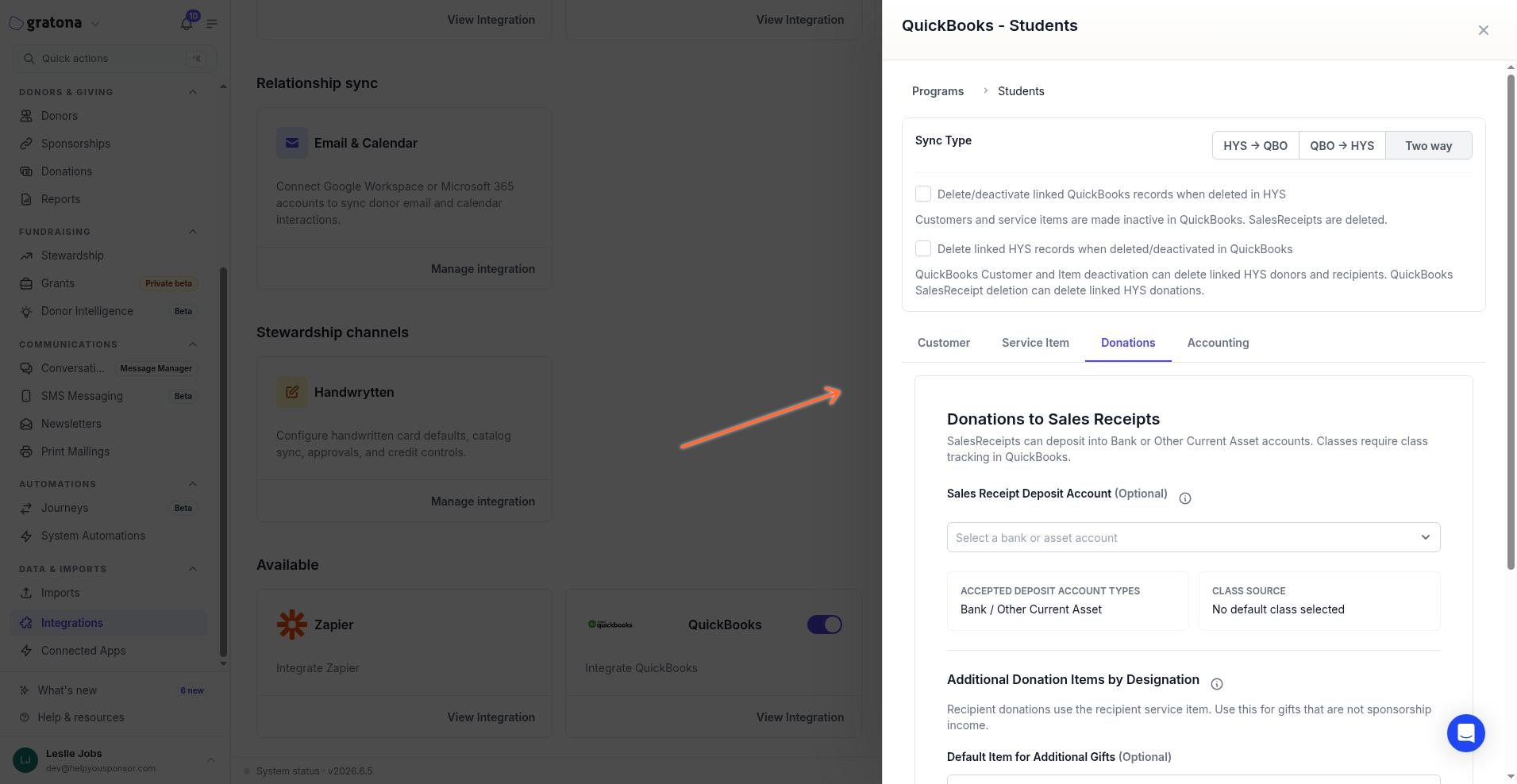
Open the Donations tab for deposit account and additional-gift item mapping.
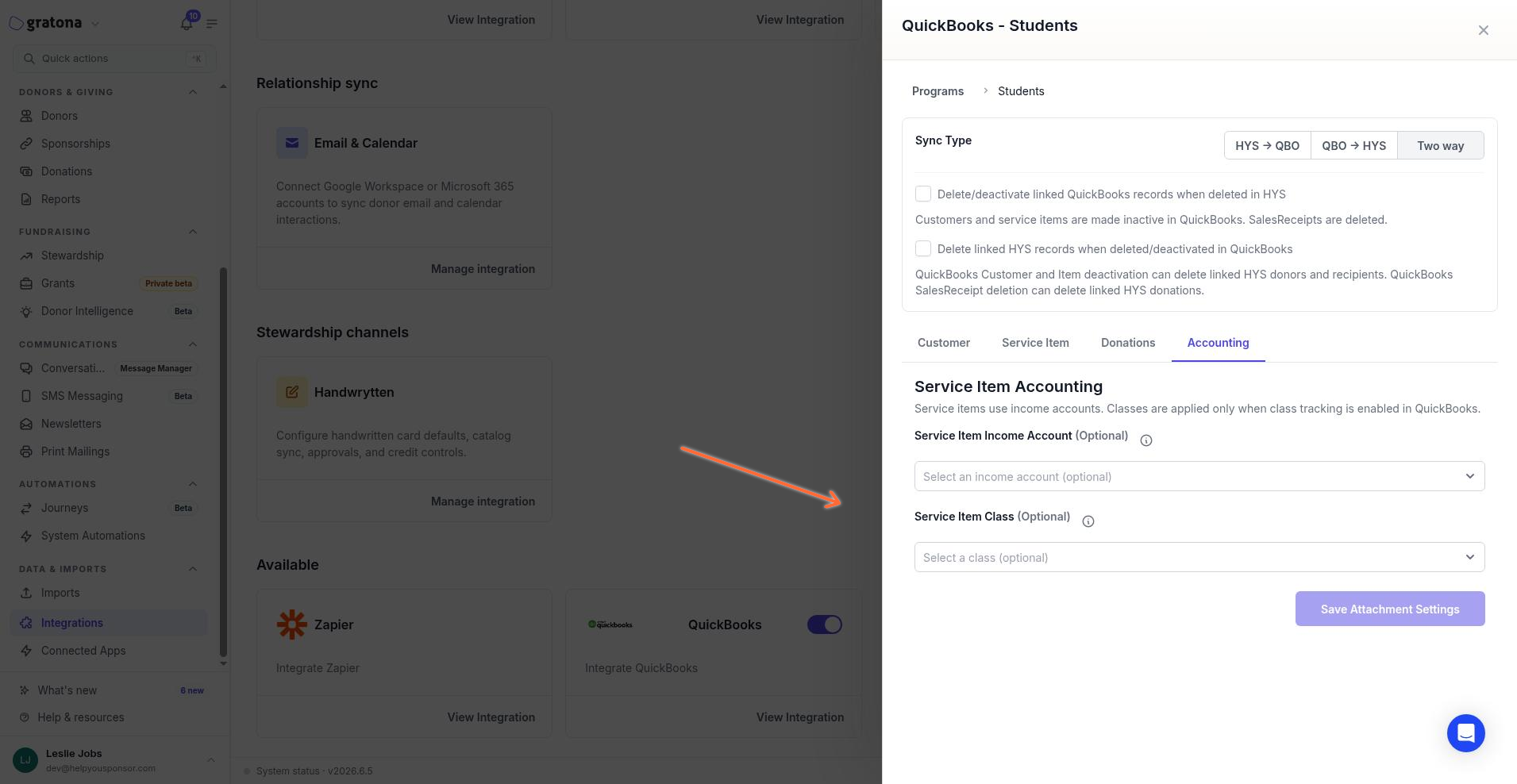
Open the Accounting tab for service item income account and class.
Deposit account vs income account
The deposit account controls where QuickBooks records the cash; the income account controls which revenue account the selected service item posts to. They are separate settings on separate tabs.
Setting | Tab | What it controls | Valid account types | If blank |
|---|---|---|---|---|
Sales Receipt Deposit Account (Optional) | Donations | Where QuickBooks deposits the sales receipt money | Bank; Other Current Asset | Gratona does not send a deposit account; QuickBooks uses its default deposit handling |
Service Item Income Account (Optional) | Accounting | The revenue account on service items created or updated for the program | Income; Other Income | Gratona uses the first income account returned by QuickBooks when creating the service item |
Expense, income, and liability accounts are not valid deposit destinations. QuickBooks posts revenue from the income account on the selected service item, not from the deposit account.
Set the sales receipt deposit account
Choose a bank or other current asset account so sales receipts deposit into that account in QuickBooks.
On the Donations tab, under Donations to Sales Receipts, open Sales Receipt Deposit Account (Optional).
Select a bank or asset account. The placeholder is Select a bank or asset account.
Click Save Donation Settings.
Set the service item income account
Choose the income account Gratona sends when it creates or updates service items for this program.
On the Accounting tab, under Service Item Accounting, open Service Item Income Account (Optional).
Select an income account. The placeholder is Select an income account (optional).
Click Save Attachment Settings.
Map recipient gifts and additional designations
Recipient and entity donations use that recipient’s QuickBooks service item. Default and override item settings do not replace that path. Gifts not tied to a recipient service item use Default Item for Additional Gifts (Optional) or a designation-specific override.
Gift type | Service item used |
|---|---|
Donation for a recipient or entity that already has a QuickBooks service item | That recipient’s or entity’s service item |
Gift not tied to a recipient service item, with a designation override | The override QuickBooks item for that designation |
Gift not tied to a recipient service item, no override | Default Item for Additional Gifts (Optional) |
Gift not tied to a recipient service item, and no default or override item | No item resolves; the sales receipt is not created |
Configure optional extra checkout gifts in the product under Program Setup before you map them here. See Additional Gifts.
Set the default item for additional gifts
Under Additional Donation Items by Designation, choose the QuickBooks service item for non-sponsorship designation gifts when no override applies.
On the Donations tab, open Default Item for Additional Gifts (Optional).
Search and select a QuickBooks service item. The placeholder is Search QuickBooks service items.
Click Save Item Settings.
Add designation overrides
Use Designation Overrides when a specific additional donation designation should post to a different QuickBooks item than the default.
Under Designation Overrides, search an additional donation designation (Search additional donation designations).
Search the QuickBooks item (Search QuickBooks items).
Click Add. Both a designation and an item must be selected before Add is available.
Click Save Item Settings.
Each override row shows the Designation and the mapped QuickBooks item. Remove a row with the trash control, then save item settings again.
Save deposit account changes with Save Donation Settings. Save default item and designation override changes with Save Item Settings.
Set service item classes
Service Item Class (Optional) stores the default QuickBooks class for the program. Gratona sends that class on service items created for the program and uses it on donation sales receipt lines when no entity-specific class applies.
On the Accounting tab, under Service Item Accounting, open Service Item Class (Optional).
Select a class. The placeholder is Select a class (optional).
Click Save Attachment Settings.
QuickBooks must have class tracking enabled for classes to be accepted on transactions or items.
For campaign programs, when an entity has its own class mapping, that entity class overrides the program default. Entities without a specific class still use the default class selected above.
What must resolve before a sales receipt is created
A donation creates a QuickBooks sales receipt only when both a customer and an item resolve.
Customer — the donor must already link to a QuickBooks customer, or the donor email must match a QuickBooks customer email. See Adding Donors (Customers).
Item — the line must resolve to a QuickBooks service item through the recipient item, a designation override, or the default additional-gifts item. See Recipients (Service item) and Donations (Sales Receipt).
If either side is missing, Gratona does not create the sales receipt for that donation.
Object quick reference
Gratona maps these records when donations sync to QuickBooks Online.
Gratona | QuickBooks Online |
|---|---|
Donor | Customer |
Recipient | Service item |
Donation | Sales receipt |
Additional gift (default or override) | Service item on the sales receipt line |
For the full object model overview, see QuickBooks Online integration overview. If a sales receipt does not appear after mapping, see Troubleshoot QuickBooks synchronization.