
Additional Gifts
Updated last week
.
Additional Gifts
Use Additional Gifts when donors should be able to add an optional extra contribution during checkout, such as school supplies, holiday gifts, classroom materials, facility repairs, or other needs that sit alongside a sponsorship or donation.
Additional gifts are managed in Program Setup > Additional Gifts. They appear to donors only when the program setting used by the checkout page has Display Additional Gifts on order page enabled.
If you do not see the Additional Gifts tab or the create, edit, and delete actions, your admin role may not include designation management access.
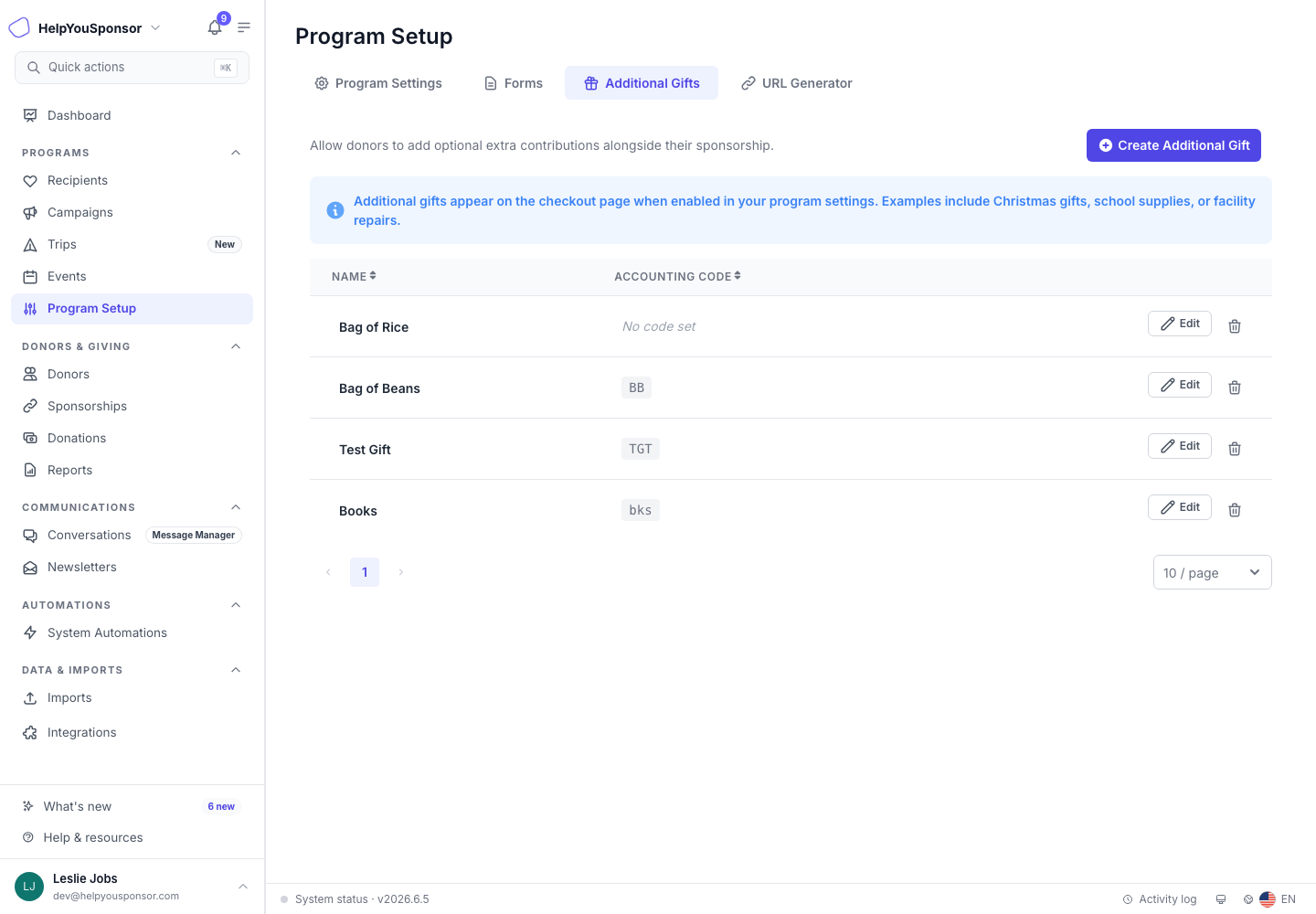
Program Setup > Additional Gifts lists the optional gift designations donors can add during checkout.
Create an Additional Gift
Create the gift before you enable it on a checkout page.
Open Program Setup.
Select Additional Gifts.
Select Create Additional Gift.
Enter the gift details.
Select Save.
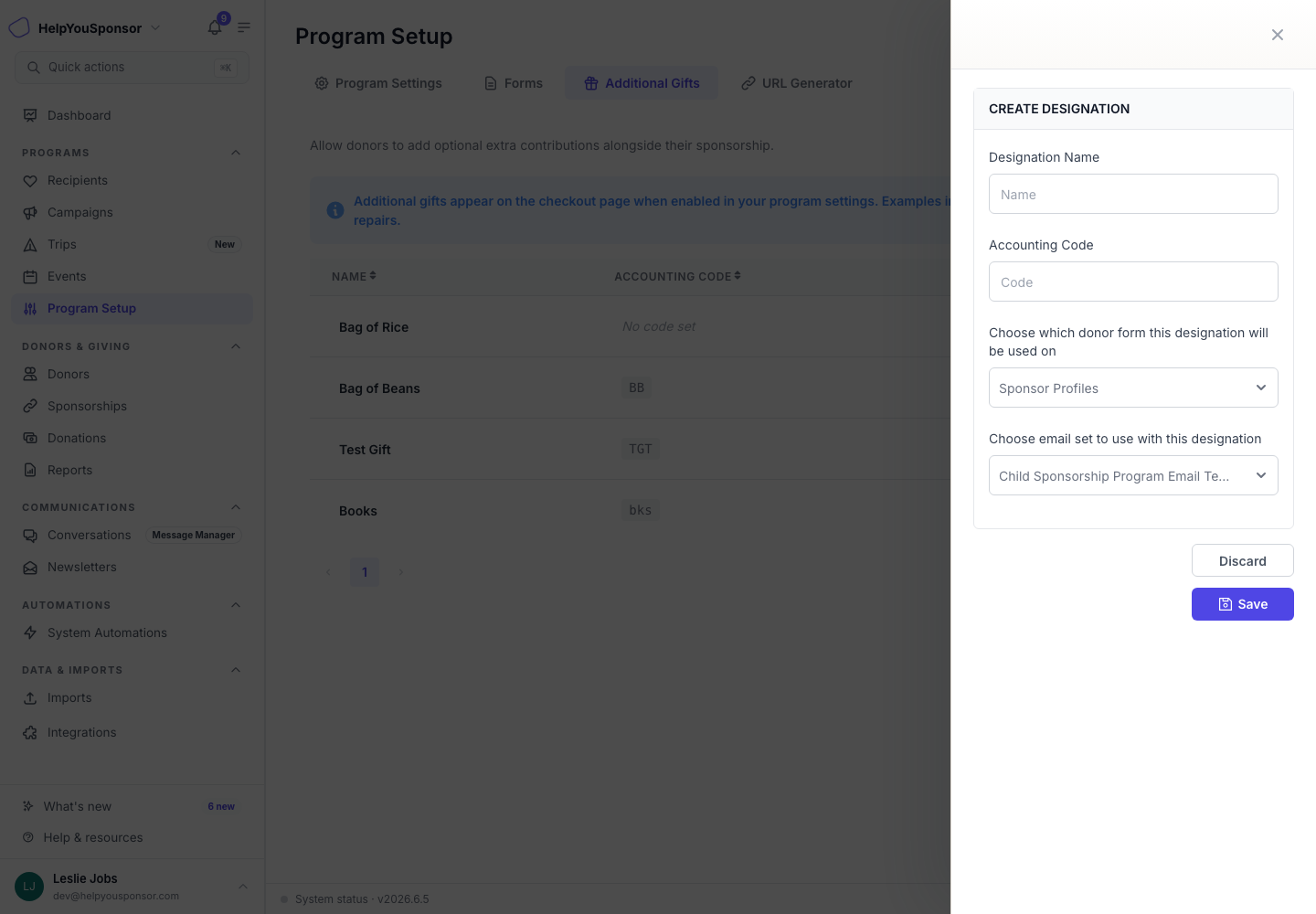
Create Additional Gift opens a drawer for the gift name, accounting code, donor form, and email set.
Use the fields this way:
Designation Name: the gift name users see in admin and donor-facing gift choices.
Accounting Code: the code your team uses for accounting, reporting, or integrations. New gifts require a code; older gifts may show No code set until edited.
Donor form: the donor profile form connected to donations tied to this gift designation.
Email set: the email set used for donation emails tied to this gift designation.
Gratona may use the word designation in form labels because additional gifts are stored as gift designations behind the checkout experience.
Enable Gifts on a Program Checkout Page
Creating an additional gift does not automatically show it to donors. Enable additional gifts on the setting profile used by the program checkout page.
Open Program Setup > Program Settings.
Edit the setting profile used by the program.
In Order Page Options or Donation Page Options, turn on Display Additional Gifts on order page.
Save the setting profile.
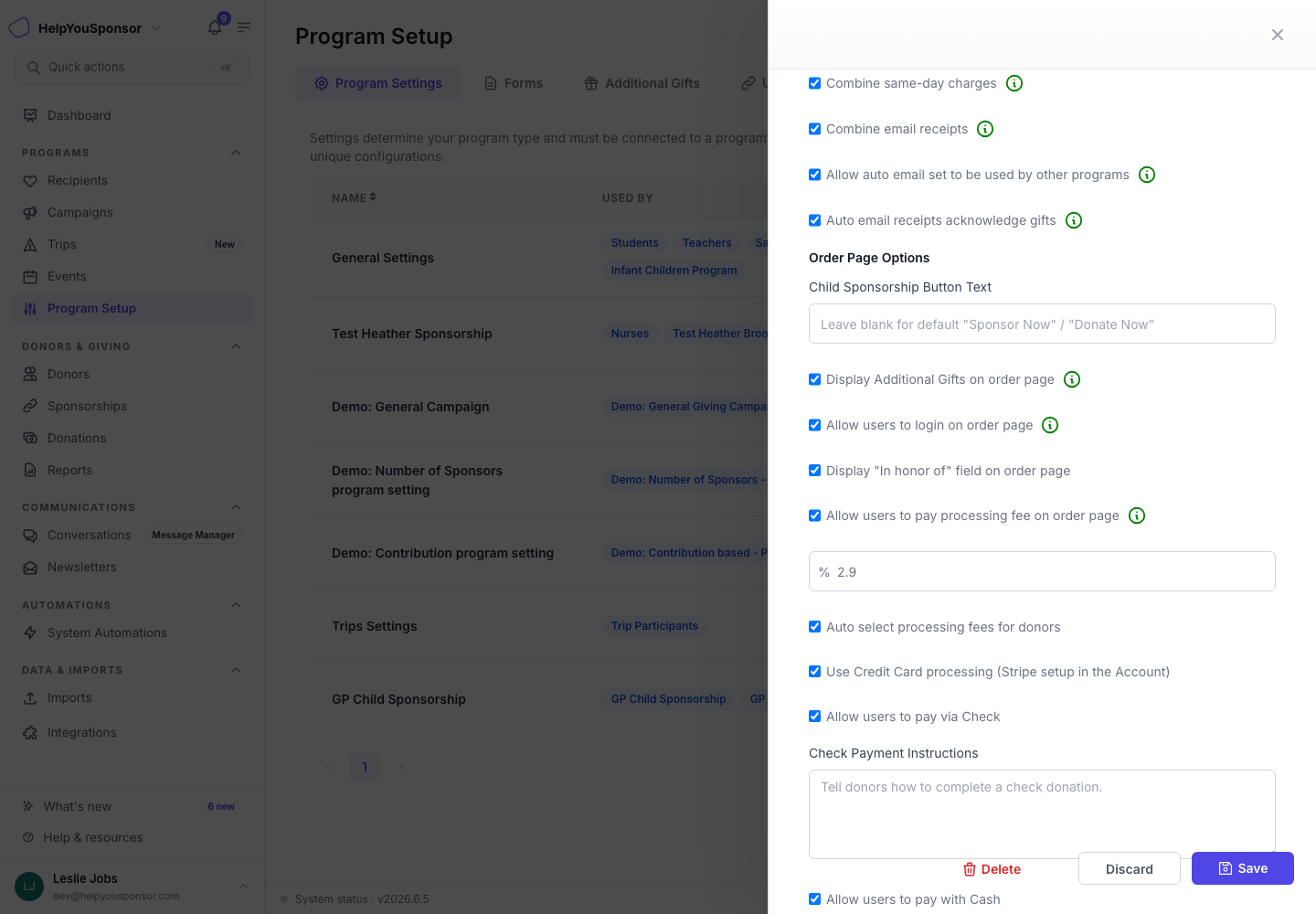
Display Additional Gifts on order page controls whether donors see the Additional Gifts option during checkout.
If the setting profile is shared by multiple programs, the change can affect every program using that profile. Clone the setting first when only one program should offer additional gifts.
What Donors See
When additional gifts are enabled and at least one gift exists, the checkout summary can show an Additional Gifts button. Donors use it to:
choose a gift option
enter the gift amount
optionally attach the gift to another recipient or entity that is not already in the order
add the gift to the checkout total
The donor-entered gift amount is what gets added to the order. Use clear gift names so donors understand what they are supporting before they enter an amount.
Additional gifts also appear in a combined multi-program checkout generated by the URL Generator. Each item in that checkout keeps the amount and available payment frequencies configured for its source program, and the order summary shows one combined Total.
Edit an Additional Gift
Edit a gift when the name, accounting code, donor form, email set, or gift details need to change.
Open Program Setup > Additional Gifts.
Find the gift.
Select Edit.
Update the fields.
Select Save.
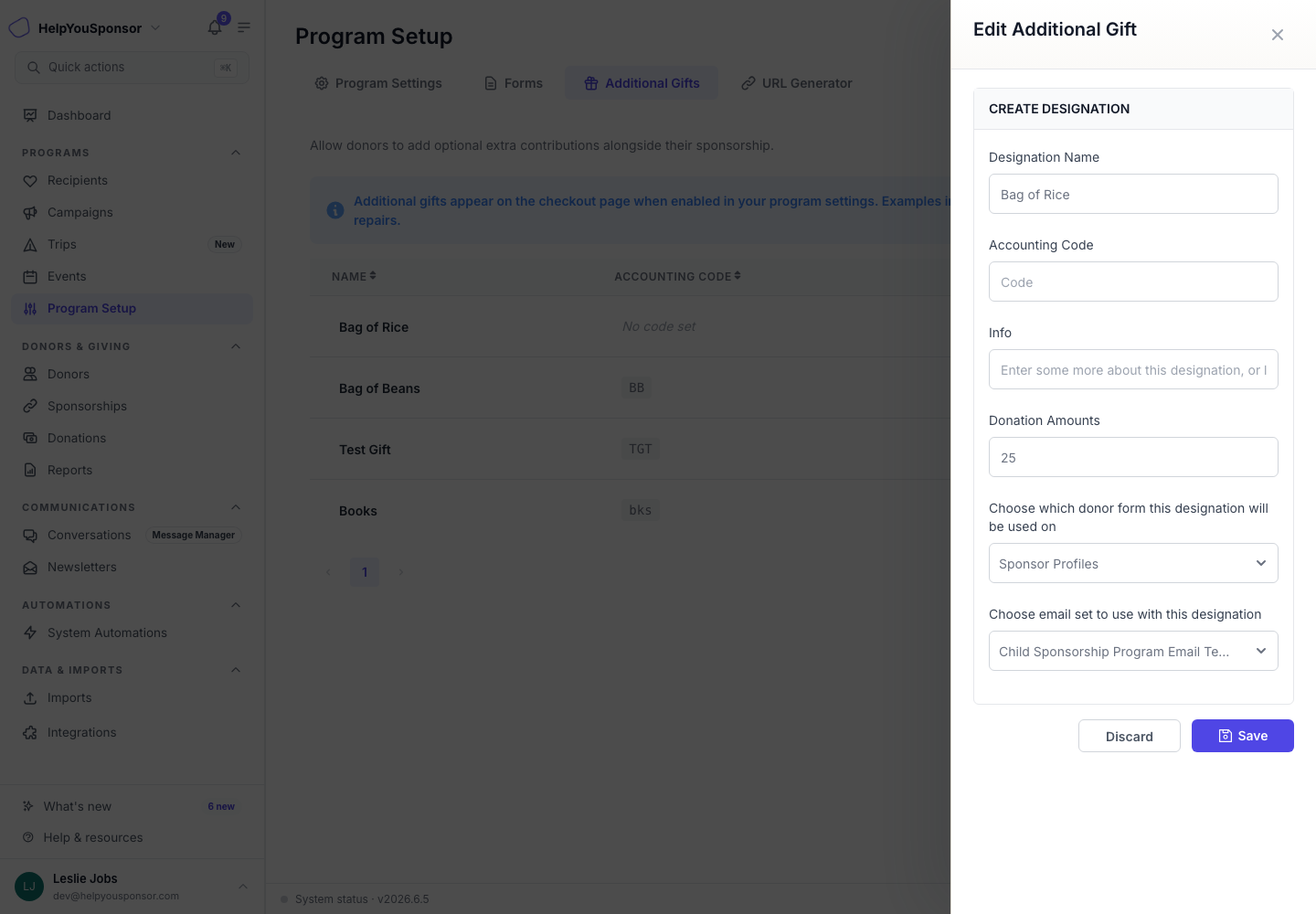
The Edit Additional Gift drawer lets you update gift details without creating a new gift.
The edit drawer also includes:
Info: extra detail about the gift.
Donation Amounts: an optional amount value for accounts or donor experiences that use designation amount details. In the standard checkout flow, donors still enter the amount they want to give.
Changing a gift updates how it appears going forward. Review the accounting code and email set carefully before saving changes that affect active checkout pages.
Delete an Additional Gift
Delete an additional gift only when it should no longer be available. Use the delete action from the list, then confirm the deletion.
Deleting a gift removes it from future checkout options and can affect records or reports that reference that designation. If a gift has already been used, consider renaming or disabling it from program checkout settings instead of deleting it.
When to Use a Campaign Instead
Use a campaign program when the gift needs its own public page, donation goal, progress tracking, or donor-facing fundraising workflow. Use Additional Gifts when the contribution should be an optional add-on during another program's checkout.