
Restore archived recipients
Updated today
Restore an archived recipient to the active program and review the commitment amounts and website visibility that will apply. You can restore one recipient or several recipients together.
Restoring a recipient keeps archived commitments archived. It does not restart their payments or change existing payment schedules. If a restored recipient is eligible to wait for sponsorship, their new waiting period starts on the restore date.
Find the archived recipients
You need access to the program and permission to restore its recipients. If Restore is missing, ask your workspace administrator to check your access.
Open Recipients and choose the program you want to work in.
Open the program's recipient table. Open the program/view dropdown above the table and choose Archived Recipients. Your organization may use a different name for recipients.
Choose the records to restore:
One recipient: open the recipient and select Restore in the profile header.
Several recipients: select their checkboxes, then select Restore (number). Check the selected count before continuing, especially if you selected records across pages.
Review commitment amounts
When the program supports recipient amount choices, the review shows the current program amounts and the recipients' saved amounts. The selected option is highlighted. In a bulk restore, each row groups recipients with the same saved amounts.
Use Available after restore to check the result of your choice before confirming:
Use current program amounts is selected by default when the program has one amount. The restored recipient follows that program amount, including future program changes.
Offer all program amounts is the equivalent choice when the program has several amounts. For example, if the program offers $35, $40, and $50, those become separate choices on the public page. The sponsor chooses one. Restore does not assign a combined amount or start three commitments.
Keep saved recipient amounts retains each recipient's saved setting. A fixed amount stays fixed. A recipient already set to use all program amounts continues to follow the program.
For example, a recipient may have a saved $30 amount while the program now uses $35. Choose Use current program amounts to offer $35, or Keep saved recipient amounts to retain $30. The Available after restore column changes to show the result.
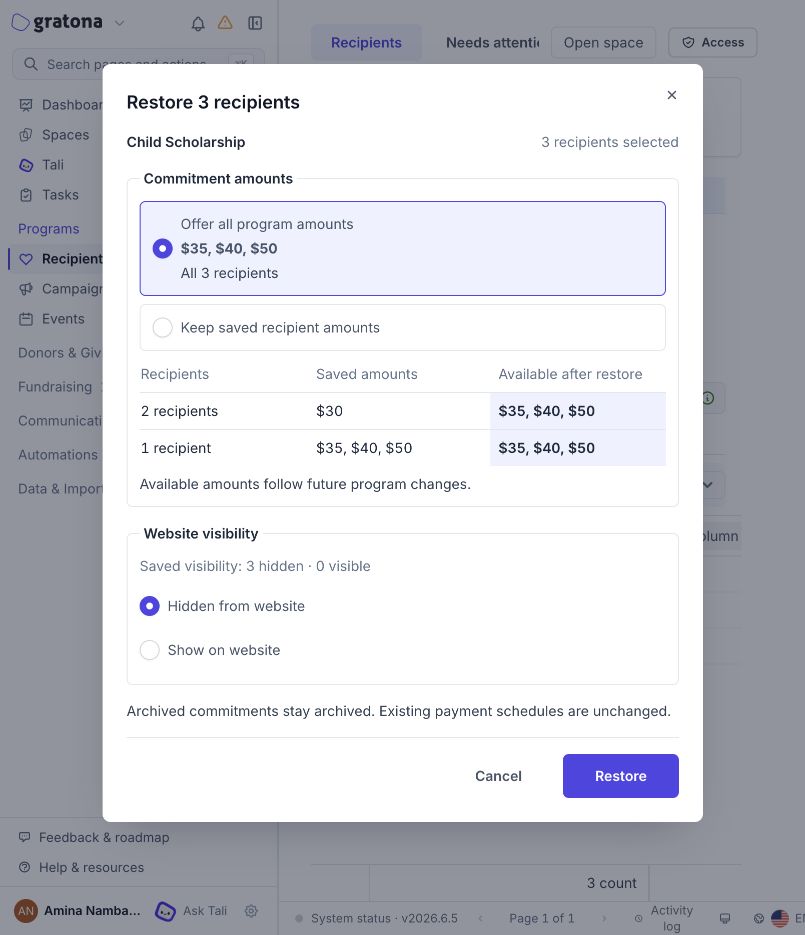
In this example, two recipients have a saved $30 amount. Offering all program amounts replaces that fixed choice with the program's $35, $40, and $50 options.
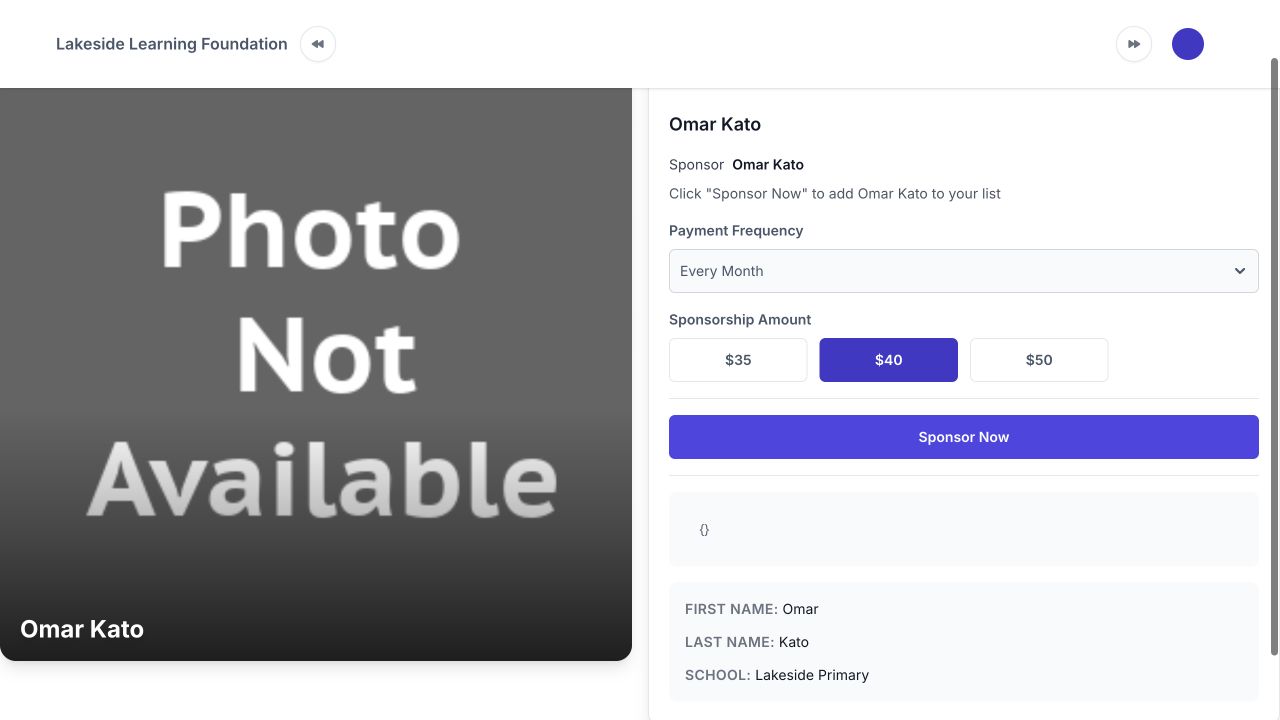
On the public page, the sponsor chooses one of the available amounts.
If the complete selection already matches the current program amounts, Gratona shows the amounts without asking you to choose. The restored recipients follow the program amounts, including future changes. Some program types do not show a Commitment amounts section.
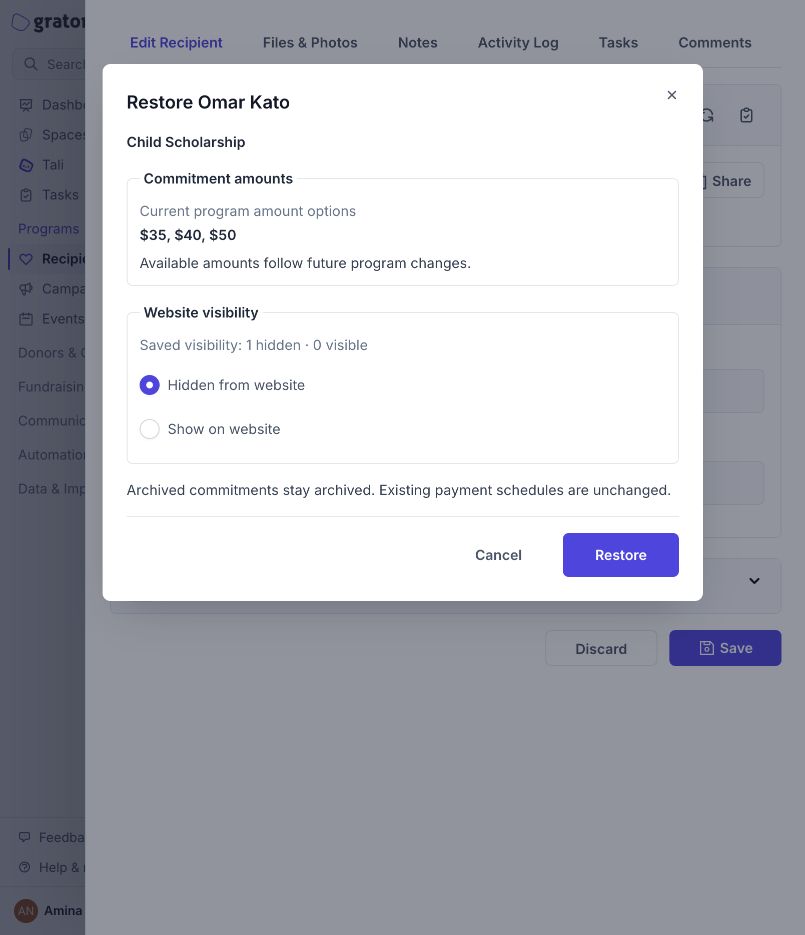
Matching amounts need no extra amount decision. Website visibility still needs review.
If no program amounts are configured, choose Keep saved recipient amounts to continue, or cancel and review the Program Settings first.
Choose website visibility
Website visibility is a separate decision from the amount choice:
Hidden from website is selected by default. The recipients return to the active program without appearing on its public sponsorship page.
Show on website allows the selected recipients to appear immediately, subject to the program's other public-page settings. For a bulk restore, this choice applies to every selected recipient.
Review the saved hidden/visible counts, then make an explicit choice. Choosing a current program amount does not publish a recipient by itself.
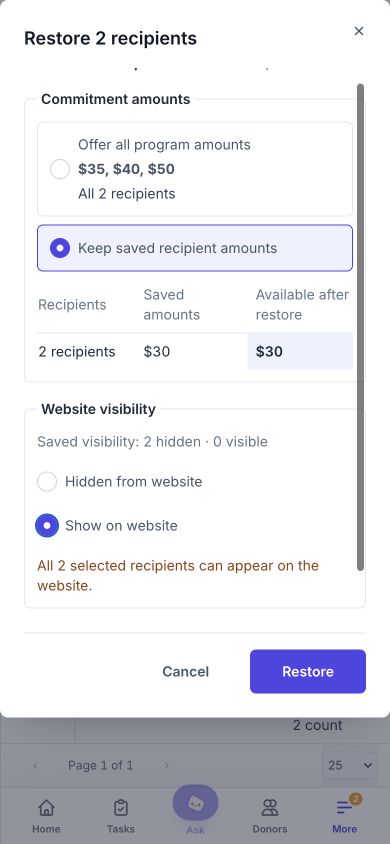
On mobile, scroll within the review to check website visibility. This example keeps the saved $30 amounts and deliberately allows both recipients to appear on the website.
Confirm and check the result
Check the recipient name or selected count, the available amounts, and website visibility.
Select Restore at the bottom of the review. Wait for the success message.
Confirm the recipients no longer appear in Archived and can be found in the active recipient table. A successful restore clears the previous table selection.
Open a restored recipient to check its settings. If you chose Show on website, also review the public program page.
To give one recipient a fixed amount instead of all available program amounts, open the recipient after restoring, expand Sponsorship settings, and choose the amount under Amounts to display. Select Save, then Save changes in the Save recipient changes? confirmation. All means the recipient uses the program's available amounts.
If settings change or restoration fails
If you see the following message, the first confirmation has not restored the recipients:
Settings or selected recipients changed. Review the updated summary and restore again.
Read the refreshed summary, review your choices, and select Restore again when ready.
If the settings cannot load, use Retry. If restoration fails, read the error and retry from the open review. Do not create replacement recipient records to work around an error.
Related guides
Recipients Table — find, filter, and manage existing recipients.
Program Settings — review the program's amount and public-page settings.