
Record attendance and enrollment for a check
Updated 4 weeks ago
Record attendance and enrollment by starting a dated check for a class or group, marking each student or participant, and submitting the check. Recording requires the Record participation permission, and the program must be configured with an open period and at least one site and cohort.
Open Programs > Recipients, choose the program, then open the Attendance & enrollment tab (or Participation for general programs). The overview groups the register by school or location, then by class or group.
Start a check
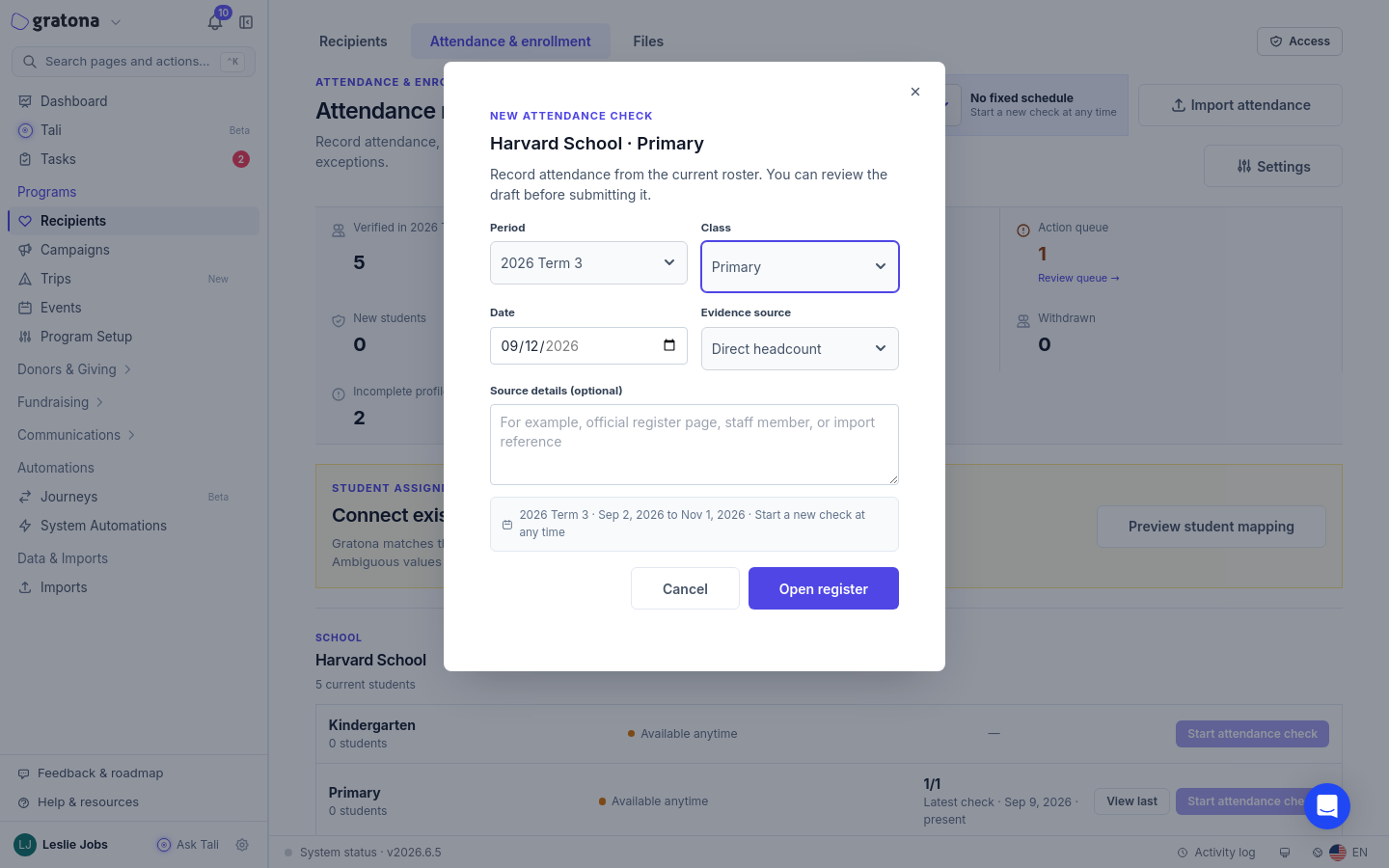
Start a check when a class or group is due or overdue. Select Start attendance check (or Start participation check). In the New attendance check dialog, choose the Period (only open periods are offered), the Class (or Group), the Date, and the Evidence source, then select Open register. The class selector offers All classes (or All groups) first. The date is clamped to the schedule window or the selected period's dates, and Source details (optional) accepts a reference such as official register page, staff member, or import reference.
If a draft already exists, the register shows Continue draft or View draft instead of starting a new check.
Mark each student
For each row, set the attendance outcome and the enrollment or program status. The first three outcomes are direct buttons; Not expected and Unclear are under the More… selector.
School label | General label | Meaning |
|---|---|---|
Present | Seen | The student or participant was present. |
Not present | Not seen | The student or participant was absent. |
Not recorded | Not recorded | No outcome was recorded. |
Not expected | Not expected | Attendance was not expected. |
Unclear | Unclear | The outcome needs review. |
Set the enrollment or program status from the selector:
School: Not confirmed, Enrolled, Needs verification, Transferred, Withdrawn, Graduated.
General: Not confirmed, Active, Needs verification, Moved, Exited, Completed.
Selecting Transferred, Withdrawn, or Graduated supplies the primary evidence source and an Effective date. Transferred also reveals a Destination school (or Destination location) selector and, when that destination has classes or groups, a Destination class (or Destination group) selector. The check cannot be submitted while a transfer is missing its destination.
Use the filters
Filter the roster to focus on the rows that need attention:
All — every row.
Unreviewed — rows with no outcome recorded or no enrollment confirmation.
Exceptions — rows marked Unclear, or with an unresolved, transferred, withdrawn, or graduated status.
New students or New participants — rows added in this check.
enrolled, not present or active, not seen — confirmed members marked absent.
placement changes (school) or program assignment changes (general) — transferred, withdrawn, or graduated rows.
Submit the check
The review bar shows Ready to submit when nothing needs review, or a count such as 2 students need review when rows do. Rows count as needing review when they are Not recorded, missing an enrollment confirmation, or transferred without a valid destination.
If any rows are still Not recorded, the bar shows Why is this check incomplete? with the placeholder Why were some students not checked?, and you must enter a reason before you can submit. The bar also shows a breakdown such as 12 enrolled, 2 enrolled, not present, and 1 unresolved.
Select Submit attendance (or Submit check for general programs). Submitting requires the Submit participation checks permission and locks the check as submitted evidence.
Review a submitted check
After submission, the overview shows View check for the scheduled check, or View last when only a previous check exists. Opening it shows the register header Submitted attendance (or Submitted participation) and the note Submitted evidence is locked.
To change a submitted check, select Create correction. The register shows Create a correction to preserve this revision while making reviewed changes. The submitted revision stays in history while you edit the correction draft, and the draft header reads Correcting submitted revision.