
Keep a sponsorship active without automatic charges
Updated 2 days ago
To stop Gratona's automatic charges for a sponsorship while keeping the sponsorship active, open the commitment's Edit Commitment drawer and set Payment Method to External Processor. The sponsorship, the donor record, the amount, the frequency, and the schedule all stay in place, and the donor can still make one-time gifts in the donor portal. To end a sponsorship completely instead, see Record a reason when a recipient leaves or a sponsorship ends.
Change the payment method to External Processor
You need a role with permission to manage donations or donors. This change is made in your Gratona admin workspace, not in the donor's portal.
Open the donor's profile from the Donors table and go to the Commitments section on the Overview tab, with the Current tab selected.
Open the three-dot actions menu on the sponsorship you want to change and select Edit Commitment.
Under Payment details, set Payment Method to External Processor. Leave the amount fields, Payment Frequency, and Next Action Date unchanged so the schedule and amount stay exactly as they are.
Select Save. The Confirm commitment changes dialog lists each changed value with its old and new value, and shows an Impact: line describing what will happen next.
Review the changes and select Save changes.
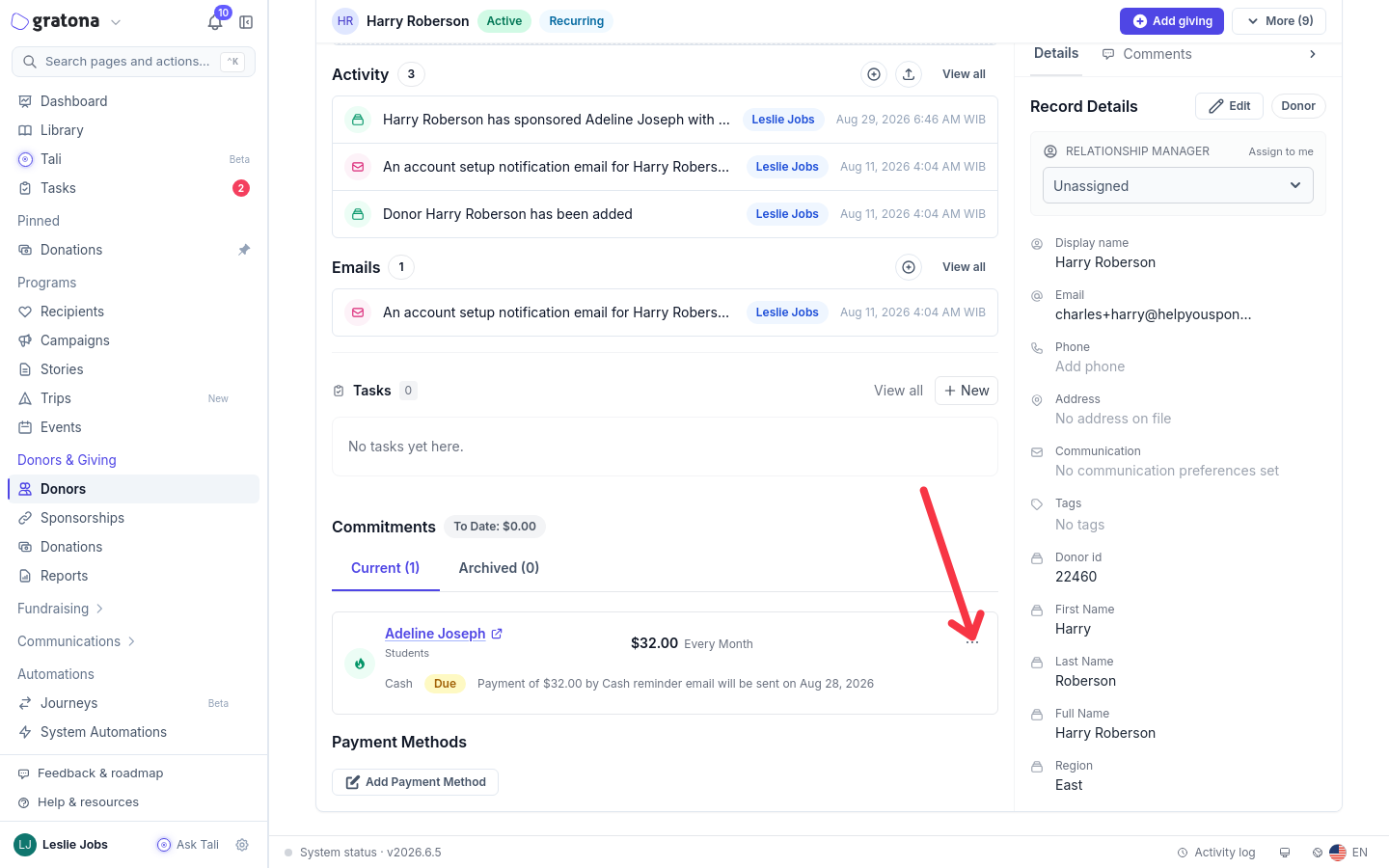
The commitment's actions menu is on the Current tab of the donor profile.
The commitment row now shows External Processor as the payment method, and the sponsorship stays listed under Current.
What changing the payment method does
Setting the payment method to External Processor stops Gratona from automatically charging this commitment. Saving an edit does not charge the donor, prorate, or refund anything by itself; the saved method controls future scheduled activity for this commitment.
Reminders can still be sent. External Processor is eligible for payment reminders. If the program's Donor Payment Reminder email automation is active, the donor may still receive reminder emails for this commitment on its next action dates. Whether reminders go out is controlled per program by that automation, not by the donor's payment method.
Gifts received outside Gratona can still be recorded. When money for this commitment arrives another way, open the commitment's actions menu and choose Add payment to record it.
Externally billed subscriptions are not canceled. If the commitment was billed by Authorize ARB Subscription or PayPal under its own subscription, changing the method in Gratona does not cancel that subscription. Cancel it with the payment provider separately.
Gratona records payments for a provider-billed subscription as they occur, but the subscription itself lives with the provider. Verify any PayPal or Authorize.Net subscription with the provider directly, because a change to the commitment's payment method in Gratona does not reach it.
To adjust the schedule or amount instead of changing the payment method, see Edit an existing sponsorship.
Donors can make one-time gifts in the donor portal
Because the sponsorship stays active, it keeps appearing in the donor's portal, where the Make a donation button lets the donor give a one-time gift. This gift is paid once: the form chooses a payment method independently of the sponsorship and does not create a new recurring schedule, and it does not itself cancel or change the existing commitment.
Send the donor their login link
Go to Programs > Recipients and select Manage on the program's card to open Website & Embed.
Copy the Donor Login link from Login Links. Use Program Donor Login when the donor should land in that program's context.
Send the link to the donor. The donor signs in with Email Sign-In by entering their email address and selecting Send Sign-In Link; the link and the 6-character verification code expire after 15 minutes.
For the full sign-in flow, including password sign-in and the verification code, see Donor Portal Login.
Make a one-time donation
In the donor portal, open the My Sponsorships area and select Make a donation.
Enter the Amount of the gift.
Choose a Designation. Options are grouped as My Sponsorships and Other Opportunities.
Choose a Payment Method, such as a saved card for an online charge.
Select Donate.
If a designation the donor selected is no longer available, Gratona asks them to choose another before the gift goes through.
If the Make a donation button is missing
The Make a donation button only appears on the My Sponsorships area, and only when payment details are visible for that donor. Match the situation:
The donor has no sponsorships left. When every sponsorship has ended, the portal shows an empty state instead of My Sponsorships, and the button is not shown. Keeping at least one sponsorship active, as this guide describes, keeps the button available. As a fallback, share a campaign donation page: for campaign-style programs, the Website & Embed workspace provides the campaign donation page link you can copy and send.
Payment details are hidden. Either the program setting described below is checked, or the shared donor form is configured to hide payment details. Either one hides sponsorship amounts, payment methods, and payment-management actions for the program, which removes the donation button; recipients, files, messages, and updates remain available. If payment tools stay hidden after you have checked the program settings, contact support for help with the donor form configuration.
A designation is missing from the list. Which recipients and campaigns appear under Other Opportunities depends on the donor-visibility settings for each recipient or campaign. Available designations depend on the donor's active sponsorships and on the recipient and campaign visibility settings.
Keep the portal payment tools visible
The setting that hides the donation tools is a checkbox in the program's setting profile, under Donor Account Options. Leave it unchecked when donors should keep the Make a donation button and related payment tools.
Open Program Setup > Program Settings and open the setting profile the program uses.
In the Donor Account Options section, make sure Hide sponsorship amounts and payment methods in donor accounts is unchecked.
Select Save.
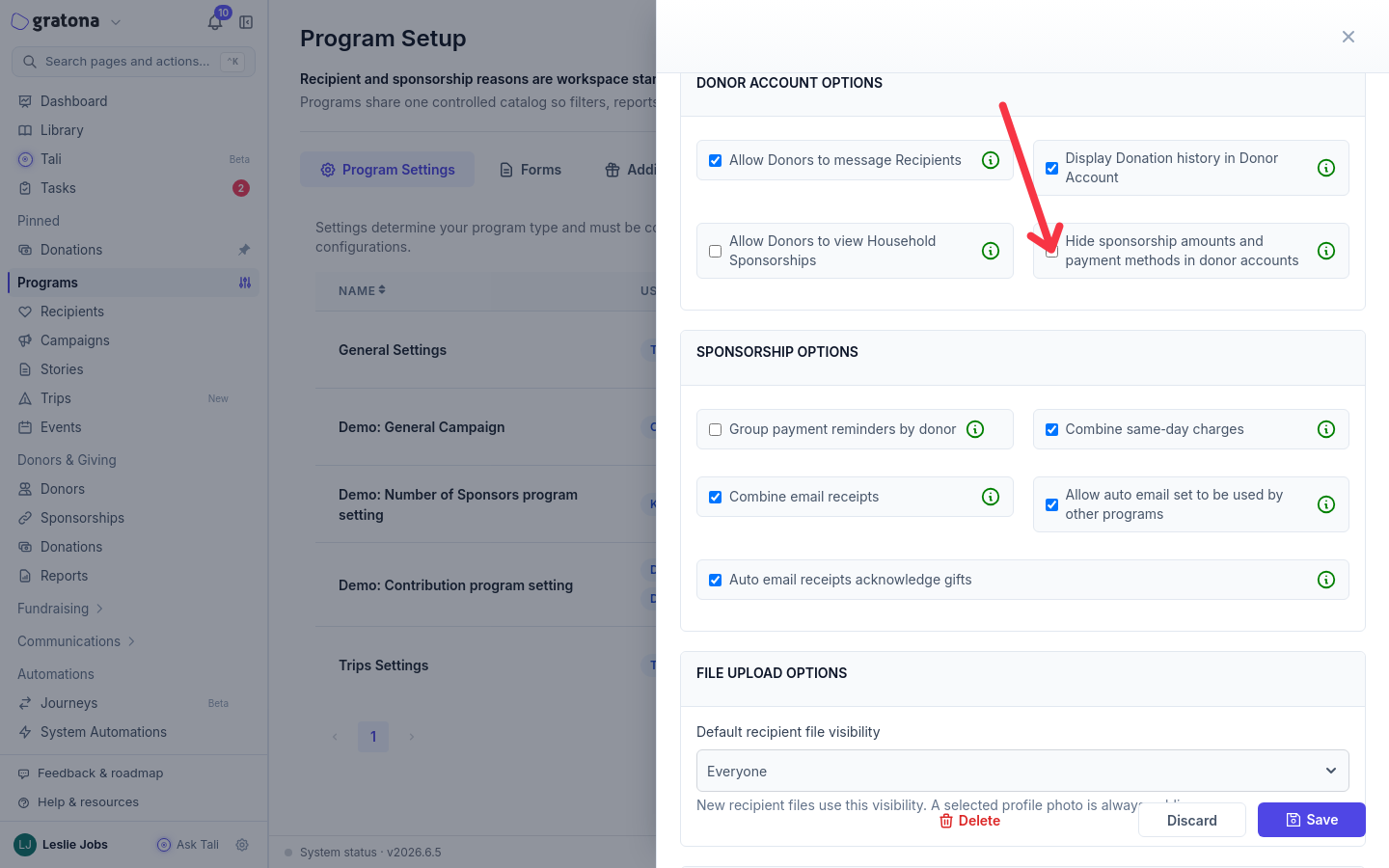
When the checkbox is checked, sponsorship amounts, payment methods, and payment-management actions are hidden for the program while recipients, files, messages, and updates remain available. The change applies to every program attached to that setting profile.
Display Donation history in Donor Account is a separate control in the same section: it decides whether donors can view their past donations after logging in. It does not control the donation button.
End a sponsorship completely
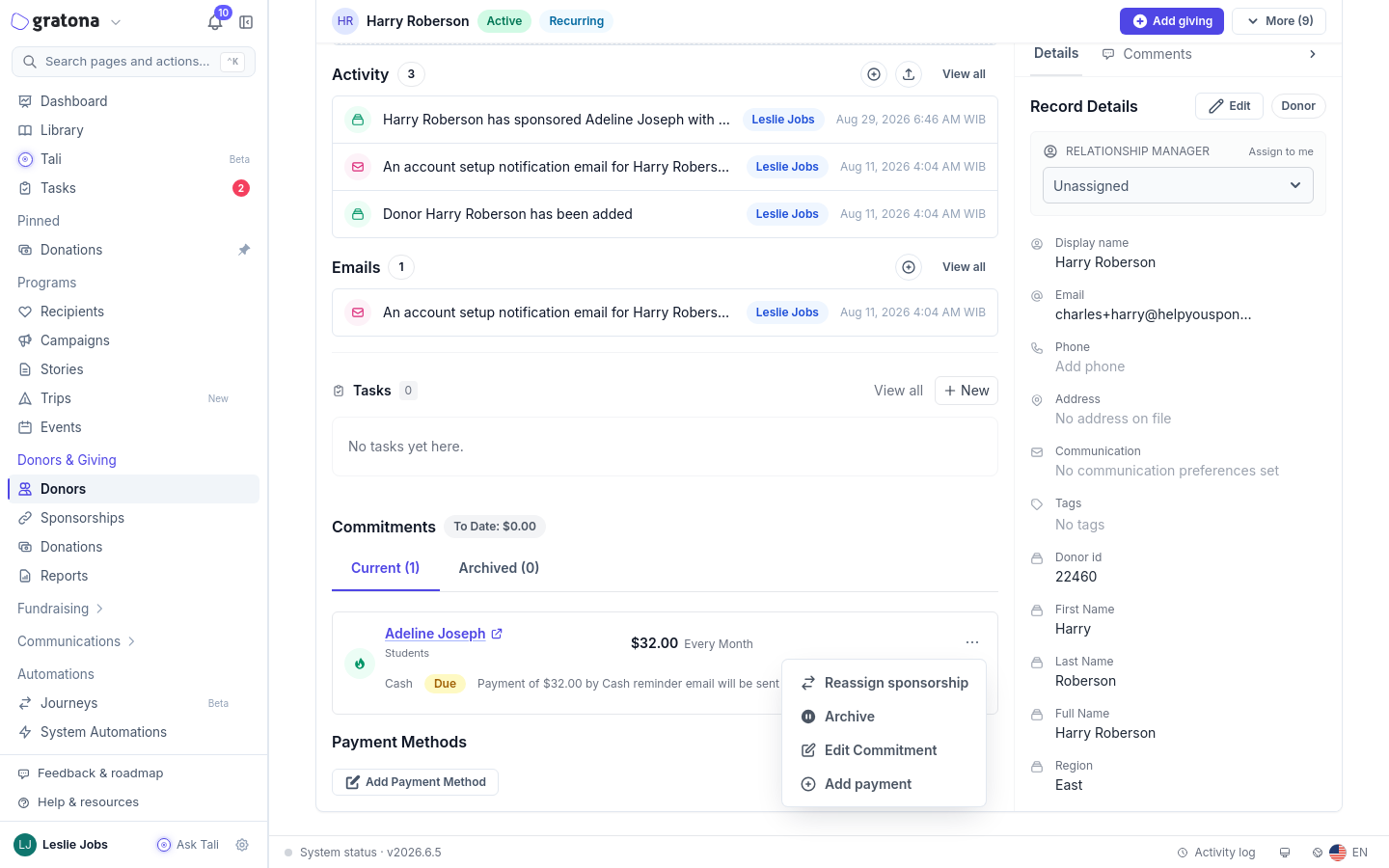
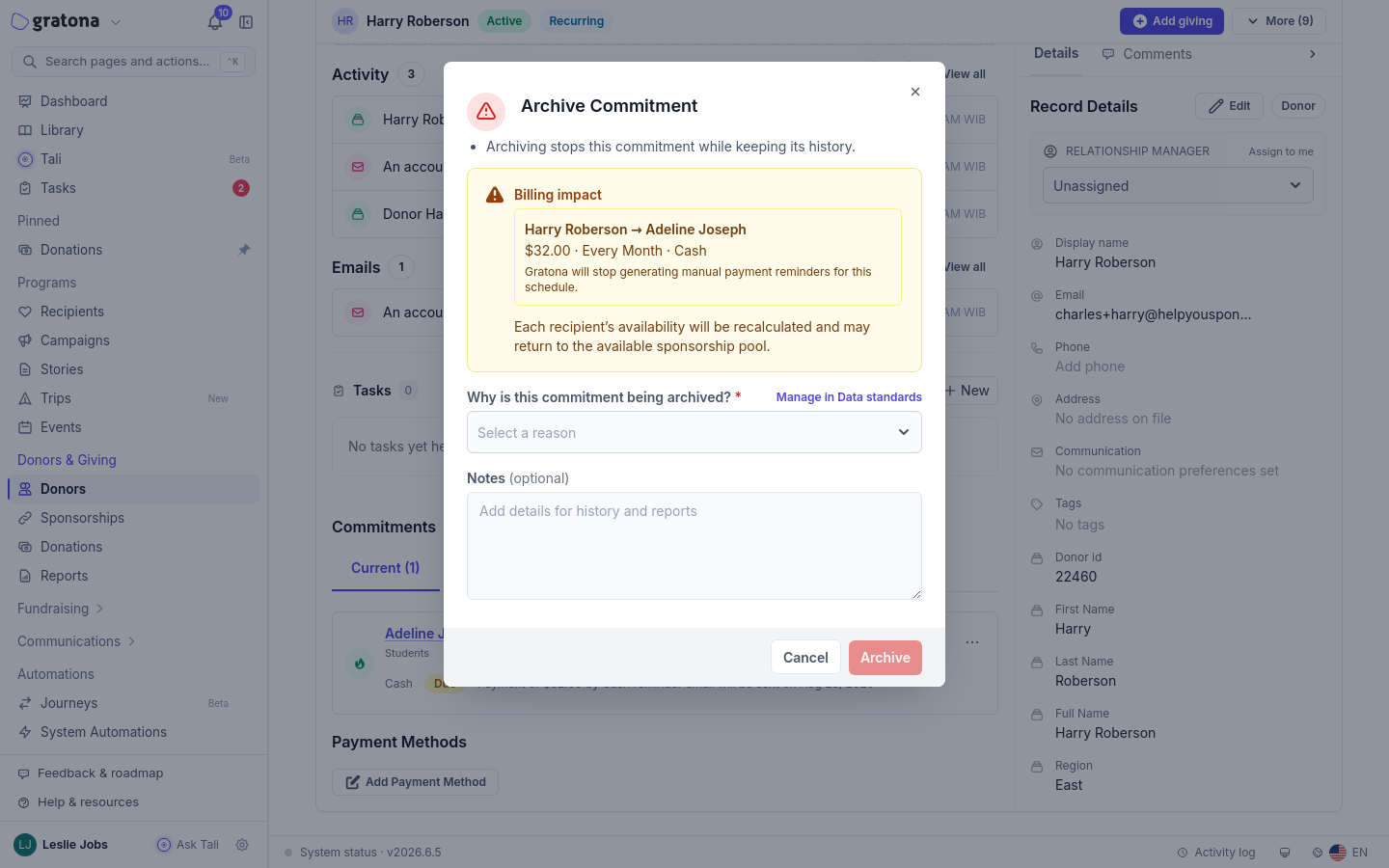
When the donor is ending the relationship altogether, archive the commitment instead of changing its payment method. Archiving stops the commitment while keeping its history: Gratona stops future charges and payment reminders for it, the recipient stays in the program and may become available for sponsorship, and the donor account stays active.
Open the donor's profile and go to Commitments > Current.
Open the commitment's three-dot actions menu and select Archive.
If your workspace asks for a reason or notes, provide them.
Select Archive. The commitment moves to the Archived tab.
To end several sponsorships at once, select their rows on the Sponsorships table and choose End. The End sponsorship dialog shows the billing impact for each selected sponsorship before you confirm. If your workspace asks for a reason or notes, provide them. See Sponsorships Table for the full workflow.
Archived commitments keep their history. Restoring one resumes its recurring schedule, so review the billing impact and next action date before confirming a restore. As with the payment method change, a subscription billed by the payment provider must still be canceled with that provider separately.
Related guides
Edit an existing sponsorship — change a commitment's schedule, amount, or method
Donor Portal Login — sign-in links, codes, and password sign-in
Record a reason when a recipient leaves or a sponsorship ends — reasons and history
Sponsorships Table — search, filter, and bulk-manage sponsorships
Program Settings — the setting profiles behind donor account options