
Fund multiple recipients from one foundation gift
Updated last week
Use Fund selected recipients on the Recipients worksheet to allocate one received gift across a roster. The gift stays on the foundation's donor record, while the recipients can have different individual or family sponsors.
You can assign those sponsors before or after allocating the money. Funding a recipient does not create a sponsor relationship.
Record the foundation's gift once
Create or open the foundation's Organization donor profile.
Select Add giving > Add Donation.
Enter the full positive amount received, date, and an appropriate campaign or general fund designation. You do not have to choose a child.
For a received check, choose Check and enter its reference. Review the receipt setting and confirm the gift.
If the gift has already been recorded, use that existing gift. Allocating it through the funding ledger does not record another donation, collect another payment, or send another receipt.
Select the recipients and gift
Open Recipients, choose the program, and select the recipients in the worksheet. Use no more than 100 recipients per batch.
Select Fund selected recipients.
In Choose a received gift, search by the foundation's name or gift number. Choose the gift with the available funds you intend to use.
Confirm the foundation, gift number, date, and available balance. The selected roster carries into the funding editor.
You need access to the selected program and the relevant financial records. If the action is unavailable, check your role and whether bulk funding tools are enabled for your organization. A gift must be received, have money not already applied, and be in the organization's base currency. Refunds and earlier allocations reduce the available balance.
Choose how to allocate the gift
Split equally divides the available money across the selected recipients. Review the preview for any rounding and amount that remains unallocated.
Use sponsorship amounts for the selected period calculates amounts from the recipients' monetary sponsorship targets. Enter both coverage dates and review the quoted cost before applying. A program based on a number of sponsorship slots has no inferred monetary price; use equal or custom amounts instead.
Custom amounts lets you enter a positive amount for each recipient. Money you do not apply remains on the gift for later use.
Preview and apply
Check the selected recipient names. If you search for additional recipients who already have sponsors, clear Unsponsored only so they can appear.
Set Coverage starts and Coverage ends. Both dates are required for the sponsorship-amount method; number-based programs also require an end date.
Select Preview. Check each recipient's amount, coverage period, status, and the remaining gift balance.
If the requested period costs more than the gift has available, shorten the period, adjust custom amounts, or choose another received gift. Resolve every reported problem.
Select Apply gift.
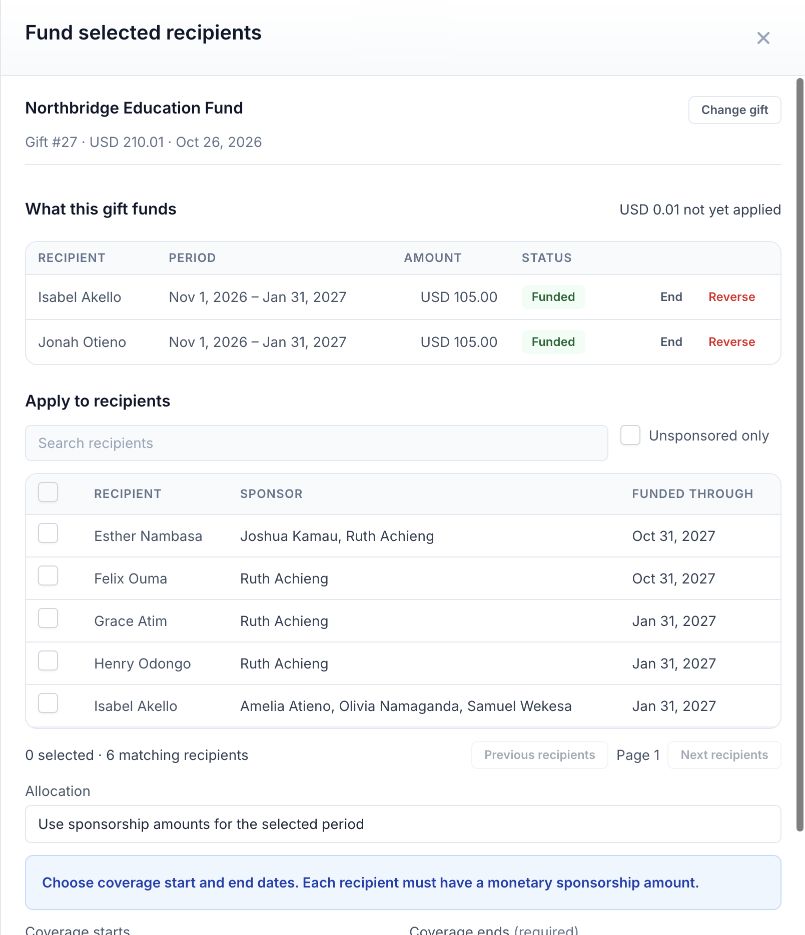
Review What this gift funds for the saved recipients, amounts, dates, and the amount not yet applied.
Changes to the recipients, amounts, dates, or method require a new preview. If a preview expires or the gift balance changes, preview again before applying.
Example: a foundation pays, families sponsor
Northbridge Education Fund gives $210.01 to General Support. Isabel Akello and Jonah Otieno each need $35 per month. For November 1, 2026–January 31, 2027, the sponsorship-amount method allocates $105.00 each, leaving $0.01 available. Their existing family sponsors remain separate from Northbridge as the funder.
The screenshot uses fictional demonstration records in USD. Your amounts and currency follow your organization's base currency, including EUR or GBP where configured; these tools do not convert money.
Check the result and make later changes
Reopen the gift to verify the saved ledger. Check the separate sponsor records for their funded-through information. The foundation remains the donor of the gift; the individual sponsors retain their relationships.
The existing gift guide explains End, Reverse, refunds, and gift edits. Ending or reversing funding is different from refunding a payment. Coverage ending does not start charging a separately funded sponsor.
If you want to divide a new gift into donation designation rows without setting a funding period, use Split Donation > Distribute amount instead. Do not record the same money again as a second gift.
Related guides
Split one donation across multiple recipients or designations