
Authenticated Sending
Updated 2 months ago
Authenticated sending verifies your organization's email domain in Organization Settings > Email & sender so email providers recognize donor-facing emails as coming from your own domain instead of the shared sending domain (helpyousponsor.org) shown as "via". Verification is optional and nothing changes until you publish DNS records, pass a test email, and explicitly activate verified sending. Authenticated sending uses Gratona's managed delivery, so you do not need to create or manage your own Mailgun account.
See Email Settings for the sender identity and delivery options, or the Mailgun article to connect your own Mailgun account instead.
Before you start
Authenticated sending requires email-management permission, and it is enabled for your organization by the Gratona rollout. The panel appears in Email & sender only when it is enabled for you; if you do not see it, contact support.
The From Email Address and From Name in Sender identity must already be saved before you can start verification.
The From address must be on a domain your organization controls. Public mailbox domains cannot be verified: aol.com, gmail.com, hotmail.com, icloud.com, live.com, outlook.com, proton.me, protonmail.com, yahoo.com, and their subdomains.
You need access to your domain's DNS settings, where your domain is managed, to publish the records shown in the verification panel.
Verify your sending domain
Verification provisions a dedicated sending subdomain (mg. plus your domain, for example mg.example.org), shows the DNS records to publish, and confirms they resolve. This step alone does not change delivery.
Open Organization Settings > Email & sender.
Under Authenticated sending, select Verify domain. The drawer shows the detected From domain and confirms that verification is optional.
Select Start verification. Gratona creates the mg. sending subdomain and shows the DNS records to add.
Add the displayed records where your domain is managed. Copy each record's Type, Name, and Value from the panel; the records come from the delivery provider, so the exact set varies by domain.
Select Check DNS. Each record shows Verified once it resolves, or Waiting until then.
One verification covers every From address on the verified domain. The DNS records only authenticate the sending subdomain; your domain's existing DNS and email are unchanged.
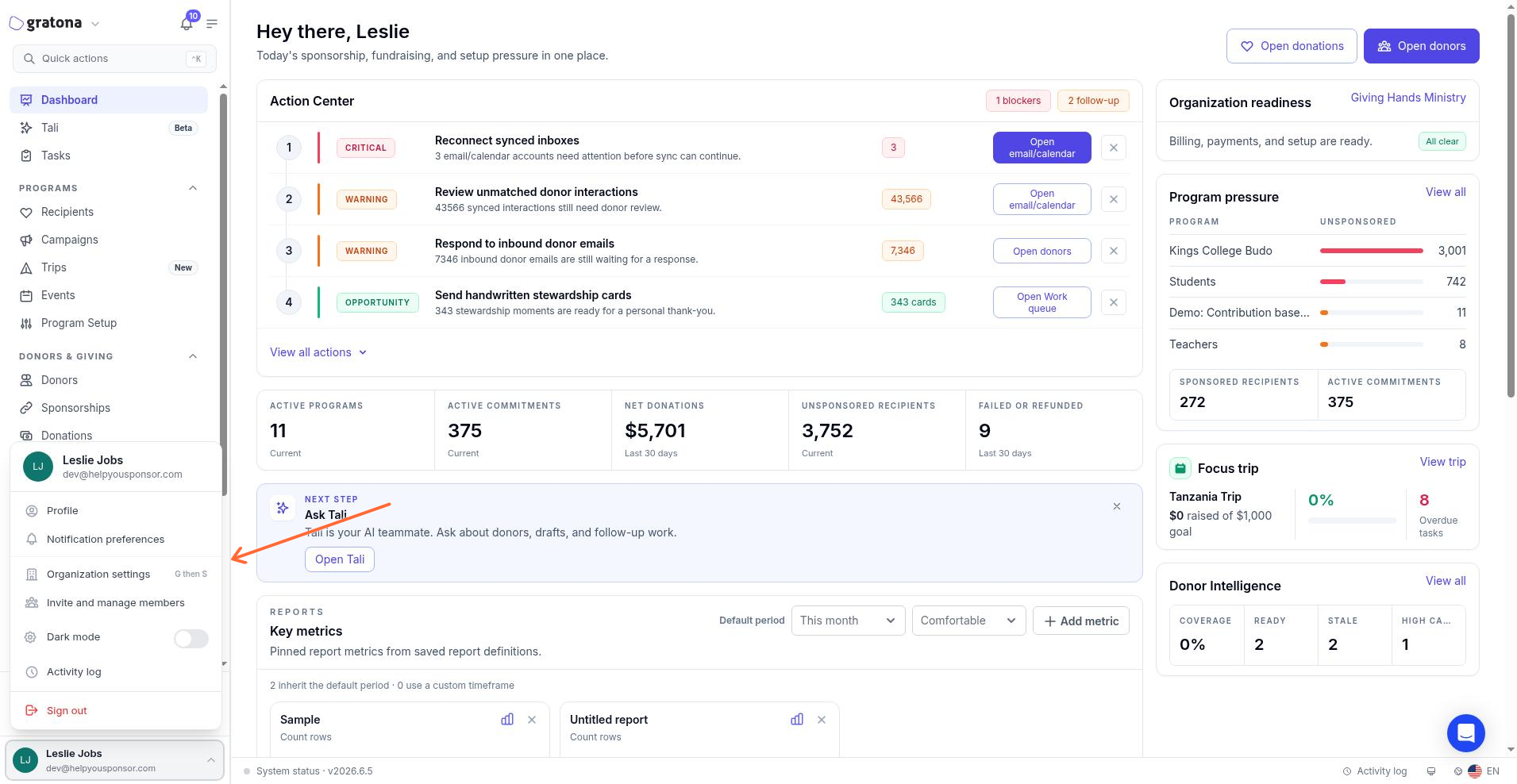
Open Organization settings from the account menu, then select Email & sender.
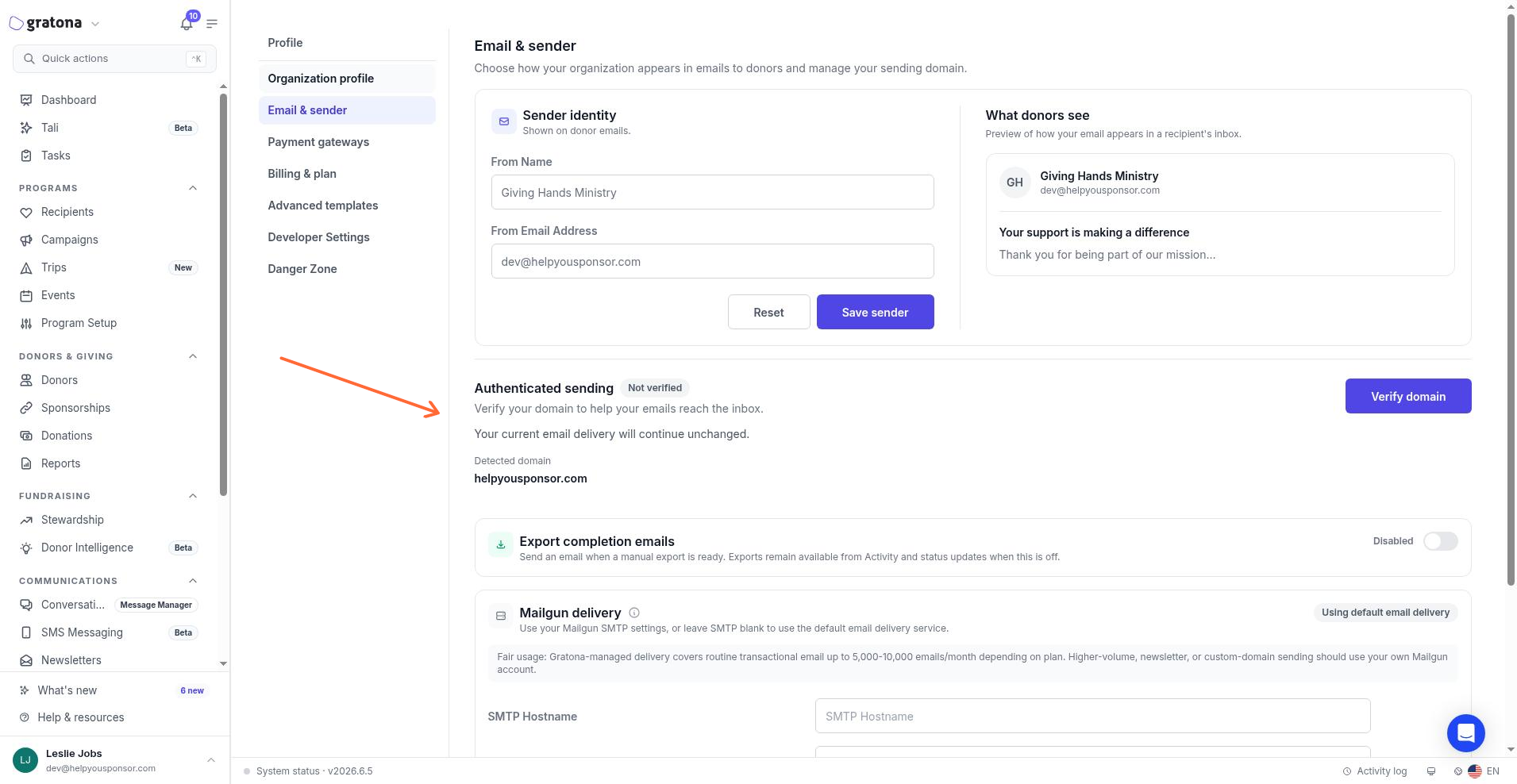
Email & sender shows Sender identity, Authenticated sending, Export completion emails, and Mailgun delivery. The Authenticated sending panel is where you verify your domain.
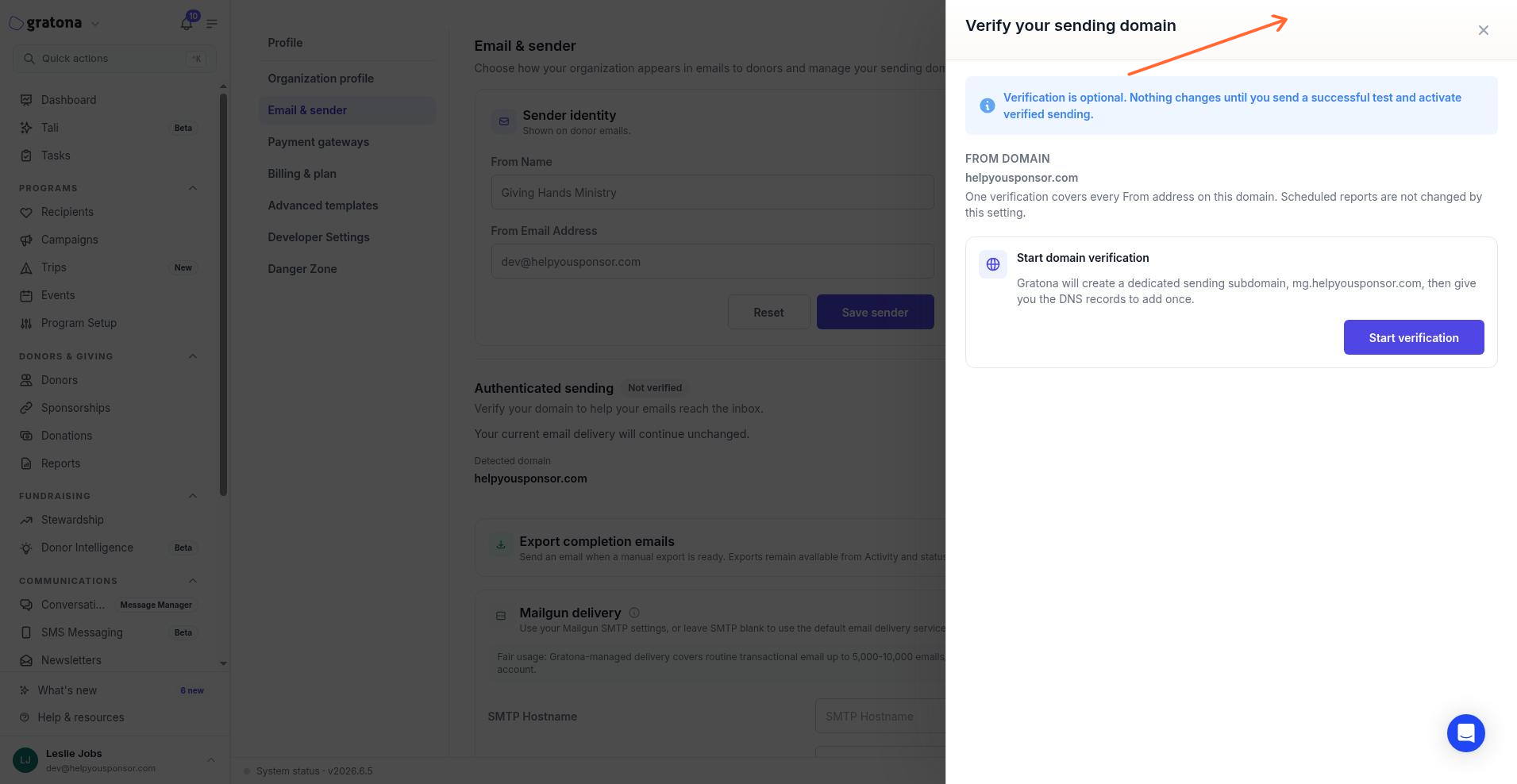
Select Verify domain to open the drawer with the detected From domain and the Start verification button.
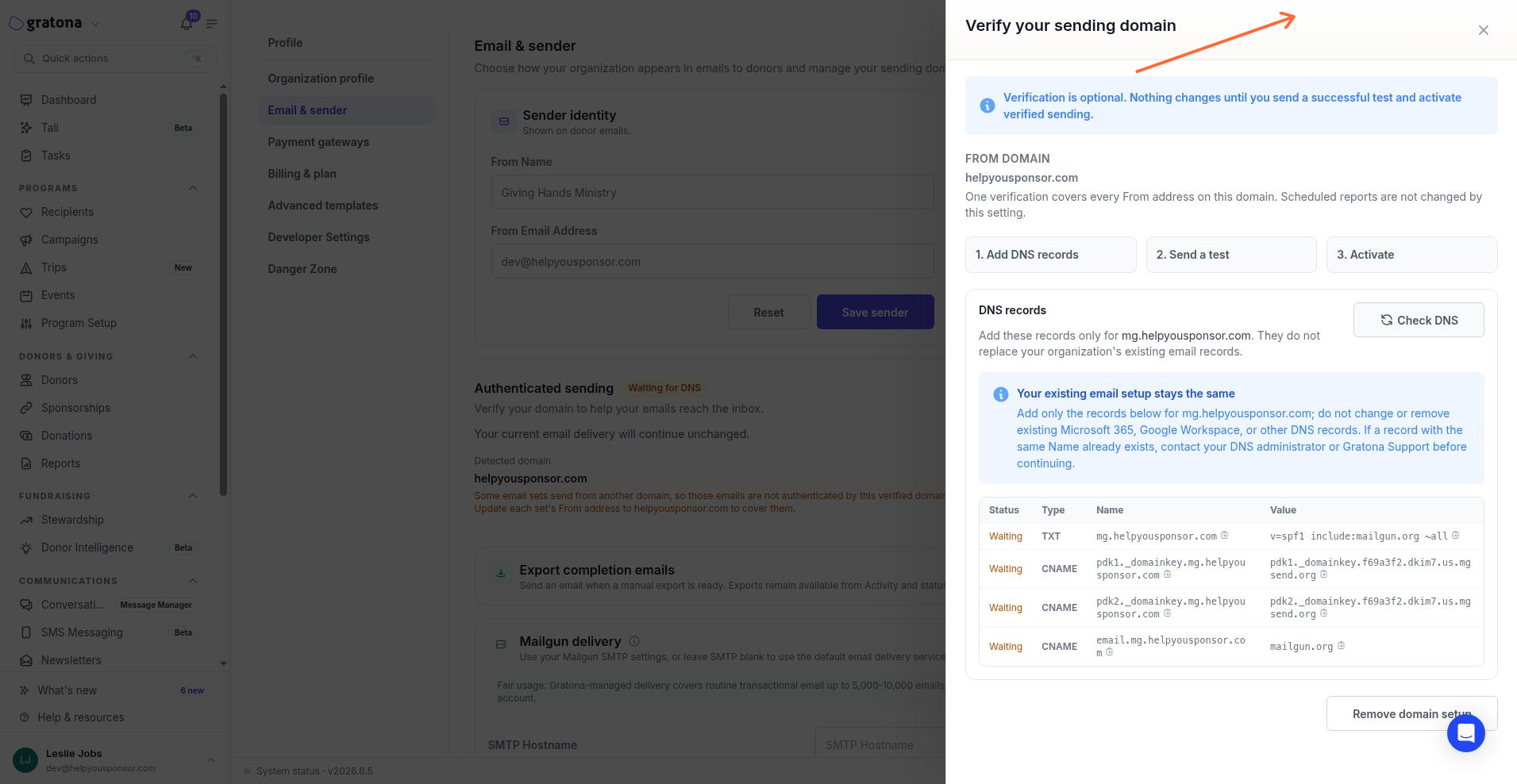
After you start verification, the panel lists each record's Type, Name, and Value. Select Check DNS to confirm they resolve.
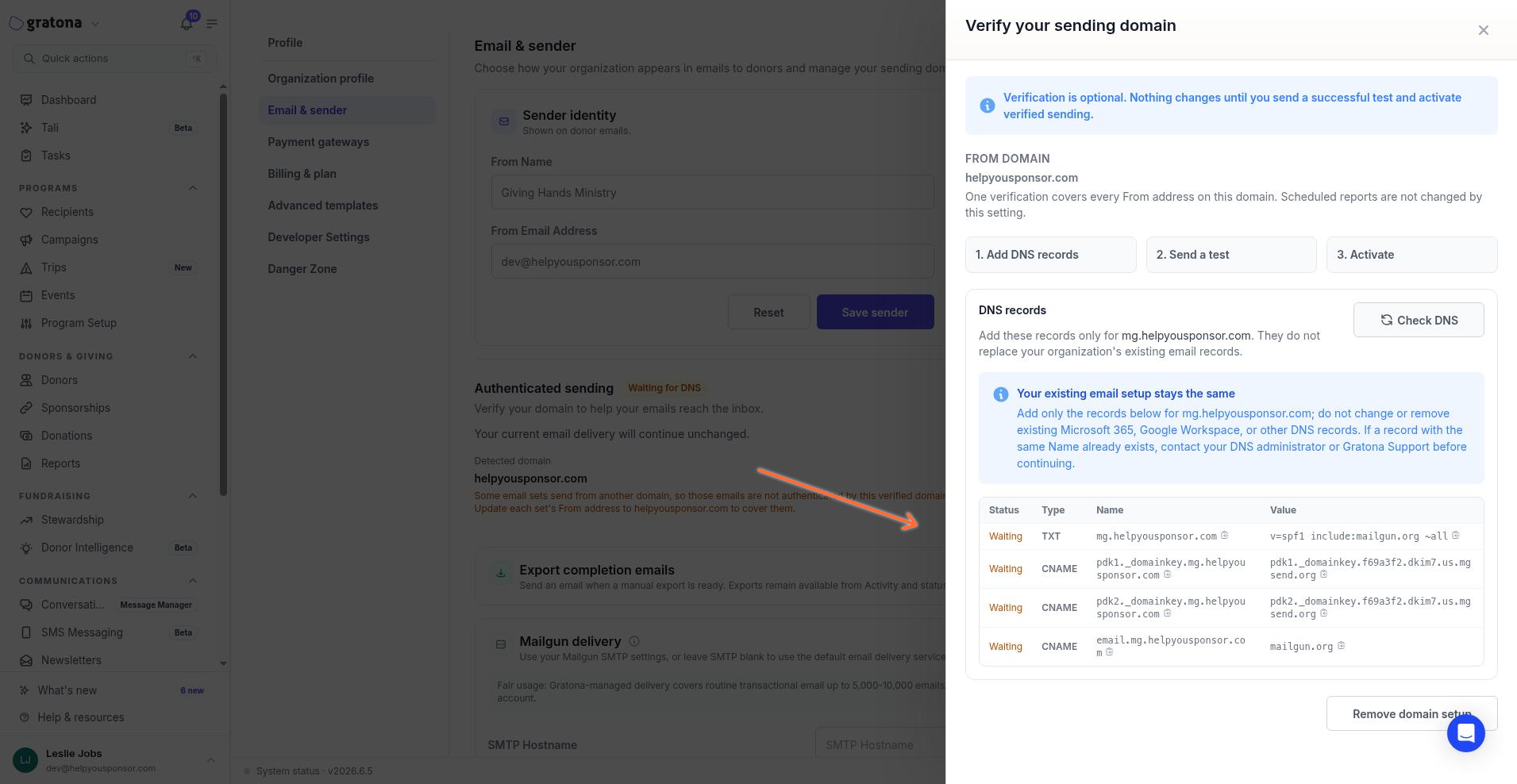
Each record shows Waiting until it resolves, then Verified.
Send a test and activate
Delivery changes only after DNS verification, a successful test email, and explicit activation. The test email goes to your saved From address and leaves your current delivery unchanged.
After all DNS records show Verified, select Send test. The test email is sent to the saved From address.
Confirm the test email arrives in the inbox, not the Junk folder.
Select Activate verified sending. Emails sent after activation use the verified domain.
The panel shows Verified & active and explains that the previous delivery path is retained for immediate rollback.
What verified sending changes
Activation changes delivery only for donor-facing template emails and newsletters sent after activation. Scheduled reports, export completion emails, and other admin or internal messages keep their existing delivery path, and your saved From identity and any custom Mailgun settings are retained.
Uses the verified domain: donor-facing email templates and newsletters sent after activation.
Unchanged: scheduled reports, export completion emails, and admin or internal messages. See Scheduled Reports for how report delivery works.
Not covered: email sets whose From address uses another domain. The panel lists these sets, and you can update each set's From address to the verified domain to cover them.
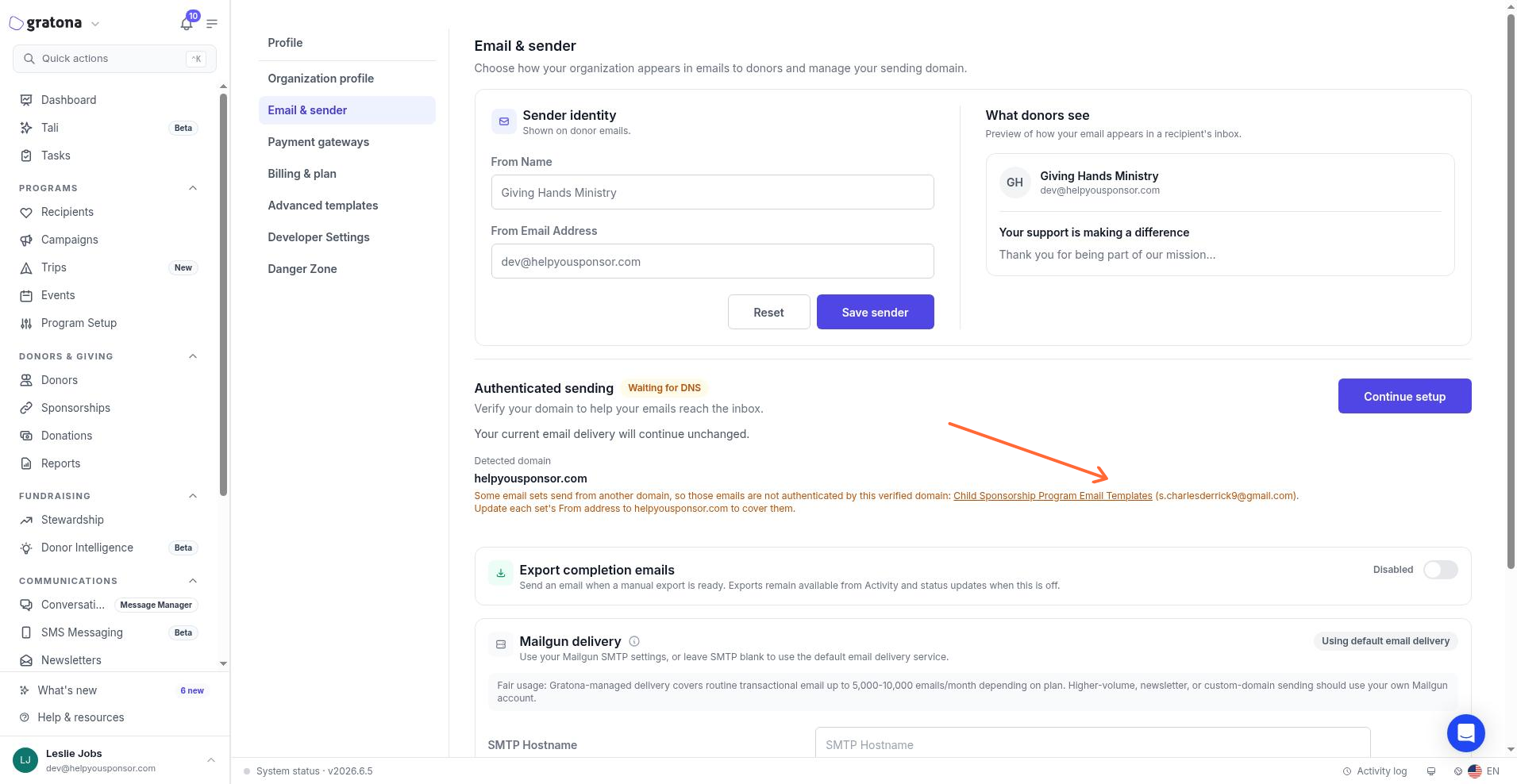
The Authenticated sending panel warns when email sets send from another domain and lists the affected sets.
Change or remove the setup
You can deactivate verified sending at any time to restore the previous delivery path, or remove the domain setup when it is inactive. While verified sending is active, the From address cannot be changed to a different domain.
Deactivate and restore previous delivery clears the managed sending pointer and restores the previous donor delivery path.
Remove domain setup removes an inactive setup. Select it, then select Confirm removal. An active setup must be deactivated before it can be removed.
Change the From address while active: use an address on the verified domain, or deactivate verified sending first.
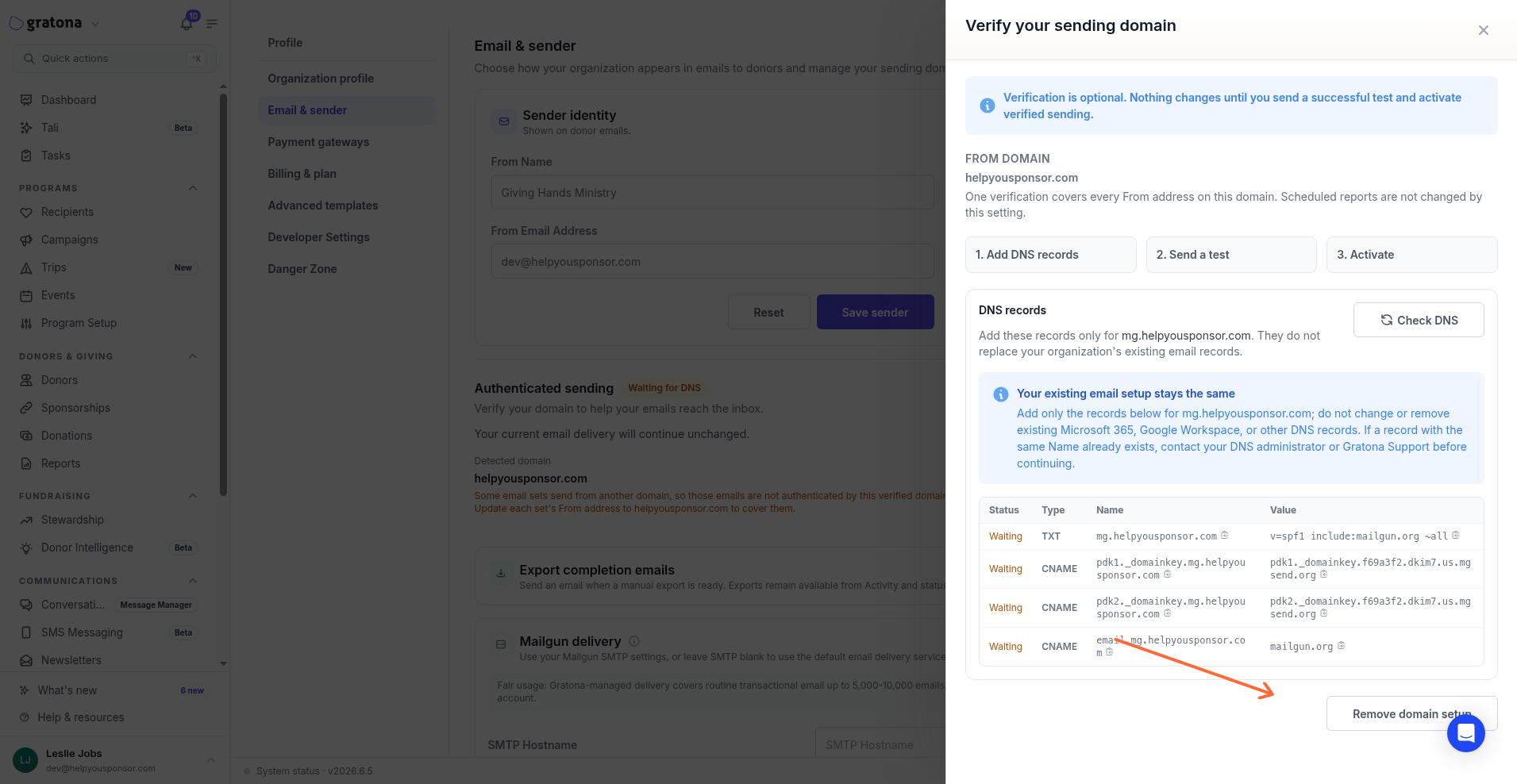
While the setup is inactive, the verification panel shows Remove domain setup.
If the DNS records later stop passing verification, Gratona restores the previous delivery path automatically.
Related guides
Email Settings — sender identity, export completion emails, and delivery options.
Auto Emails — donor-facing templates and their From addresses.
Newsletter — donor newsletters and their delivery.