
View an event guest's registration details
Updated 2 days ago
Open the event's Guests tab to see each registered guest's name, email, status, ticket type, and table. The guest list does not open a per-guest detail screen; for phone numbers, registration groups, purchaser details, and question answers, export the Attendees CSV from the Insights tab.
View the guest list
The Guests tab shows one row per registered guest. Each row displays the guest's first name, last name, email, status, ticket type, and table.
In the main navigation, select Events.
Select the event from the events list.
Select the Guests tab in the event workspace.
Scroll to the Guest list section.
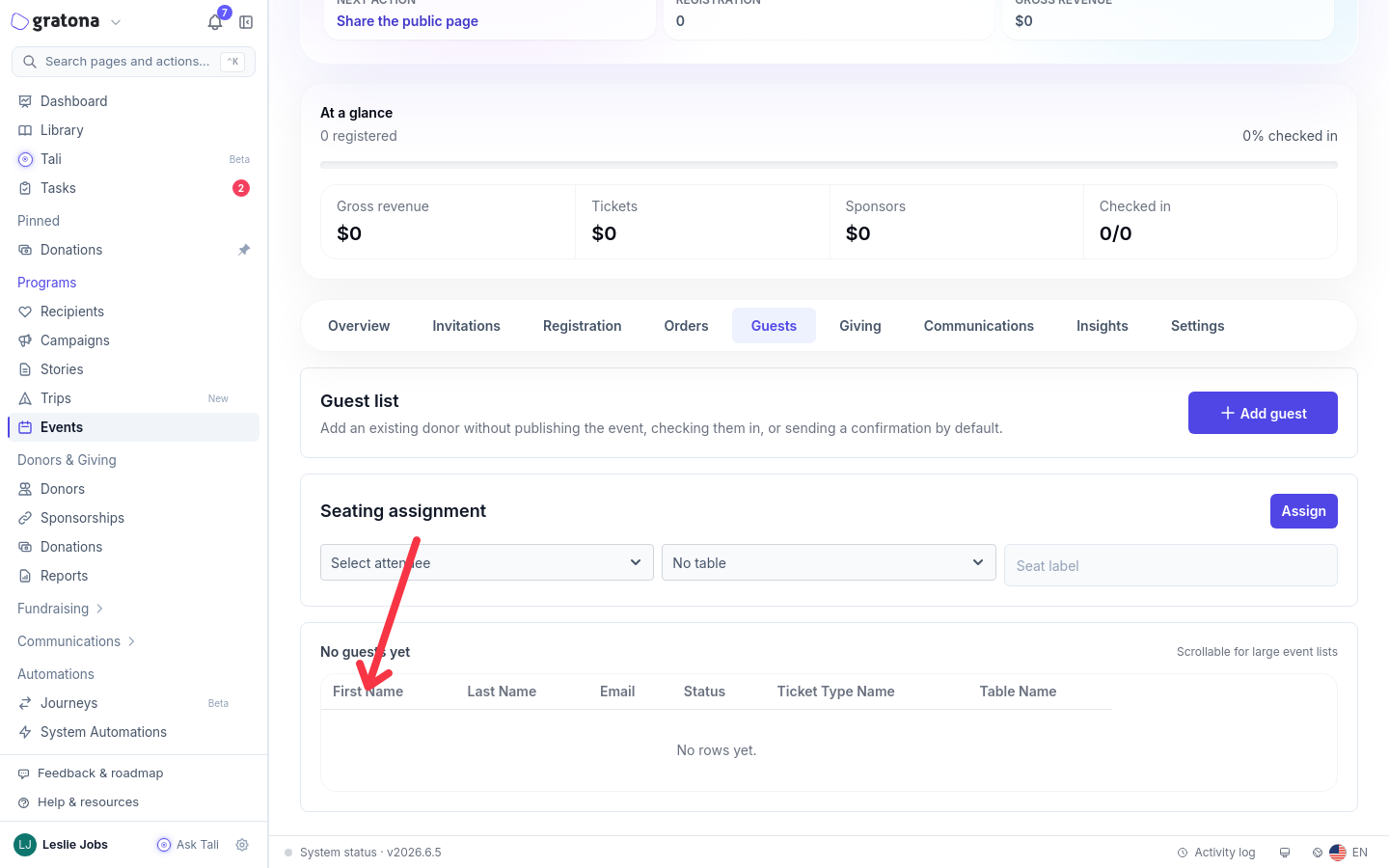
The guest list is view-only: selecting a row does not open a detail screen. A summary above the list shows the event's total guest count. If the event has more than 10 guests, use the pagination controls below the list to move through the pages until you find the guest. There is no search box in this tab.
Get more details from the Attendees CSV
The Attendees CSV export adds registration information the guest list does not show, such as phone number and registration group. Download it from the event's Insights tab, then open the file on your computer.
Open the event.
Select the Insights tab in the event workspace.
Select Attendees CSV. Gratona downloads the file to your computer with the event name in the file name, for example
spring-appeal-attendees.csv.Open the file in Excel or Google Sheets.
Find the guest's row using the Name and Email columns.
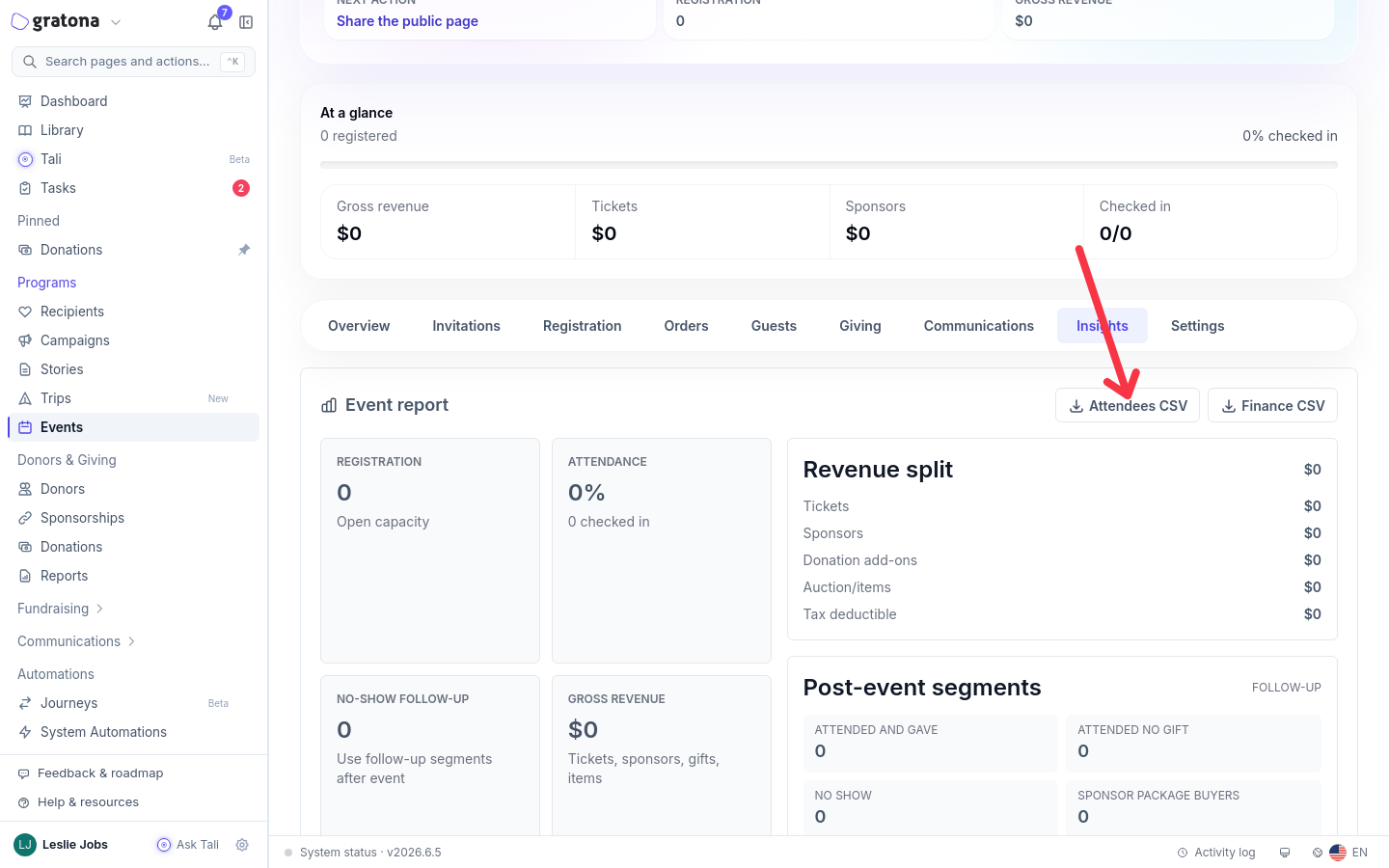
In addition to the guest list columns, the export includes:
Phone
Registration Group
Order Number, Purchaser, and Purchaser Email
Table and Status
Group Answers and Attendee Answers, filled in when the guest answered the event's registration questions
The CSV covers these attendee columns. It does not include every donor field or buyer-level answer.
If you don't see the Guests or Insights tab
The Guests and Insights tabs appear based on your event permissions. If either tab is missing from the event workspace, your user may not have permission to view event guests or run event reports. Ask an administrator to check your event permissions, or contact support.