
Task Completions and Approvals
Updated 2 months ago
.
Task Completions and Approvals
Overview
The Completions Dashboard provides administrators (and authorized leaders) with a centralized view of all task submissions across participants. Use it to review uploaded documents, approve or reject submissions, and track overall preparation progress.
Accessing the Completions Dashboard
Navigate to the Trip Details page.
Click the Tasks tab.
The completions area is integrated into the tasks view, showing submission statuses alongside task definitions.
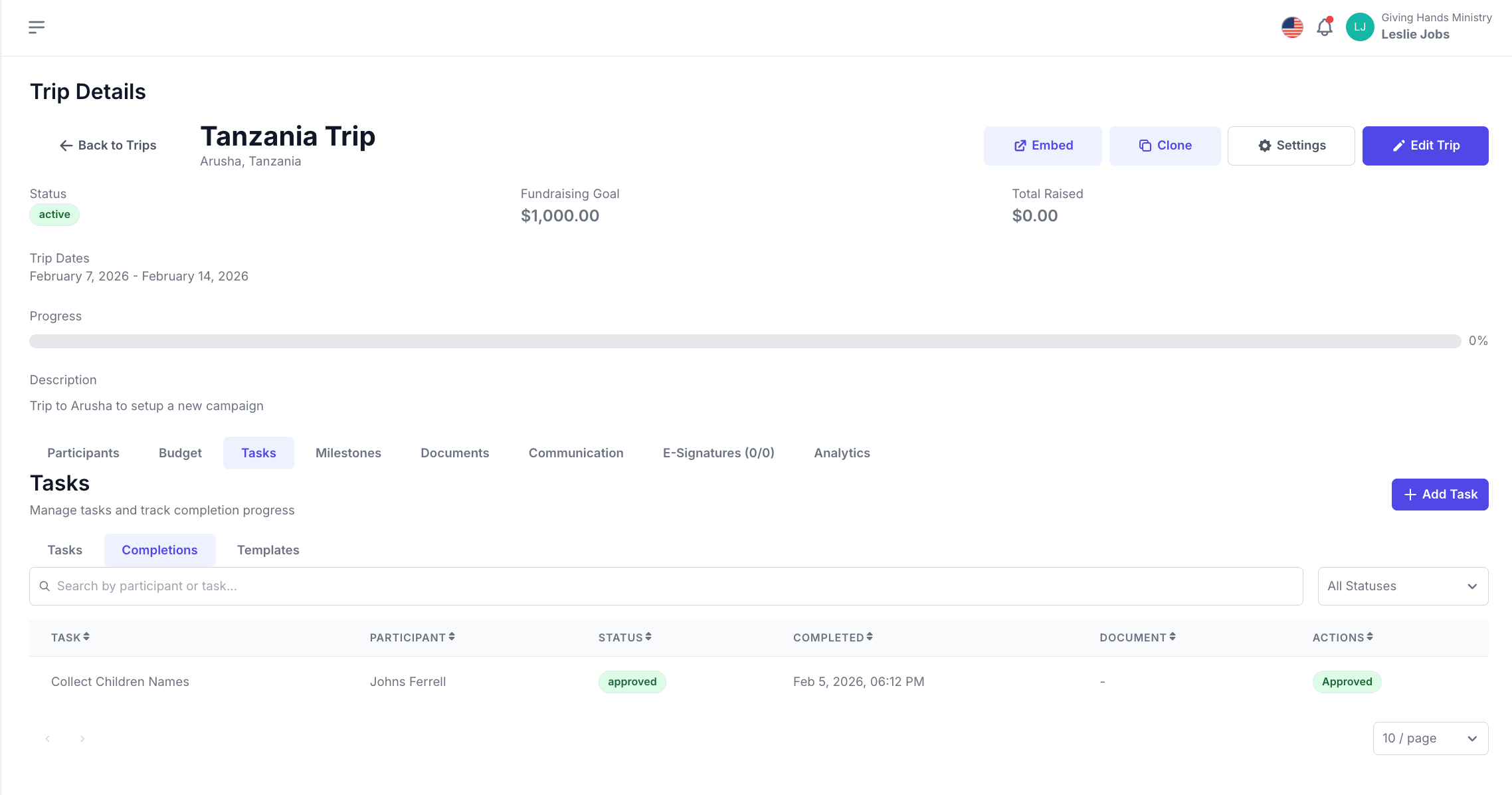
Viewing Task Completions
The completions dashboard shows every task submission with the following information:
Column | Description |
|---|
Task Participant Roster
For any individual task, you can view exactly which participants are targeted and their completion status:
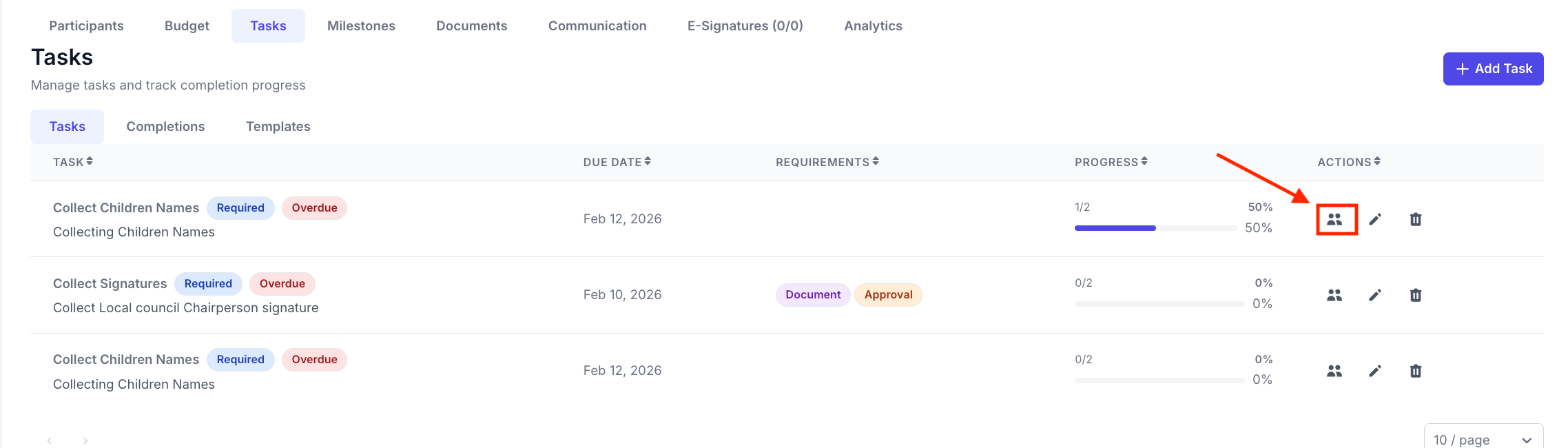
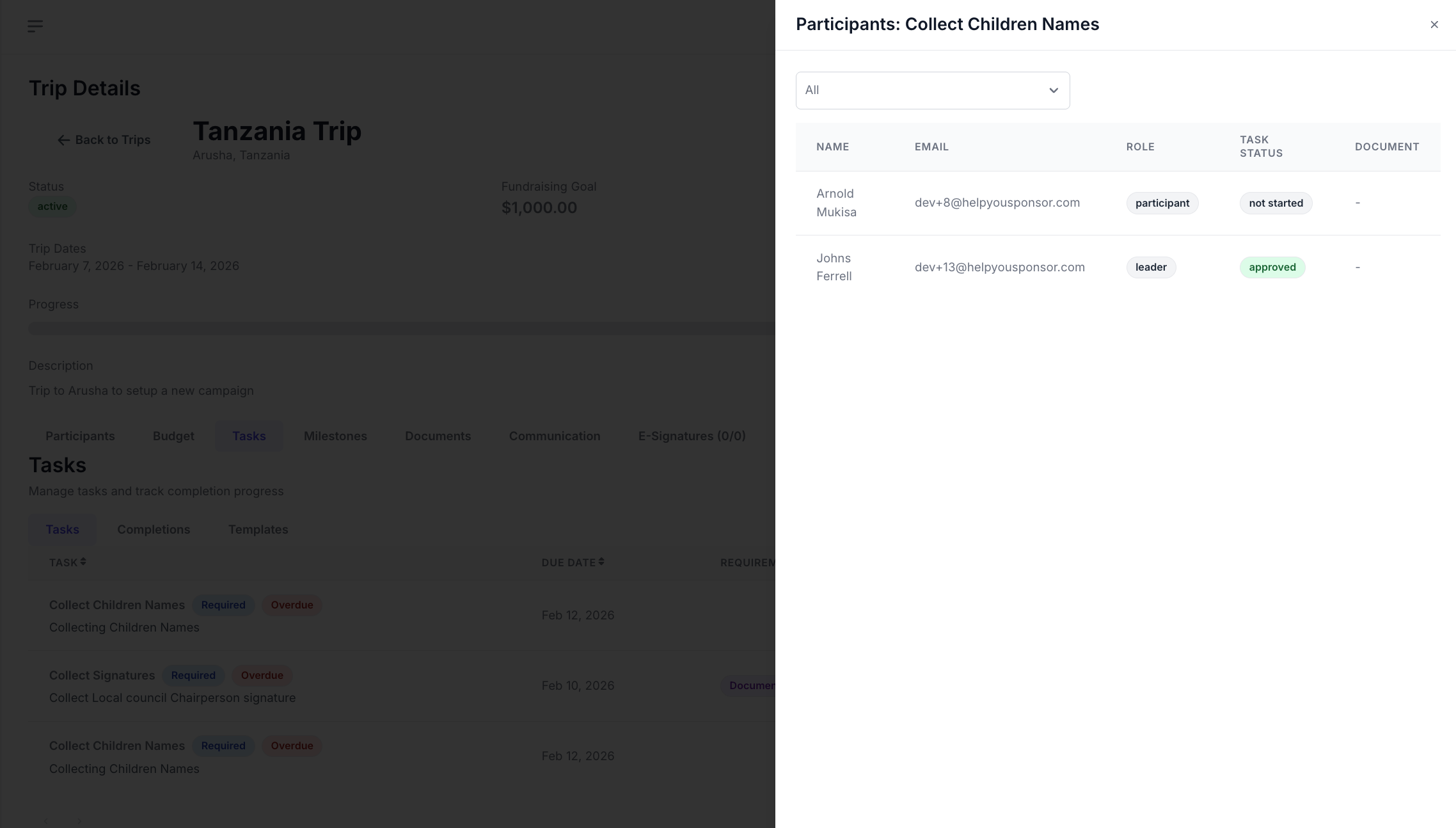
Click on a task or select View Participants from the task's action menu.
A panel opens showing every participant assigned to that task with their status:
Status | Meaning |
|---|
Use the filter dropdown to quickly find participants by status (e.g., show only "Incomplete" or "Rejected").
Approving a Submission
Review the submission details and any uploaded document.
Click Approve.
Optionally add admin notes explaining the approval.
The participant's task status updates to "Approved."
Rejecting a Submission
Review the submission details.
Click Reject.
Add admin notes explaining why the submission was rejected and what the participant should do differently (recommended).
The participant's task status updates to "Rejected" and they can resubmit.
Filtering Completions
Filter the completions list by:
Status: Show only submitted (awaiting review), approved, or rejected items.
Task: Filter to see completions for a specific task.
Participant: Search by participant name.