
Import attendance and enrollment
Updated 4 weeks ago
Import attendance and enrollment from a CSV or XLSX file to create submitted checks without typing each roster row. Import requires the Configure participation permission, and the original file is preserved until you commit the reviewed rows.
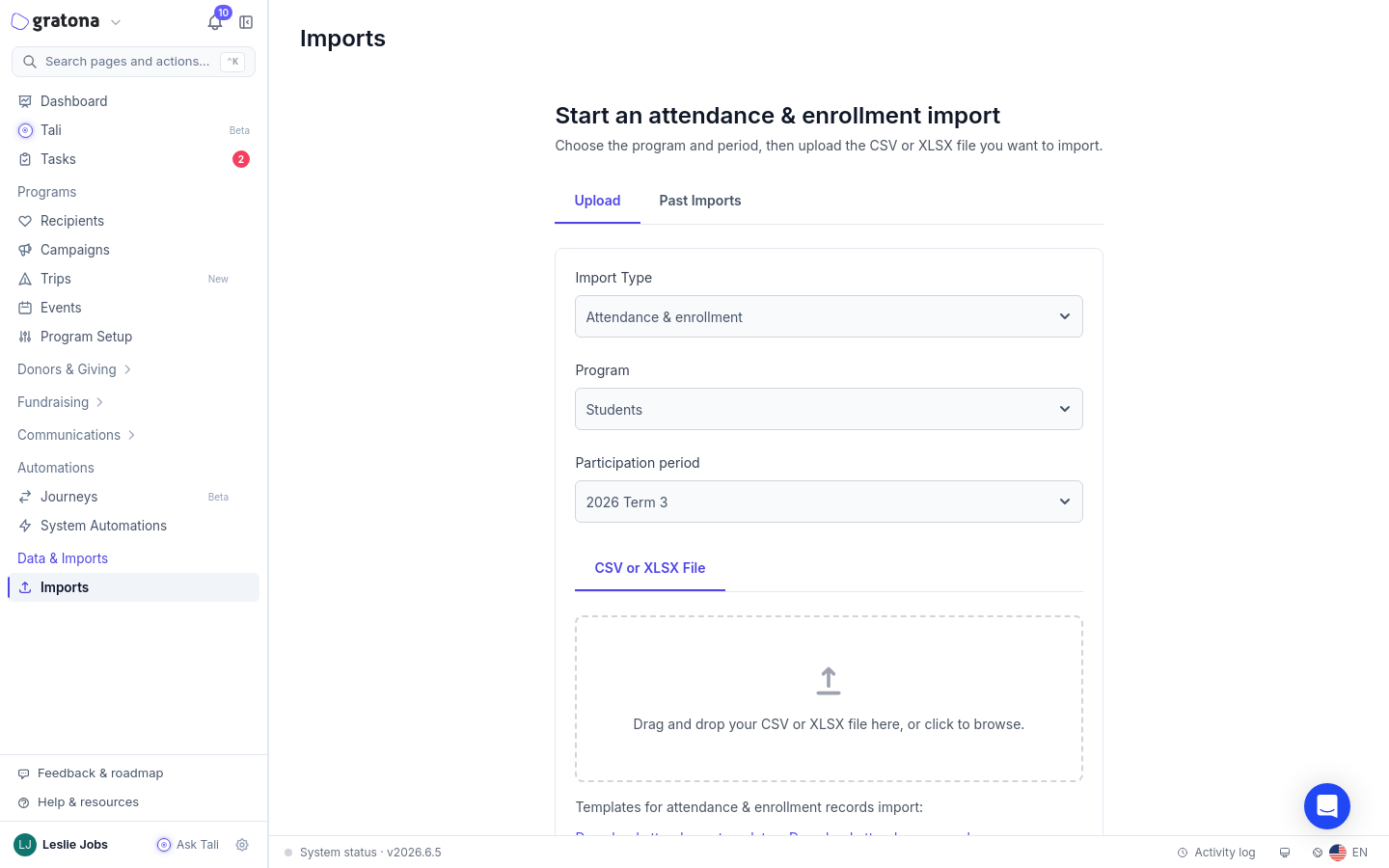
Open Programs > Recipients, choose the program, open the Attendance & enrollment tab (or Participation), then select Import attendance.
Upload the file
The import is a four-stage flow: Upload, Map, Review, and Complete. Files must be CSV or XLSX and no larger than 20 MB.
Select a Participation period.
Select an Attendance file from the Upload a CSV or XLSX attendance file area. You can download a blank template or a sample CSV first.
Select Inspect file.
Inspecting the file uploads it, creates an import batch, and moves you to mapping. Nothing changes recipient or attendance data until you commit the reviewed rows.
Map the file
For each enabled worksheet, set the header row and map the columns. Rows at or before the header row are ignored; recipient data starts on the following row.
Map the recipient identity columns:
Recipient name — used for reviewed suggestions when no exact ID match is found.
Gratona ID — the primary matching method.
Student ID — the school- or organization-issued ID.
Gender — optional comparison data for possible name matches; it never identifies a recipient by itself.
Map School or location and Class or group using One value for this sheet or Map values from a column. In the Attendance dates section, assign each attendance column its calendar date; the date must fall inside the selected period. In the Attendance values section, map each source value to an Attendance result and Enrollment result. Unknown values stay blocked until you map them.
Review the results
Select Preview results to run a dry-run validation. Filter rows by All rows, Needs review, Blocked, Ready, Unresolved, or Skipped. For rows that need review, choose Use with the suggested candidate's name, Create provisional recipient, Keep unresolved, or Skip this row.
You can commit only when there are no blocked or review rows. The button reads Import attendance & enrollment when ready, Fix errors before importing when it is not, and Retry import after a failed commit.
Complete the import
Select Import attendance & enrollment to commit. Importable rows become committed, and each imported date and class is saved as a submitted check. The completion panel is headed Attendance import completed and shows the committed and unresolved row counts and the number of checks created, and you can open each check with View imported check.
If the file creates no dated attendance check, the panel shows This file did not create a dated attendance check. Review the import details to see which enrollment rows were applied.
Void a completed import
A completed import can be voided. In Reason for voiding this batch (placeholder: Explain why this imported evidence should no longer be authoritative), enter a reason of at least three characters, then select Void imported batch. The completion panel then reads Import preserved as voided history. The source file, row history, and audit record are retained, and the imported sessions are voided through the normal evidence rules.